You open your laptop to upload or download a file quickly. But suddenly, Microsoft OneDrive gets stuck on “Processing Changes.” And the loading never ends. Files stop syncing. This issue is common and usually occurs due to broken sync files, large uploads, proxy settings, or temporary app glitches.
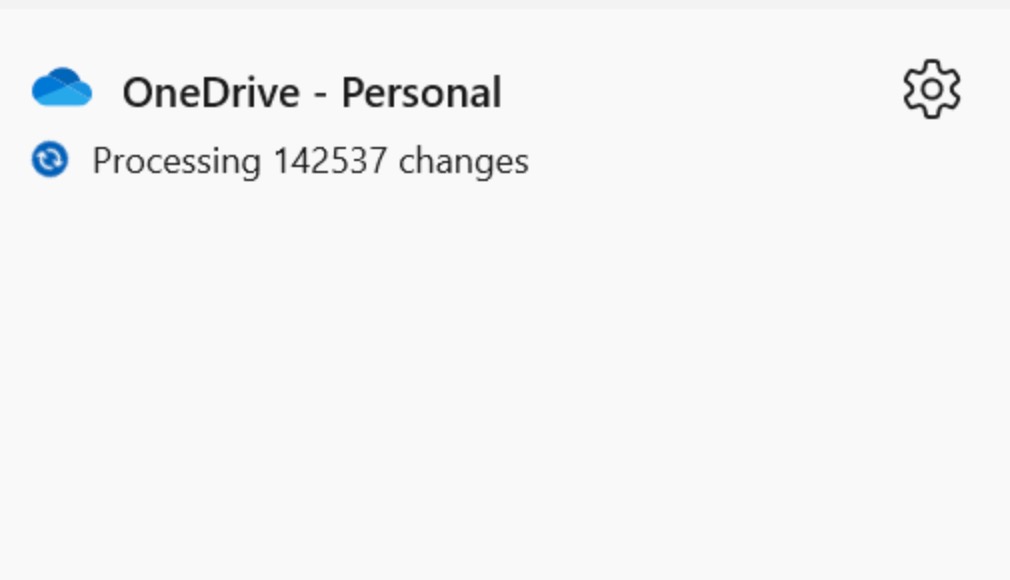
You can fix it in a few simple steps, as mentioned below.
Page Contents
OneDrive Keeps Saying “Processing Changes”? Here’s The Fix
Fix 1: Restart The OneDrive Sync Process
Sometimes the sync engine freezes. So here are the steps to restart OneDrive:
1. Press Ctrl + Shift + Esc to open Task Manager.
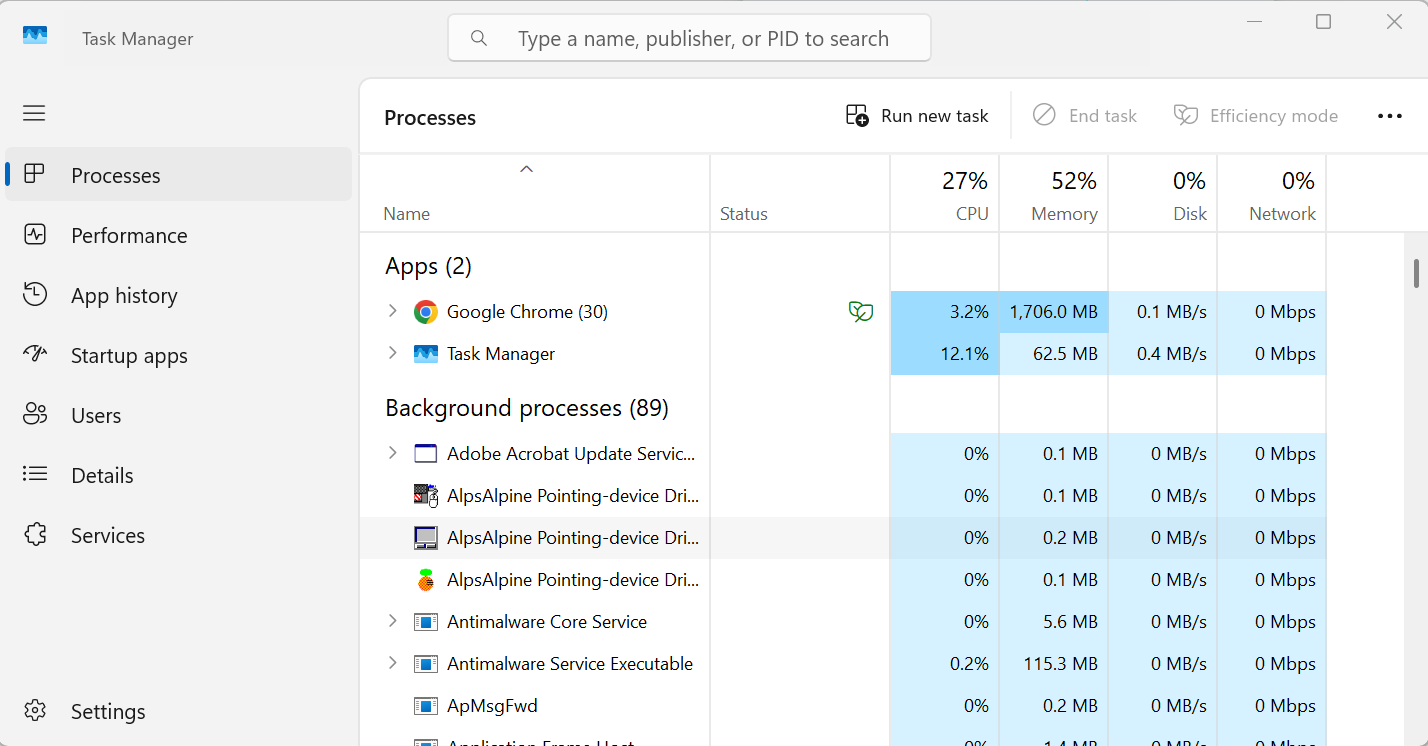
2. Find Microsoft OneDrive under Processes.
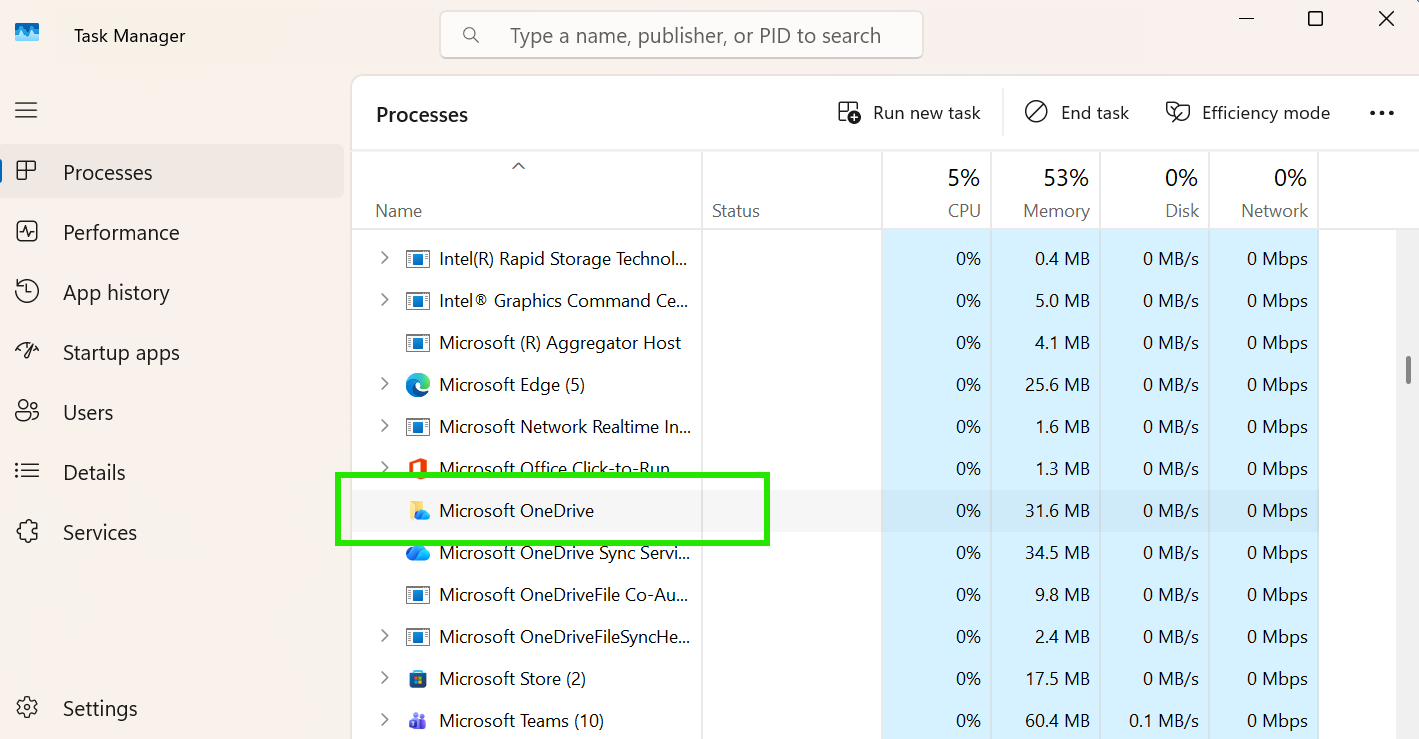
3. Right-click it and select End Task.
4. Open OneDrive again from the Start menu.
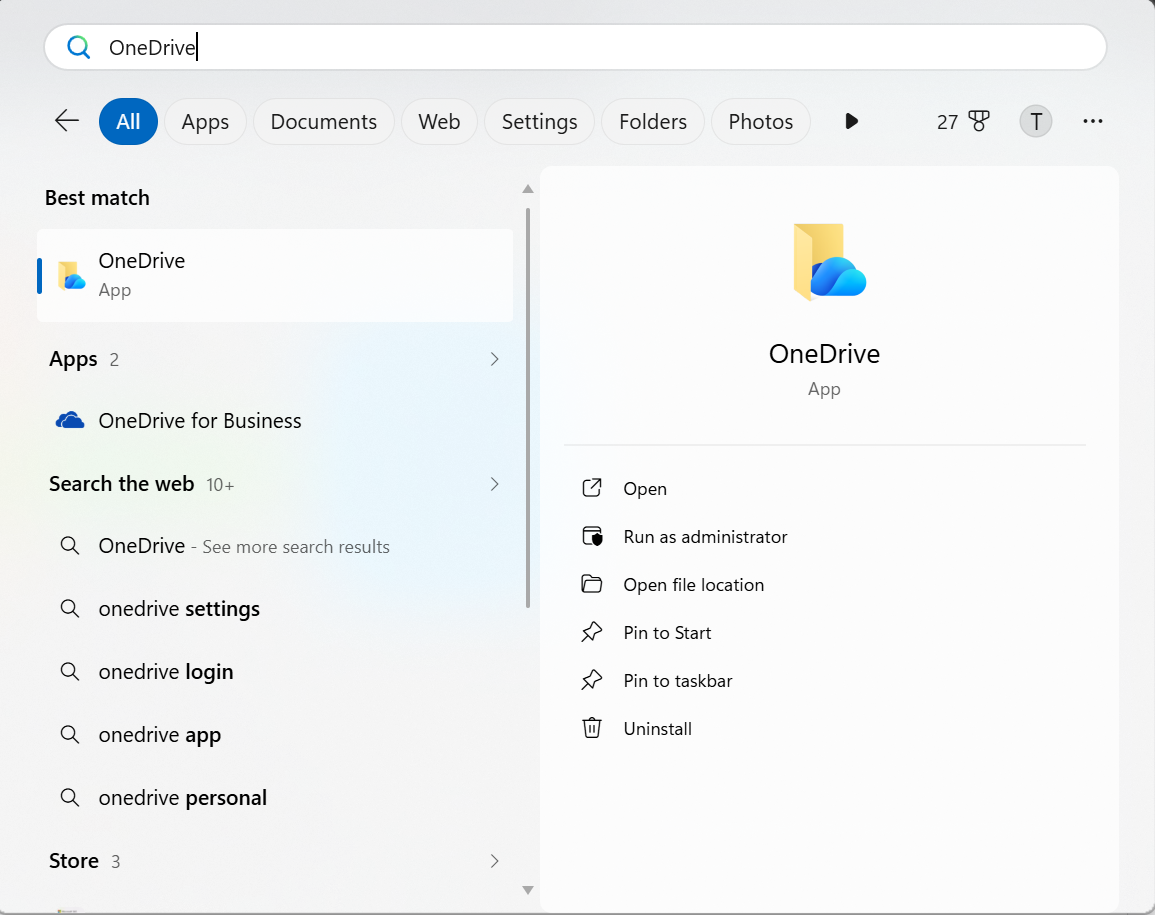
This refreshes the sync process and often removes the endless “Processing Changes” message.
Fix 2: Pause And Resume Syncing
Too many files syncing together can overload OneDrive. Here is how to fix it:
1. Click the OneDrive cloud icon in the taskbar.

2. Select Pause Syncing.
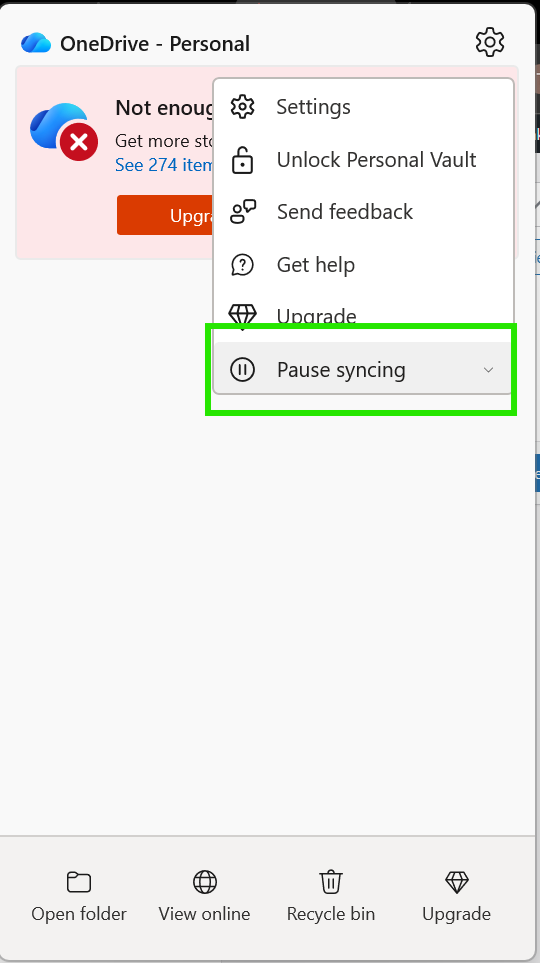
3. Wait a few seconds.
4. Click Resume Syncing.
Also, close any Word, Excel, or PDF files currently open from the OneDrive folder.
Fix 3: Remove Problematic Files If OneDrive Keeps Saying “Processing Changes”
A damaged or unsupported file may stop syncing completely. Check the files listed below:
- Very large ZIP or video files
- Empty zero-byte files
- Temporary files ending in .tmp
- Hidden debug files
Delete or move these files outside the OneDrive folder and try syncing again.
Fix 4: Disable Proxy, Antivirus, Or Firewall Temporarily
Network filtering tools sometimes block OneDrive connections. Here is what you need to try:
1. Turn off proxy settings from Windows Settings.
2. Temporarily turn off your antivirus.
3. Disable Windows Firewall temporarily.
After syncing works, turn security protection back on.
Fix 5: Reset OneDrive If OneDrive Keeps Saying “Processing Changes”
If nothing else works, resetting the app usually fixes stuck-syncing issues. The reset steps are:
1. Press Windows + R.
2. Paste this command:
%localappdata%\Microsoft\OneDrive\onedrive.exe /reset
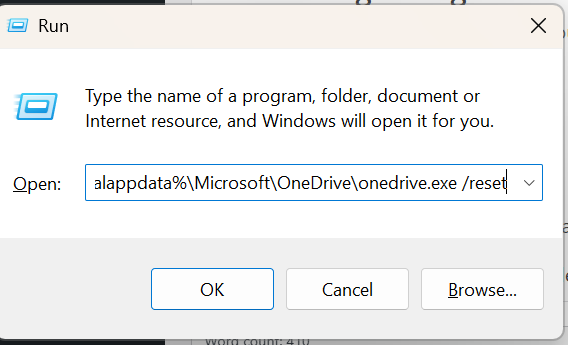
3. Press Enter.
If Windows cannot find the file, use:
C:\Program Files (x86)\Microsoft OneDrive\onedrive.exe /reset
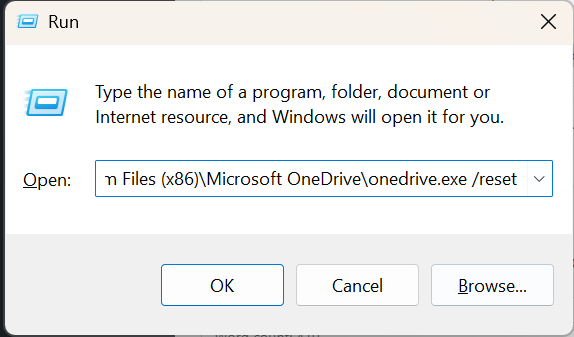
OneDrive will restart automatically after a minute.
In most cases, restarting the sync process, removing corrupted files, or resetting OneDrive quickly fixes the “Processing Changes” problem. If the issue persists, check your internet connection and run system scans, such as sfc /scannow, to repair corrupted Windows files.