You are trying to connect your phone or another PC wirelessly. And suddenly Windows 11 says This device doesn’t support Miracast. Well, in most cases, the issue is not with your device.
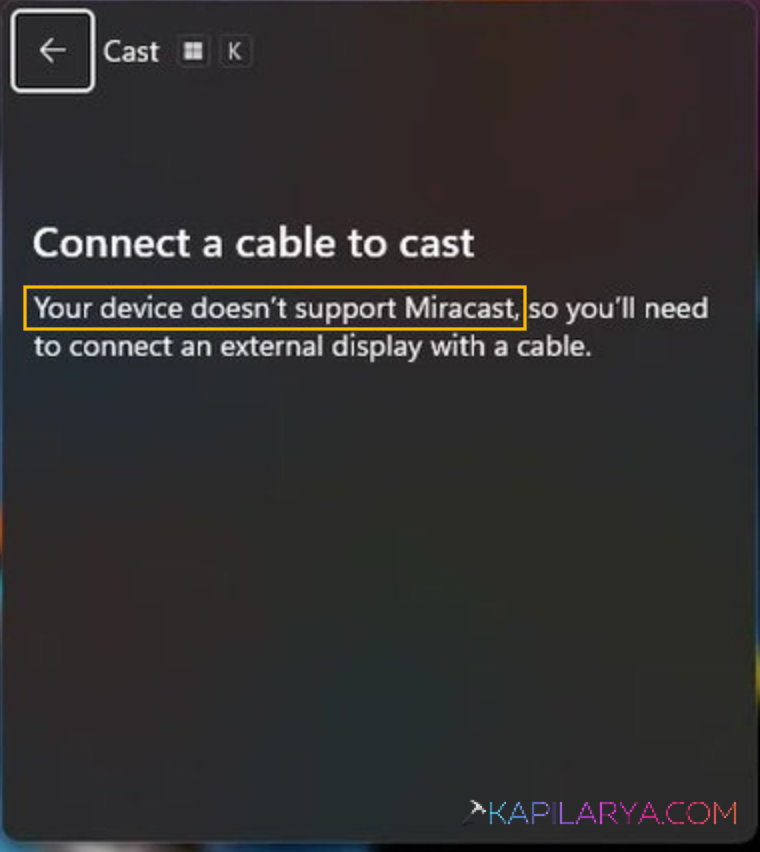
It happens because of network settings, outdated or incorrect drivers, or an incorrect wireless configuration. But the news is that you can fix it with the simple steps shared below.
Page Contents
Fix Your Device Doesn’t Support Miracast
Fix 1: Make Sure Both Devices Use The Same Wi-Fi
Miracast works only when both devices are connected to the same wireless network. If your PC is using Ethernet and your phone is on Wi-Fi, the connection may fail. You can check it by:
1. Open Settings using Win + I.
2. Go to Network & Internet > Wi-Fi.
3. Turn On Wi-Fi.
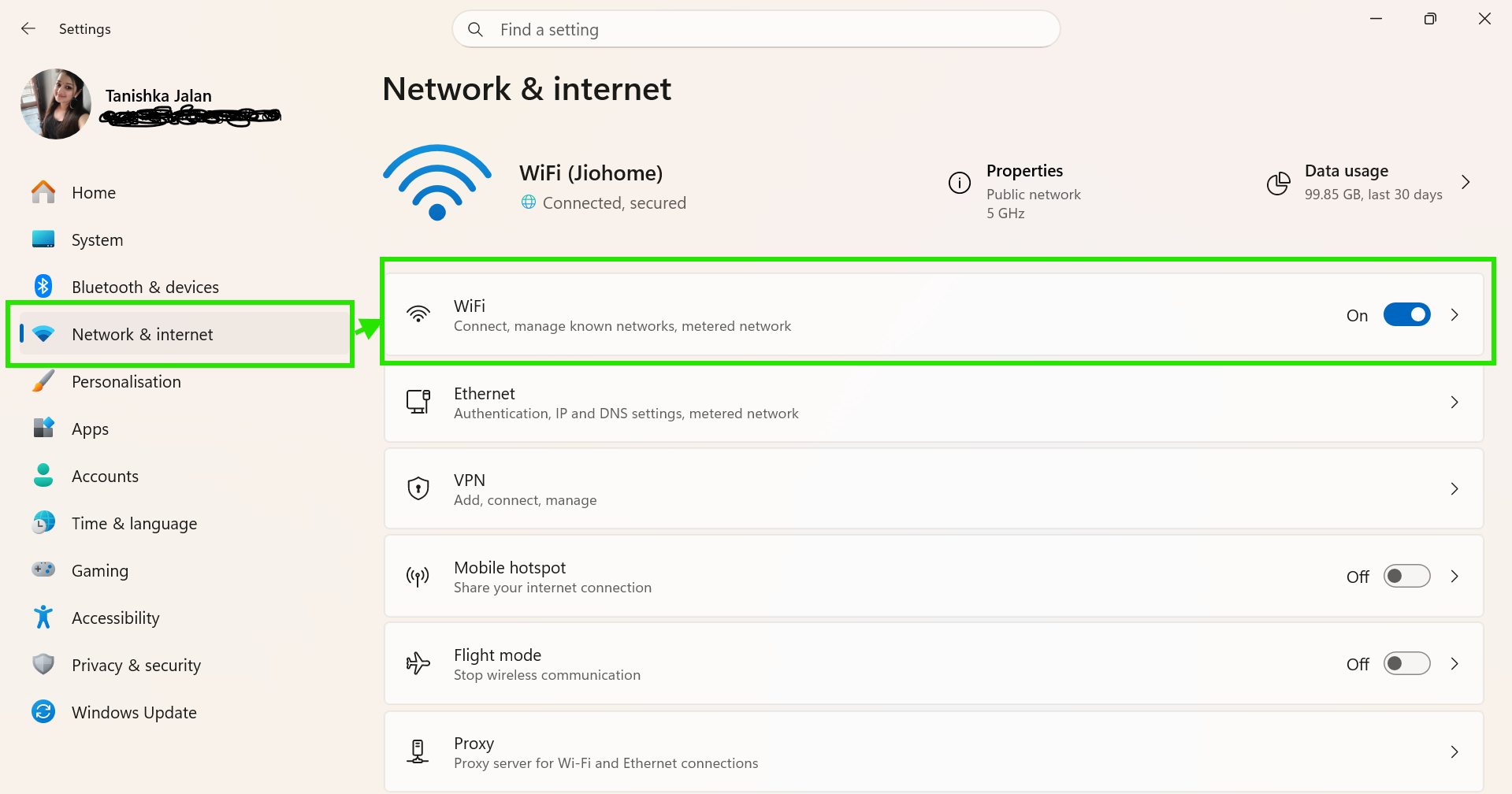
4. Connect your PC to the same Wi-Fi network as your phone or tablet.
Now try again using the Connect app.
Fix 2: Check If Your PC Supports Miracast
Your old system might not be supporting wireless display features fully.
Verify Compatibility
1. Press Win + X and select Windows Terminal.
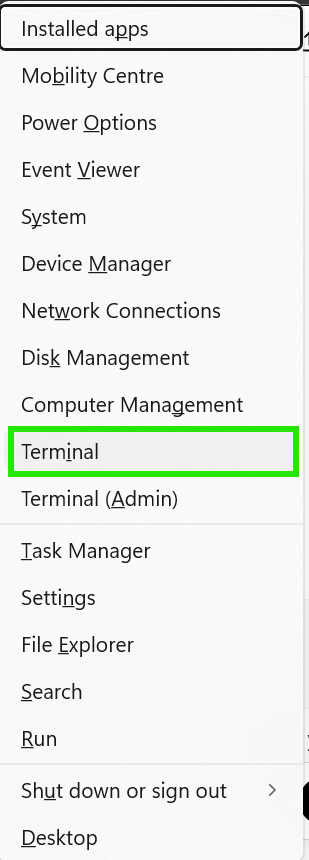
2. Type the command below and press Enter:
netsh wlan show driver
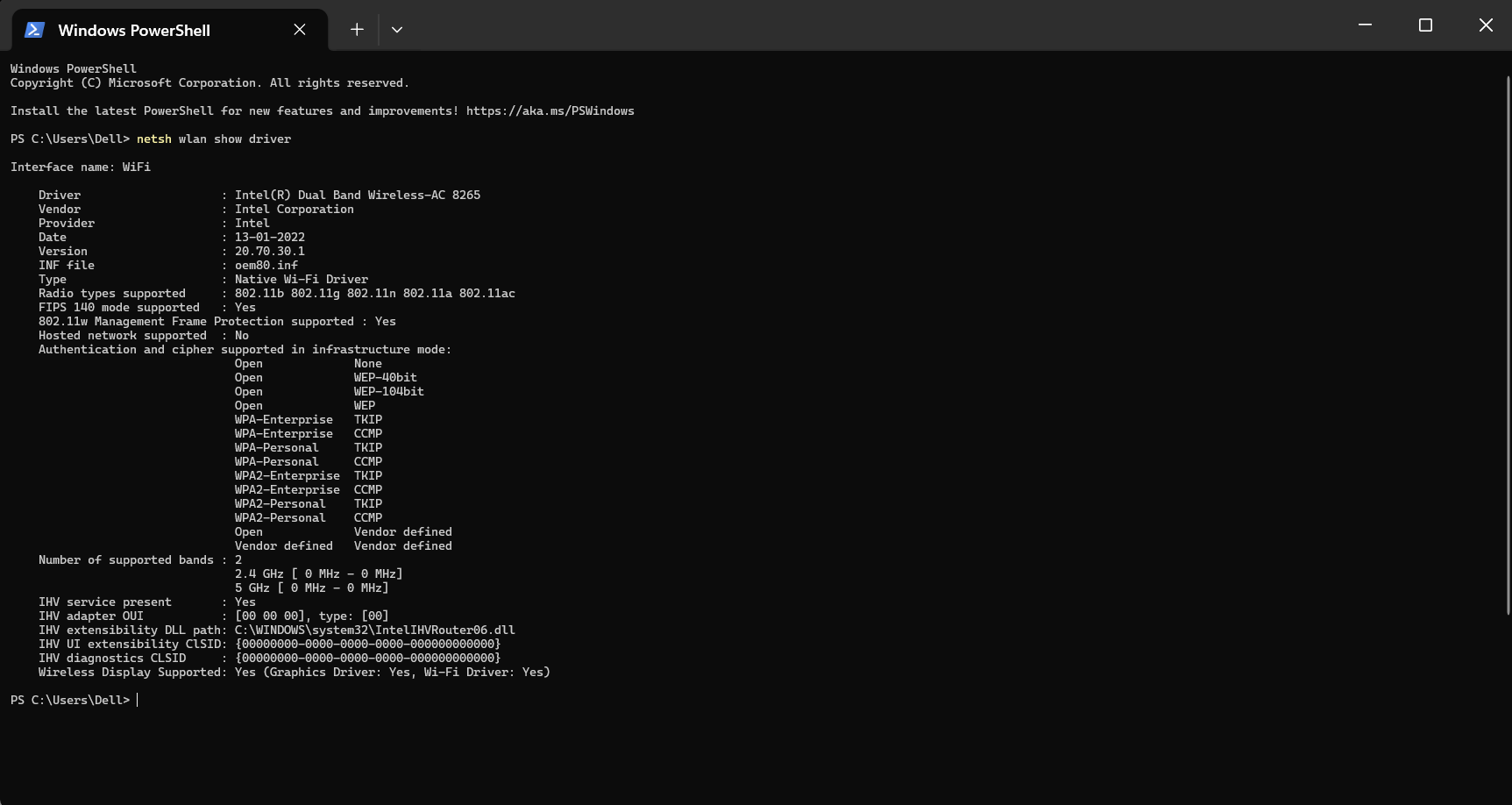
Look for Wireless Display Supported. If both the graphics and Wi-Fi driver say Yes, your PC supports Miracast.
Fix 3: Update Your Wi-Fi Driver
Outdated network drivers often cause Miracast errors. Here are the steps to update the driver:
1. Press Win + R and type devmgmt.msc.
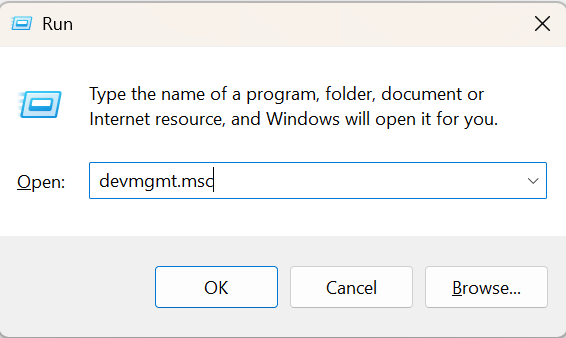
2. Open Device Manager.
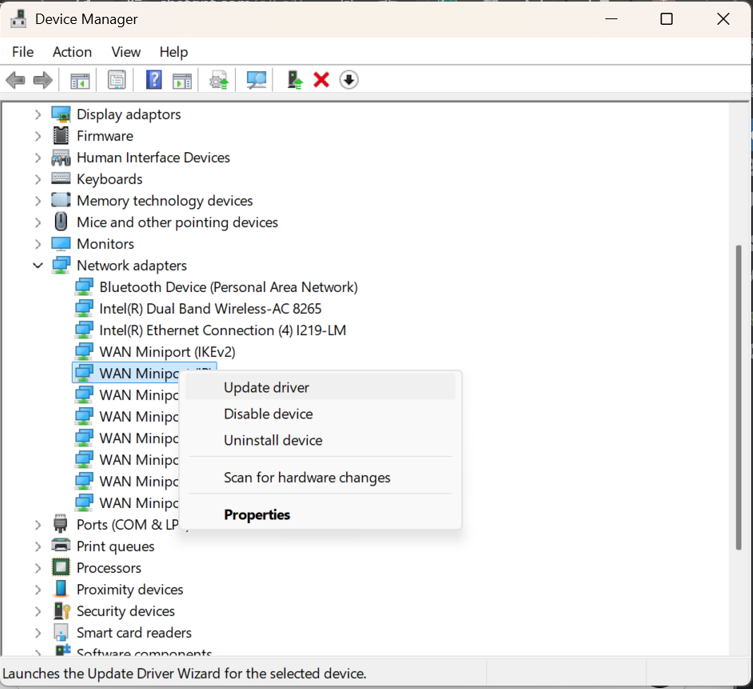
3. Expand Network adapters.
4. Right-click your Wi-Fi adapter.
5. Select Update driver.
6. Choose Search automatically for drivers.
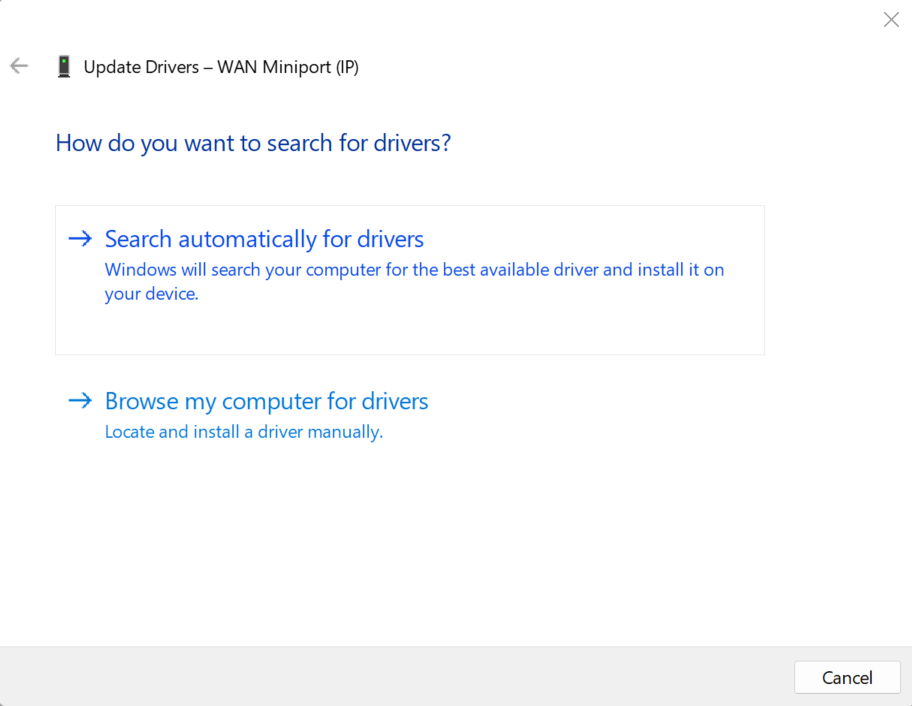
Restart your PC after installation.
Fix 4: Reinstall The Wireless Adapter
If updating does not help. Reinstall the adapter completely. Below is the process to reinstall:
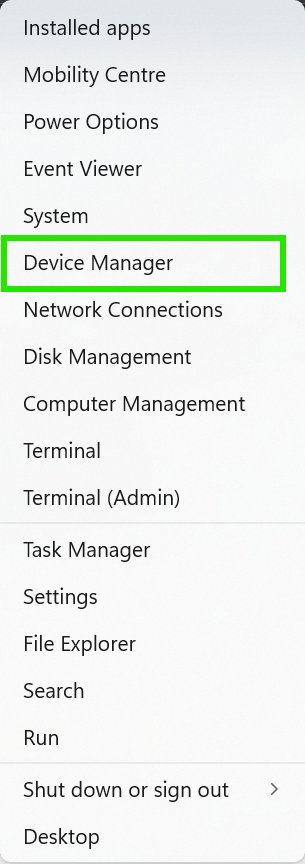
1. Right click on Start button and select Device Manager.
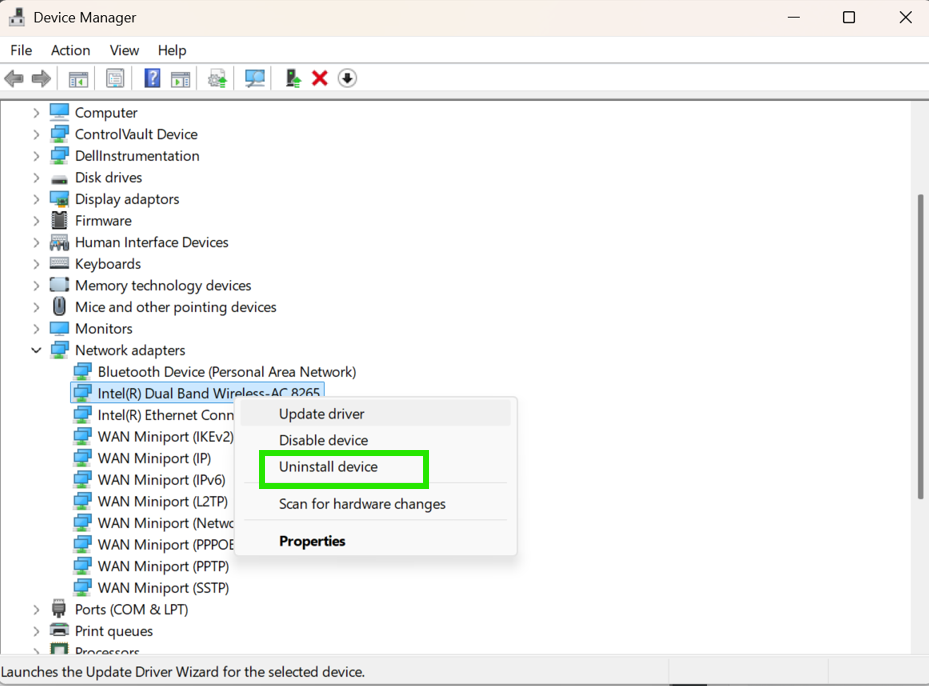
2. Expand Network adapters and Right-click the Wi-Fi adapter.
3. Select Uninstall device.
4. Restart your computer.
Windows will automatically reinstall the adapter.
Fix 5: Allow Wireless Display Through Firewall
Windows Firewall can sometimes block Miracast connections. So, let’s fix it with Firewall Blocking:
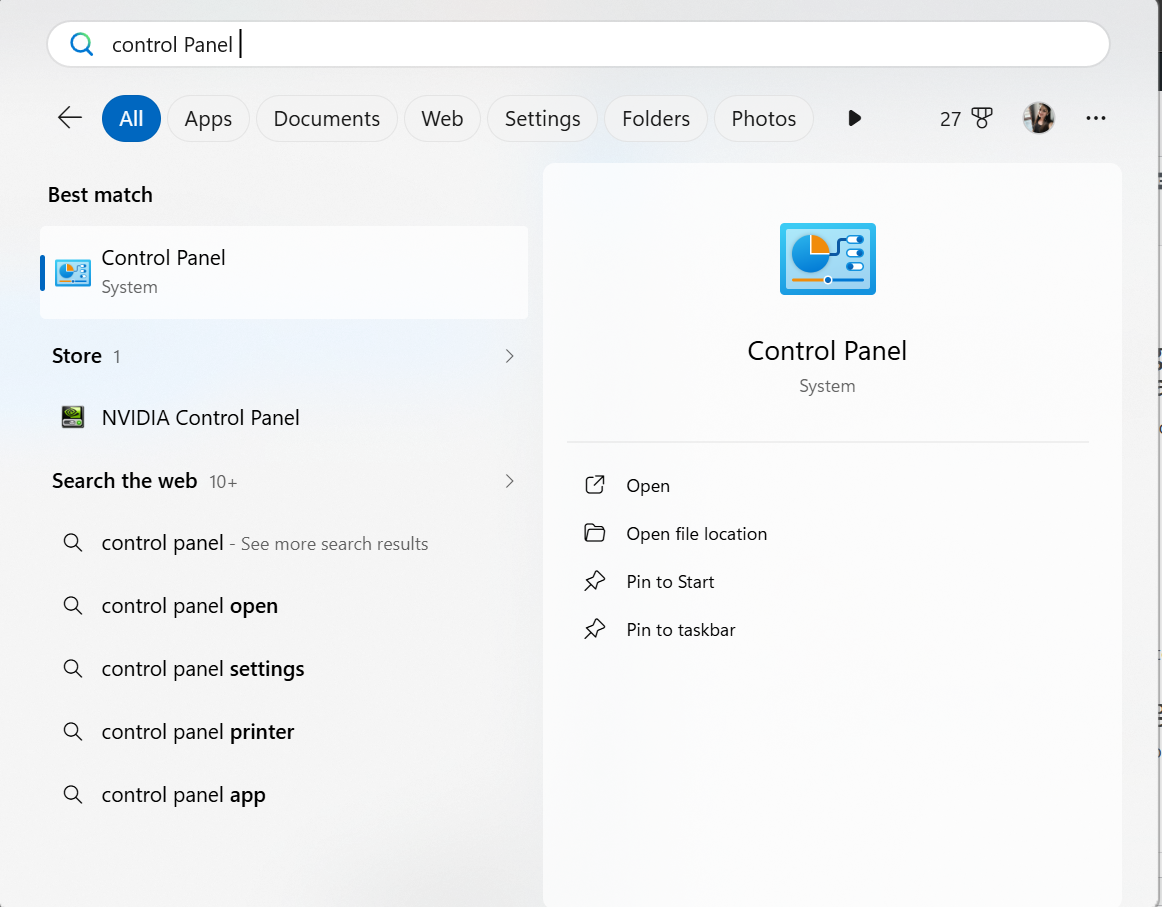
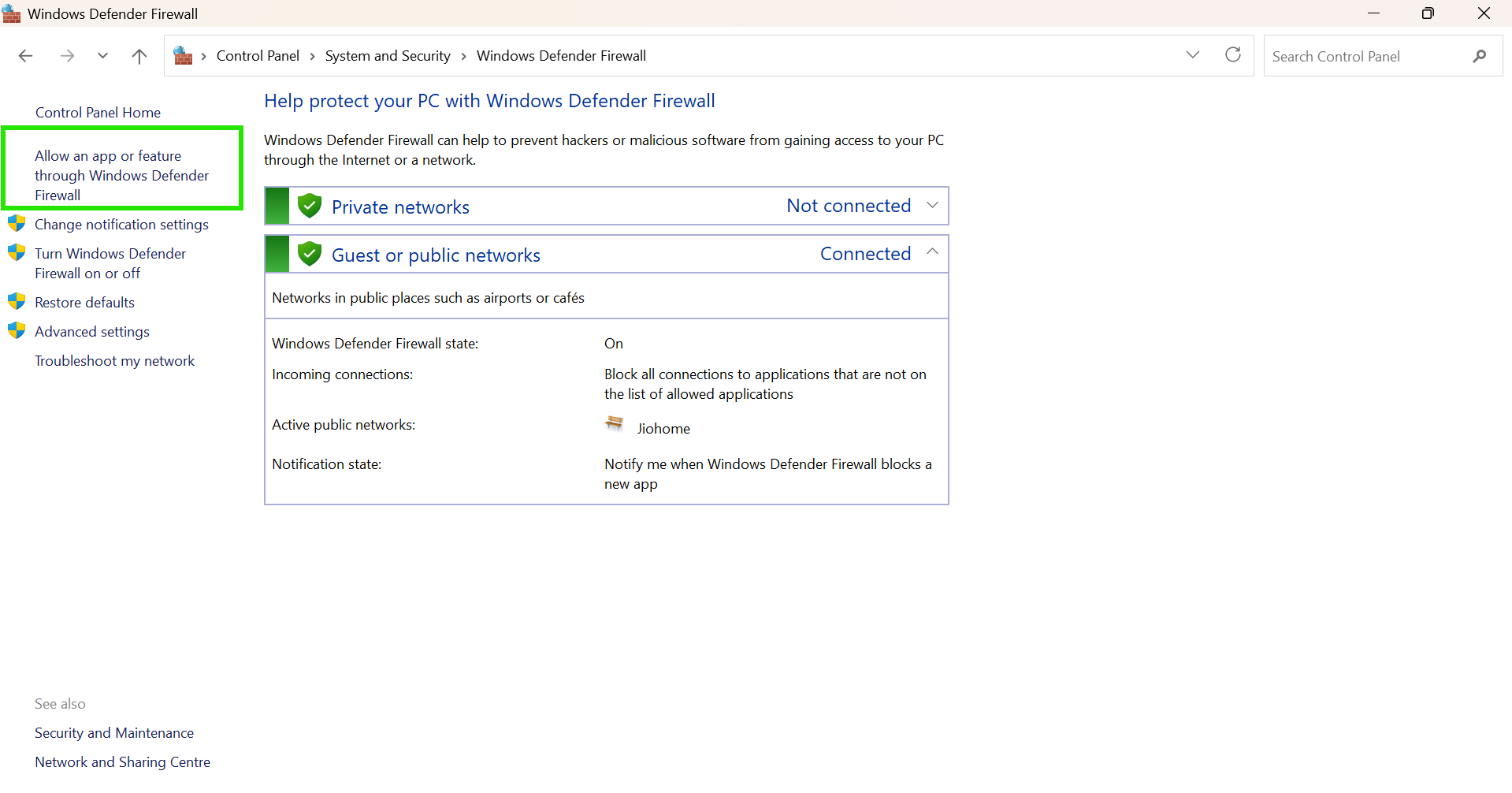
1. Open Control Panel.
2. Search for Windows Defender Firewall.
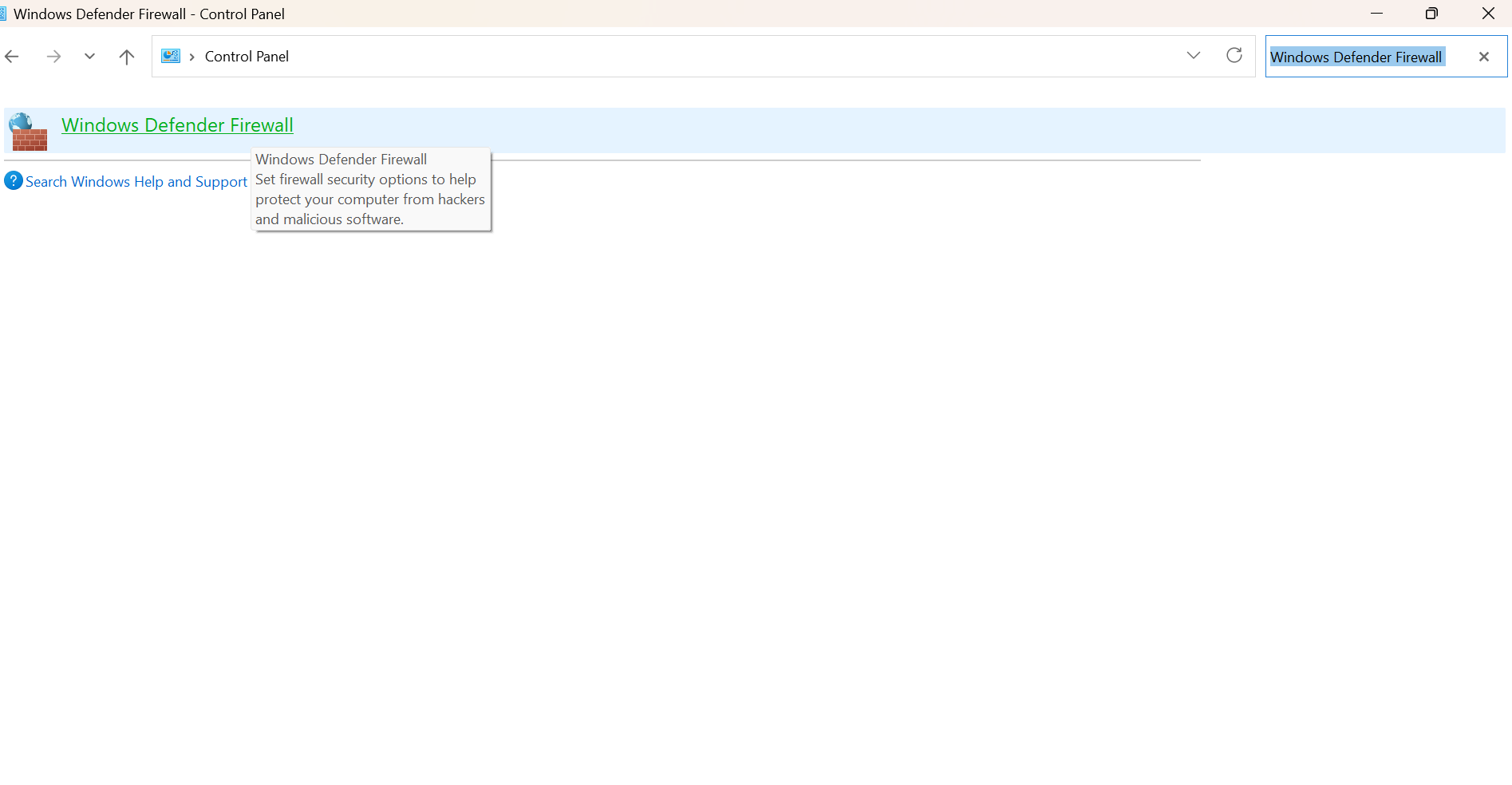
3. Click Allow an app through Firewall.
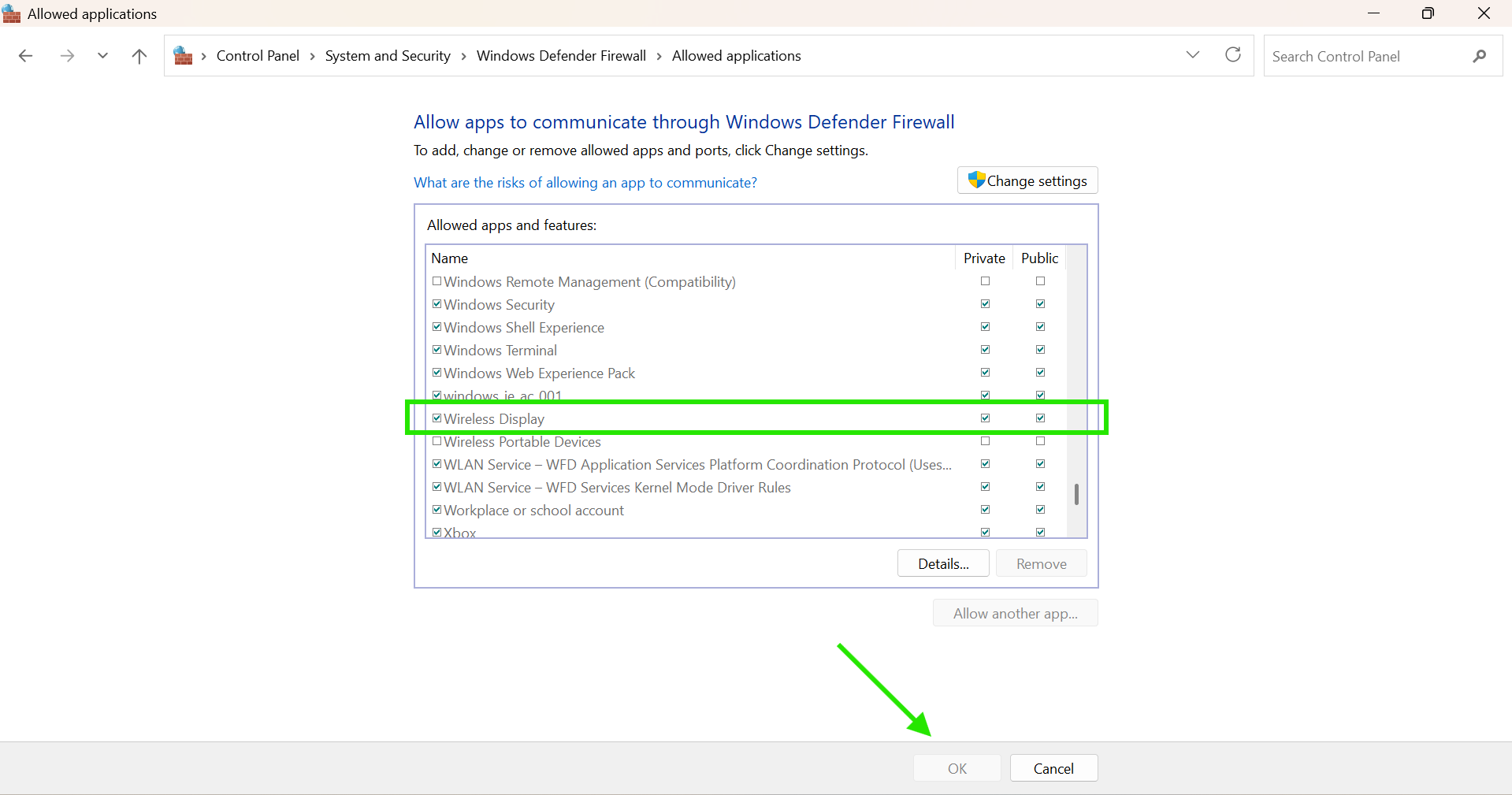
4. Enable Wireless Display and Connect for both Private and Public networks.
Fix 6: Change Wireless Mode Settings
Incorrect adapter settings can also trigger this error. You need to set up wireless mode to auto by:
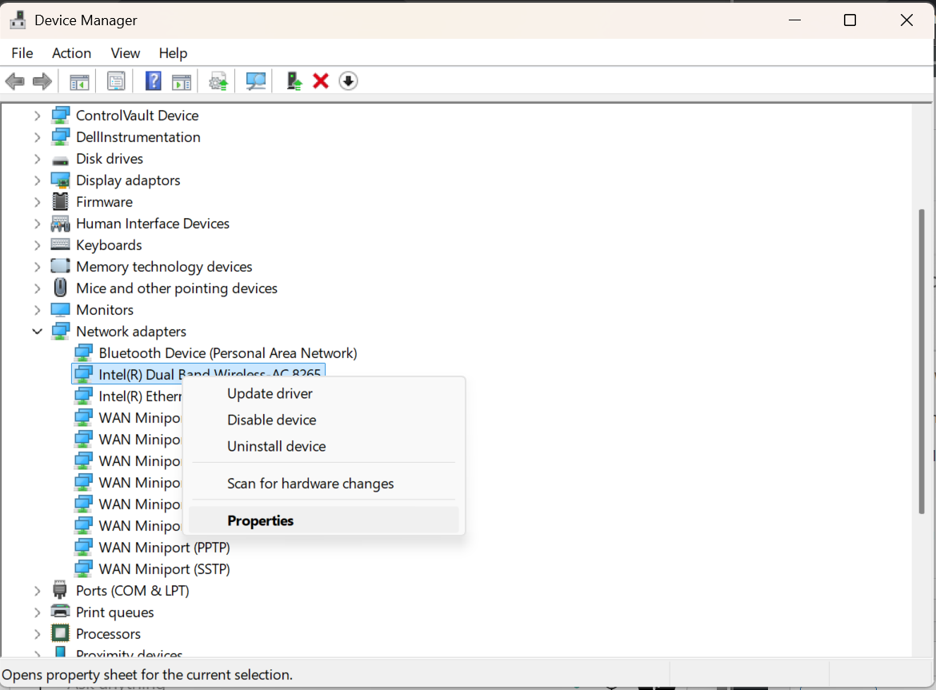
1. Right click on Start button and select Device Manager.
2. Right-click your Wi-Fi adapter and open Properties.
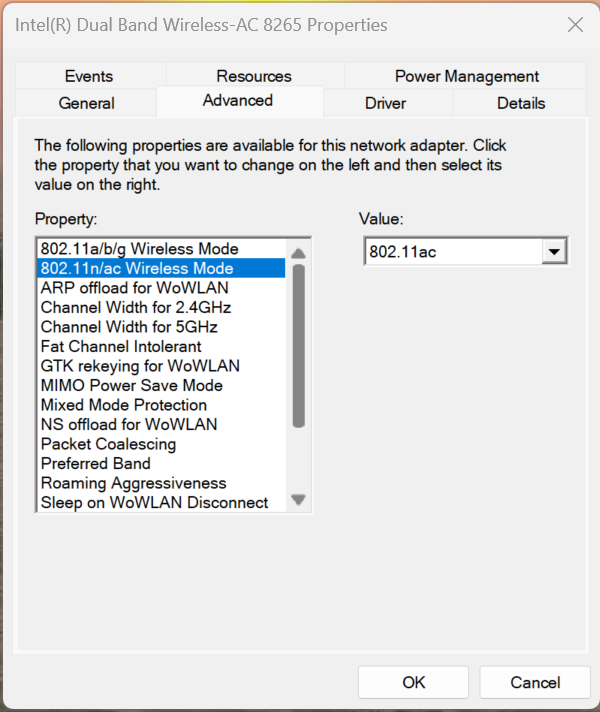
3. Go to the Advanced tab, find Wireless Mode.
4. Set the value to Auto or Dual Band.
That’s it!