You want to send a file from one Windows PC to another. You are using a USB drive, email, or cloud storage. But do you know Windows 11 has a feature called Nearby Sharing, which you can easily enable or disable. It allows you to share documents, photos, links, and other files with nearby Windows devices using Bluetooth and Wi-Fi. If there’s a privacy concern, you can turn it off at any time.
Page Contents
What Is Nearby Sharing in Windows 11?
Nearby Sharing is basically a built-in feature in Windows. It lets you transfer files and links between nearby devices. But make sure both of your devices have Bluetooth and Wi-Fi enabled for it to work properly.
You can choose to share with:
- Your own devices only
- Everyone nearby
- No one (feature turned off)
Enable Or Disable Nearby Sharing In Windows 11
See how you can enable or disable nearby sharing with the methods below:
Method 1: Using The Share Menu
This method will automatically enable Nearby Sharing for everyone.
1. Right-click the file you want to share.
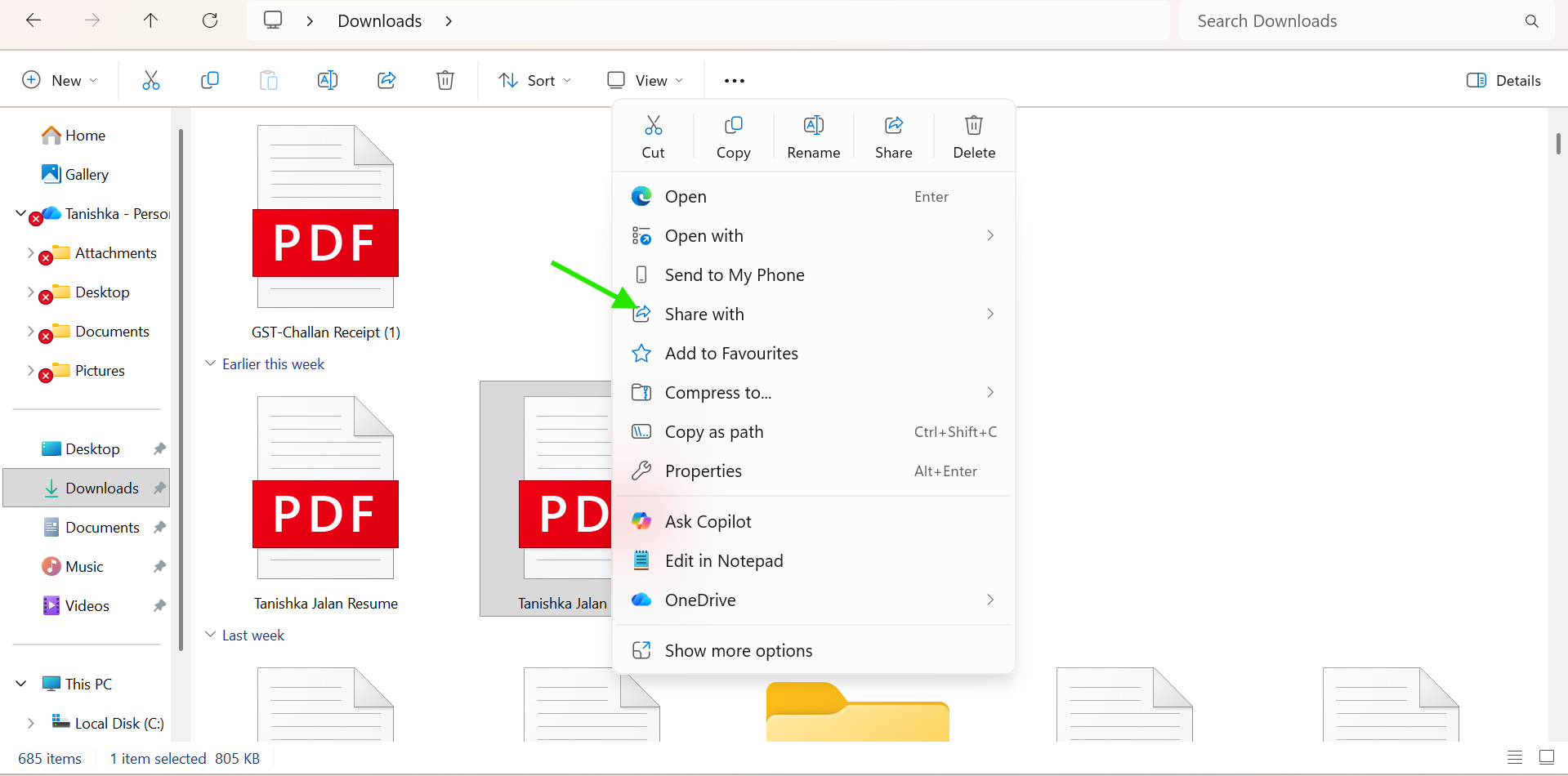
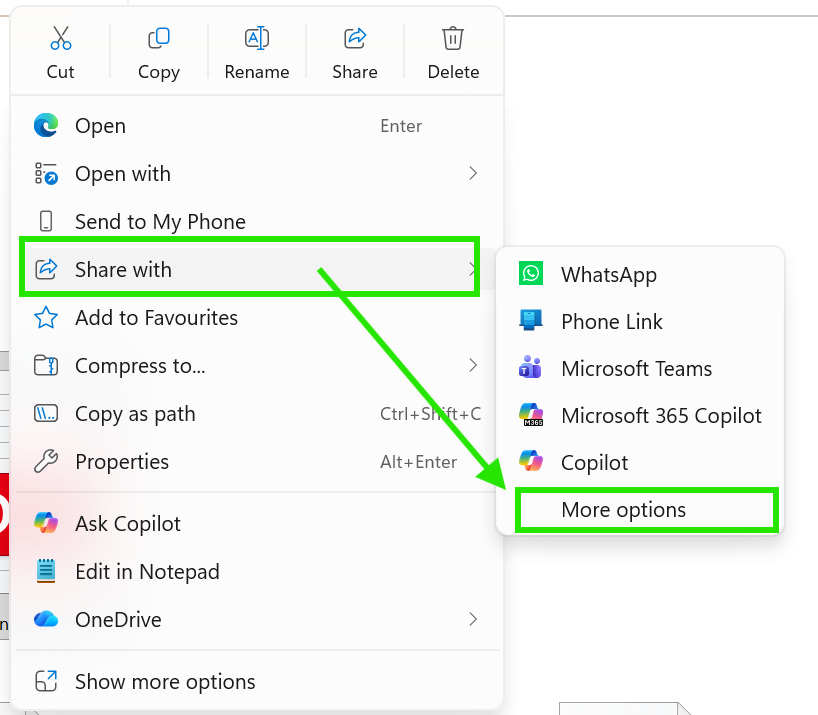
2. Select Share with… from the context menu and then click on More Options.
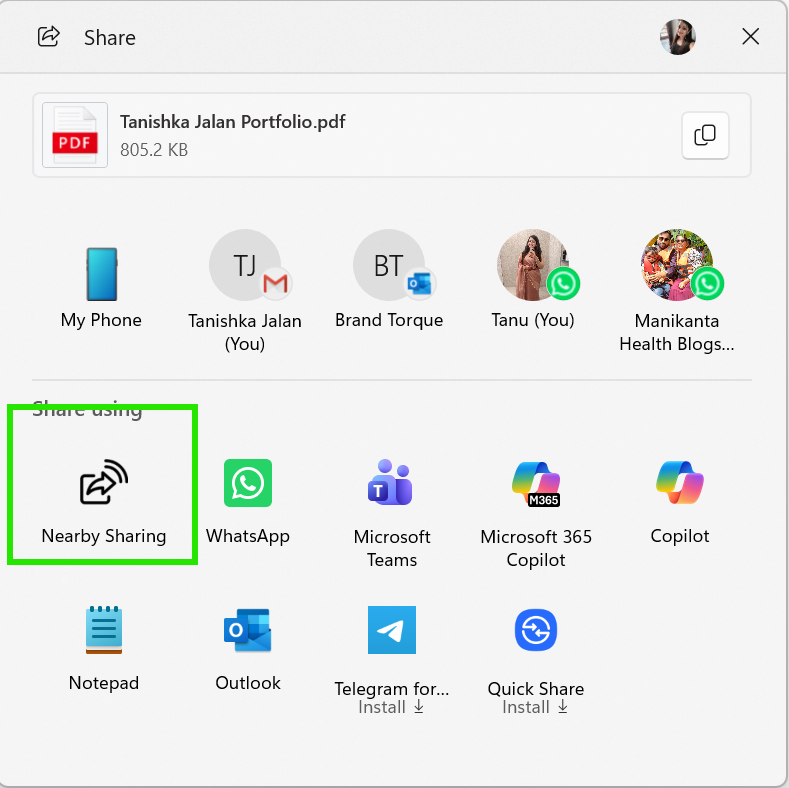
3. In the Windows Share window, click Turn on under Nearby Share.
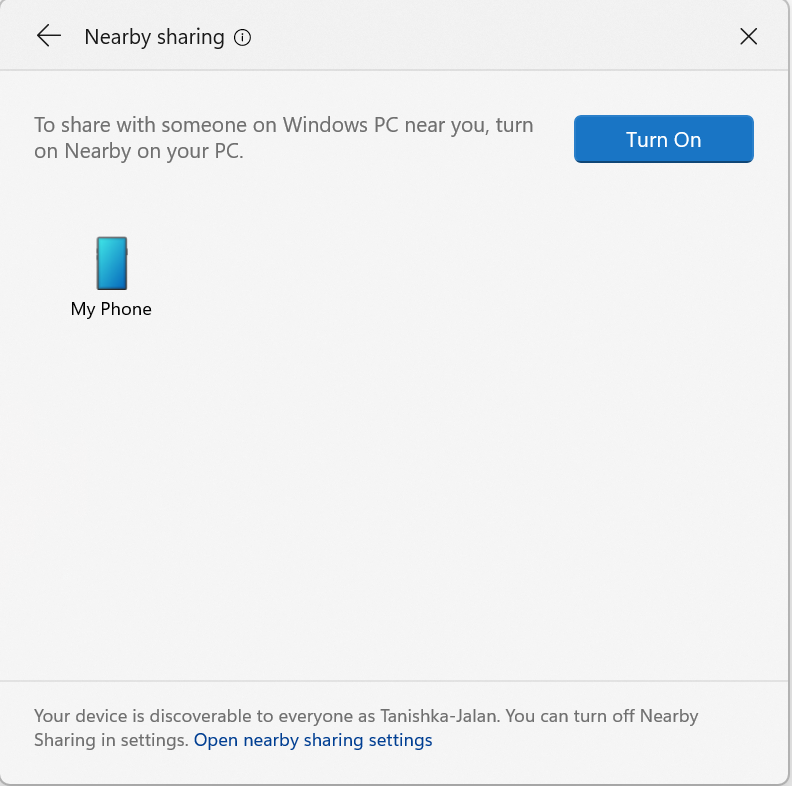
4. Nearby Sharing will be enabled immediately.
Method 2: From Quick Settings
This is the quickest way to turn the feature on or off.
1. Press Windows + A to open Quick Settings.
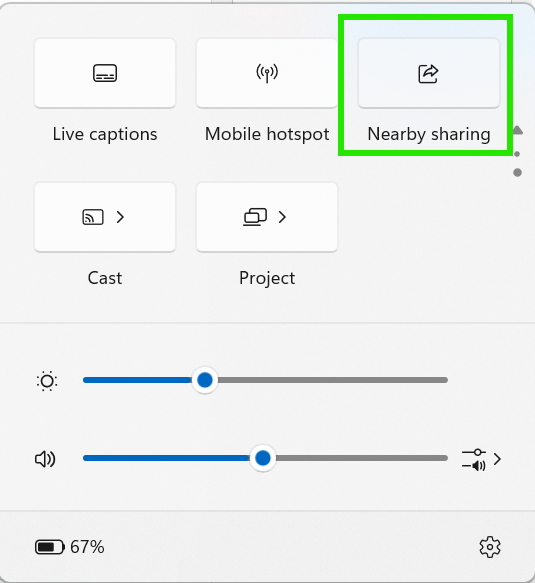
2. Locate the Nearby Sharing button.
3. Click the button to turn the feature On or Off.
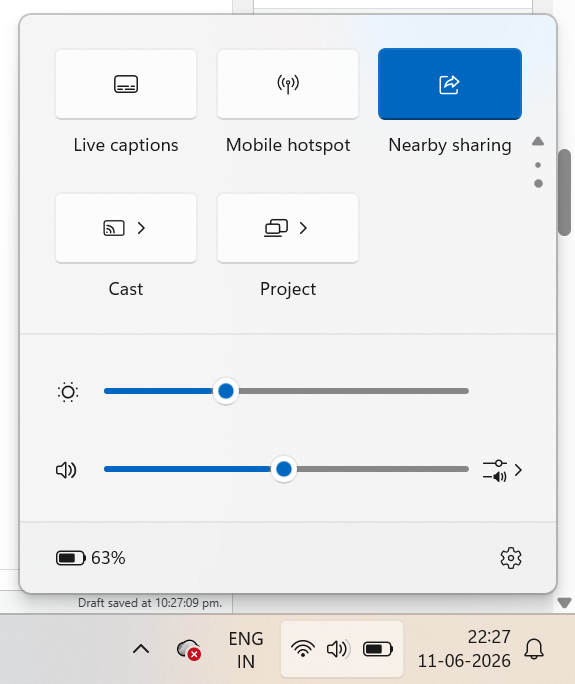
4. When enabled, it will use your current sharing preference.
Method 3: Using Settings
This method helps you to select who can share with you.
1. Press Windows + I to open Settings.
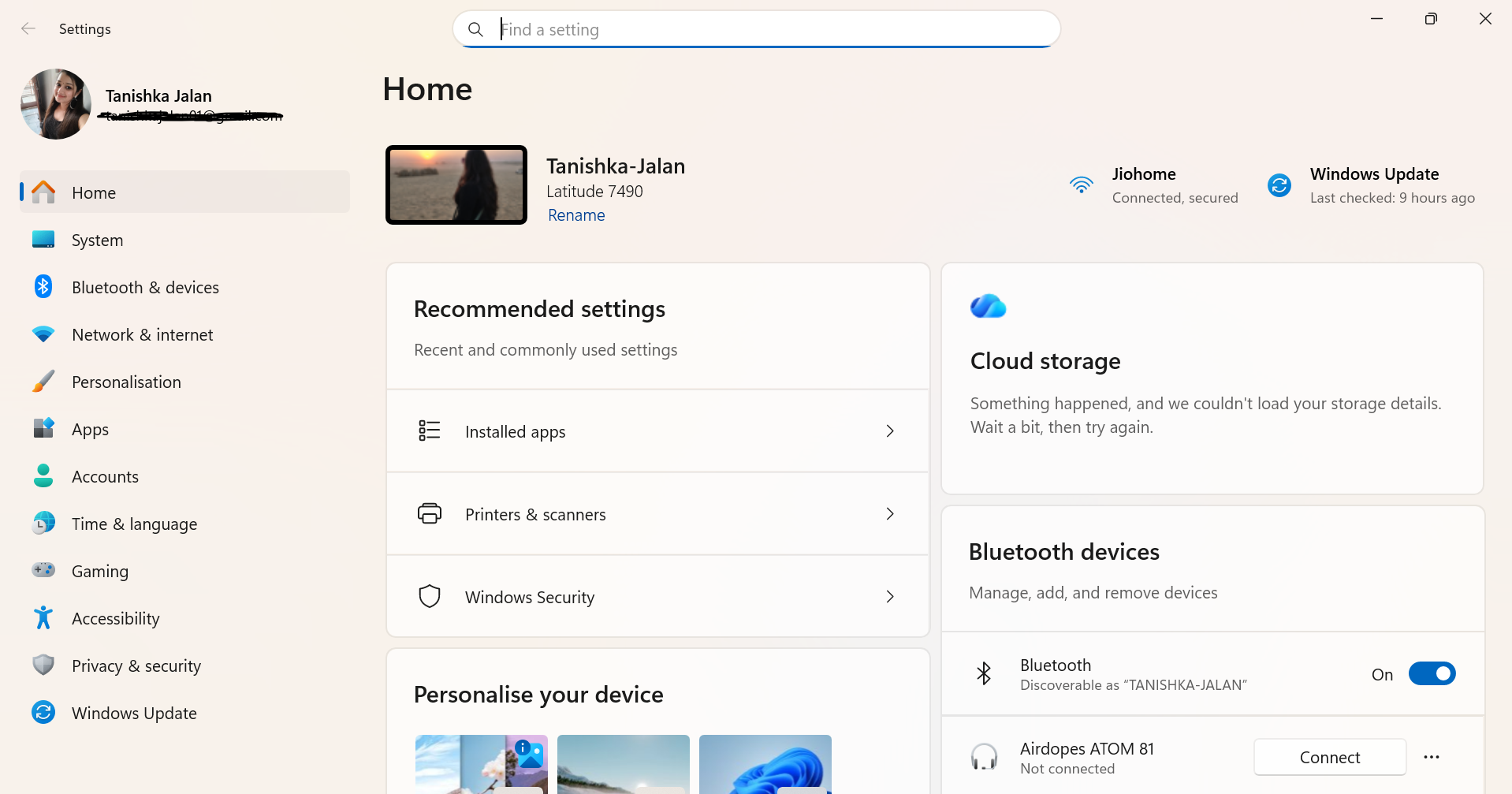
3. Select System from the left pane.
3. Click Nearby Sharing.
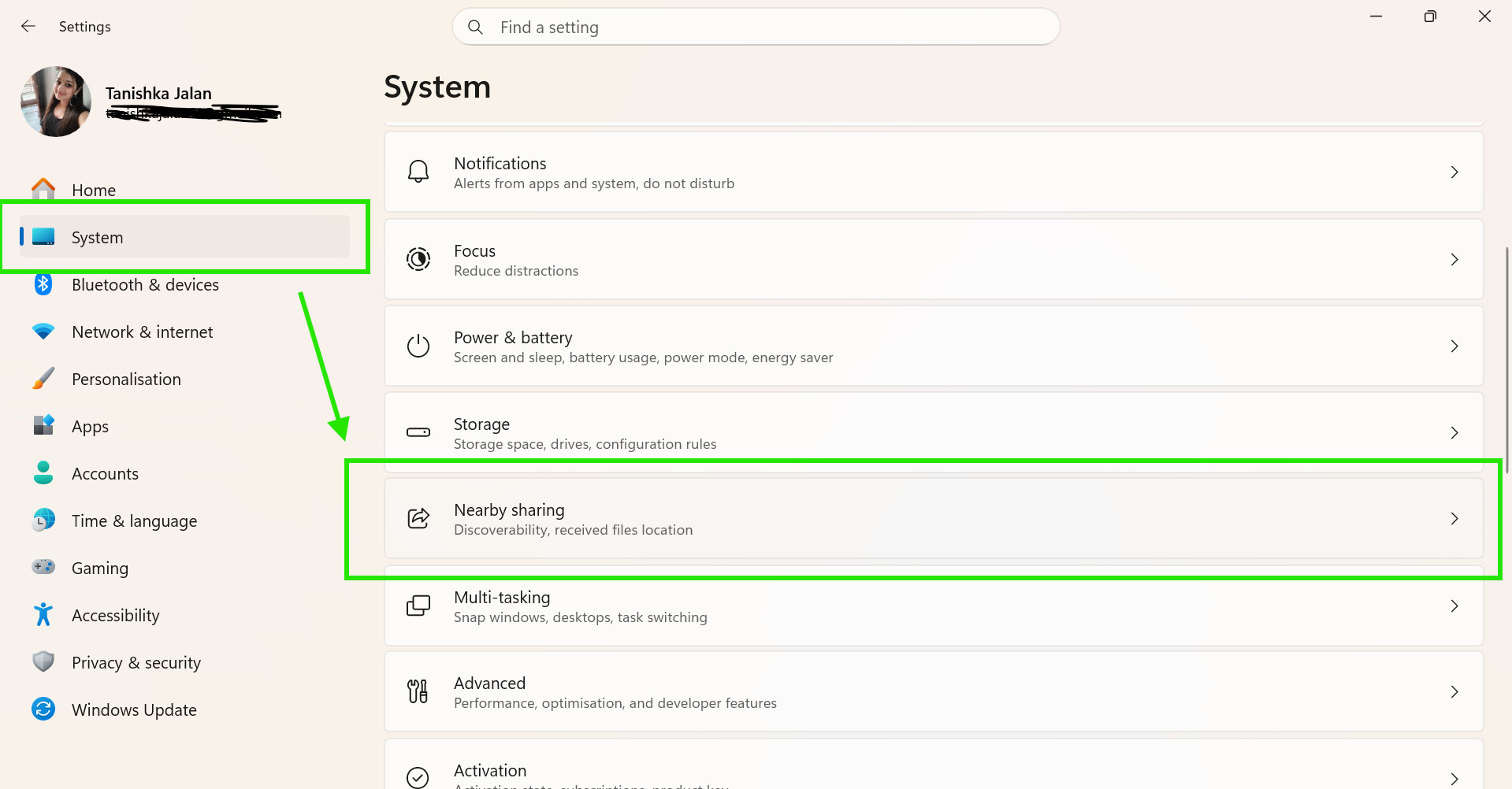
4. Choose one of the following options:
- Off.
- My devices only.
- Everyone nearby.
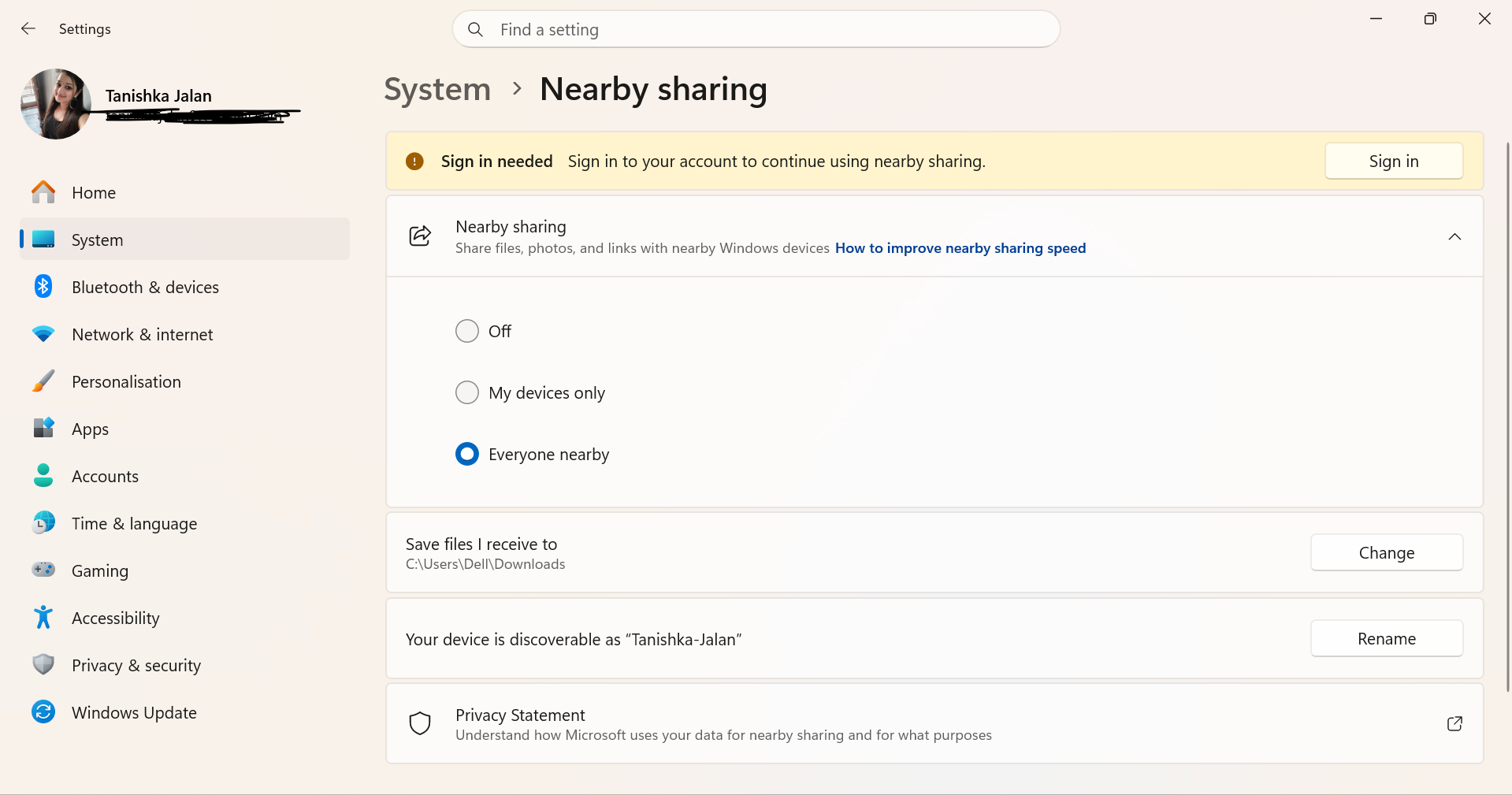
5. Close Settings when finished.
So, that’s how you can enable or disable Nearby Sharing from your Windows 11 PC.
If you have any questions, comment down below, we can help.