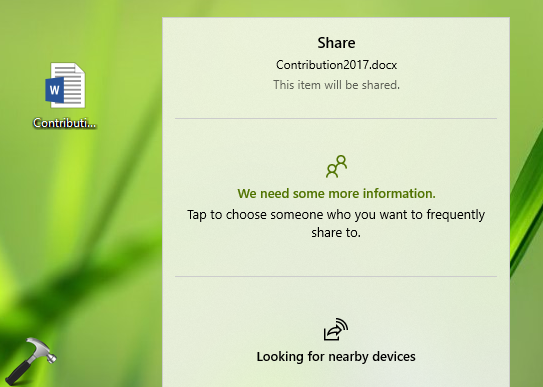
In our previous guide, we shared you how to enable or disable Nearby sharing in Windows 11. The Nearby Sharing is designed for quick and easy file transfers between your nearby devices. But sometimes it may be incredibly slow. In this guide, we’ll see how you can fix it.
Page Contents
Nearby Sharing is Extremely Slow in Windows 11
A Nearby Sharing feature can be frustrating. Luckily, there are several troubleshooting steps you can take to enhance transfer speeds and reduce waiting times.
Fix 1: Make Sure Both Devices Are Connected to the Same Wi-Fi Network
This is the first thing worth checking. Nearby Sharing uses Bluetooth to discover devices, but it prefers Wi-Fi for the actual file transfer whenever possible. If the devices are on different networks, Windows may fall back to a slower transfer method.
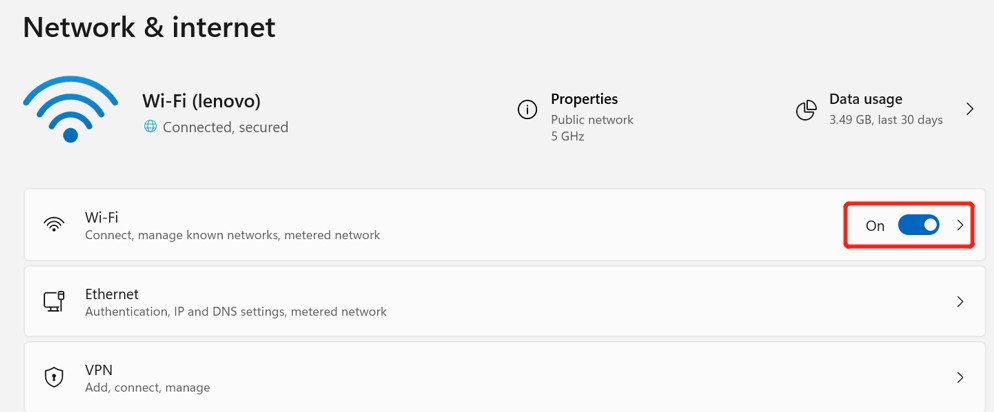
1. Connect both PCs to the same Wi-Fi network.
2. Ensure Wi-Fi is enabled on both devices.
3. Try the file transfer again.
Fix 2: Set Your Network Profile to Private
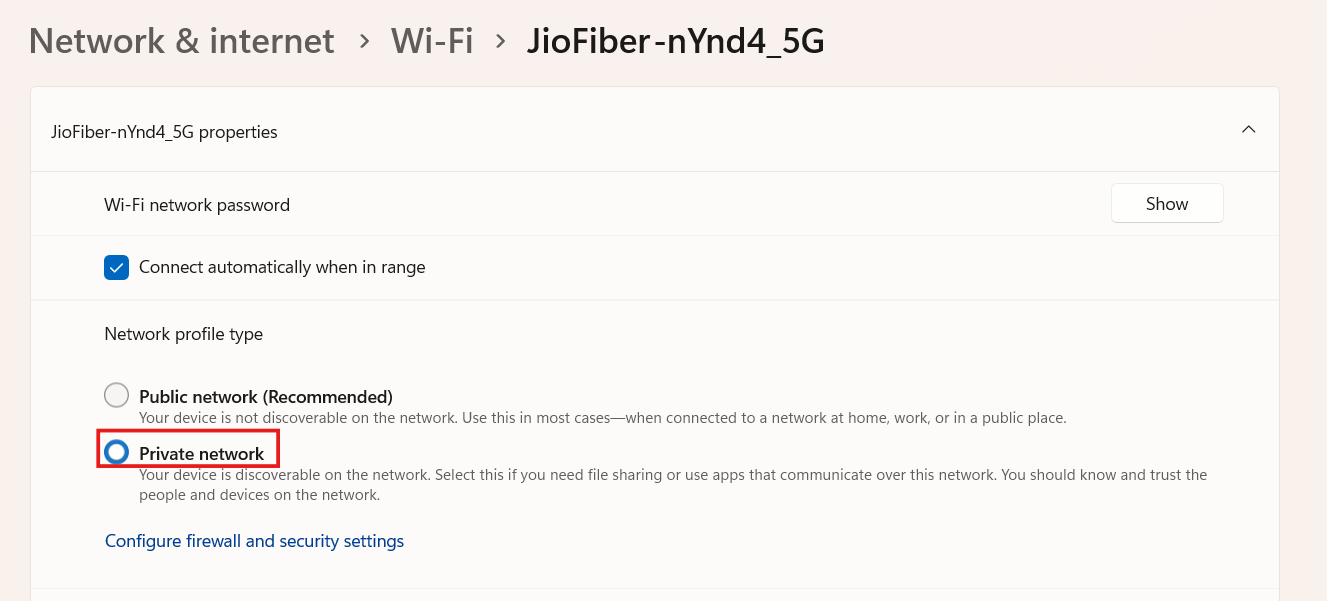
Nearby Sharing works best when Windows treats the network as a trusted connection. If your network is set to Public, some discovery features may be restricted, affecting transfer performance.
1. Press Windows + I to open Settings.
2. Go to Network & internet.
3. Click on Wi-Fi (or Ethernet), then select your connected network’s properties.
4. Under Network profile type, select Private network.
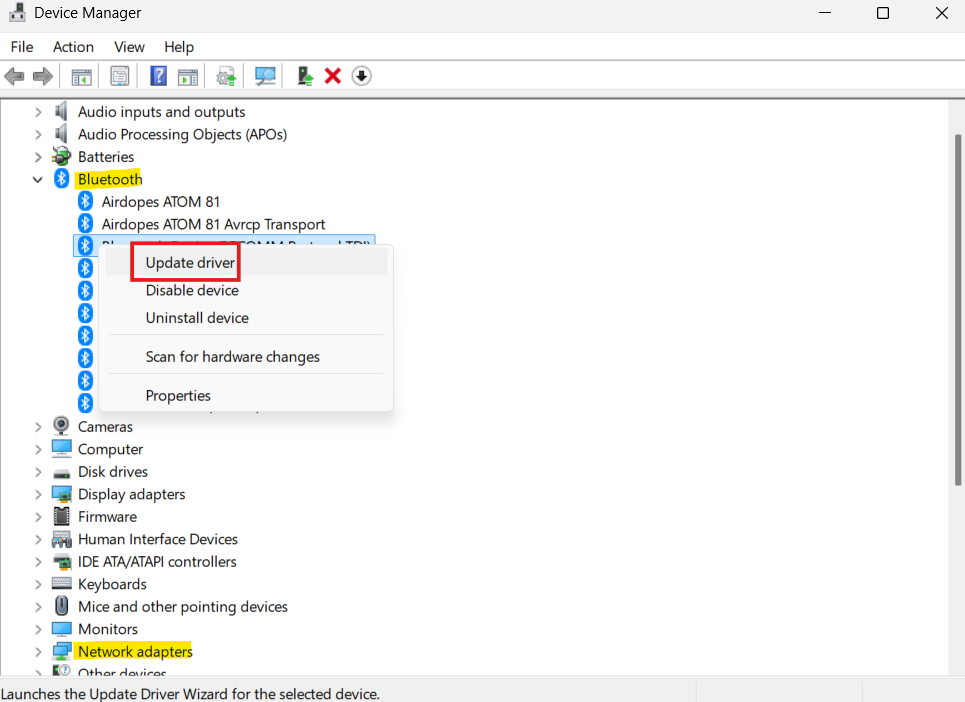
Fix 3: Update Wi-Fi and Bluetooth Drivers
Outdated wireless drivers are a common cause of slow Nearby Sharing speeds. This is especially true after a major Windows update, where older drivers may not work as efficiently as before.
1. Right-click the Start button and select Device Manager.
2. Expand Network adapters.
3. Right-click your Wi-Fi adapter and select Update driver.
4. Repeat the same process for the Bluetooth adapter.
Fix 4: Turn On Network Discovery
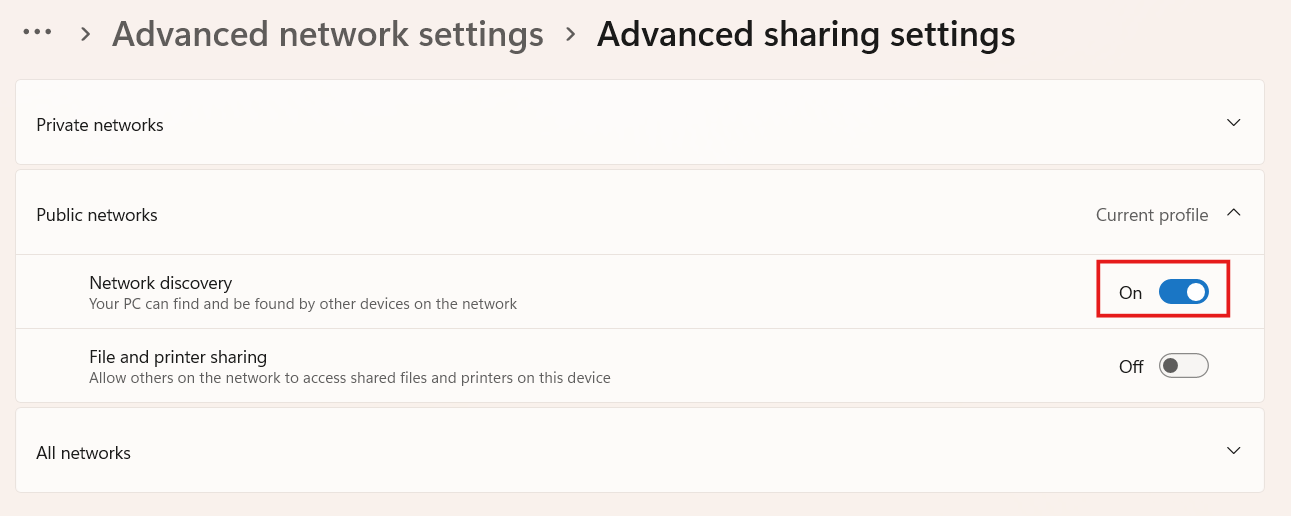
If you’re having difficulty with Windows locating nearby devices, you may notice longer than normal transfer times and/or poor transfer stability. Try enabling Network Discovery, see if that helps.
1. Open Settings.
2. Go to Network & internet and then Advanced network settings.
3. Select Advanced sharing settings.
4. Turn on Network Discovery.
Fix 5: Temporarily Disable Firewall or Antivirus
Sometimes third-party antivirus or firewall software may cause the issue. Follow these steps:
1. Temporarily disable your antivirus or firewall.
2. Check if Nearby Sharing works as expected now.
3. If the speed improves, ensure the correct network settings on third party security software before re-enabling protection.





![The mapped network drive could not be created [Detailed fix]](https://www.kapilarya.com/assets/Network-Drive-768x511.jpg)