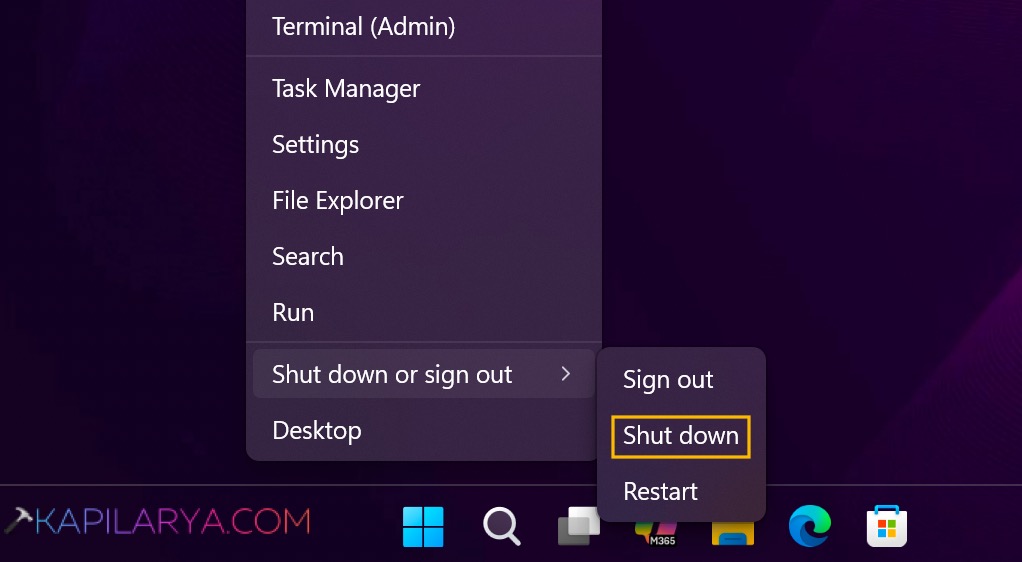
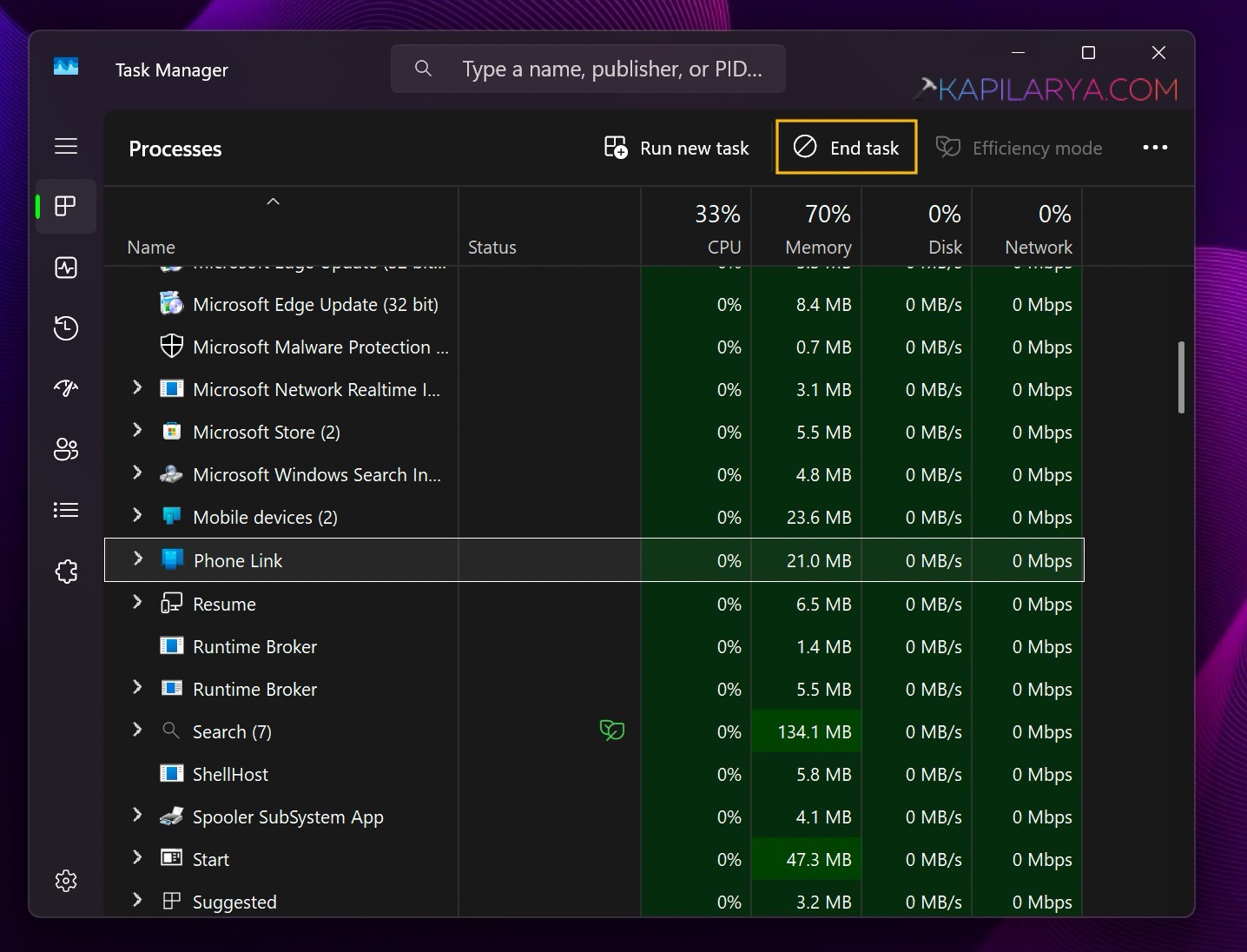
Imagine a scenario. You wanted to close an app using Task Manager. You opened Task Manager, select the app name/process and clicked End Task. But nothing happens then. The app is still frozen and won’t terminate. It is still using CPU and memory. And now you’re clicking the button again and again. When Task Manager’s End Task is not working in Windows 11, the process may be stuck, running in the background, or protected by Windows. In this guide, you’ll read how you can fix the issue.
Page Contents
Why Does Task Manager End Task Not Work?
- The app is frozen.
- Background processes are still running.
- Administrator rights are required.
- The process is protected by Windows.
- The app restarts automatically.
Fix: Task Manager End Task Not Working In Windows 11
Here are the quickest ways to force it to close.
Fix 1: Use End Process Tree
This option closes the main app and all related processes.
1. Press Ctrl + Shift + Esc to open Task Manager.
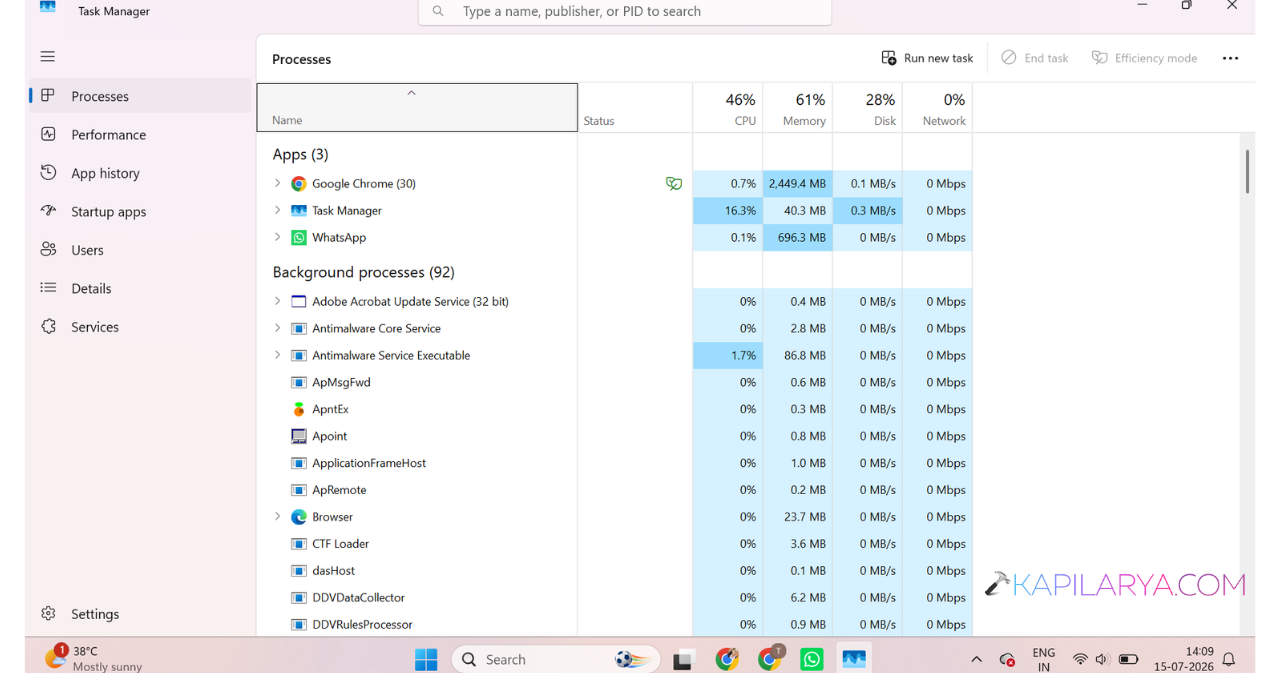
2. Go to the Details tab.
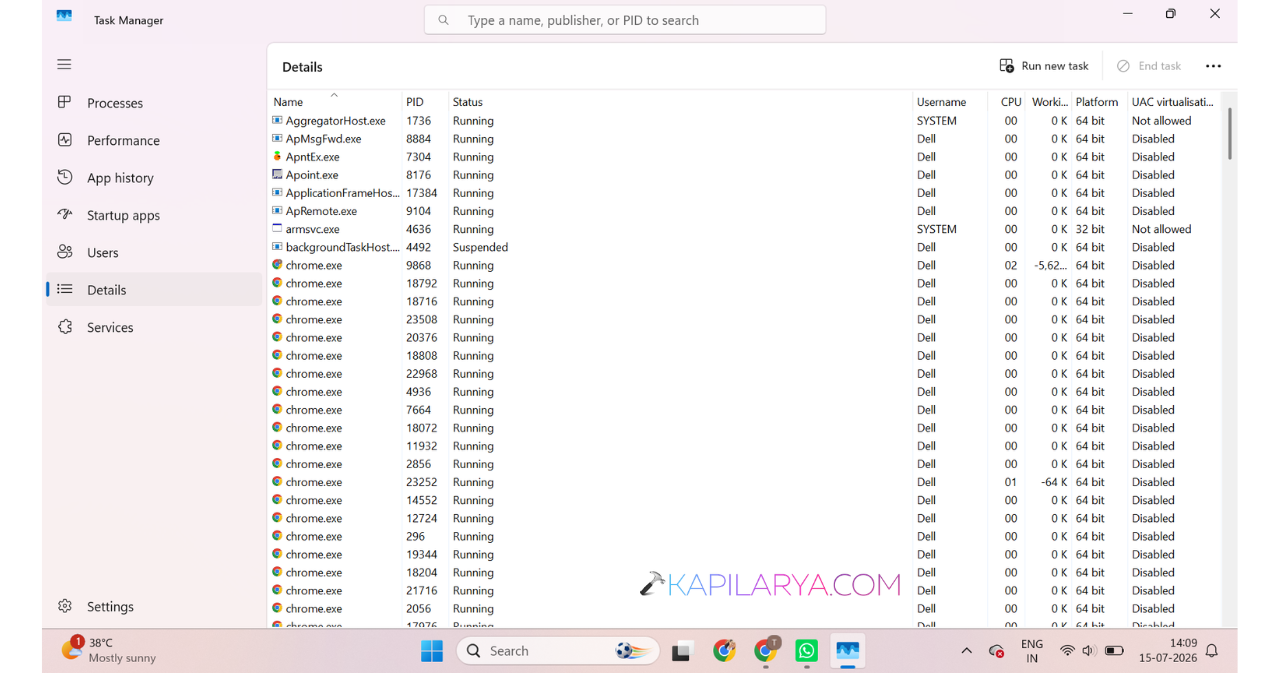
3. Right-click the problematic process.
4. Select End Process Tree.
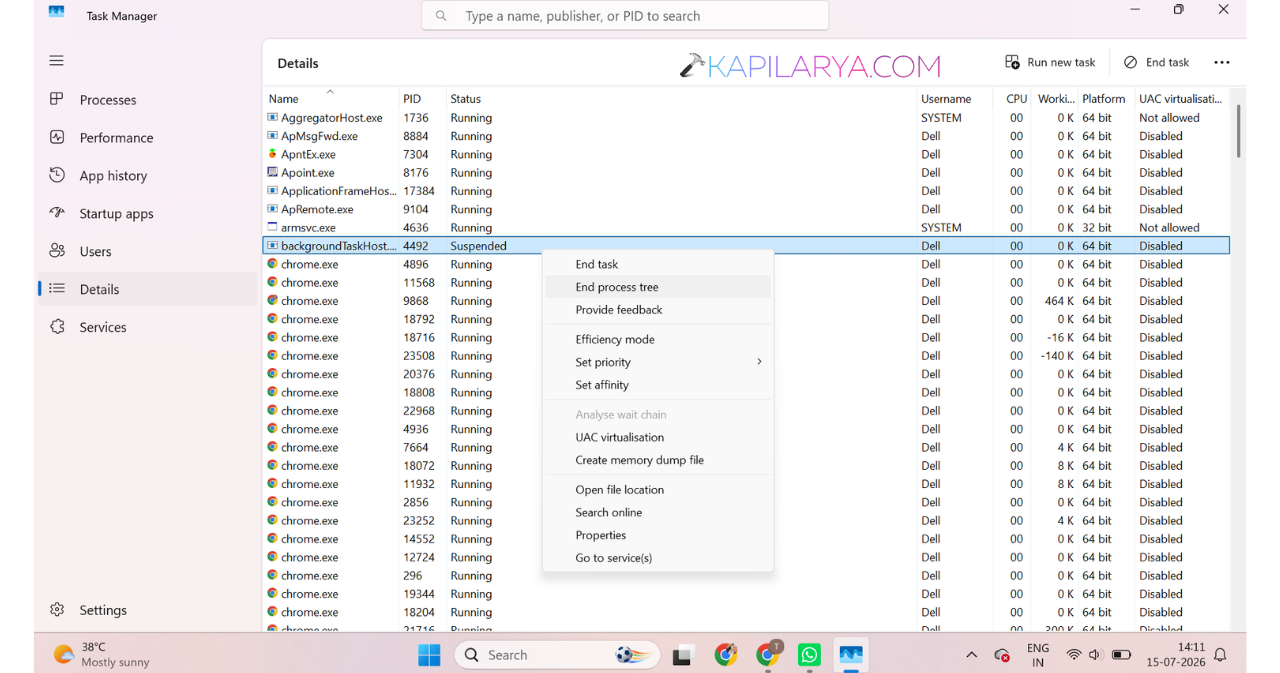
5. Confirm the action.
Fix 2: Force Close The App Using Taskkill
The taskkill command can terminate stubborn applications.
1. Open Command Prompt as Administrator.
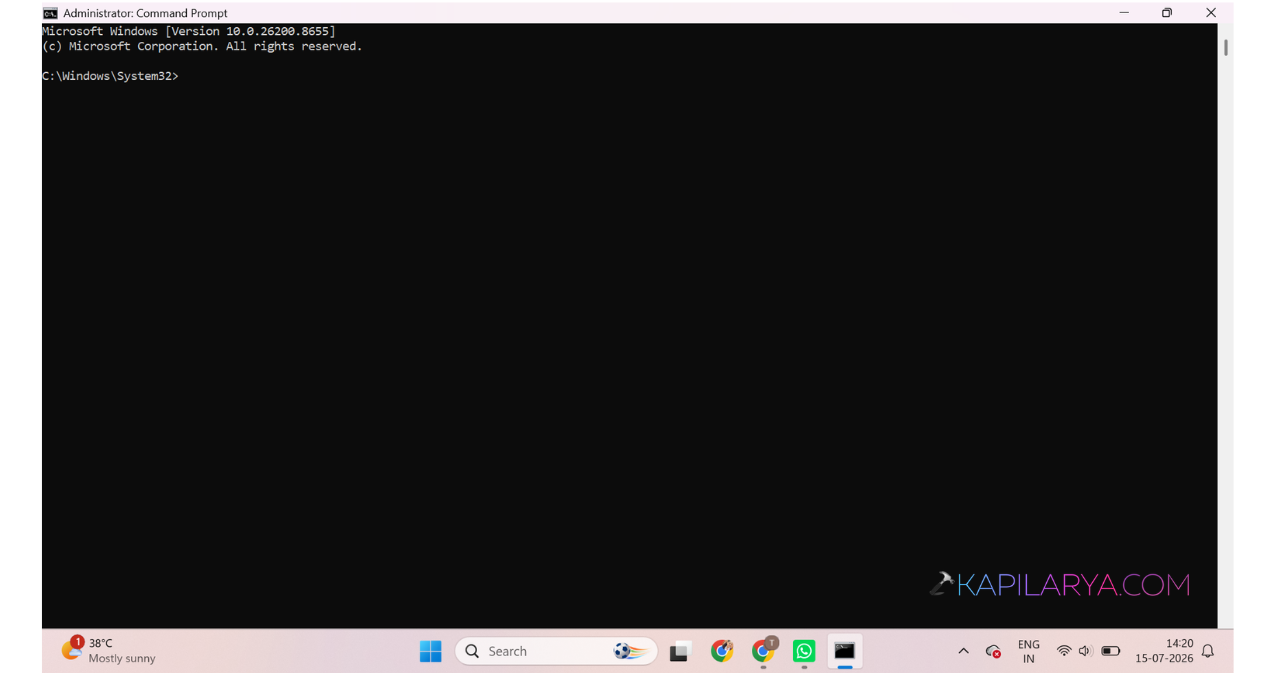
2. Type:
taskkill /f /im processname.exe
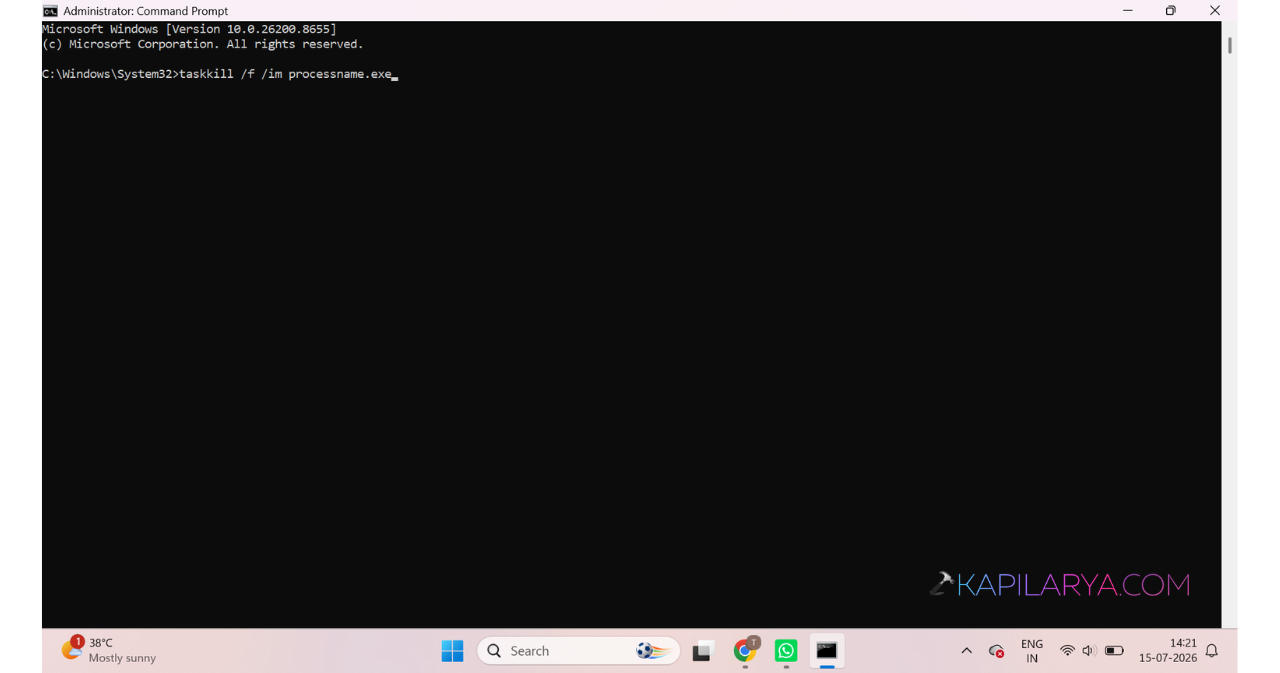
3. Replace processname.exe with the actual process name.
4. Press Enter.
Fix 3: Kill The Process By PID
If multiple copies of the same app are running, target one specific process.
1. Open Command Prompt as Administrator.
2. Run:
tasklist
3. Find the process PID.
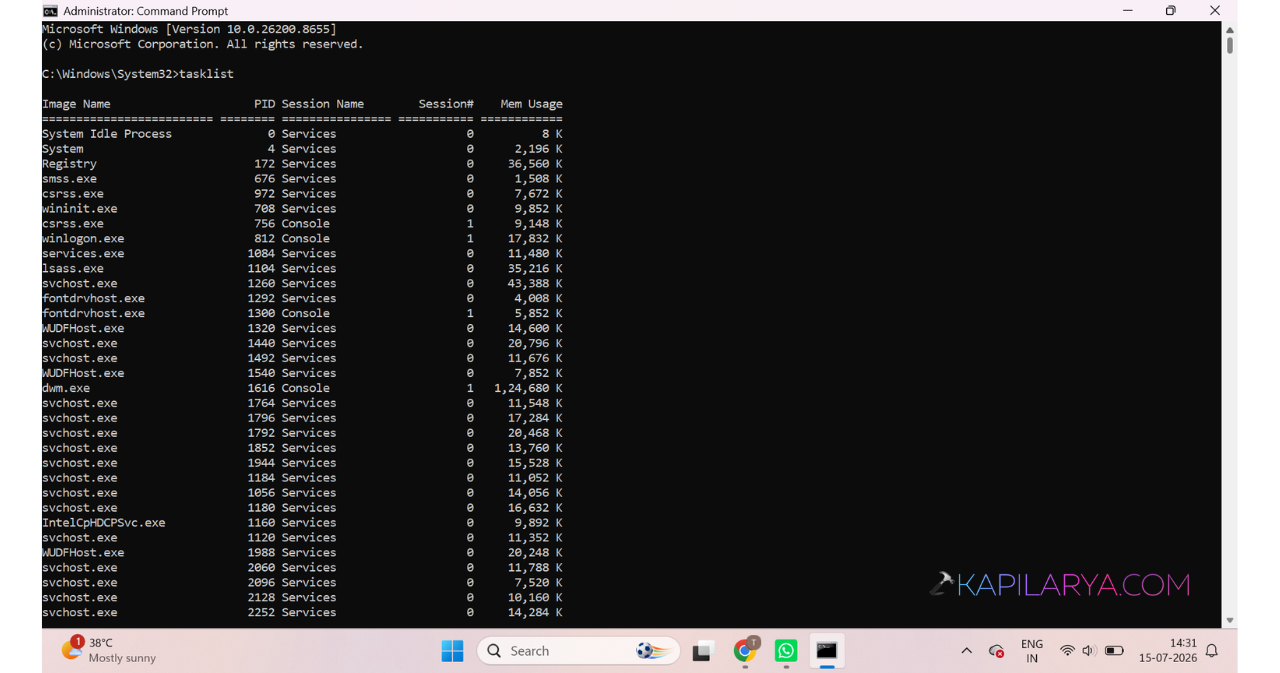
4. Type after substituting process PID:
taskkill /pid PID_Number /f
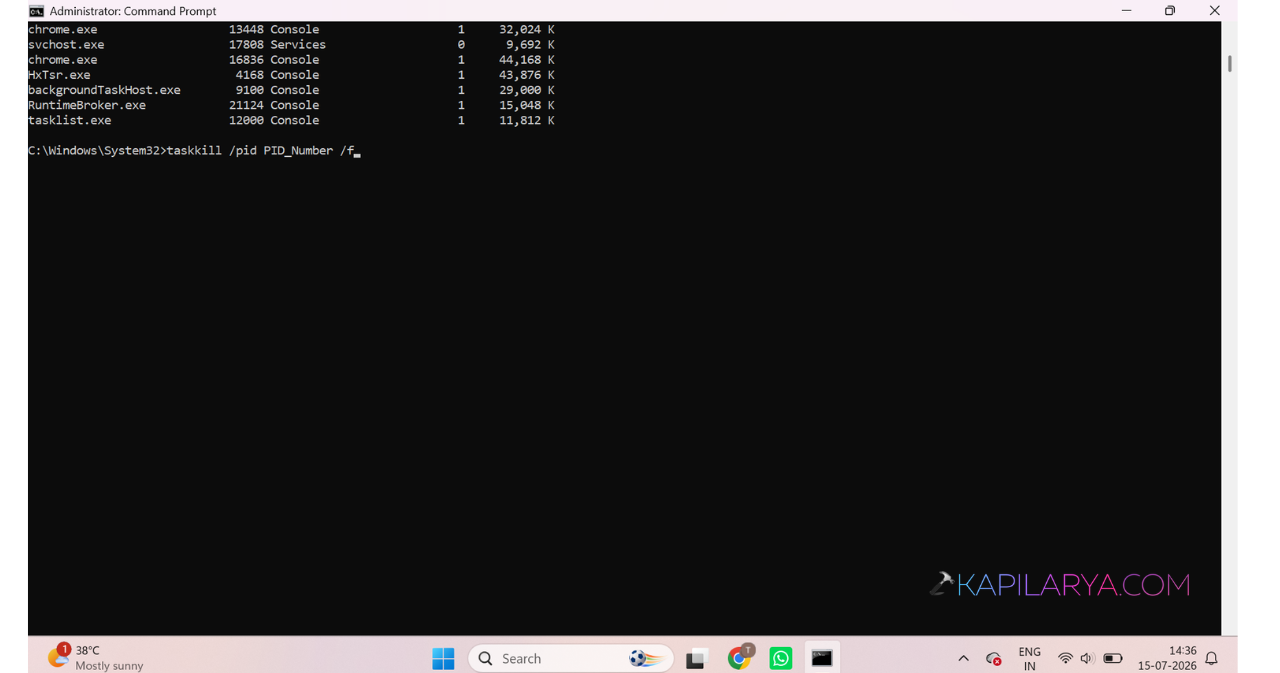
5. Press Enter.
Fix 4: Open Command Prompt From Task Manager
If Windows is partially frozen, try these steps:
1. Open Task Manager.
2. Click File > Run New Task.
3. Type:
cmd
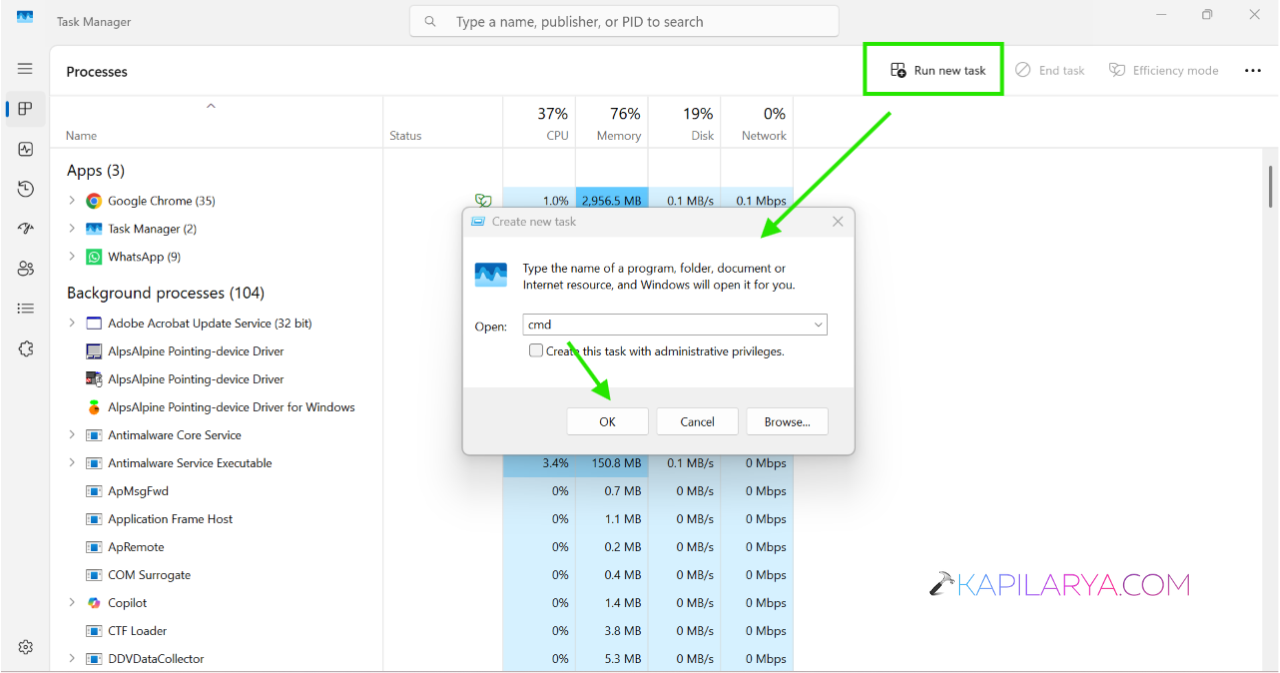
4. Tick Create this task with administrative privileges.
5. Run the required taskkill command.
Fix 5: Shut Down Your PC
If you see Access is Denied, the process may be protected by Windows. Save your work and shut down the computer and then restart it.