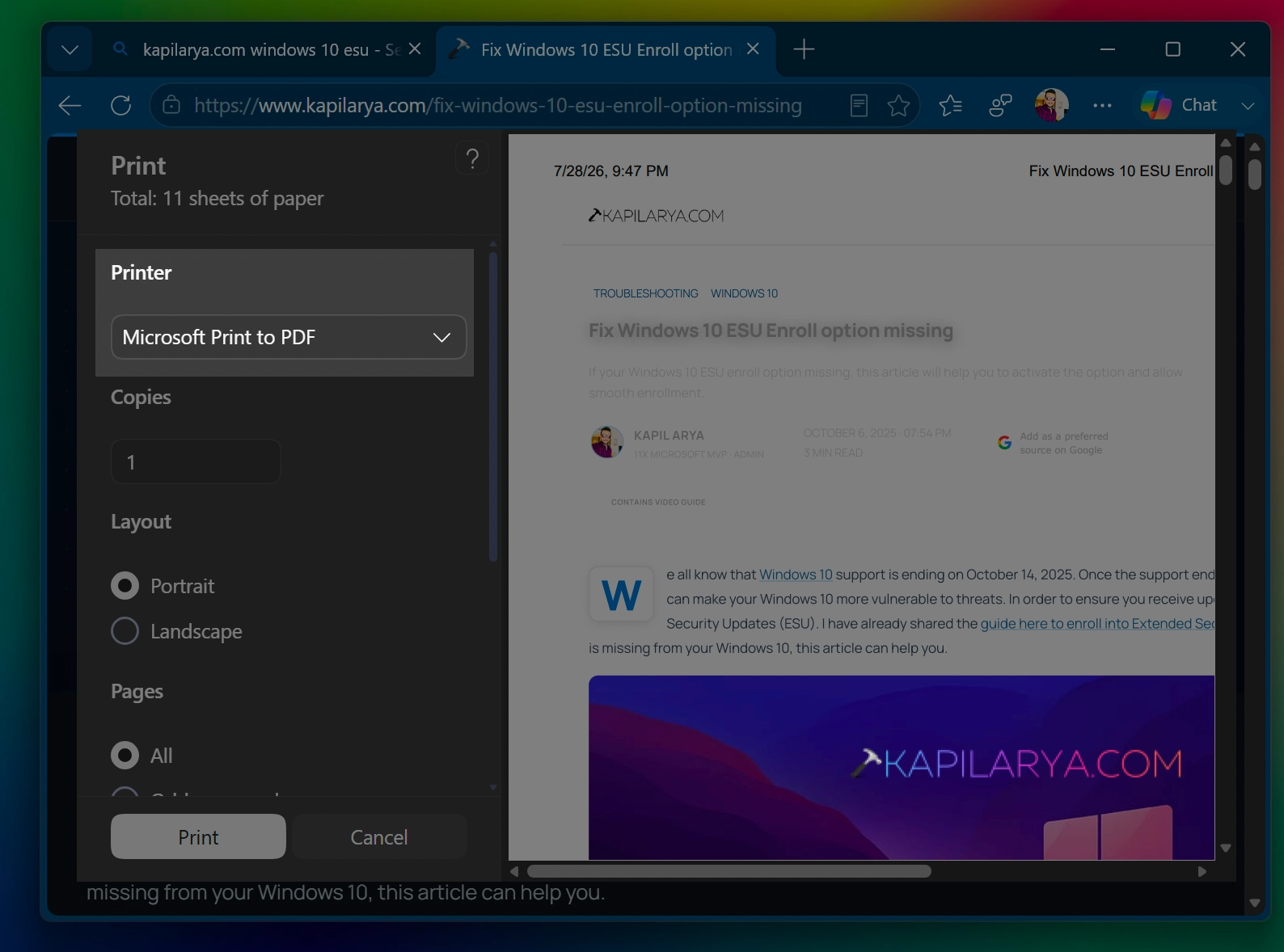
If you want to create a PDF file of a document, Microsoft provides Print to PDF facility in Windows 11. Using this feature you can instantly turn out your document into a PDF, without using any third-party software. This feature is built into Windows 11, and it should be labeled as a productivity feature for users. In this guide, we will see how you can enable or disable Microsoft Print to PDF in Windows 11.
Page Contents
Enable or disable Microsoft Print to PDF in Windows 11
Method 1: Using Turn Windows feature on or off
1. Click on the search icon present on the taskbar and type turn Windows feature on or off. Pick the same from search results.
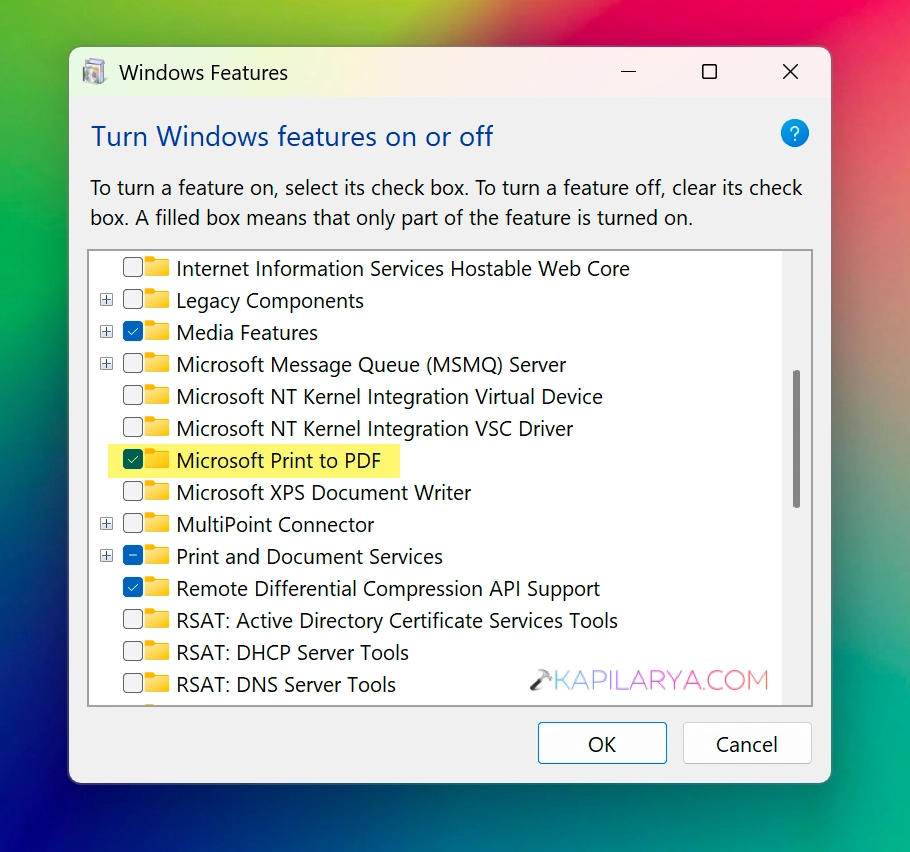
2. Once the Turn Windows feature on or off opens, scroll down and locate Microsoft print to PDF. By default, it is checked and this means the feature is turned on. In order to disable it, and uncheck the option and click OK.
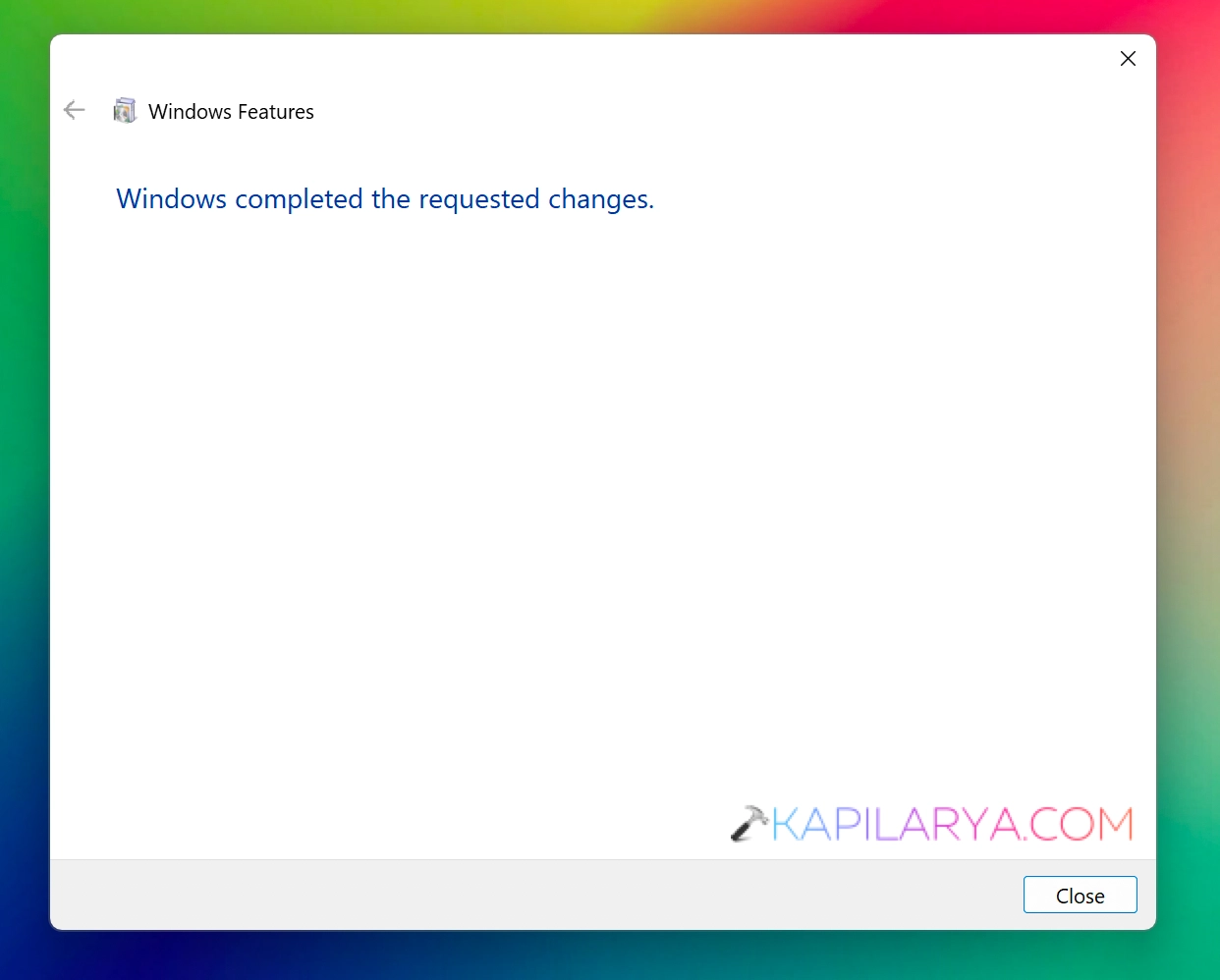
3. In few moments, you will find Windows completed the requested changes. This means now the Microsoft Print to PDF feature is disabled.
Method 2: Using Windows PowerShell
1. Right click on the Start button and select Terminal (Admin).
2. Click Yes in the User Account Control confirmation prompt.
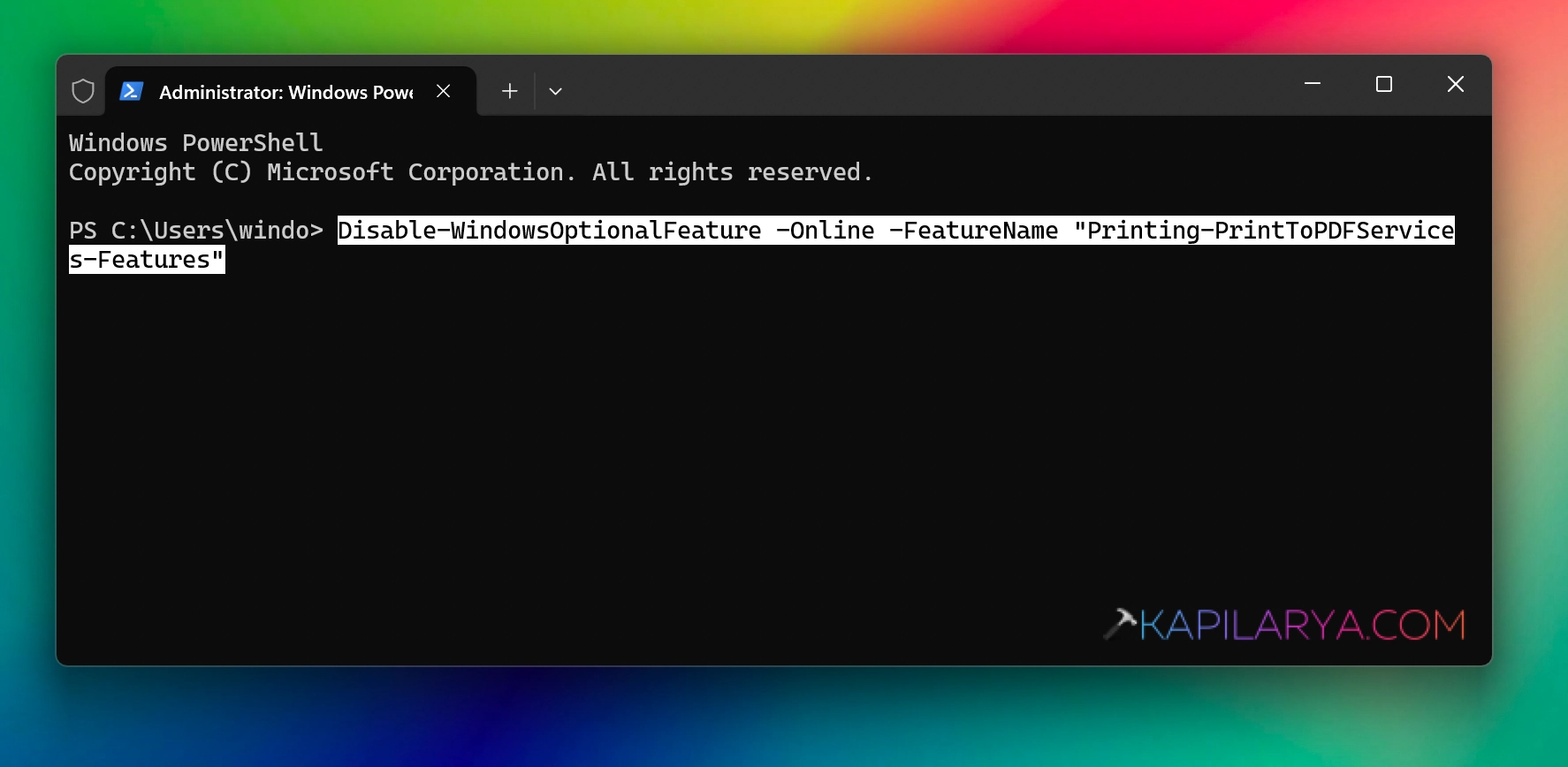
3. Once the Terminal (Admin) opens to Windows PowerShell, paste following command in order to disable Microsoft Print to PDF.
Disable-WindowsOptionalFeature -Online -FeatureName "Printing-PrintToPDFServices-Features"
In case if you want to enable it later, you can revert the change using following PowerShell command:
Enable-WindowsOptionalFeature -Online -FeatureName "Printing-PrintToPDFServices-Features"
Method 3: Using Command Prompt
1. Open the Terminal (Admin) app. Click on the + icon, select Command Prompt.
2. Paste the following command and press the Enter key in order to disable the Microsoft Print to PDF feature:
dism /Online /Disable-Feature /FeatureName:"Printing-PrintToPDFServices-Features"
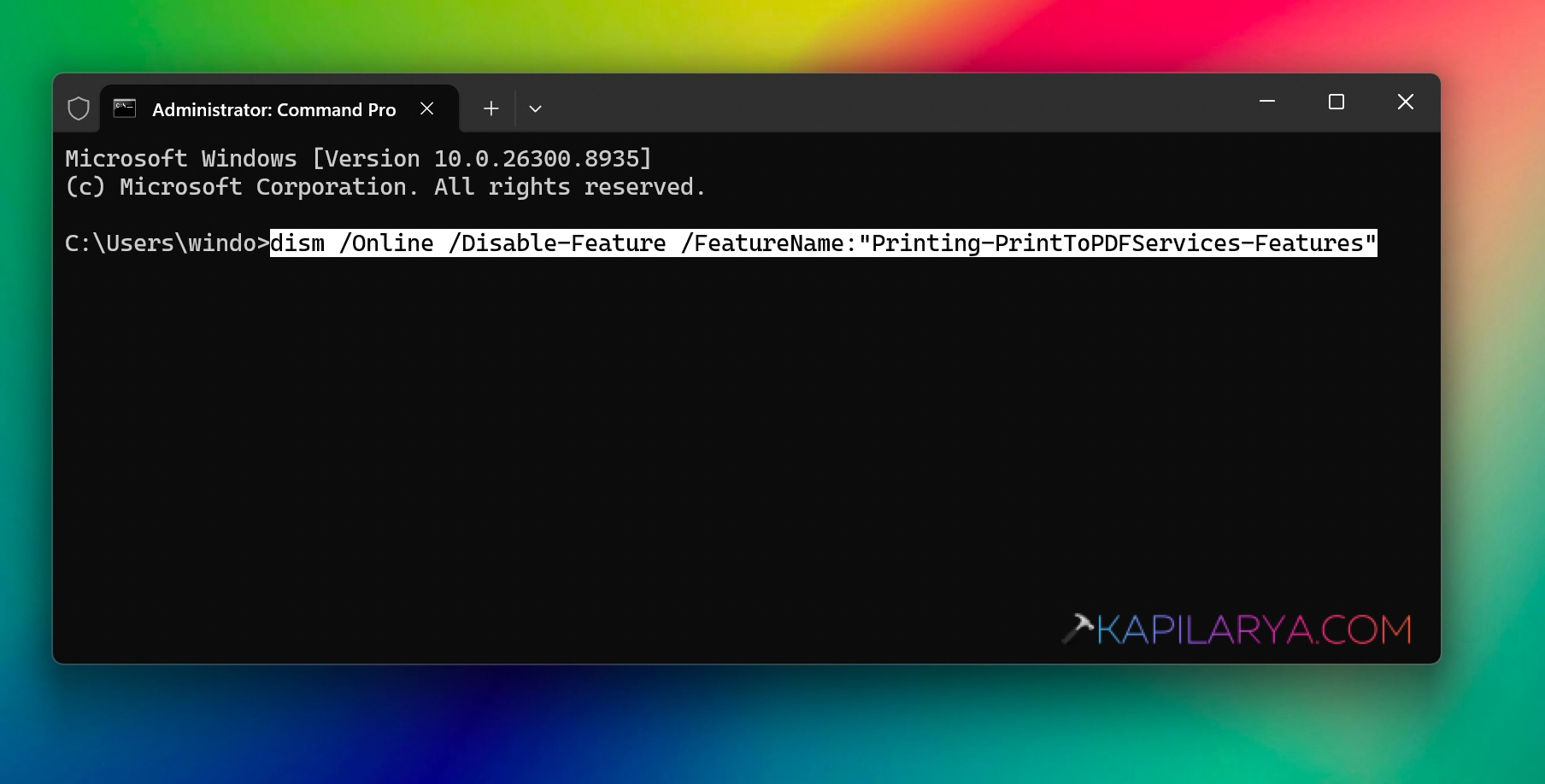
If you later want to revert the change, you can use the following command to re-enable Microsoft Print to PDF feature:
dism /Online /Enable-Feature /FeatureName:"Printing-PrintToPDFServices-Features"
Video guide
Here’s a video guide to help you more on this:
That’s it!