You can downgrade Microsoft Edge in Windows 11 to an older version using an MSI installer or Group Policy. Follow the steps below to roll back Edge on your PC.
Warning: Older versions of Microsoft Edge may contain known security vulnerabilities. Downgrade Edge only when necessary and restore updates after troubleshooting.
Page Contents
How to Downgrade Microsoft Edge in Windows 11 Using an MSI Installer
This method requires Local Group Policy Editor, which is unavailable in Windows Home. It is suitable for Windows Pro, Enterprise, and Education editions.
Step 1: Download and Install Microsoft Edge Policy Templates
1. Click this link(https://explore.microsoft.com/en-us/edge/business/download?form=MA13FJ) to open Microsoft Edge for Business website.
2. Scroll to Looking for an older version of Edge?
3. Under Select channel/version, choose the required Edge channel and version.
4, Under Select build, choose the required build.
5. Under Select platform, choose Windows 64-bit.
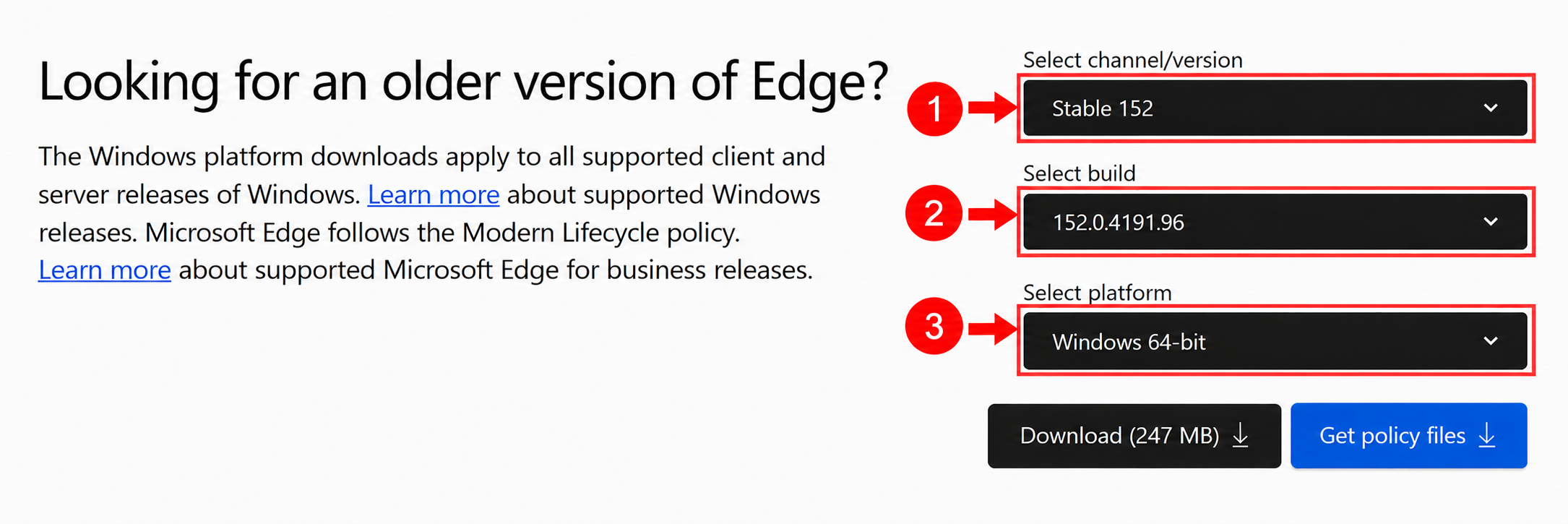
6. Click Get policy files.
7. Open the downloaded ZIP file and extract its contents.
8. Open the extracted MicrosoftEdgePolicyTemplates . Navigate to windows>admx.
9. Copy these:
- msedge.admx
- msedgeupdate.admx
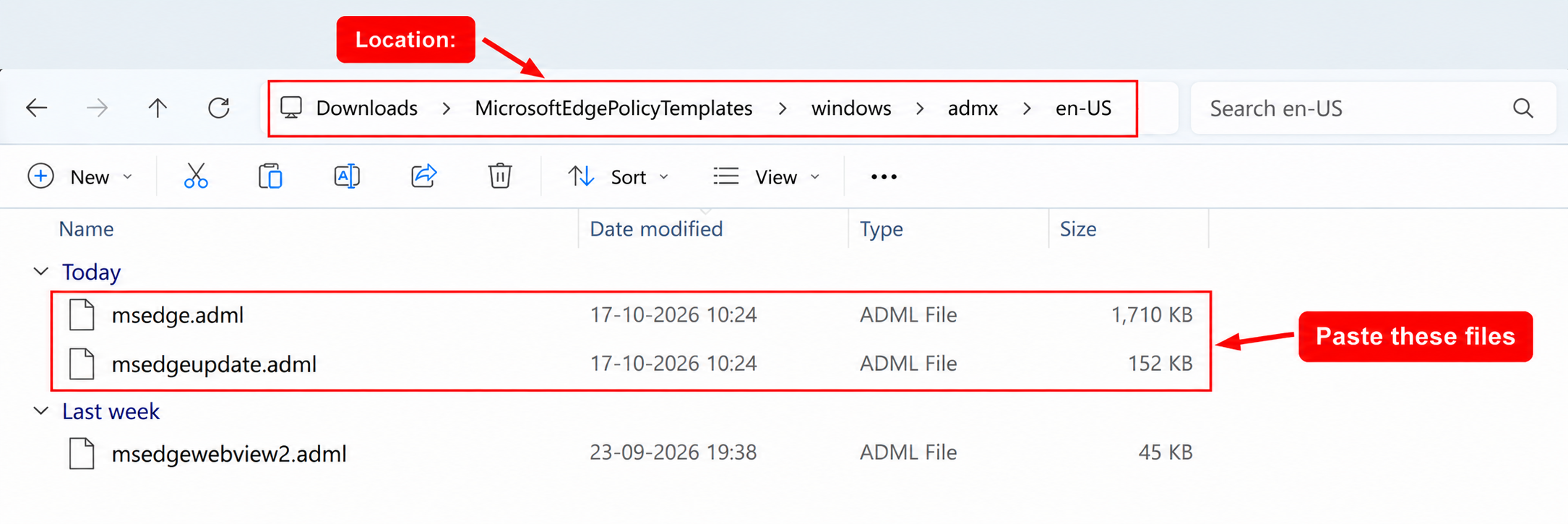
10. Paste both files into C:\Windows\PolicyDefinitions.
Step 2: Disable Microsoft Edge Updates
1. Press Win + R, type gpedit.msc, and press Enter.
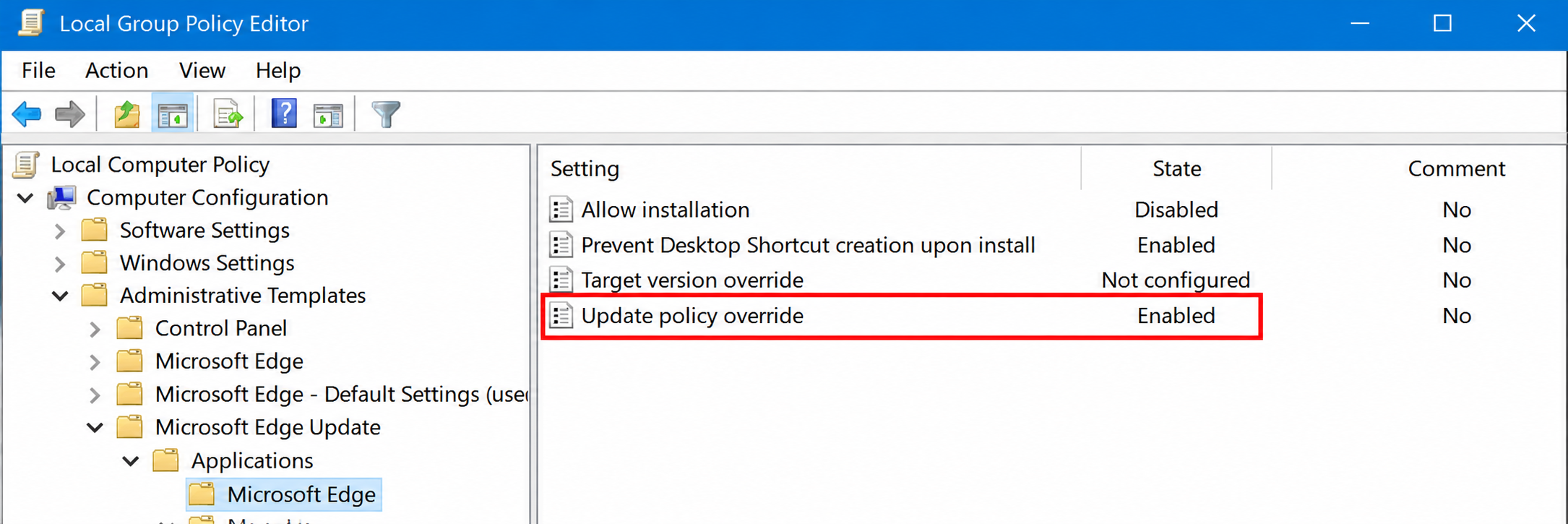
2. Navigate to: Computer Configuration > Administrative Templates > Microsoft Edge Update > Applications > Microsoft Edge
3. Double-click Update policy override.
4. Select Enabled.
5. Under Options, select Updates disabled.
6. Click Apply, then OK.
Step 3: Download the Older Version of Microsoft Edge
1. Open the Microsoft Edge for Business website.
2. Scroll to Looking for an older version of Edge?
3. Select the required channel/version, build, and platform.
4. Click Download.
5. Click Accept and download when prompted.
6. Save the downloaded MSI installer to your desktop.
Step 4: Install the Older Version
1. Press Win + R, type cmd, and press Ctrl + Shift + Enter to open Command Prompt as administrator.
2. Run the following command, replacing the boldened path and boldened filename with your actual MSI installer path and filename:
msiexec /I "C:\Users\username\Desktop\FileName.msi" /qn ALLOWDOWNGRADE=1
3. Wait for the installation to finish.
4. Open Microsoft Edge and check its version to confirm that the rollback is complete.
Method 2: Downgrade Microsoft Edge Using Group Policy
This method requires Microsoft Edge policy templates to be installed. This method is intended for PCs joined to a Microsoft Active Directory domain.
Step 1: Open Group Policy Editor
1. Press Win + R.
2. Type gpedit.msc and press Enter.
3. Navigate to: Computer Configuration > Administrative Templates > Microsoft Edge Update > Applications > Microsoft Edge
Step 2: Enable the Rollback Policy
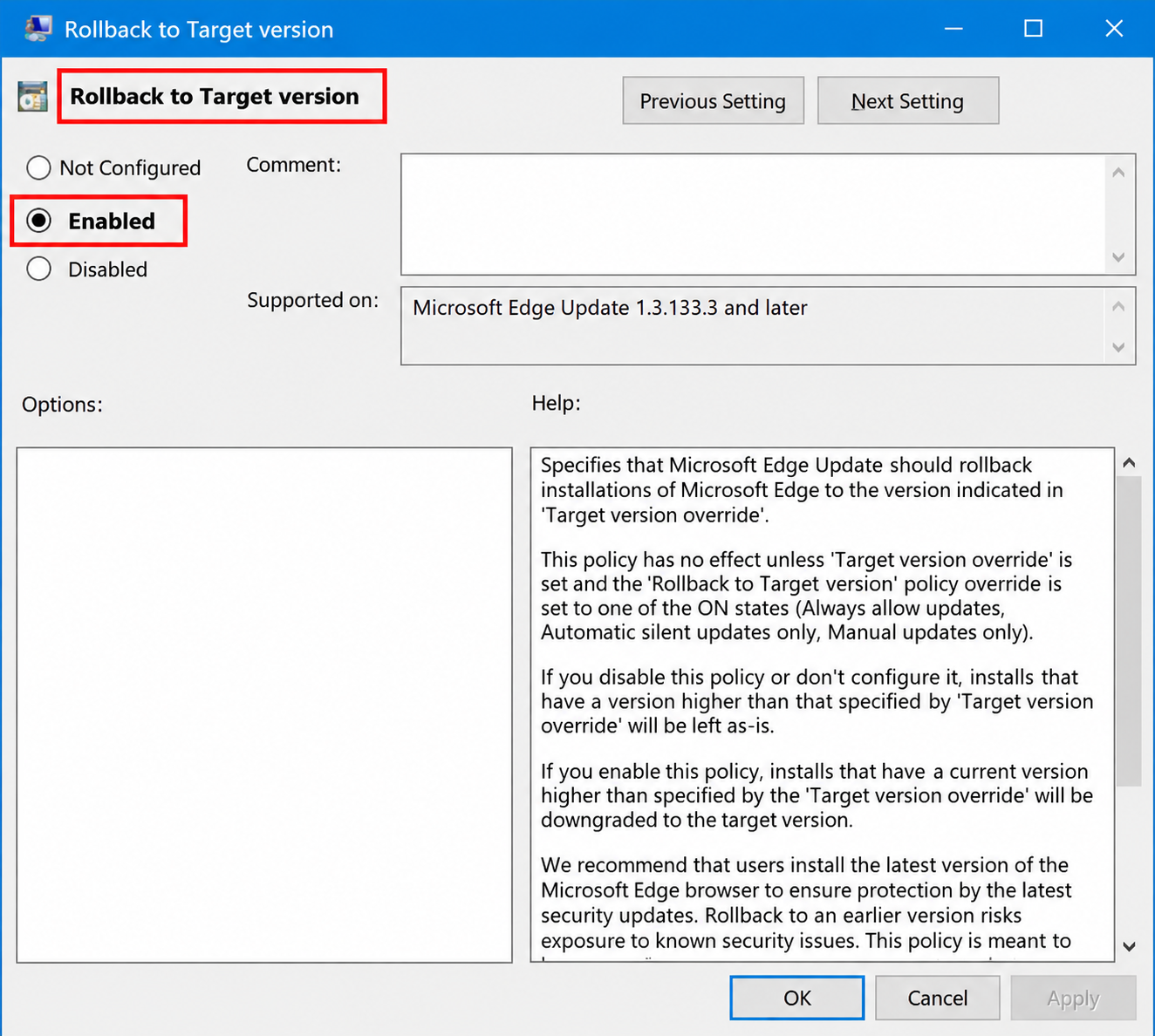
1. Double-click Roll back to Target version.
2. Select Enabled.
3. Click Apply, then OK.
Step 3: Specify the Target Version
1. Double-click Target version override.
2. Select Enabled.
3. Under Options, enter the required Microsoft Edge version in the Target version field.
4. Click Apply, then OK.
Step 4: Configure the Update Policy
1. Double-click Update policy override.
2. Select Enabled.
3. Under Options, choose Always allow updates or Automatic silent updates only.
4. Click Apply, then OK.
Step 5: Apply the Policy
1. Open Command Prompt as administrator.
2. Run the following command: gpupdate /force
3. Wait for Microsoft Edge Update to check for updates.
4. Open Microsoft Edge and check its version to confirm that it has rolled back.
If you need to access a website or web application that requires Internet Explorer, you can use Internet Explorer mode in Microsoft Edge instead of downgrading the browser.
After troubleshooting, restore the update policy so Microsoft Edge can receive future security and feature updates.
That’s it!