

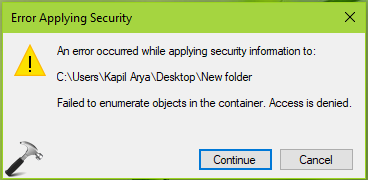
Files and folder management works on permissions, and we all know this very well. Whenever you try to modify an item in Windows, may be it is file, folder or registry key, unless you’ve required permissions, you can’t go ahead. So if you’re modifying any of these items and you’re lacking the permissions, following error might appear:
Page Contents
Failed to enumerate objects in the container. Access is denied.
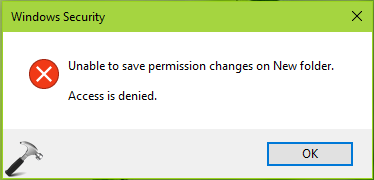
Clicking Continue on above message gives another error message:
Unable to save permissions changes on <FOLDER NAME>. Access is denied.
These errors may appear under following conditions:
- You’re on standard user account and trying to modify item (file/folder/registry key) that is owned by admin account, TrustedInstaller or system.
- You’re on admin account, you’ve ownership of the item as well but the ownership is not applied on sub-containers i.e. sub-folders, children files.
- Permissions for your Group or user name set explicitly to ‘Deny‘. You may check this on item’s property sheet properties, on Security tab.
Due to above mentioned errors, you can’t rename, delete, move files and folders and can’t modify the registry keys as well. If you’re facing this error on your Windows 10 or earlier running machine, here is how you can get rid of it:
FIX : ‘Failed To Enumerate Objects In The Container. Access Is Denied.’ In Windows 10/8/7
1. Right click on the file/folder/registry key with which you’re facing this issue and select Properties.
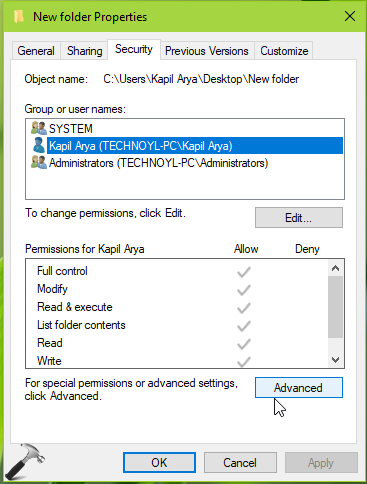
2. On the property sheet, switch to Security tab and click Advanced.
3. On Advanced Security Settings window, against Owner, click Change. Take ownership of the item, even if you’re already owner of this item.
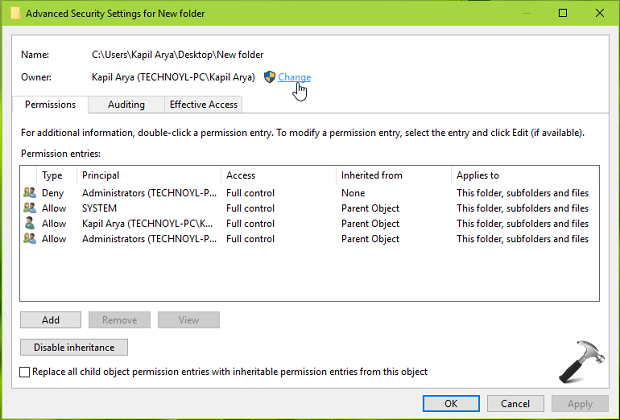
4. After taking ownership, you must see Replace owner on subcontainers and objects beneath Owner name. Check that option and also check Replace all child object permissions entries with inheritable permission entries from this object. Click Apply.
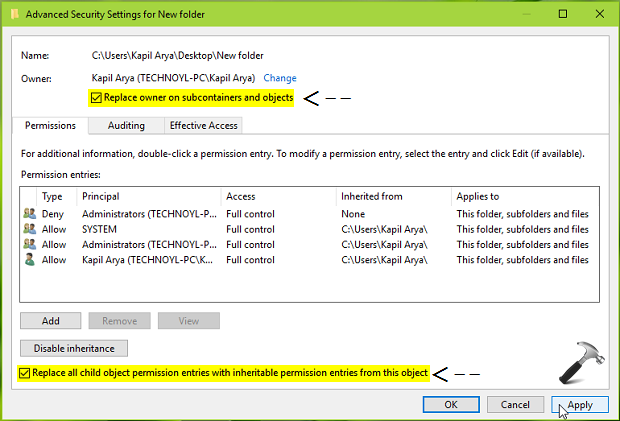
5. For the below mentioned security prompt, select Yes.
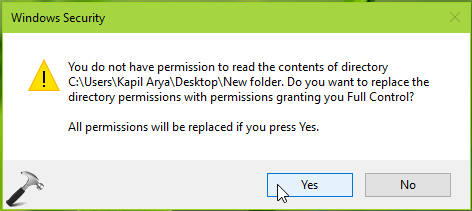
6. Moving on, click Yes on another security prompt that want you to confirm – This will replace explicitly defined permissions on all descendants of this object with inheritable permissions from <folder name>. Do you wish to continue?
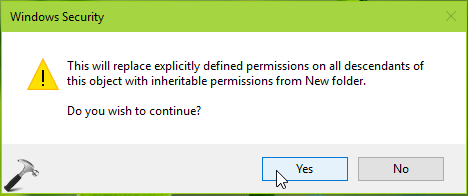
Finally, you’ve the confirmation that permission on the item and its sub-items have been modified successfully. Click OK on below shown message.
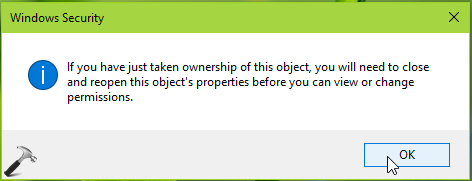
You can now re-try to modify the item with which you’re facing this issue and this time permission error will not occur.
Check the live illustration of this method here:
That’s it!





Hello Kapil – thank you so much for a very clear set of instructions. I am so glad I found this after hours and hours of frustration. I had to execute your instructions in Safe Mode, but they did solve the problem. Thanks again, Oliver
^^ Glad we could help 😎
After spending 4 hours, your post helped. Thanks a ton.
^^ Glad to help Charles!