Some Windows users report that the copy and paste function is not working after they have updated to Windows 11. Mostly, the keyboard shortcut would stop functioning from time to time on their system. It is a very common software glitch but can be resolved hassle-free. So, how to fix copy and paste not working in Windows 11?
In this post, learn how to fix this issue if you are encountering one on your Windows 11 PC. Now, let’s get started without further ado!
Page Contents
Fix: Copy and Paste not working in Windows 11
Fix 1 – By Repairing Corrupted System Files
1. Open Command Prompt with admin privileges.
2. Now, copy-paste the following command and hit Enter:
sfc /scannow

3. Once executed, the system will scan the system for corrupted files and fix the same.
Fix 2 – By Closing Unnecessary Programs
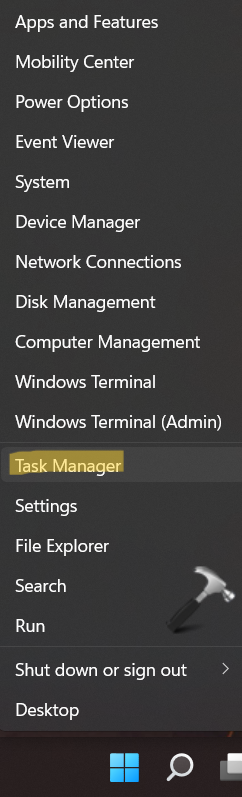
1. Open Task Manager by right-clicking on Windows Start button present on the taskbar.
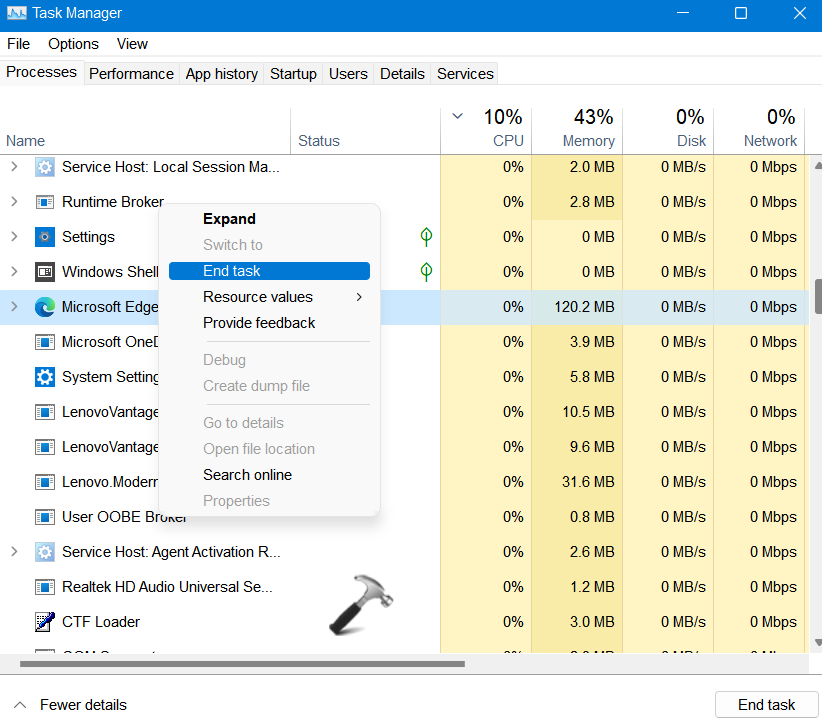
2. Go to the Processes tab and right-click on the process you like to end. Next, choose End task.
Fix 3 – By Restarting Windows Explorer
1. Open Task Manager by right-clicking on Windows Start button present on the taskbar.
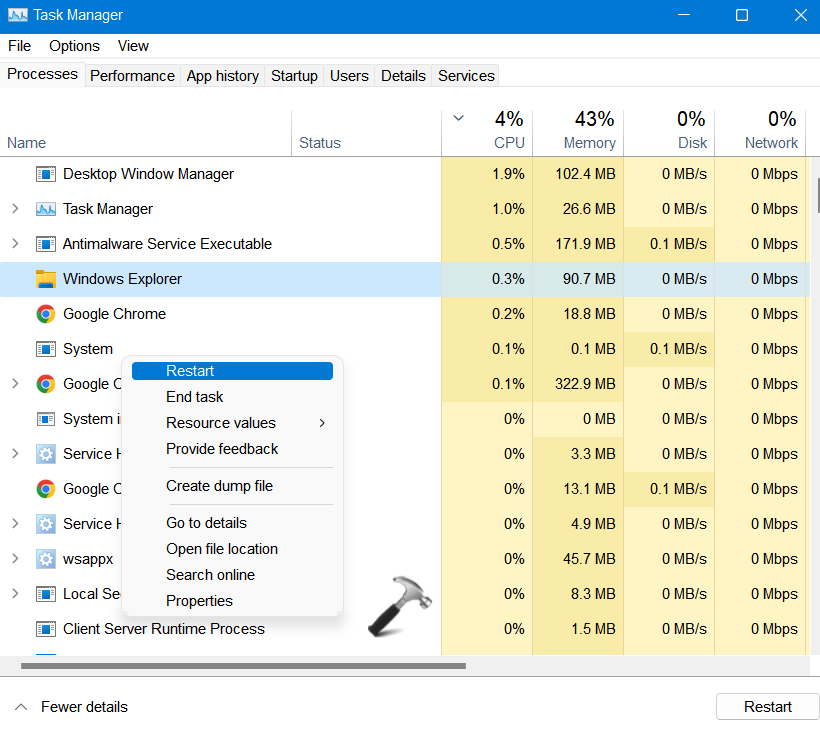
2. Go to the Processes tab and right-click on the Windows Explorer process. Next, choose Restart from the context menu.
Fix 4 – By Clearing Clipboard History
1. Open Clipboard by pressing the Windows + V tabs together on your keyboard.
2. Now, click on Clear all for deleting the Clipboard history.

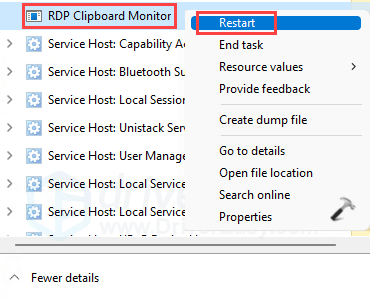
Fix 5 – By Restarting RDP Clipboard Monitor
1. Open Task Manager by right-clicking on Windows Start button present on the taskbar.
2. Go to the Processes tab and right-click on the RDP Clipboard Monitor process. Next, choose Restart from the context menu.
So, these are some of the effective solutions to fix the copy and paste not working in Windows 11 issue. Try these fixes one by one and resolve the issue on your Windows PC effectively and efficiently!
You can also checkout this video guide for further information:
Related: