Windows 11 Version 25H2 has been released few days back by Microsoft. Most of users get Version 25H2 update in the Windows Update section. While attempting to download the update from Windows Update page, if Windows 11 Version 25H2 failed to install, this article can help you to fix the problem.
You can review below mentioned screenshot, which shows that Windows 11 version 25H2 update is failing. There may be a random error code associated, and it can be a download error code, or the install error code. In this nutshell, the update is failing and you need to fix it.

So how to fix this problem? Well, we have different solutions to resolve this problem, here are those.
Page Contents
Windows 11 Version 25H2 failed to install
Fix problems with Windows Update
If the Version 25H2 update is failing, one of the prominent reason for this could be corruption of Windows Update. Check if you’re getting problems with other updates as well. You can simply reset Windows Update to resolve issue associated.
Open administrative Command Prompt and type following commands one-by-one followed by Enter key.
Here’s how to do it:
- Open administrative Command Prompt.
- Type the following commands one-by-one and press Enter after each:
net stop wuauserv
net stop cryptSvc
net stop bits
net stop msiserver
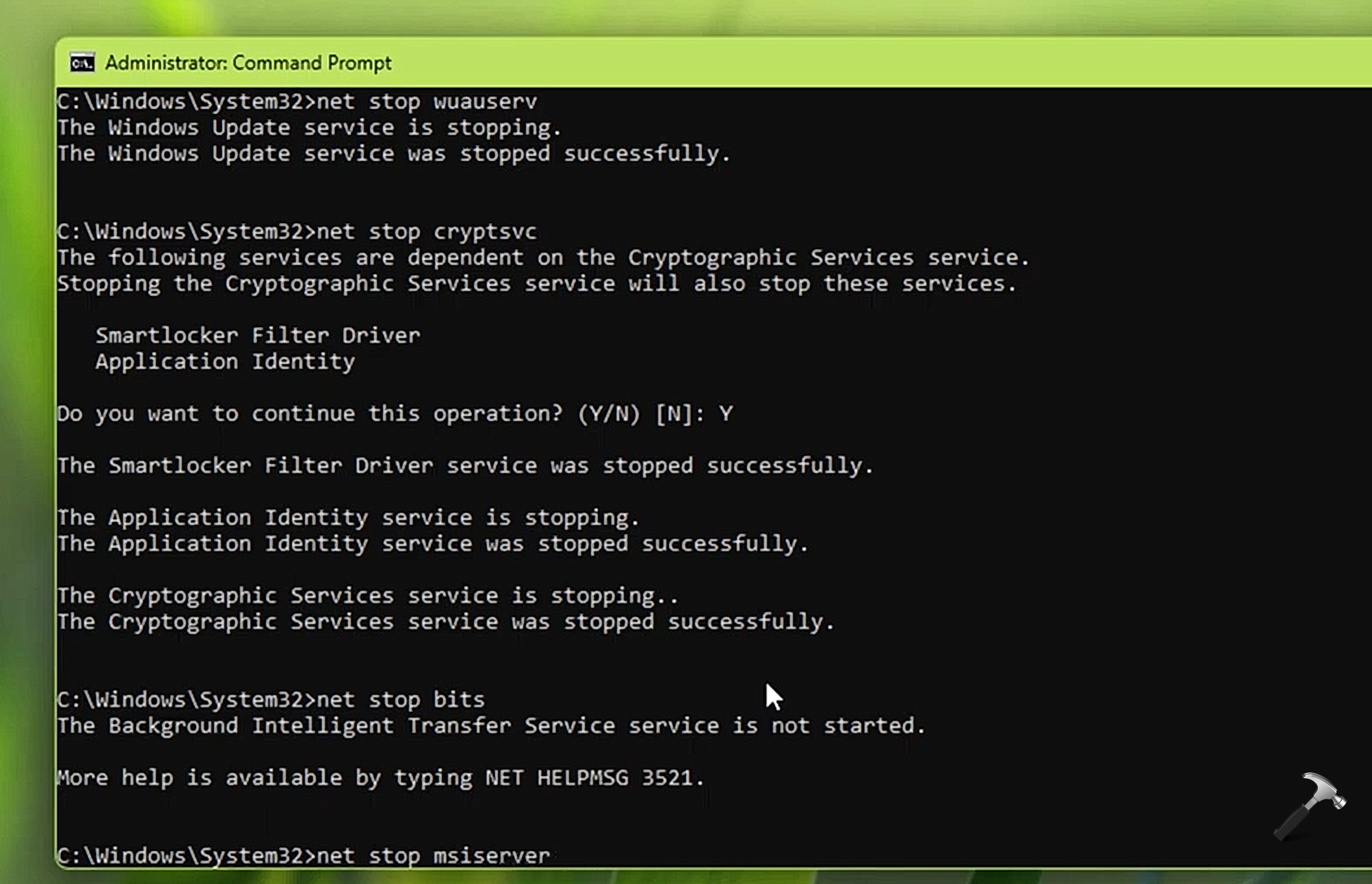
- Then rename “SoftwareDistribution” folder and ‘catroot2’ folder using these commands:
ren C:\Windows\SoftwareDistribution SoftwareDistribution.old
ren C:\Windows\System32\catroot2 catroot2.old
Note: If your Windows installation is on a different drive, replace “C:” with the appropriate drive letter.
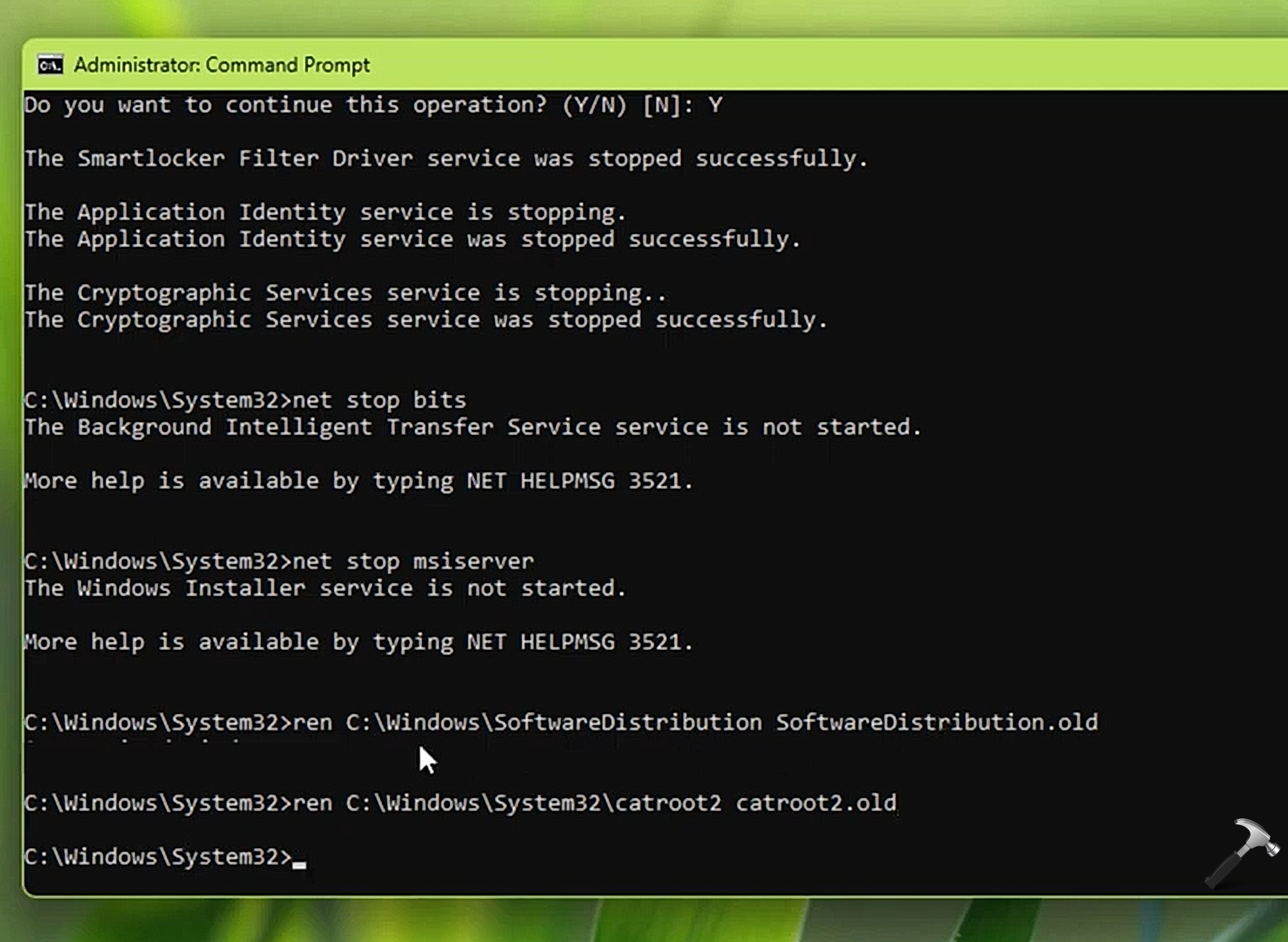
- Now start back services stopped in step 2.
net start wuauserv
net start cryptSvc
net start bits
net start msiserver
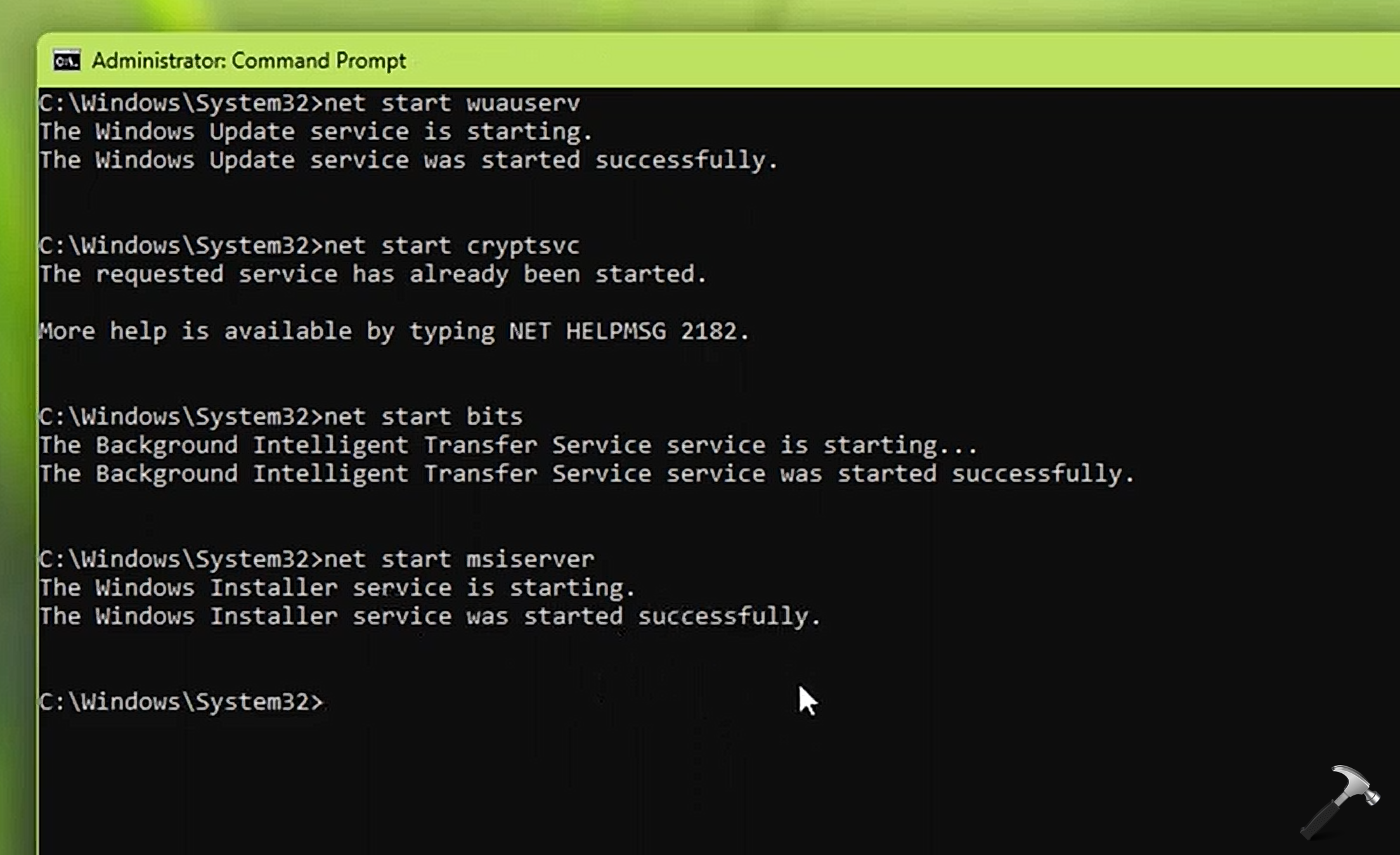
- Close Command Prompt.
Manually install the Windows 11 25H2 enablement package
Since Windows 11 Version 25H2 is a small update provided through enablement package. If you’re currently on Version 24H2, you can download the enablement package (eKB) directly and then manually install it — even without using the Internet.
You can refer steps in this article to download and install Windows 11 Version 25H2 enablement package.

Use Windows 11 Installation Assistant
As the update is failing, using Windows 11 Installation Assistant is a great alternative. You can simply download the Installation Assistant from Microsoft’s website (https://www.microsoft.com/en-us/software-download/windows11).
Once it is downloaded, simply click on the .exe file and this will launch Installation Assistant. Click on Accept and install to proceed. Now the tool will automatically get Windows 11 2025 Update and install it.

The tool will first download, then verify download and then install it. This may take time depending upon your Internet speed and system resources.
Upgrade using Windows 11 25H2 ISO
One of the most successful method for upgrading Windows 11 is via using ISO file. In this case, you have to simply download the Windows 11 25H2 ISO file directly from the Microsoft’s official website (https://www.microsoft.com/en-us/software-download/windows11).
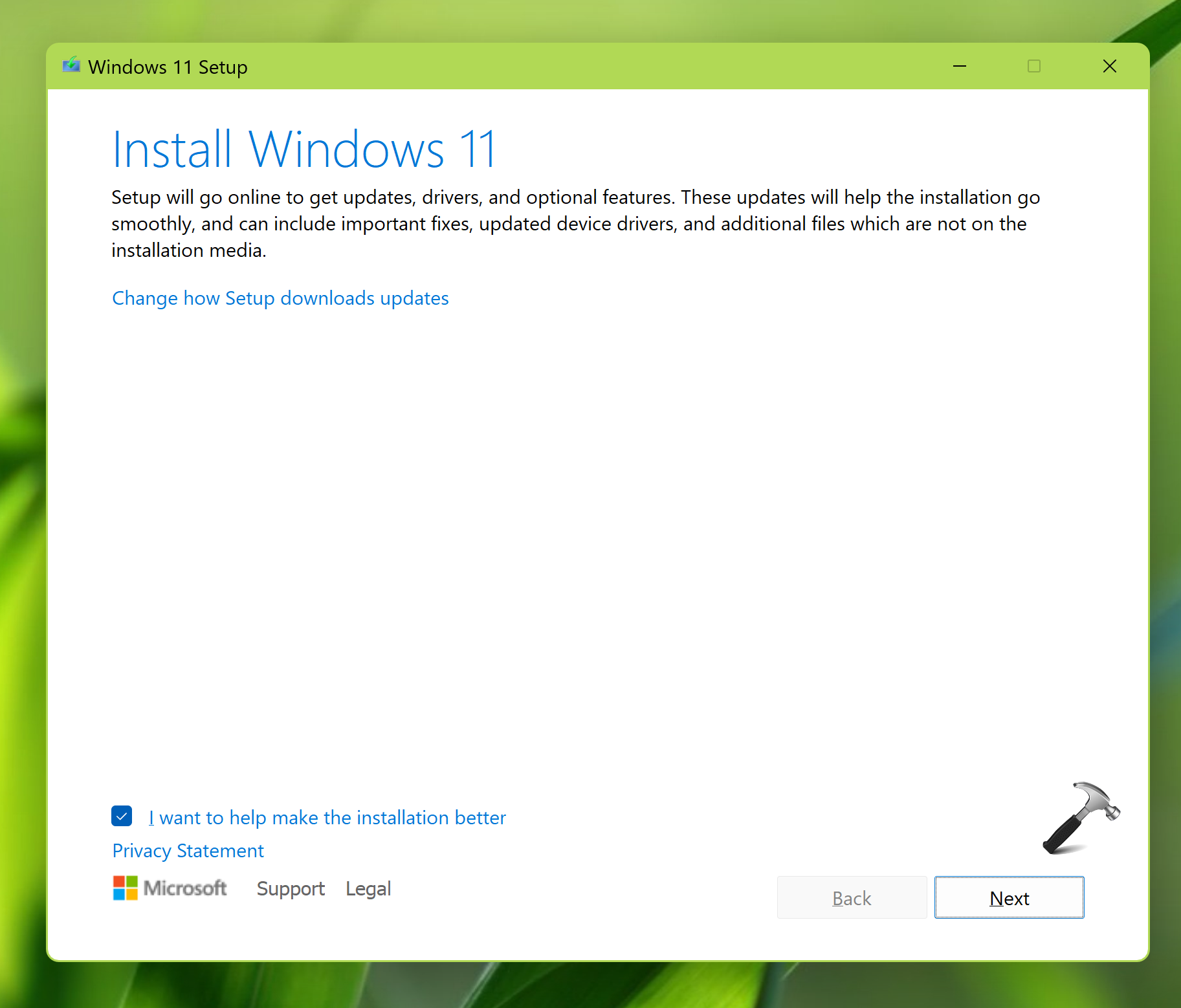
When the ISO file has been downloaded, you can just double click on it and mount it to a DVD drive. Then go to the mounted DVD drive and double click on the setup.exe file to launch the setup for Windows 11 25H2.
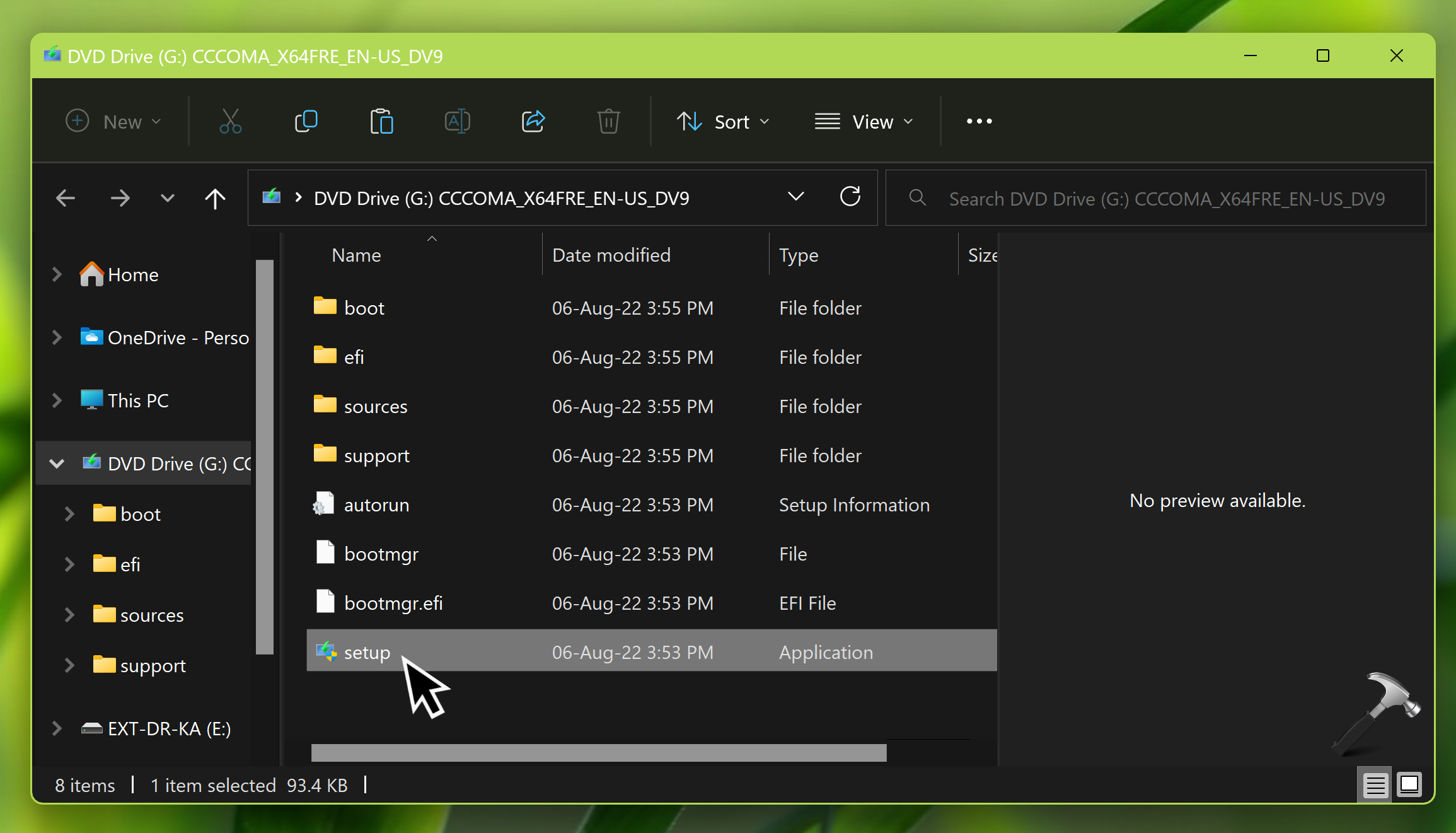
Then follow the on-screen instructions to complete the upgrade.
Video fix
You can also refer this video fix for further help:
Let us know via your comments, if issue still persists.
That’s it!