

Windows Update error code 0x800f0991 is one of the most frequent problems during update installation or operating system upgrade. This error could cause the PC to fail to download and install necessary updates, which makes your system susceptible and old-fashioned.

In case you have been getting the error message of installation failed with an error code of 0x800f0991 in Windows 11, then you are in the right place. The positive side of this situation is that the mistake can be corrected with the use of some proven strategies. In this article, we are about to take you through 8 informative solutions to fix the Windows update error code 0X800f0991.
Page Contents
Fix Windows Update error code 0x800f0991
The Windows update error code 0x800f0991 may appear difficult to fix, but when you have these step-wise solutions, you can easily get your updates to be operational once again. Begin with simple repairs and proceed to complicated repairs when necessary.
Fix 1: Try Some Basic Fixes First
You can begin with these easy fixes before proceeding to complex fixes which frequently solve the problem immediately.
1. You can restart your PC, and this can help in clearing temporary glitches and prevent the updates.
2. Make sure the Internet is stable so that there is no poor or discontinuous connection, because this can lead to failure in updating Windows.
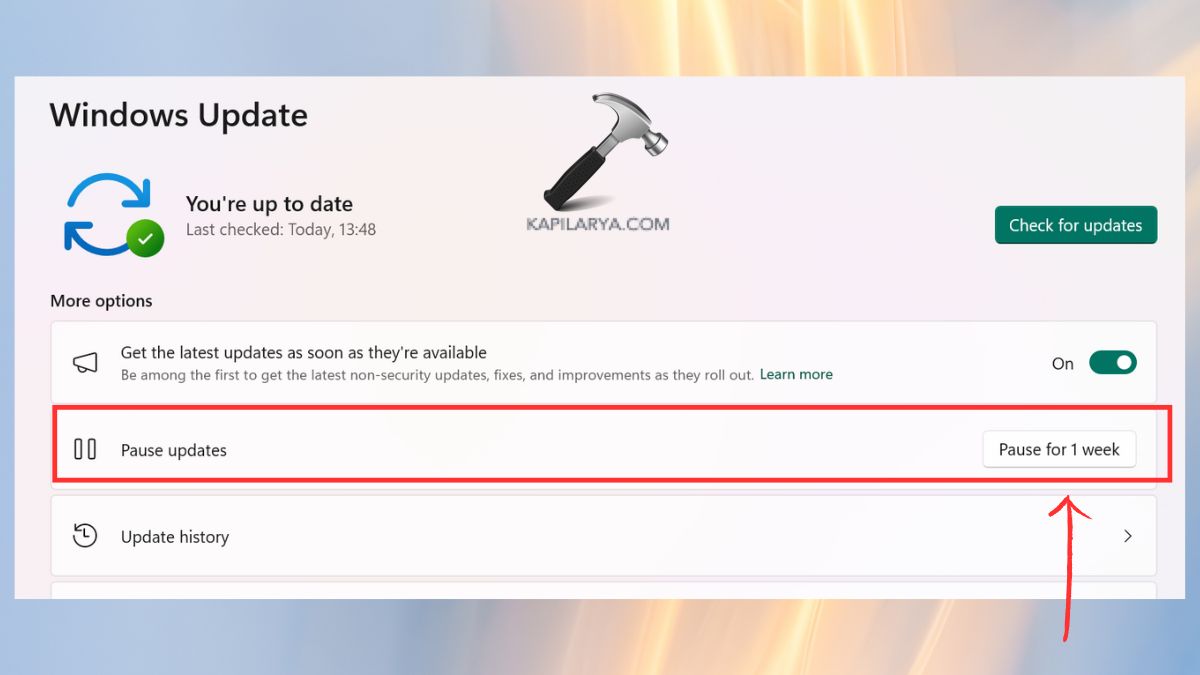
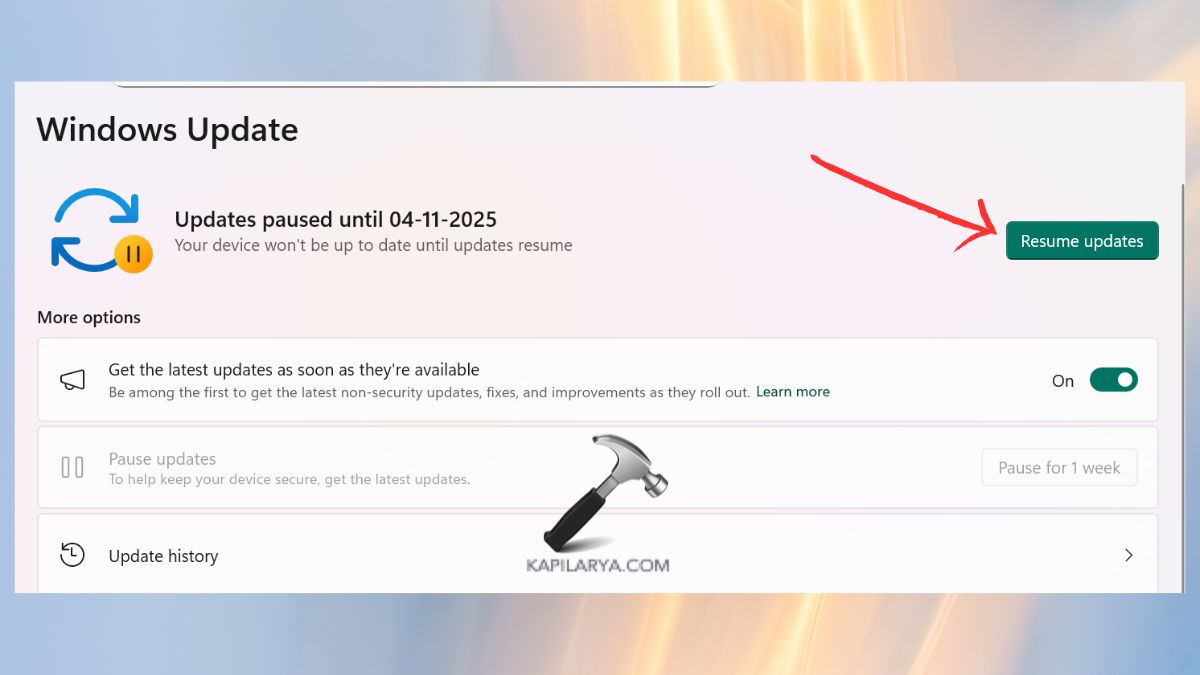
3. Pause and Resume updates using the following steps:-
- Click on Settings, then Windows Update, then Pause update for 1 week option.
- Wait for some minutes, then start updates with “Resume Updates” button.
4. Turn off antivirus programs from third parties.
In case the problem still remains, proceed to the second technique.
Fix 2: Install Windows Update Manually
In case Windows Update does not work, the given update can be installed manually through the Microsoft Update Catalog.
1. To do that, go to the Microsoft Update Catalog website (https://www.catalog.update.microsoft.com/Home.aspx).

2. Search for the number of the KB of the failed update. Install the appropriate version of Windows version (x86/x64).

Install the installer and go through the onscreen instructions. This is a way of circumventing automatic update failures and manually installing updates.
Fix 3: Clean the Software Distribution Folder
Windows Update error 0x800f0991 may be caused by corrupted update cache files. Deleting the SoftwareDistribution folder causes Windows to regenerate a new update cache.
1. Start the Command Prompt as Administrator.

2. Execute the commands below sequentially:-
net stop wuauserv
net stop bits

3. Go to this folder in File Explorer.
C:\Windows\SoftwareDistribution
Delete all files inside it.

4. Now, this command restarts the services in the Command Prompt.
net start wuauserv
net start bits

5. Again now, check for updates.
Fix 4: Check Windows Update Services
Windows uses a number of background services to deal with updates. In case any of them fail, error 0x800f0991 can be found.
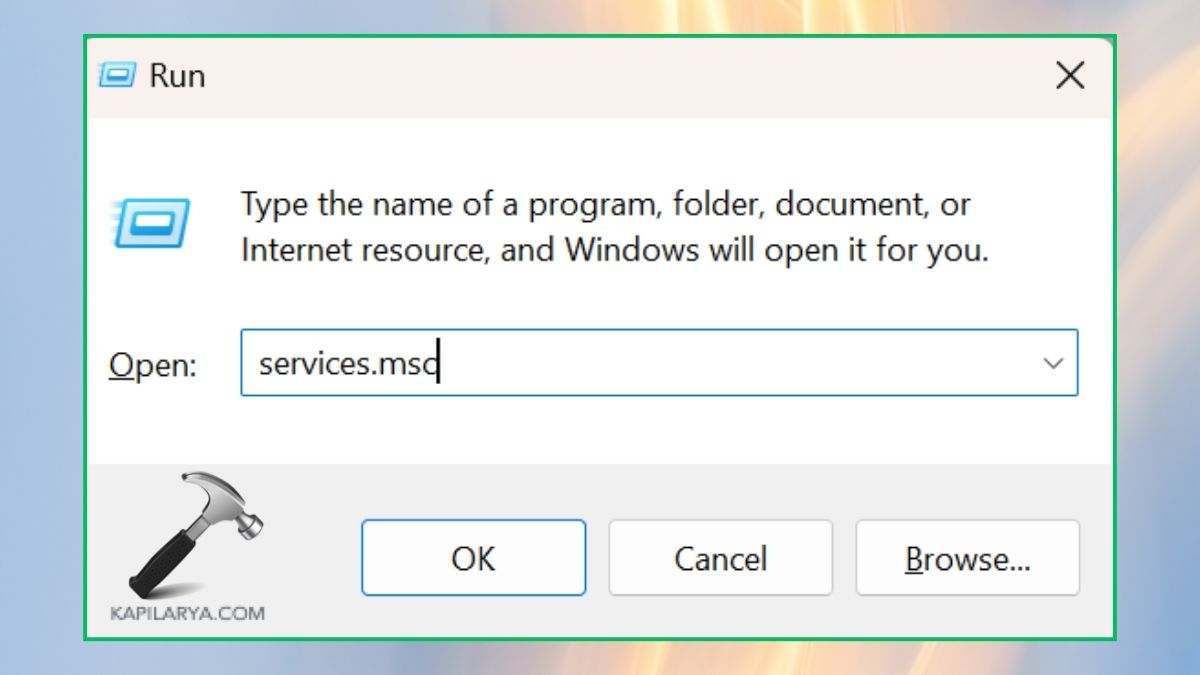
1. The first step is to press the Win + R keys in order to open the RUN box. Next, enter the following command and press Enter.
services.msc
2. Locate these services.
- Windows Update
- Background Intelligent Transfer Service (BITS)
- Cryptographic Services
3. Right-click the services one after another > choose Properties.

4. The thing is to set the type of startup as Automatic and press Start in case it is stopped. Click Apply > OK.

Having made sure that everything is up and running, re-try to install updates.
Fix 5: Run SFC and DISM Tools
System files may also be corrupted and cause such an error as 0x800f0991 during updates. Two built-in utilities, System File Checker (SFC) and Deployment Image Servicing and Management (DISM), can be used to fix them in Windows.
1. Find Command Prompt, right-click, and make it run as Administrator.
2. Enter the following command and press Enter. These commands should be run one at a time once complete.
sfc /scannow
DISM /Online /Cleanup-Image /CheckHealth
DISM /Online /Cleanup-Image /ScanHealth
DISM /Online /Cleanup-Image /RestoreHealth

3. Once the two scans have been done, restart your PC and attempt to run Windows Update again.
Fix 6: Reset Windows Update Components
In the event that none of the above-mentioned techniques were successful, they can easily rectify error 0x800f0991 by manually resetting Windows Update components.
1. Again, open the Administrator Command Prompt.
2. Copy the following commands one by one and type them, then press Enter.
net stop wuauserv
net stop cryptSvc
net stop bits
net stop msiserver
ren C:\Windows\SoftwareDistribution SoftwareDistribution.old
ren C:\Windows\System32\catroot2 Catroot2.old
net start wuauserv
net start cryptSvc
net start bits
net start msiserver
Shut down the Command Prompt and reboot your system. It will reformat all the updated elements, and Windows will recreate them automatically.
Fix 7: Perform Disk Cleanup
Updates can be blocked because of low disk space or remaining system files. The situation can be repaired by cleaning them up.
1. Go to Disk Cleanup.

2. Choose your “C:” drive. These are unnecessary files, among others, that should be selected.
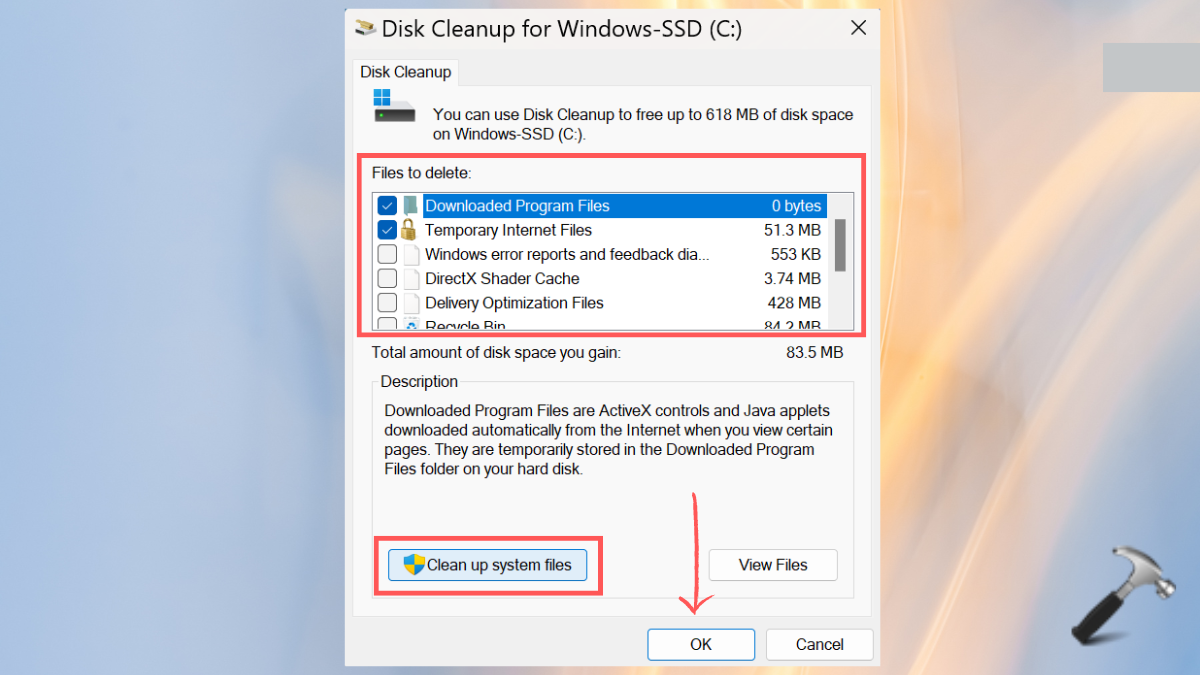
Click OK > Delete Files. After doing it, restart your PC and update once again.
Fix 8: Installation Media (Final Fix)
When all the above will not help you, you can rely on the Windows Installation Media Tool, which may help you to repair or update your system without loss of data.
1. Visit the Microsoft Software Downloads page. Get to Media Creation Tool and download it.

2. Select Upgrade this PC, select the on-screen setting, and proceed with it.
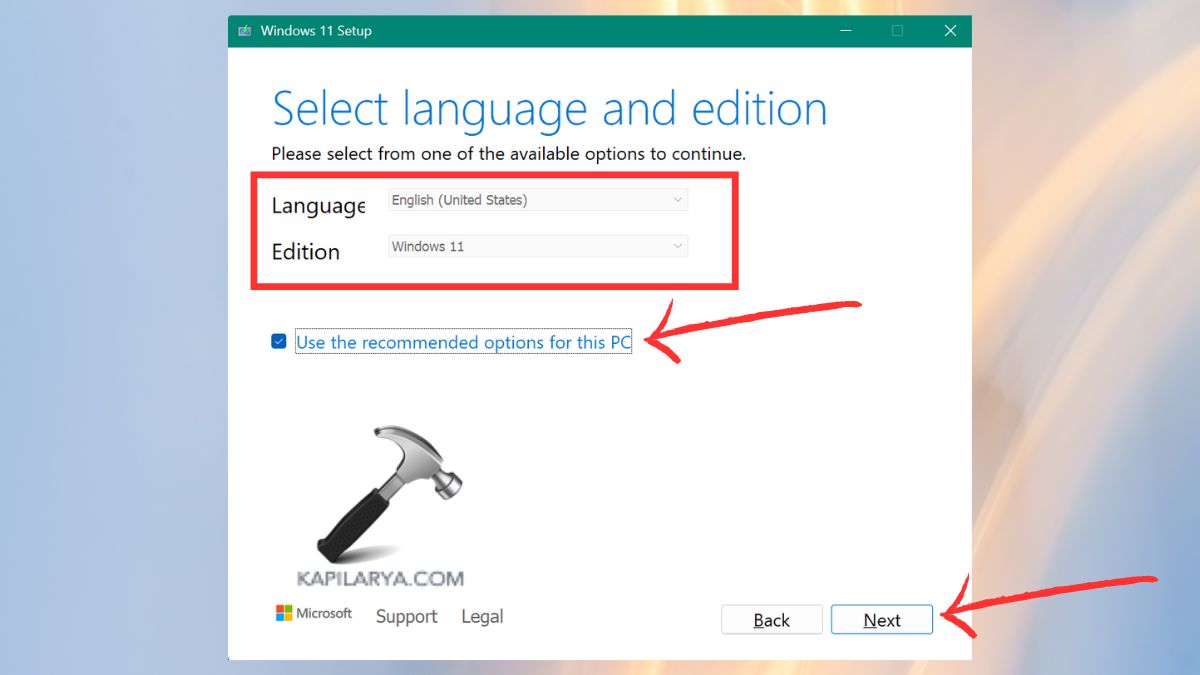
This will restore Windows and preserve your files and applications. Once the process is complete, you should have a normal completion of your system without the 0x800f0991 error.
Frequently Asked Questions (FAQs)
That’s it!





