

Windows Update error code 0x8024a203 on your Windows 11 PC usually means Windows Update cannot complete the installation process. This issue may appear when an update component stops responding, the update service fails to initialize, or certain system files become corrupted. It may also show up after an interrupted installation or if your device recently crashed during an update.
Page Contents
Fix Windows Update error code 0x8024a203 in Windows 11
Fortunately, this error can be resolved using a few reliable methods built directly into Windows. Below are the most effective fixes you can try. Work through each one step-by-step and restart your system before checking for any change again.
Fix 1: Restart Windows Update services
A simple restart clears temporary glitches and forces the update mechanism to reload.
1. Press Windows and R, type services.msc and press Enter.
2. Scroll to Windows Update and right-click it.
3. Choose Restart.
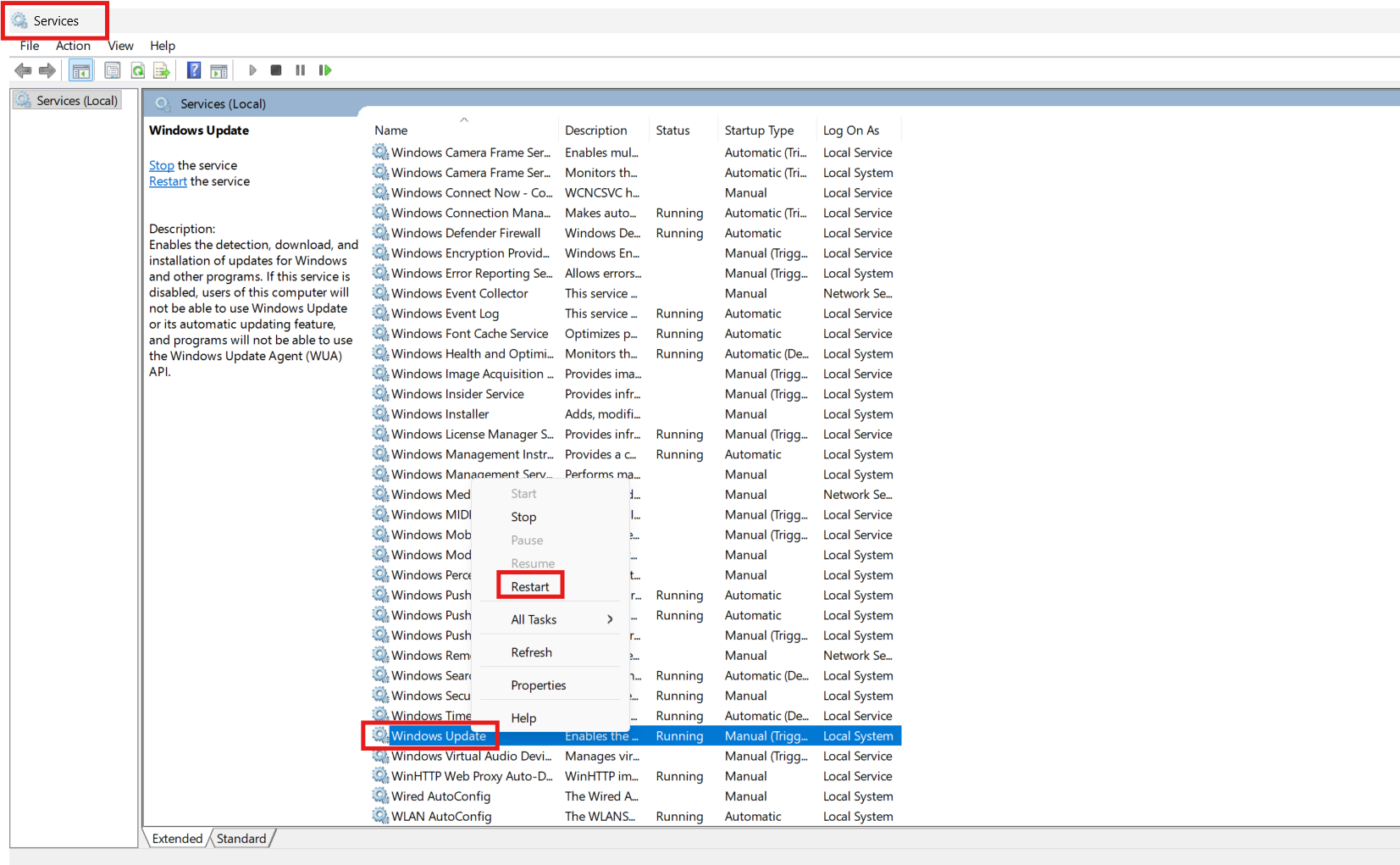
4. Close the window and retry the update.
Fix 2: Run the Windows Update Troubleshooter
The built-in troubleshooter detects and repairs common update issues.
1. Open Settings and go to System.
2. Select Troubleshoot and choose Other troubleshooters.
3. Locate Windows Update and click Run.

4. Let the tool complete its scan and apply the fixes.
Fix 3: Clear temporary update cache
Corrupted update files may block the installation.
1. Press Windows and R, type %temp% and press Enter.
2. Select all files and delete them.

3. Restart your PC and try updating again.
Fix 4: Repair system files using SFC and DISM
Damaged files can interrupt the update process.
1. Open Command Prompt as administrator.
2. Run this command:
sfc /scannow
3. After it finishes, run:
DISM /Online /Cleanup-Image /RestoreHealth

4. Restart and retry Windows Update.
Fix 5: Manually download and install the failing update
If a single KB keeps failing, install it from the Microsoft Update Catalog.
1. Open Update Catalog (https://catalog.update.microsoft.com).
2. Search the KB number, download the match for your OS/CPU, and run the .msu installer.

3. Reboot when finished.
Quick tips
1. Ensure your Internet connection is stable.
2. Disable VPN or proxy temporarily.
3. Keep enough free storage before installing updates.
4. Restart your computer after each fix.





