

If you accidentally deleted the Administrator account in Windows 11, you may lose access to important settings, software installation permissions, and system controls. This usually happens after removing a user profile, changing account types incorrectly, or resetting Windows settings.
Page Contents
Fix: Accidentally Deleted Admin Account in Windows 11
Fortunately, in most cases, the administrator account can still be restored using built-in recovery tools and commands. Below are the 5 most effective methods for recovering a deleted admin account on Windows 11.
Fix 1: Enable the Hidden Administrator Account
Windows includes a built-in hidden Administrator account that can be activated using Command Prompt. This is one of the quickest recovery methods if you can still access another account or recovery mode. This enables the hidden admin profile instantly. Once logged in, you can create a new administrator account or repair existing profiles.
1. Open Command Prompt (Admin).
2) Run:
net user administrator /active:yes
3) Restart your PC.
4) Sign in using the Administrator account.
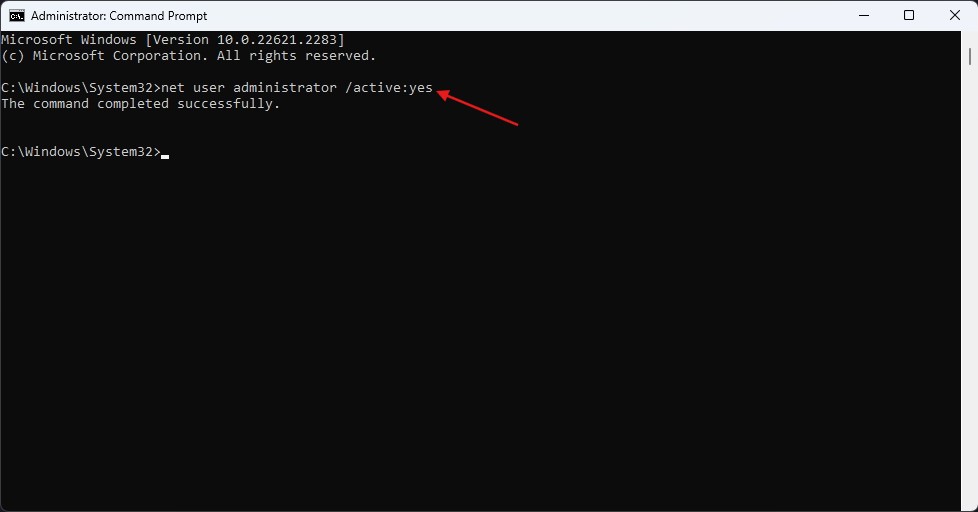
This enables the hidden admin profile instantly. Once logged in, you can create a new administrator account or repair existing profiles.
Fix 2: Create a New Administrator Account in Safe Mode
If no admin account exists, Safe Mode can help you regain elevated access. Safe Mode loads Windows with minimal services, making account recovery easier.
1. Boot into Advanced Startup.
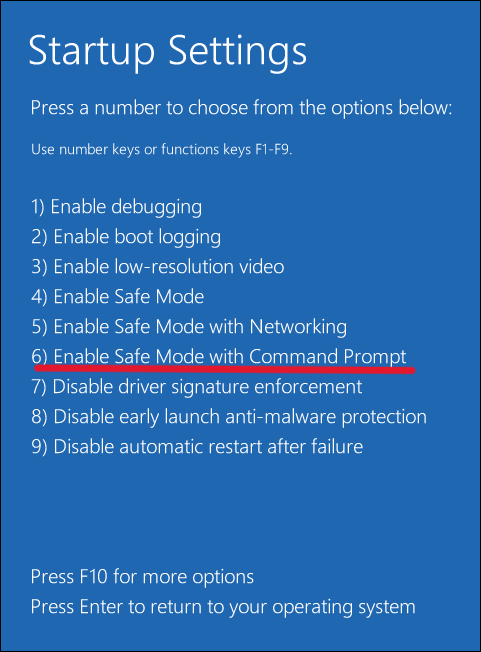
2. Go to: Troubleshoot and then Advanced options, and click on Startup Settings.
3. Restart and select Safe Mode with Command Prompt.
4. Run:
net user NewAdmin password123 /add
Then run:
net localgroup administrators NewAdmin /add
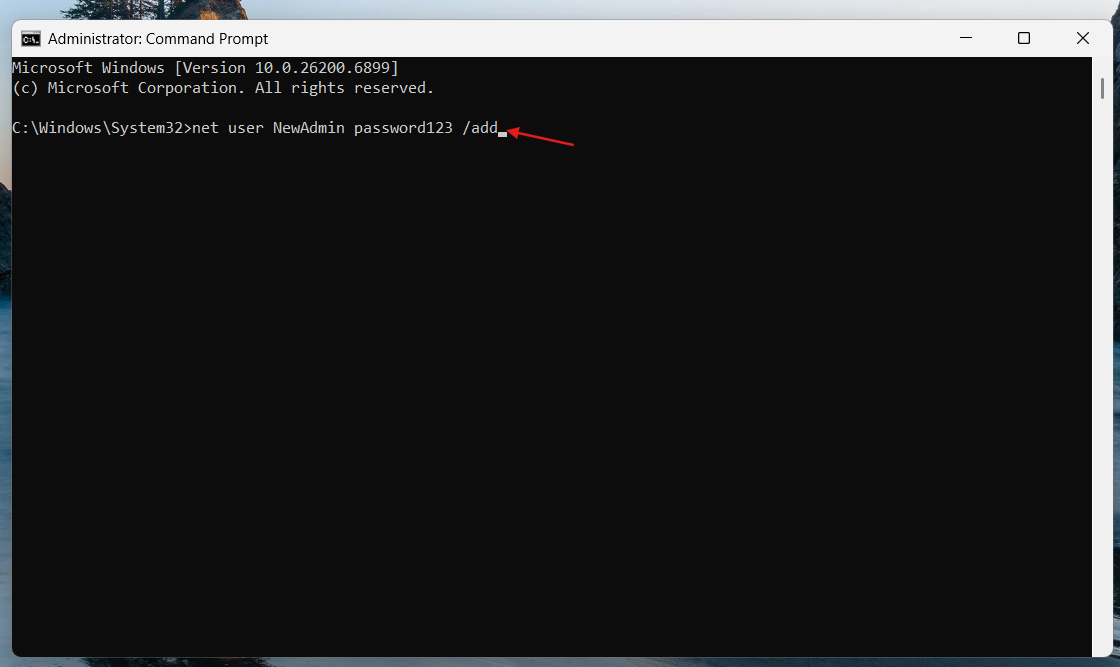
This creates a brand-new administrator account. You can later rename or customize the account normally.
Fix 3: Use System Restore to Recover a Deleted Admin Account in Windows 11
If the admin account disappeared recently, System Restore may recover it automatically. This method restores Windows settings without affecting personal files. This can restore user profiles and account permissions. It’s especially useful after accidental changes or failed updates.
1. Open Advanced Startup and go to Troubleshoot. Choose Advanced options.
2. Select System Restore.
3. Choose a restore point before the account deletion.
4. Complete the restore process.

Fix 4: Recover Admin Account via Computer Management
Sometimes the account isn’t deleted but only disabled. Checking Local Users and Groups can help confirm this.
1. Press Win + X and click on Computer Management.
2. Go to Local Users and Groups and click on Users.
3. Right-click the admin account. Select Properties.
4. Uncheck: Account is disabled.
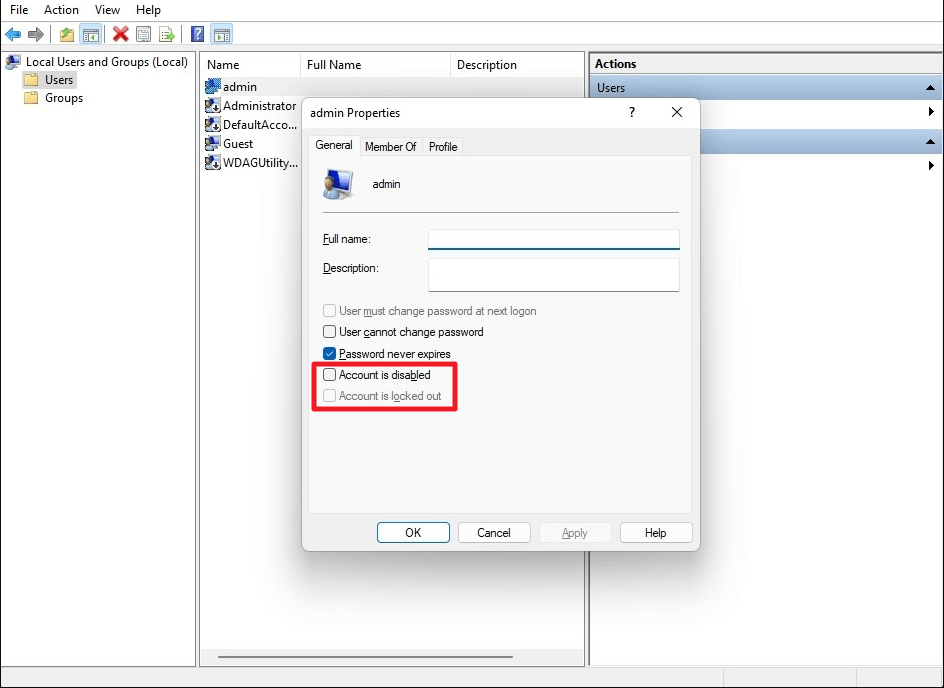
This reactivates the account if it still exists. This option is mainly available on Windows Pro editions.
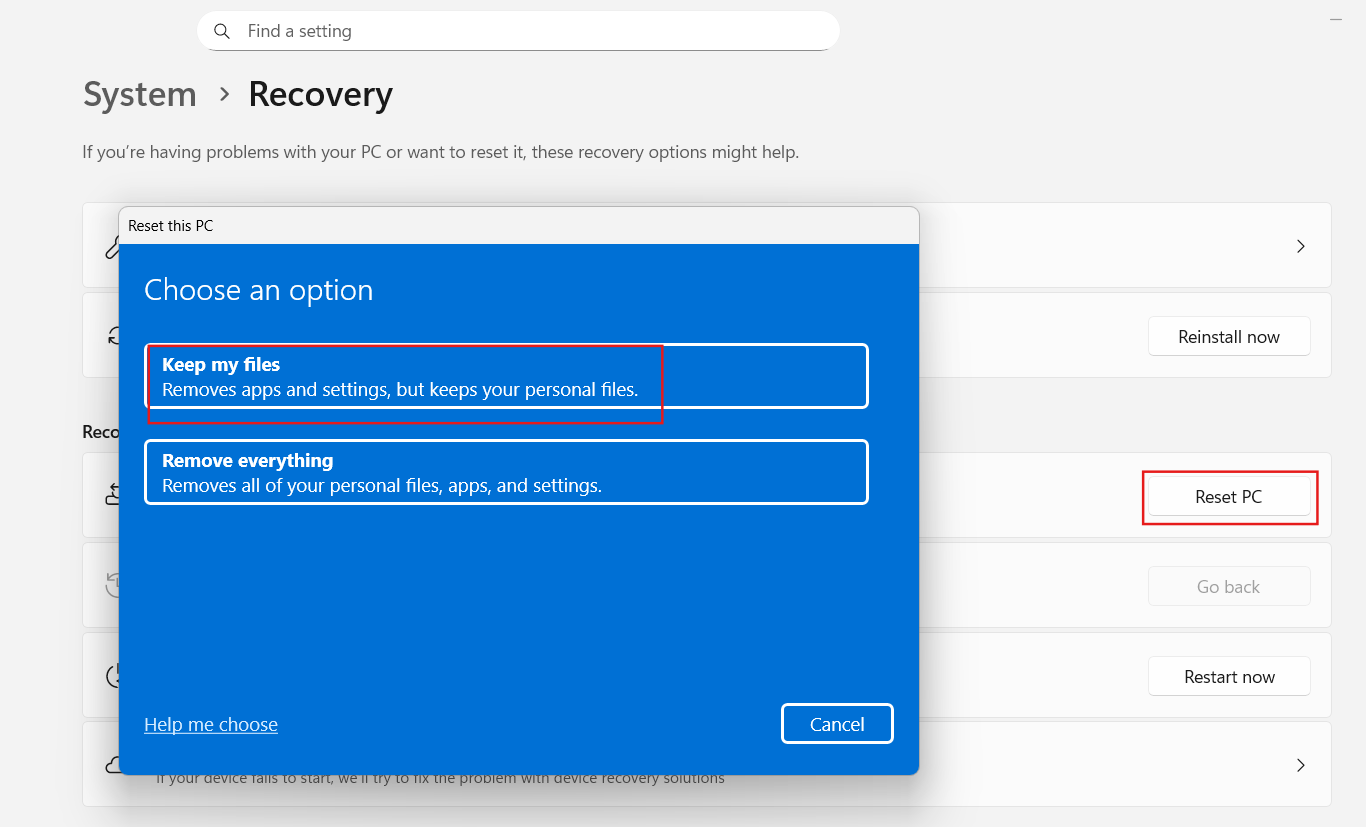
Fix 5: Reset Windows While Keeping Files
If all recovery methods fail, resetting Windows may restore administrator functionality. This should be your last option. Windows will reinstall core components while preserving personal data. You’ll be able to create a fresh administrator account afterward.
1. Go to Settings and click on System. Choose Recovery.
2. Select Reset this PC.
3. Choose: Keep my files.
Summary
If you accidentally deleted the admin account in Windows 11, you can usually recover access using the hidden Administrator account, Safe Mode commands, or System Restore. In more serious cases, creating a new admin profile or resetting Windows will restore full administrative access again.




