Earlier, we have shared you the guide to enable or disable telemetry in Windows 10. We’ve also seen how to manage diagnostic data in Windows 10.
Well, with diagnostic data, device name is also sent to Microsoft. So in case if you want to prevent device name from being sent in diagnostic data, this article is for you.
You can perform below mentioned registry tweak to configure whether your device name should be sent to Microsoft or not, via diagnostic data.
How To Allow/Prevent Device Name To Be Sent In Windows 10 Diagnostic Data
Registry Disclaimer: The further steps will involve registry manipulation. Making mistakes while manipulating registry could affect your system adversely. So be careful while editing registry entries and create a System Restore point first.
1. Press  + R and put regedit in Run dialog box to open Registry Editor (if you’re not familiar with Registry Editor, then click here). Click OK.

2. In left pane of Registry Editor window, navigate to following registry key:
HKEY_LOCAL_MACHINE\SOFTWARE\Policies\Microsoft\Windows
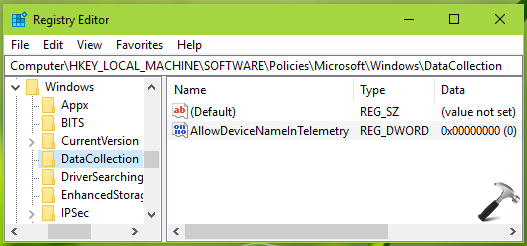
3. Right click Windows registry key, select New > Key. Name the newly created sub-key as DataCollection. If the registry key already exists, skip creation of new key. Now in the right pane of DataCollection registry key (HKEY_LOCAL_MACHINE\SOFTWARE\Policies\Microsoft\Windows\DataCollection), right click and select New > DWORD Value. Name the newly created registry DWORD (REG_DWORD) as AllowDeviceNameInTelemetry. Double click on the string to modify its Value data:
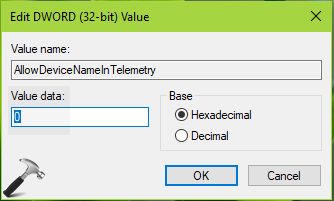
4. Ensure that the Value data is set to 0, if you want to prevent device name from being sent to Microsoft via diagnostic data. If you want to let device name to be sent, set the Value data as 1. Click OK after inputting your choice.
Close Registry Editor and reboot the machine to make changes effective.
That’s it!