If you own multiple Windows devices, one of your device can participate in cross-device experience with remaining devices. In Windows 10, this is known as shared experiences.
Shared experiences includes Nearby sharing and Sharing across devices features. As HomeGroup is removed in Windows 10 V1803 or later, you can use shared experiences features for cross-device experience in your local environment.
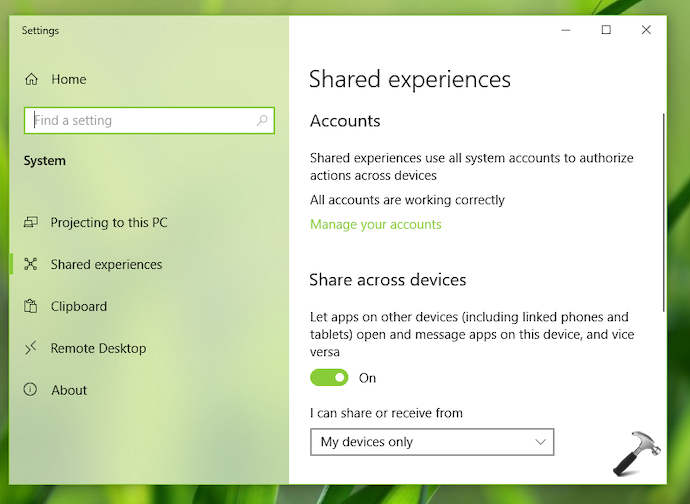
Shared experiences comes enabled by default but you may need to enable its features separately according to your needs. In case if multiple devices you own may be used by different users at a time and you want to disable shared experiences, this article is for you. Deploy the below mentioned simple registry manipulation and shared experiences will be disabled.
How To Disable Shared Experiences In Windows 10
Registry Disclaimer: The further steps will involve registry manipulation. Making mistakes while manipulating registry could affect your system adversely. So be careful while editing registry entries and create a System Restore point first.
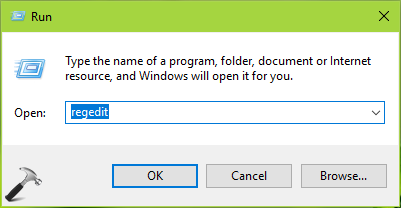
1. Press  + R and put
 regedit in Run dialog box to open Registry Editor (if you’re not familiar with Registry Editor, then click here). Click OK.
2. In left pane of Registry Editor window, navigate to following registry key:
HKEY_LOCAL_MACHINE\SOFTWARE\Policies\Microsoft\Windows\System
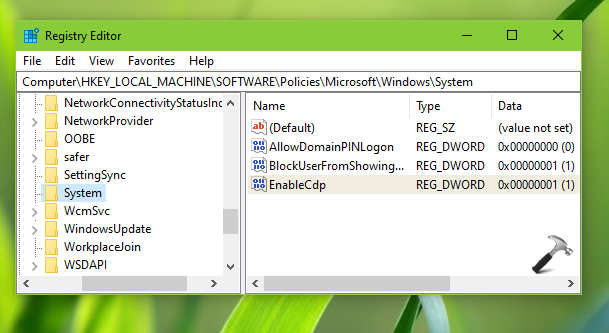
3. Now in the right pane of System registry key, look for registry DWORD named as EnableCdp which might be set to 1. Double click on this registry DWORD to modify its Value data:
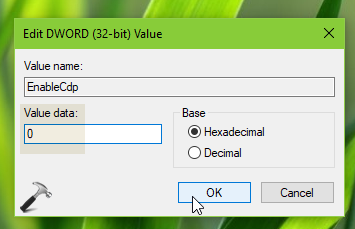
4. Finally, set the Value data to 0 and click OK. Close Registry Editor and reboot to make changes effective.
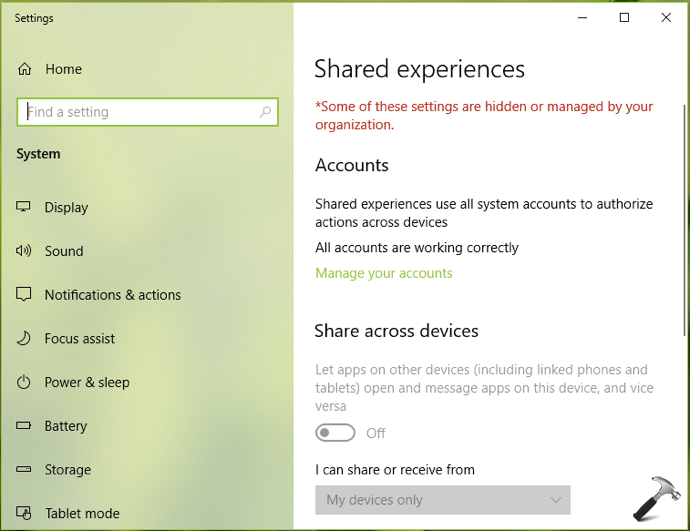
After restarting your system, shared experiences will be disabled on your system.
That’s it!