

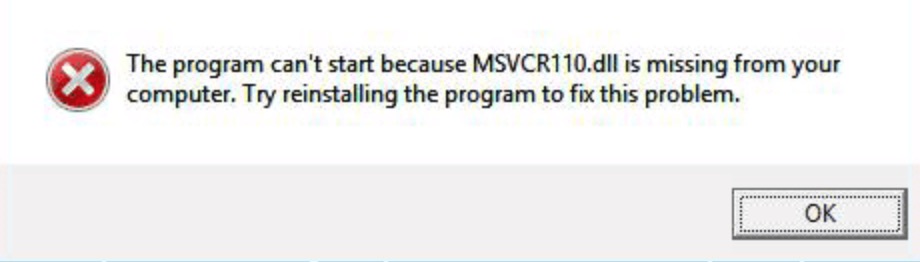
Encountering the Msvcr110.dll is missing error in Windows 11 can unexpectedly disrupt your workflow, preventing critical applications from launching. MSVCR110.dll is part of the Microsoft Visual C++ 2012 Runtime Library and is required by applications built with Visual Studio 2012.
Page Contents
Fix: Msvcr110.dll Missing Error in Windows 11
Fortunately, resolving this technical issue requires only a few straightforward system troubleshooting steps.
Fix 1: Install the Visual C++ Redistributable
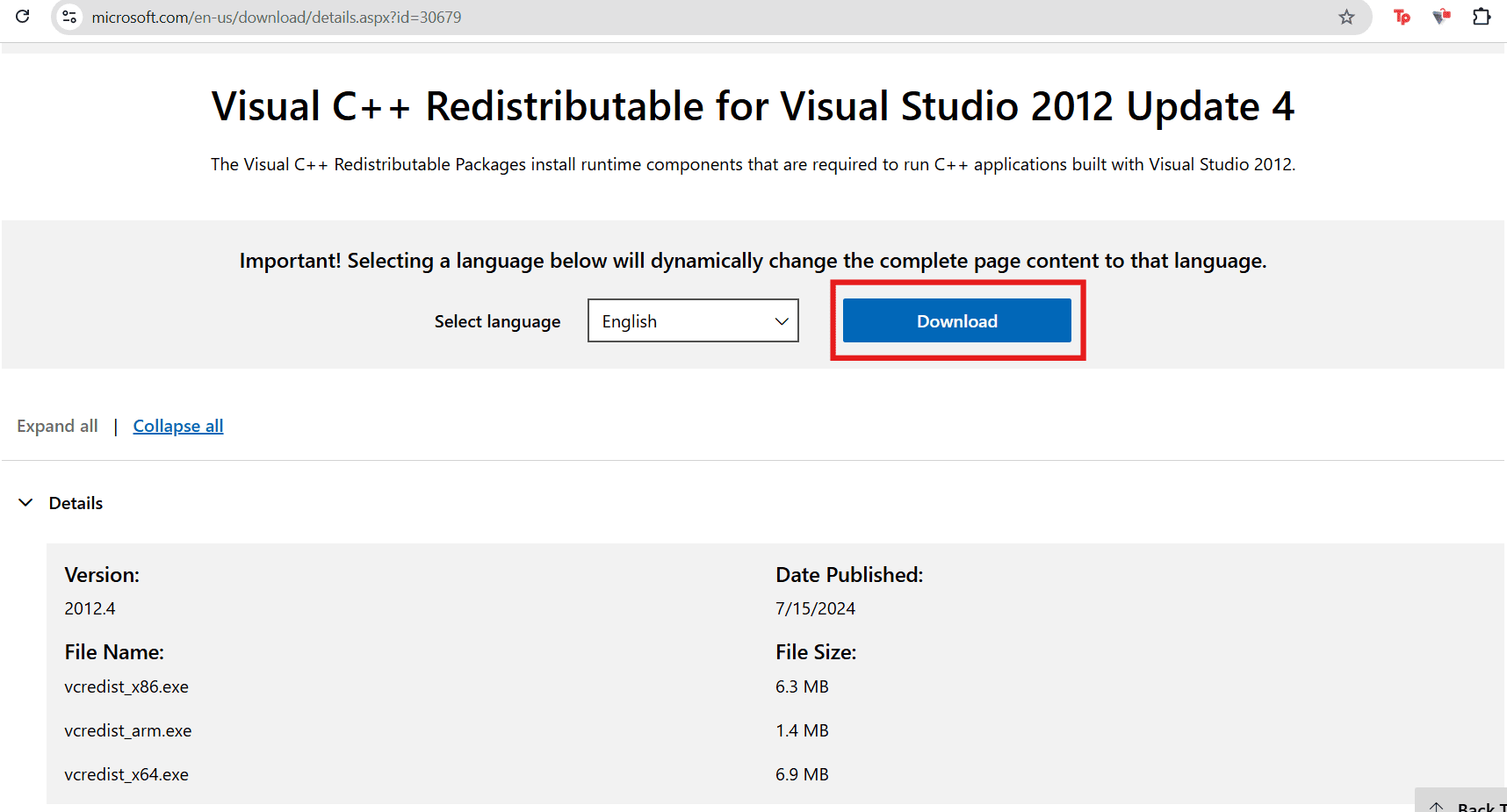
Sometimes missing official redistributable package is the root cause. Installing it directly from Microsoft works as a primary solution.
1. Go to the official Microsoft download page for Visual C++ Redistributable for Visual Studio 2012 Update 4.
2. Select vcredist_x64.exe (for 64-bit systems) or vcredist_x86.exe (for 32-bit systems).
3. Run the installer, follow the prompts, and restart your computer.
Fix 2: Run a System File Checker (SFC) Scan
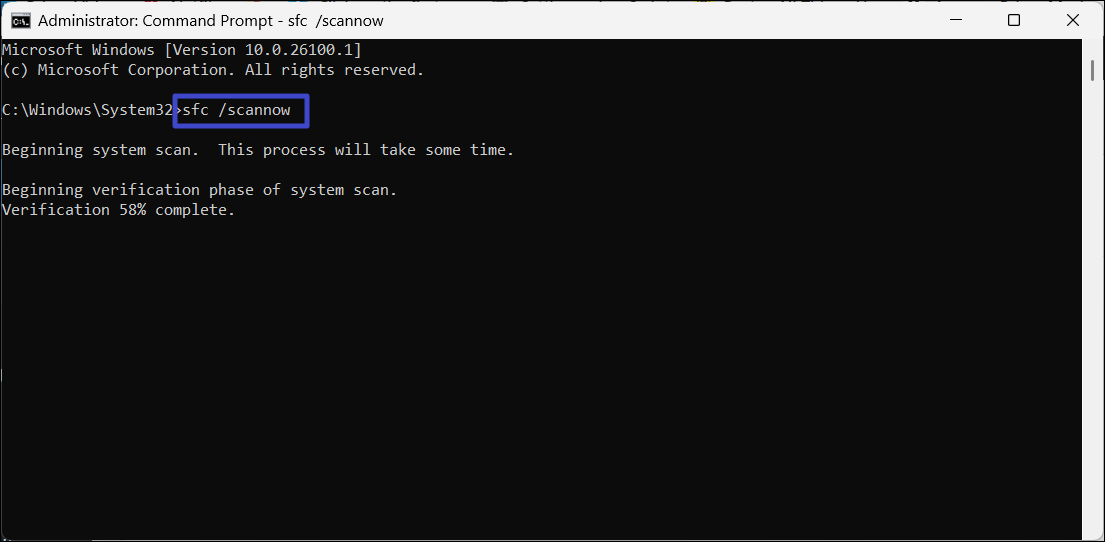
Windows 11 includes the System File Checker (SFC), a built-in utility that can repair corrupted Windows system files. While it may not directly restore Visual C++ runtime components, running an SFC scan can help rule out broader system corruption issues.
1. Right-click the Start menu and select Terminal (Admin).
2. Type sfc /scannow into the prompt and press Enter.
3. Allow the scan to complete and repair any corrupted Windows system files. If the MSVCR110.dll error persists, reinstall the Visual C++ 2012 Redistributable package.
Fix 3: Reinstall the Problematic Application
If the error appears only when launching one specific program, the installation files for that application may be corrupted. Many software installers natively bundle the required Visual C++ files and will successfully restore them during a fresh installation.
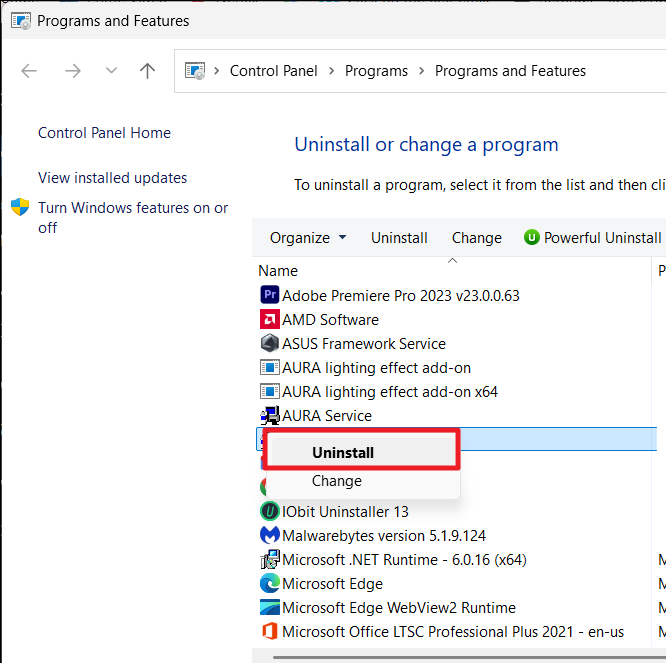
1. Press Windows Key + R, type appwiz.cpl, and hit Enter.
2. Right-click the problematic software and select Uninstall.
3. Download the latest release from the official developer’s website and reinstall it.
Fix 4: Recover from the Recycle Bin
Occasionally, the DLL file is accidentally deleted during routine system cleanup. Alternatively, overly aggressive third-party antivirus software might falsely flag the necessary DLL file as a threat and quarantine it.
1. Open the desktop Recycle Bin.
2. Search for msvcr110.dll.
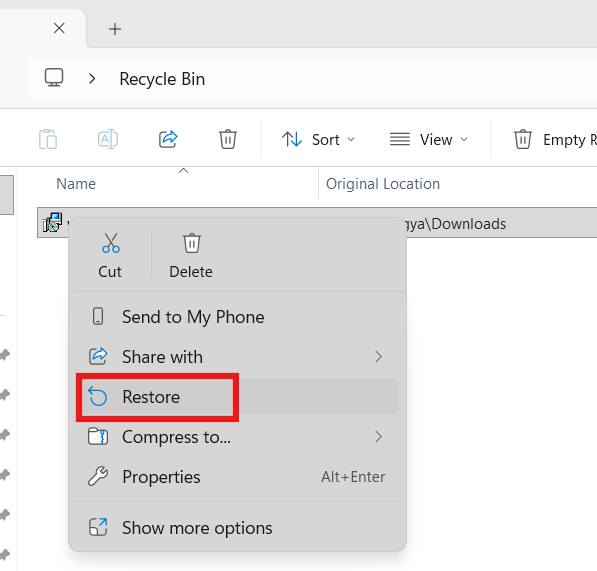
3. If the system file is found, right-click it and select Restore.
Fix 5: Install Pending Windows Updates
Microsoft frequently deploys necessary system files, framework updates, and software compatibility patches through its standard update pipeline. Ensuring your operating system is fully up to date can resolve underlying framework conflicts.
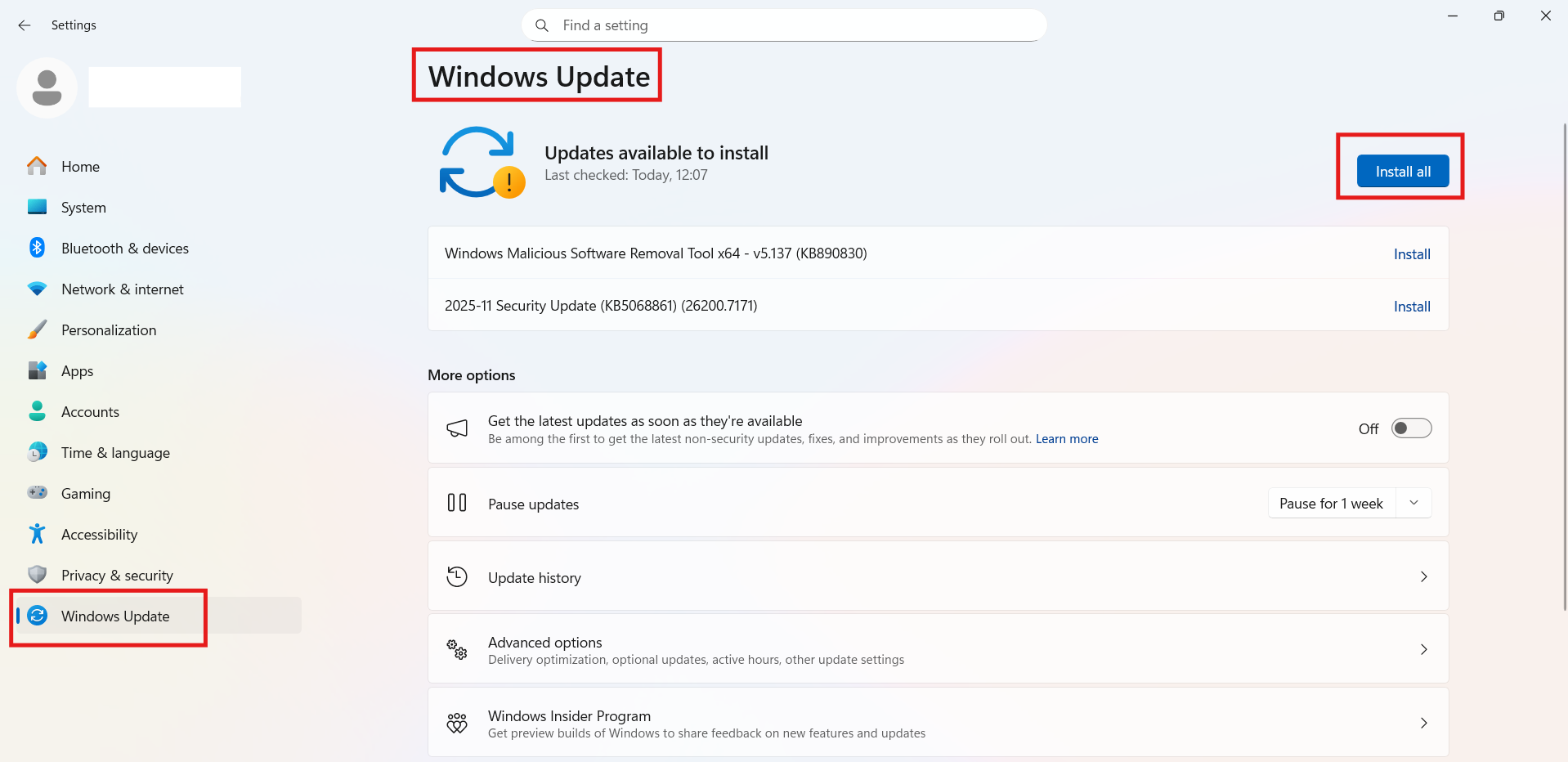
1. Navigate to Settings and go to Windows Update.
2. Click Check for updates and install any available packages.
We hope these solutions help you to resolve the issue.
If issue still persists, drop us a comment below.
That’s it!



![[FIX] Windows Shell Common DLL Has Stopped Working](https://www.kapilarya.com/assets/Admin-3-768x496.jpg)
![[FIX] The Program Can’t Start Because mfc100u.dll Is Missing From Your Computer](https://www.kapilarya.com/assets/Admin-2-768x581.jpg)
