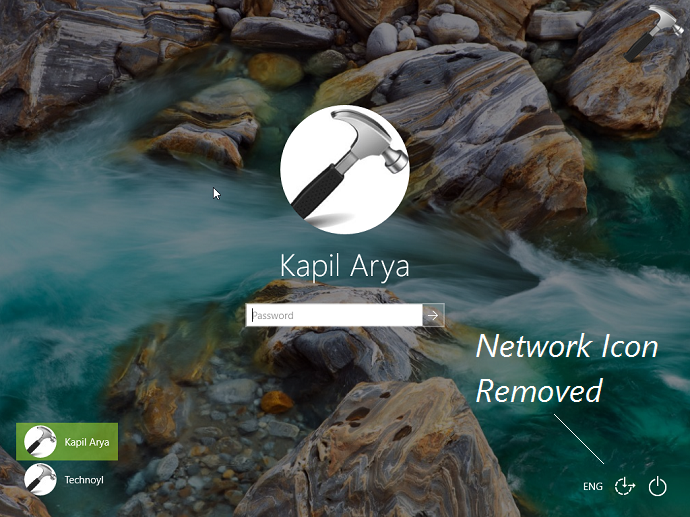
We all know that Windows users loves customization and they’re always excited to tweak their OS in the way they love. With this fact in mind, today we’re going to share you a registry trick to remove network icon from the lock screen. The screenshot shown below clearly indicates the network icon on Windows 10 lock screen and same icon is also present on sign-in screen or login screen.

So if you remove the network icon, you’ll be able to enjoy your lock screen wallpaper more clearly, especially if you’re using Windows Spotlight background. Here is the quick registry manipulation, you need to perform to remove the network icon from lock/login screen.
How To Remove Network Icon From Windows 10 Lock Screen & Login Screen
Registry Disclaimer: The further steps will involve registry manipulation. Making mistakes while manipulating registry could affect your system adversely. So be careful while editing registry entries and create a System Restore point first.
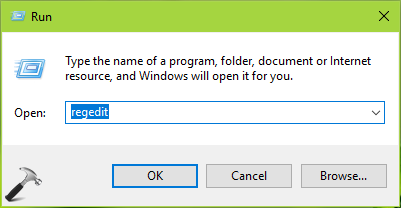
1. Press  + R and put regedit in Run dialog box to open Registry Editor (if you’re not familiar with Registry Editor, then click here). Click OK.
2. In left pane of Registry Editor window, navigate to following registry key:
HKEY_LOCAL_MACHINE\SOFTWARE\Policies\Microsoft\Windows\System
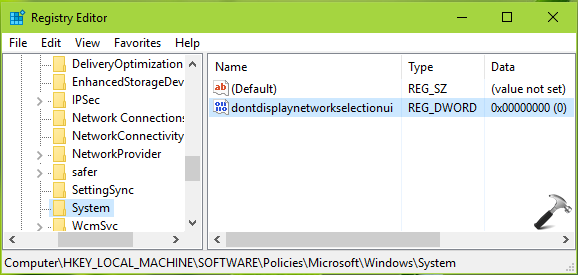
3. Click System and in the corresponding right pane, do a right click and select New > DWORD Value. Name the newly created registry DWORD (REG_DWORD) as dontdisplaynetworkselectionui. Double click on it to modify its value:
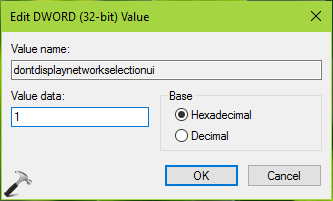
4. Finally, set the Value data to 1 and click OK. Close Registry Editor and reboot. After restart, you’ll find that network icon is no longer present on lock/login screens.
That’s it!