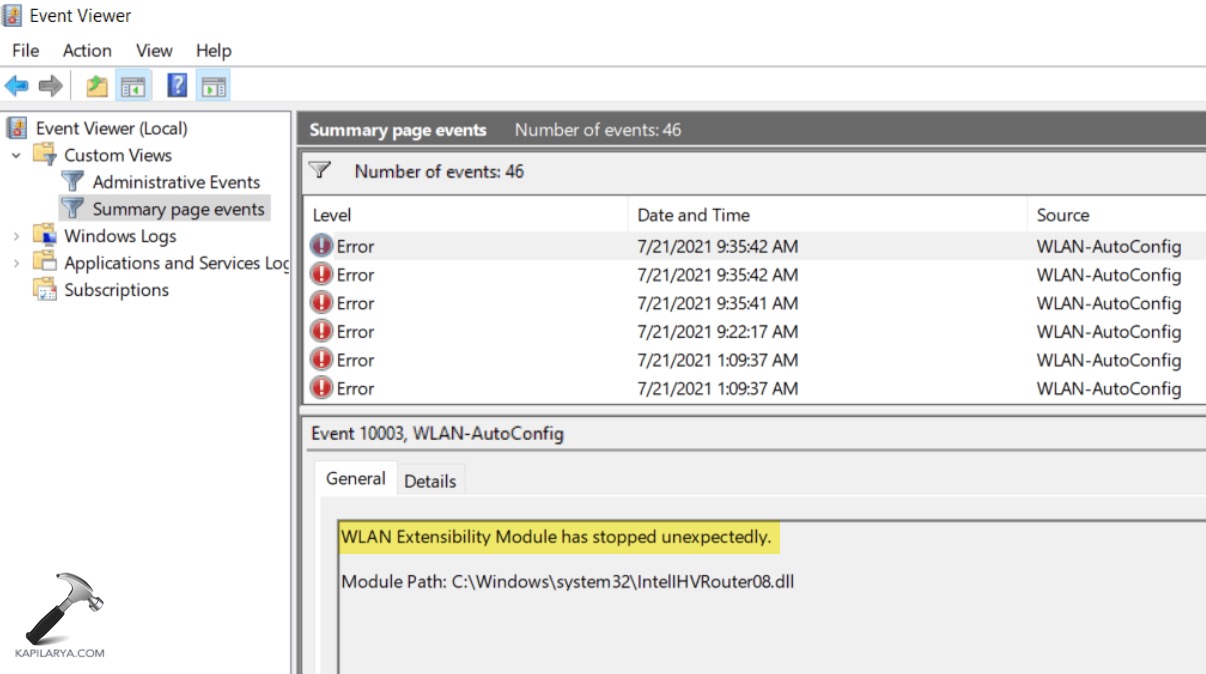
If your wireless connection fails and you see a message like “WLAN Extensibility Module has stopped unexpectedly”, it means a part of the system that supports wireless network functions has crashed or stopped working in Windows 11.
This module is responsible for managing Wi-Fi connections, and when it stops, you may experience connection drops, slow Wi-Fi, or an inability to connect to networks. The steps below help fix this issue and restore stable wireless connectivity.
Page Contents
Fix WLAN Extensibility Module Has Stopped Unexpectedly
Fix 1: Restart the WLAN AutoConfig Service
The WLAN AutoConfig service controls wireless network configuration and connection.
1. Press Windows + R, type services.msc, and hit Enter.
2. Scroll down and find WLAN AutoConfig.
3. Right-click it, choose Restart, and then set Startup type to Automatic.
4. Close the window and test your Wi-Fi connection.
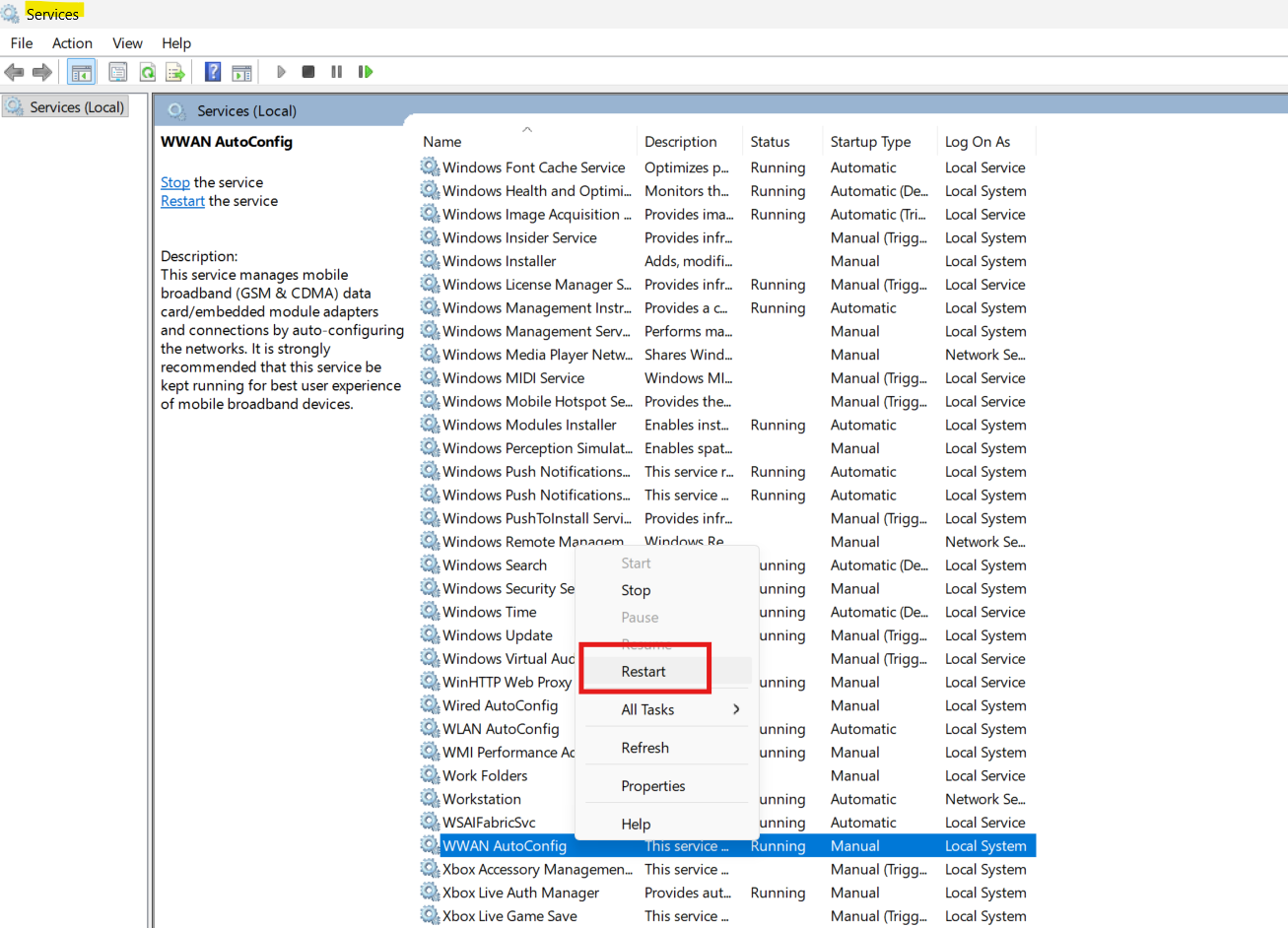
Restarting this service often resolves module stoppages.
Fix 2: Run Network Troubleshooters
Windows includes built-in troubleshooters that can detect and fix network issues.
1. Open Settings and go to System, then Troubleshoot, and then go to Other troubleshooters.
2. Run the Network Adapter troubleshooter.
3. Also, run the Internet Connections troubleshooter and follow the instructions.
4. After the scans complete, restart your system and test the wireless connection.
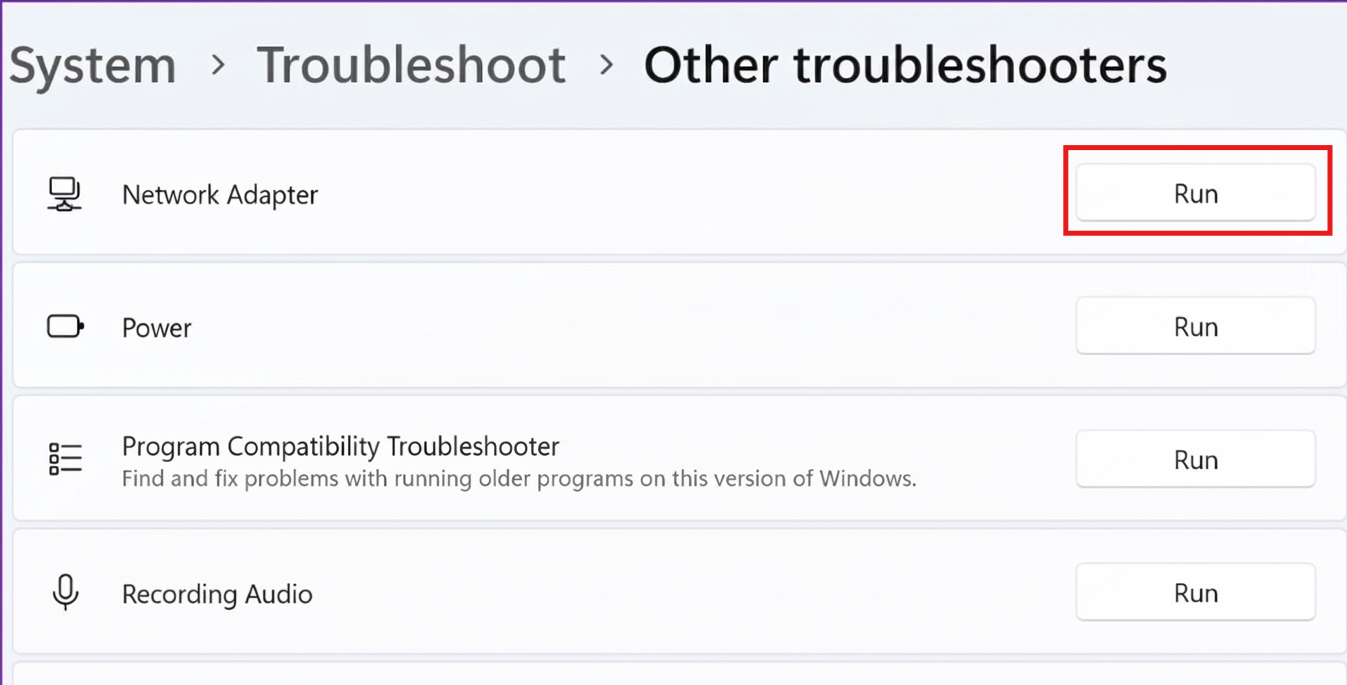
These tools help locate underlying network configuration problems.
Fix 3: Disable and Re-Enable Your Wireless Network Connection
Refreshing the adapter can correct intermittent issues.
1. Open Control Panel, then go to Network and Sharing Center.
2. Click on Change adapter settings.
3. Right-click your Wi-Fi adapter and choose Disable.
4. Wait a moment, then right-click again and select Enable.
5. Try connecting to your network once more.
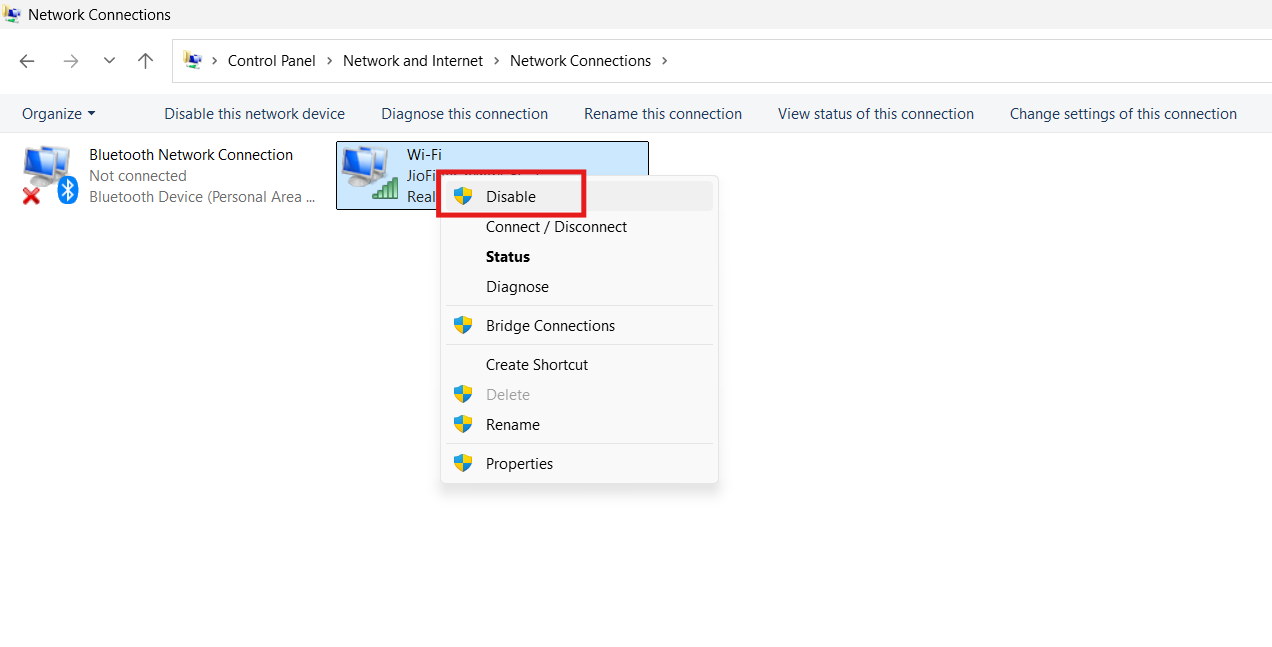
This resets network settings between the PC and the wireless module.
Fix 4: Reset TCP/IP Settings
Corrupt TCP/IP stack settings can trigger this error.
1. Open Command Prompt as administrator.
2. Run the command:
netsh int ip reset
3. Restart your PC and reconnect to your Wi-Fi network.

This clears networking configurations that may block connections.
Fix 5: Update or Reinstall Wireless Drivers
Outdated or mismatched drivers often cause the module to crash.
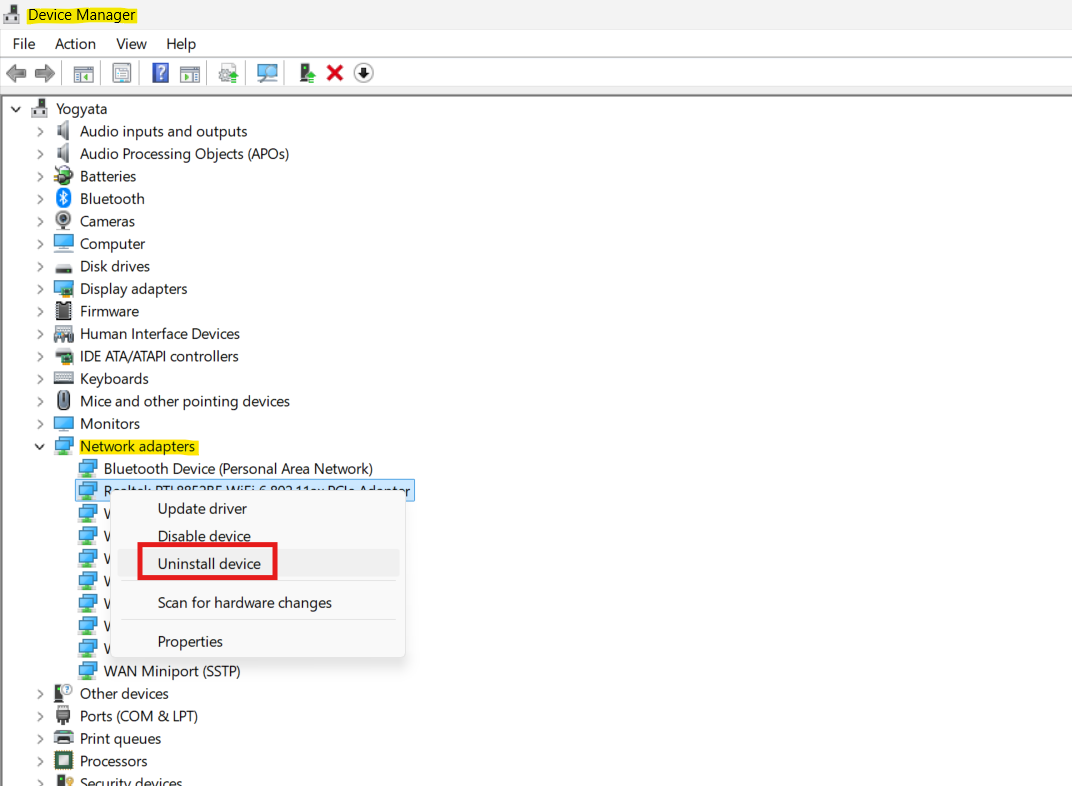
1. Open Device Manager.
2. Expand Network adapters.
3. Right-click your Wi-Fi adapter and choose Uninstall device.
4. Restart your PC so that Windows can reinstall the driver automatically.
If needed, install the latest driver from your PC or adapter maker’s website.
Quick Tips
1. Restart your PC after trying each fix.
2. Ensure your router is working and in range.
3. If other devices connect fine, the issue is likely with your PC’s wireless configuration.