

OneDrive is one of the nice feature in Windows 10, which I am sure most of you are using. It is much simplified in Windows 10 as compared to previous Windows editions and you can easily upload and sync your files. However, some users might have trouble in setting up OneDrive for the first time in this latest operating system.
If you have recently installed a Windows 10 build, you might have got a notification about ‘Getting started with OneDrive‘. Some users have reported that clicking those notification, the OneDrive setup wizard opens but they see following message:
Page Contents
There was a problem with connecting to OneDrive
Check your Internet connection, then try again.
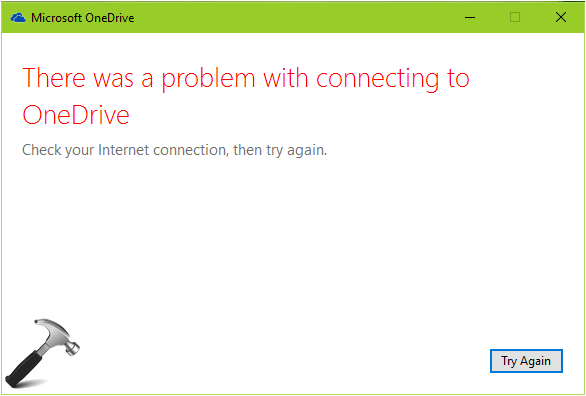
The users facing this issue also noticed that when they got this error, the Internet connection is working fine on their end and they could easily surf web. The Internet is even working with all other programs they’ve installed. Seems like it is just OneDrive which is not recognizing the network connectivity. If you’re also facing the same problem, I hope after reading this post, you’ll be able to solve the issue.
Try these fixes:
FIX : There Was A Problem With Connecting To OneDrive In Windows 10
FIX 1 – Using Internet Properties
1. Press  + R and type inetcpl.cpl in the Run dialog box, to open Internet Properties.
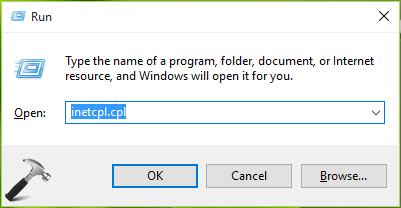
2. Next, in Internet Properties window, switch to Advanced tab. Check following options:
- Use TLS 1.0
- Use TLS 1.1
- Use TLS 1.2

Click Apply followed by OK. Restart the machine, and the issue will be resolved.
FIX 2 – Disable Proxy Settings
1. Press + R and type inetcpl.cpl in the Run dialog box, to open Internet Properties.
2. Next, in Internet Properties window, switch to Connections tab. Click LAN Settings button.

3. In LAN Settings window, uncheck the Use a proxy server for your LAN option. Then check Automatically detect settings option. Click OK, Apply, OK and close Internet Properties window.

After a reboot, the issue should no longer persist.
FIX 3 – Reset Internet Explorer To Default Settings
If FIX 1 and 2 doesn’t solves your problem, then you can try resetting Internet Explorer to default, using steps mentioned here:
Steps to reset Internet Explorer to default settings
Hope something helps!
![OneDrive offline on Windows 11 PC [Fix]](https://www.kapilarya.com/assets/OneDrive-123-768x511.jpg)


thanks