

Windows File Explorer and Office apps saves temporary Internet Files to a pre-defined location. The location includes the usage of environment variable as a crucial factor. If the location becomes inaccessible for the existing user account, the account holder may not be able to start some Office apps.
Recently, while opening Microsoft Outlook Desktop app, I came around this weird temp environment variable error. Here is the message received in this case:
Page Contents
Outlook could not create the work file. Check the temp environment variable.
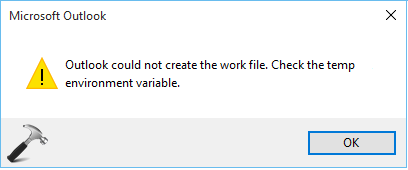
If I click OK in above warning message, although Outlook starts, but after few moments, the message appears again, disturbing the session. To solve this issue, I created a new profile for Outlook but it didn’t helped me. Then I tweaked the registry relating temporary environment variables and if worked for me.
If you’re also facing this issue with either Outlook/Word or any other Office app, try following this registry manipulation and see if it helps:
FIX : Outlook Could Not Create The Work File. Check The Temp Environment Variable.
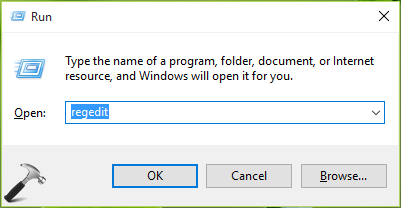
1. Press  + R and put regedit in Run dialog box to open Registry Editor (if you’re not familiar with Registry Editor, then click here). Click OK.
2. In the left pane of Registry Editor, navigate to following registry key:
HKEY_CURRENT_USER\Software\Microsoft\Windows\CurrentVersion\Explorer\User Shell Folders
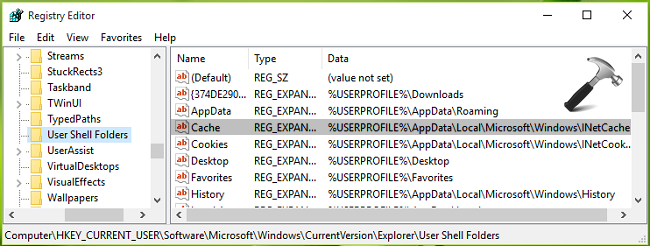
3. In the right pane corresponding User Shell Folders registry key, look for Cache named expandable registry string (REG_EXPAND_SZ). Since you’re facing this issue, the Data for this string might set incorrectly. Double click on the string to modify its Value data:
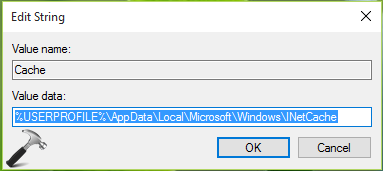
4. Finally, in Edit String box, put following as the correct Value data as per your Operating System (OS) and click OK:
| # | OS | Value data |
|---|---|---|
| 1 | Windows 10 and 8.1 | %USERPROFILE%\AppData\Local\Microsoft\Windows\INetCache |
| 2 | Windows 8 or 7 or Vista | %USERPROFILE%\AppData\Local\Microsoft\Windows\Temporary Internet Files |
| 3 | Windows XP |
%USERPROFILE%\Local Settings\Temporary Internet Files |
Close Registry Editor, reboot and start Microsoft Outlook. You’ll find that the error no longer appears now.
That’s it!


hi I am running win 10 home I have entered the registry and the string is the same as the one you described?
any other thoughs
^^ Try repairing Office, see if it helps: https://www.kapilarya.com/how-to-repair-office-2013-offline