

We all know Virtual Private Network (VPN) helps us to make more secure connection to the Internet and our company’s network. Setting up a VPN connection is quite easy in Windows 10. Please refer our dedicated guide to learn how to setup VPN in Windows:
How to setup VPN connection in Windows 10/8/7
However, recently while connecting to a VPN connection which was established earlier by following guide linked above, we got following error:
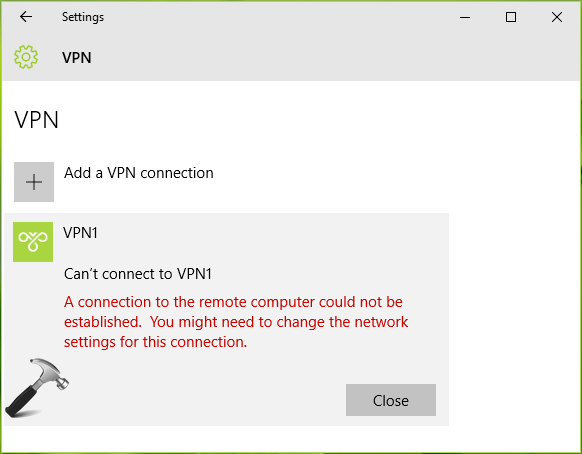
If you’re also facing this problem, the suggestions mentioned below will help you to solve it.
Page Contents
FIX : A Connection To The Remote Computer Could Not Be Established In Windows 10/8.1/8/7
FIX 1: General Suggestions
1. Run Network Adapter troubleshooter/Windows Network Diagnostics
2. Reset IP/TCP stack by following steps mentioned here
3. Reset IP configuration by following steps mentioned here
4. Review your existing settings and allow the network connection in Windows Firewall
5. Temporarily disable third-party software such as anti-virus etc.
FIX 2: By Changing Network Connection Properties
1. Press  + R to open Run, type ncpa.cpl and click OK.
![[FIX] Windows Firewall Has Blocked Some Features Of This App In Windows 10](https://htse.kapilarya.com/NCPA.CPL-Windows-10.png)
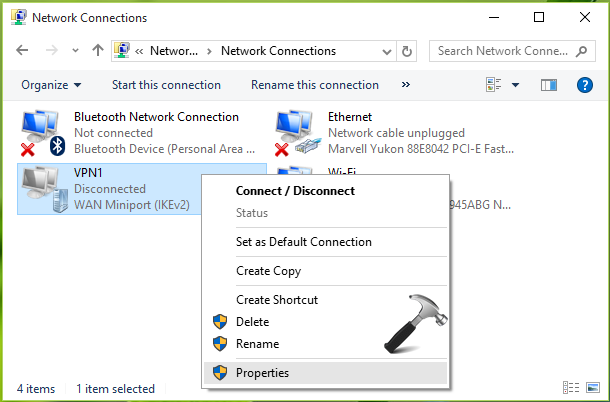
2. In Network Connections window, right click on the VPN connection with which you’re facing issue and select Properties.
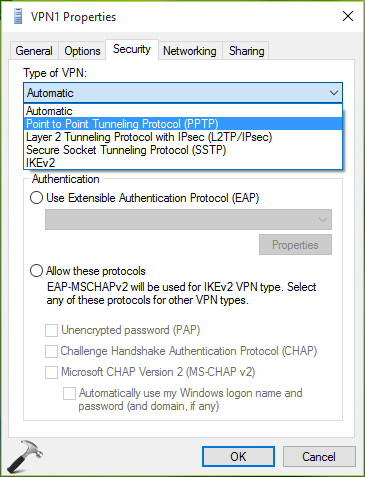
3. Next, under the property sheet shown below, switch to Security tab. Then change the Type of VPN to Point to Point Tunneling Protocol (PPTP) from Automatic.
4. On the same window, select Allow these protocols. Now check Challenge Handshake Authentication Protocol (CHAP) and Microsoft CHAP Version 2 (MS-CHAP v2) options. Click OK.
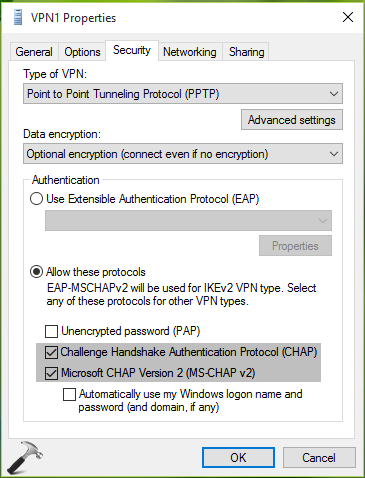
Now retry to connect to the problematic VPN connection and this time it should connect without any issues.
Hope this helps!
Also check: The number of connections to this computer is limited and all connections are in use right now.
Related fix: VPN Not Working In Windows 10.
![Remote Desktop Keeps Freezing or Disconnecting [6 Fixes]](https://www.kapilarya.com/assets/remote_dekstop_icon_1781340032.jpg)




Hi, I am having a lot of problems with my laptop. These are the types of drivers in my comp dat really need updating 1. Bluetooth controller 2. Network controller 3. PCI Device 4. Generic USB Hub 5.SM. Bus Controller, 6. Unknown Device. I tried a million times to update and dis thing kept on popping up on my Laptop it says I have to register before it expires. So the only information I have for my computer is – 1. MANUFACTURE – Hewlette Packard/Model – HP Pavilion TS 11 Notebook PC/Model No. – E4X88PA#ABG/Categories – Notebook computer.
It does not have an y serial no. The only thing i found that sort of looks like a serial no is CDN3370W9C. Please can you help me find information about my laptop if it is a genuine one or just a photocopy one. A frend gave it to us. Please inbox my facebook coz i 4got my password for my gmail acct. FB is TAKK.IKA
Thank you
this dont work for me :(
don’t work for me :((
That was utterly useless. Did not even come close.
After creating new VPN connection from Windows VPN, if it throws VPN error 720
Please run below command in elevated Powershell, the problem will get resolved.
Set-VpnConnection “VPN Connection Name” -SplitTunneling $true
^^ Thanks for your inputs, Vinod 😊
this one was my solution
PPP > Secrets + Name=username, password=test , profile= defaultencryption, Local address=192.168.1.1(must be other end Gateway), Remote address=192.168.1.20 (any private IP Local site) > Apply >OK
i am getting error when connecting vpn, the port used the for this connection was closed.
Fixed it for me.
^^ Glad we could help 😎
It is very difficult to set up a VPN connection in Windows 10. I was getting a VPN error 412 while installing it. I go through some websites. And I got a solution from routertechnicalsupportnumbers.com/blog/knowing-everything-about-cisco-vpn-error-412/, and I was satisfied with the solution.
It didn’t work any help?