If you’re an IT or a support person, you might be frequently using Remote Desktop Connection. Using Remote Desktop Connection, one can connect to another Windows system remotely and without having physical presence.
When you allow use of Remote Desktop Services, clients who are member Remote Desktop Users group on target computer can connect remotely to the target machine using those services. Note, that Remote Connections are not enabled by default. You can allow or prevent remote connection using this guide. To maintain security for remote connectivity, it is recommended that you configure Network Level Authentication for Remote Desktop Connections.
In this article, we’ll see how you can allow or prevent clients to connect remotely using Remote Desktop Services. You can follow below mentioned steps for this.
Allow/Prevent Users To Connect Remotely By Using Remote Desktop Services
1. Press  + R and put
 gpedit.msc in Run dialog box to open GPO snap-in. Click OK.
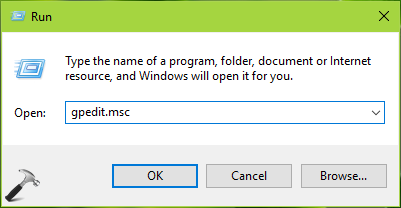
2. Next, in the GPO snap-in window, navigate here:
Computer Configuration > Administrative Templates > Windows Components > Remote Desktop Services > Remote Desktop Session Host > Connections
FYI: If you’re editing a GPO in GPMC snap-in, then you should have Policies folder after Computer Configuration and before Administrative Templates folder.
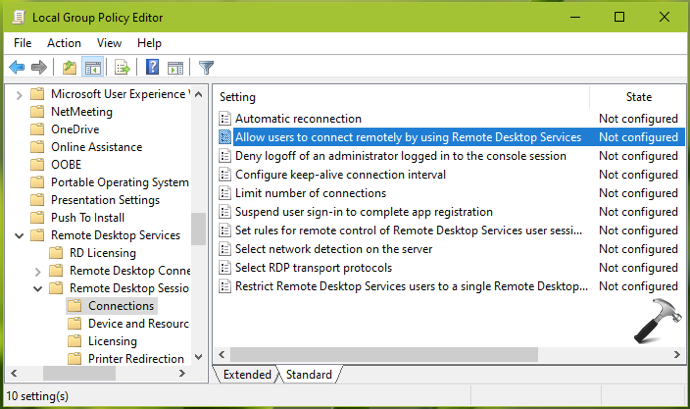
3. In the right pane of Connections, look for the policy setting named Allow users to connect remotely using Remote Desktop Services. Double click on it to modify its status:
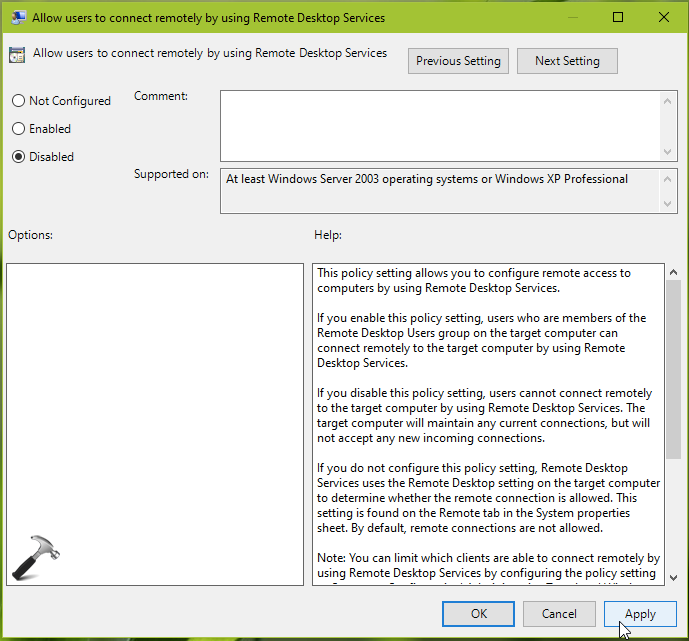
4. Finally, using the policy configuration window, you can set it to Enabled, if you want to allow clients to connect with RDP. Or you can set it to Disabled, if you don’t want clients to connect using RDP. Click Apply, OK and close GPO editor/snap-in.
5. Run gpupdate /force command to update Group Policy engine and make changes effective.
That’s it!
![Remote Desktop Keeps Freezing or Disconnecting [6 Fixes]](https://www.kapilarya.com/assets/remote_dekstop_icon_1781340032.jpg)