Daylight Saving Time (DST) basically shift clocks forward one hour from standard time in the summer time, while changing them back again in the fall. It means, we have 23-hour day in late winter, while one 25-hour day in autumn. This is usually practiced to make more use of natural daylight time.
Windows 10 have ability to auto adjust DST settings on your system. But if you’re unable to configure these settings or if these settings are greyed out, this article will help you for sure.
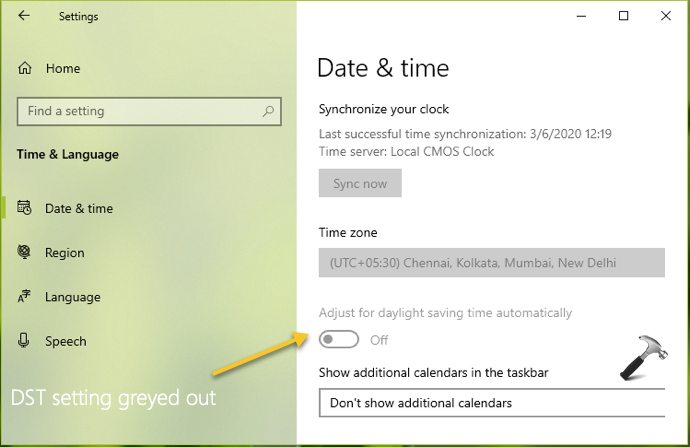
You can try below mentioned fixes and check if they helps you to resolve.
Page Contents
FIX: Daylight Saving Time Setting Is Greyed Out In Windows 10
FIX 1 – Check Your Time Zone Settings
First of all, you need to make sure that time zone you’re in or the one you’ve selected observed DST settings. If the DST settings are not observed in your current time, there would be no impact on DST settings. For example, I’am in India and when I’ve Indian time zone (UTC +5:30) selected, the DST setting are greyed out, as shown in previous screenshot. While if I select any other time zone which observes DST settings, I can easily configure DST settings. To illustrate this, I’ve selected Pacific Time Zone and I’ve the DST option configurable.
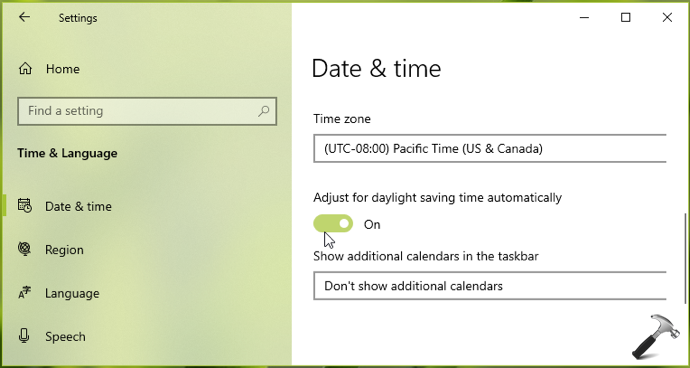
So, in the nutshell you need to confirm DST settings are observed in your time zone and you’ve correct time zone set.
FIX 2 – Using Registry
1. Open Registry Editor by running regedit command.
2. Go to HKEY_LOCAL_MACHINE\SYSTEM\CurrentControlSet\Control\TimeZoneInformation.
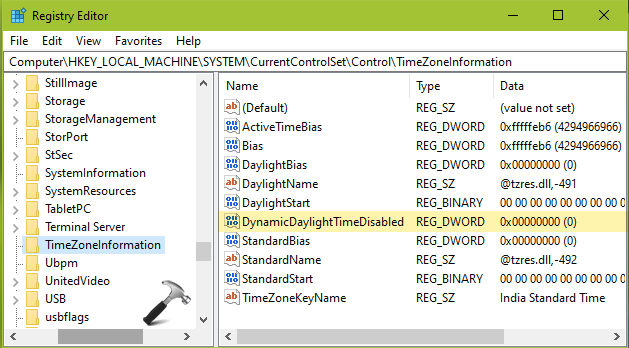
3. In right pane, double click on DynamicDaylightTimeDisabled registry DWORD and make sure set it to 0, to automatically adjust Windows 10 for DST settings. Else, let it set to 1, if you don’t want to auto adjust on DST settings.
4. Close Registry Editor and reboot to make changes effective.
See this video to illustrate this guide:
Hope this helps!
Related: Fix incorrect time zones in Windows.