In Windows, Remote Desktop feature allows you to connect one machine to another using the client application. Usually by connecting to your machine via a Remote Desktop client, you’d be creating the peer-to-peer connection. Hence, you need a direct access on the host machine. For that you need to allow remote desktop connections on your Windows system. With the help of Remote Desktop, you’re eligible to access files and resources of another machine located remotely.
Remember that you can use Remote Desktop to connect to Windows 10 Pro and Enterprise, Windows 8.1 and 8 Enterprise and Pro, Windows 7 Professional, Enterprise, and Ultimate, and Windows Server versions newer than Windows Server 2008. However, you can’t use Home editions to connect with Remote Desktop.
If you’re the administrator of your system, by default, you’ve remote access provided already. However, to enable remote access by others users, you need add them using steps mentioned below.
Page Contents
How To Add Users To Remote Desktop In Windows 10/8/7
Method 1 – Using System Properties
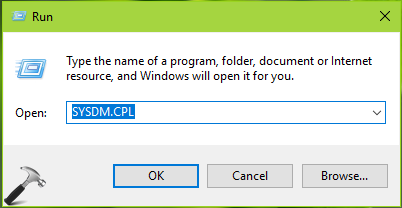
1. Press  + R and type
 SYSDM.CPL in Run. Click OK or press Enter key.
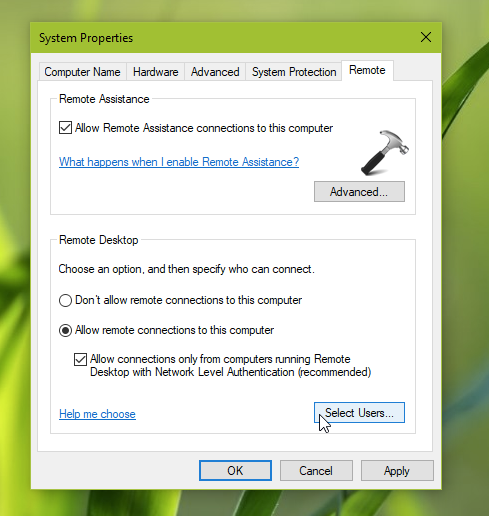
2. In System Properties window, under Remote tab, click on Select Users button.
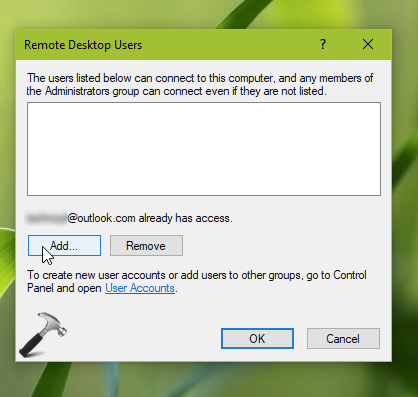
3. Next, under Remote Desktop Users, click on Add button.
4. Moving on, under Select Users window, click Advanced button.

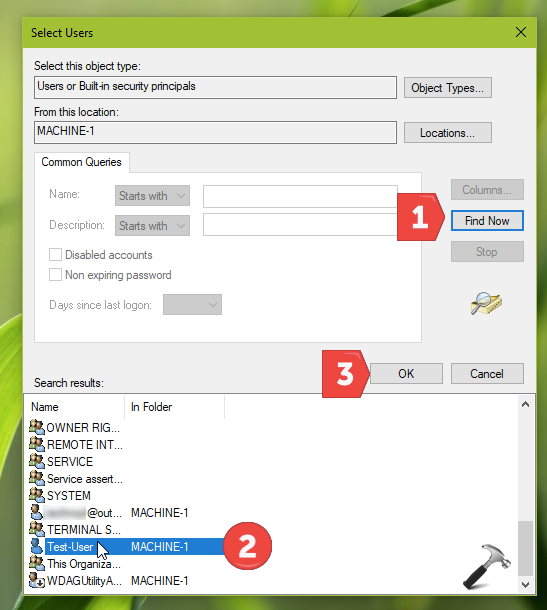
5. Then in next window, click Find Now. Under Search results, locate and click on the user you want to add. Click OK.
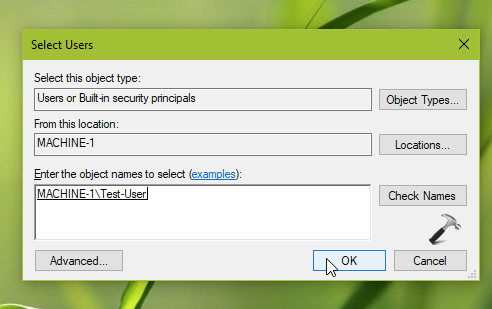
6. Back in the Select Users window, click OK.
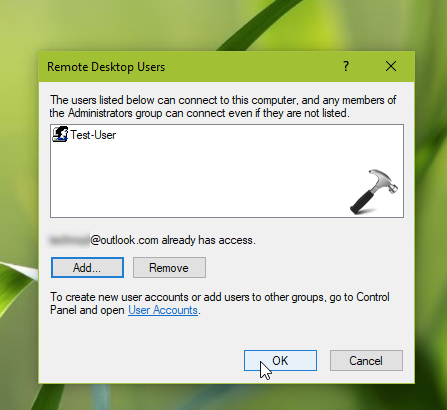
7. Finally, user(s) you’ve selected should be added to Remote Desktop Users. Click OK. And click OK again System Properties window to save the settings.
Method 2 – Using LUSRMGR Snap-in
If you’ve enough number of users for Remote Desktop, you can directly add them to Remote Desktop Users group.
1. Press + R and type lusrmgr.msc in Run dialog box to open Local Users and Groups snap-in. Click OK.
2. Click on Groups, and then double click Remote Desktop Users.
3. Then click Add button and follow steps 4-6 of Method 1.
4. Back in Remote Desktop Users property sheet, click OK to save selection of users.
That’s it!
![Remote Desktop Keeps Freezing or Disconnecting [6 Fixes]](https://www.kapilarya.com/assets/remote_dekstop_icon_1781340032.jpg)