We all know that Microsoft is continuously improving its Chromium based Edge browser. With the Edge Insider program, you can test the new features of this browser. Edge Insider program provides latest builds through Dev, Canary and Beta channels. The new browser is available for Windows 10/8/7 as well as for Server editions. With Canary build 89.0.731.0 or later, you can enable custom accent color in Edge browser. This feature is still under testing, however you can activate it using Edge flags in preview build. Once you activate the flag, you can configure custom accent color in browser settings. So in this post, we’ll see how to change accent color in Microsoft Edge (Chromium) browser.
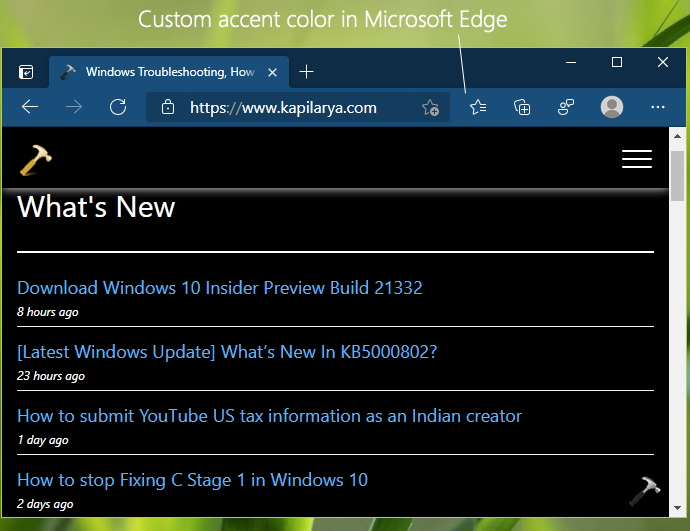
Here is how your browser will look upon activation of custom accent color.
To activate the custom accent color of your own choice, you first need to activate an experimental flag. If you have configured other experimental settings I have shared in previous articles, you might be already aware of Edge experimental flags. After activating the flag, you can go to settings and there will be a section to pick up your accent color. Here are the step-by-step instructions you can follow.
Change accent color in Microsoft Edge (Chromium)
1. Open Microsoft Edge (Chromium) browser.
2. In the URL or address bar, type edge://flags and press Enter key.
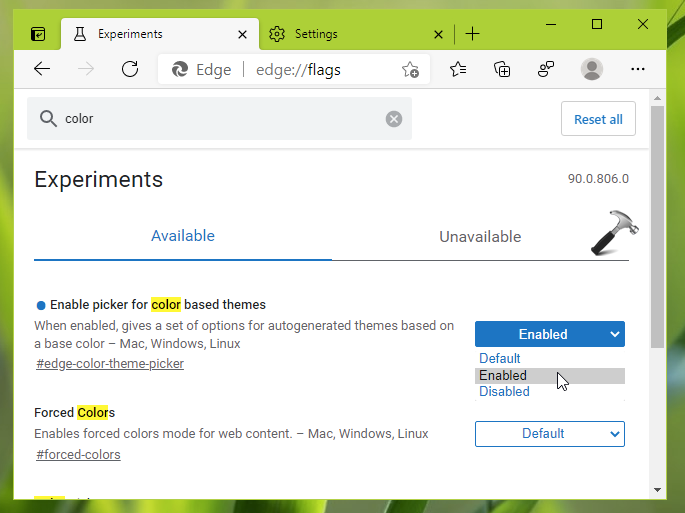
3. Now in the page loaded, type ‘color’ in the search bar. From results, you’ll be able to locate Enable picker for color based themes. Alternatively, you can directly go to edge://flags#edge-color-theme-picker link. Set it to Enabled from Default.
4. Once you change the flag setting, you’ll be asked to restart Microsoft Edge so do the needful.
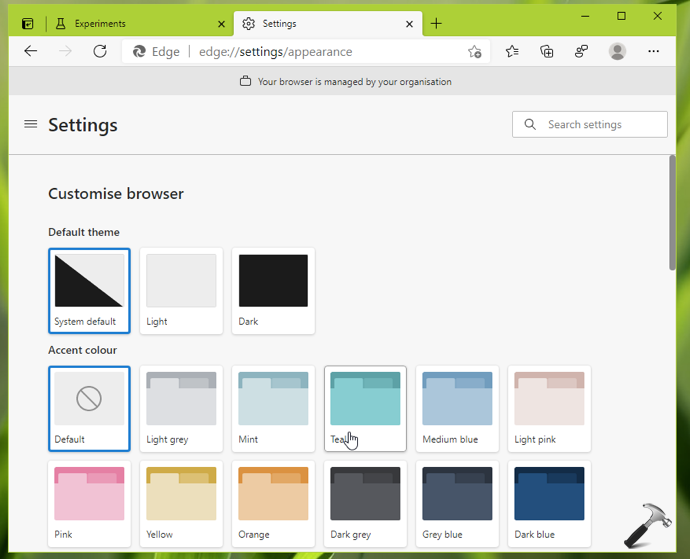
5. Once the browser restarts, go to Settings > Appearance. Under Appearance screen, you’ll find Customise browser heading. From here, you can select custom accent color of your choice. Whatever color you select, it will be applied immediately to the browser.
So this is all about how you can customize accent color in Edge.
That’s it!
Read next: Configure Startup Boost In Microsoft Edge Chromium.