Since Microsoft adopted Chromium open source engine for the Edge browser, it has been improved day-by-day in its performance. Now Microsoft Edge Chromium browser offers best-in-class new features along with stability and performance improvements. Microsoft is continuously improving this browser to make it top browser available on the market. If you are using new Microsoft Edge and you can’t modify some browser settings due to Your browser is managed by your organisation message, this article will show how to fix.
Here’s the screenshot of th message:
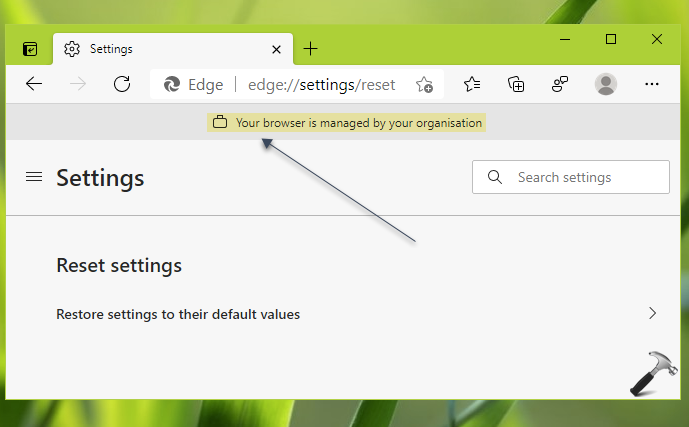
Recently, one of my colleague reached to me with this problem. In this case, he could not change some of the settings available in the browser. The settings he couldn’t change was simply greyed out. Also, there was title message at the top of browser screen. So if you’re also getting same message in your Microsoft Edge browser, here’s what you can do.
Page Contents
Fix: Your browser is managed by your organisation
FIX 1 – Sign out from work account and sign in with personal account
If you’re signed in to Microsoft Edge browser with your work account, this is expected. You can sign in to the browser with either work/school or personal account. When you sign in with work account, that message appears. Also, your IT admin can apply some policy settings due to which you can’t configure some of your browser settings. To prevent this, follow the steps:
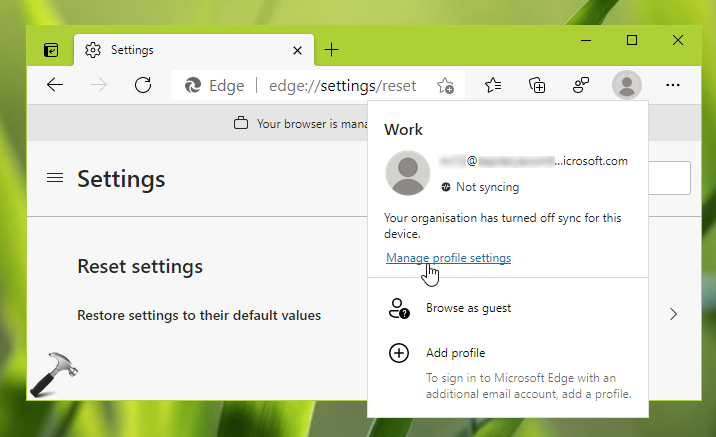
1. Open Microsoft Edge Chromium browser. Click on your profile icon, and select Manage profile settings.
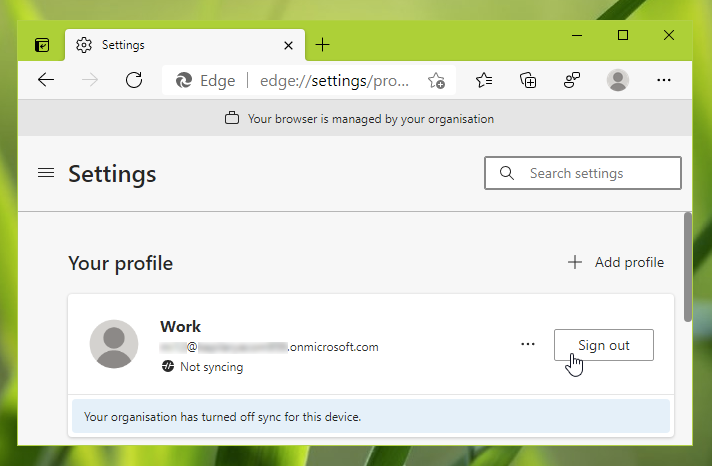
2. This will take you to Your profile section in browser settings. Click on Sign out button next to your work account.
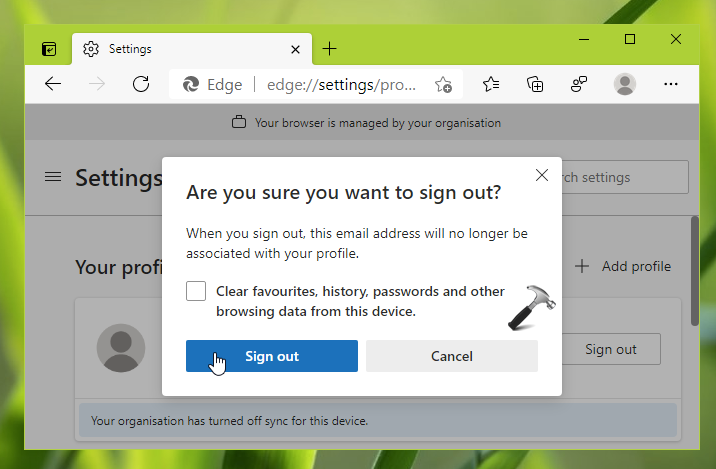
3. A pop-up will appear, simply click on Sign out in that.
4. Now sign in back but with your personal Microsoft account this time. You will no longer see Your browser is managed by your organisation message then.
FIX 2 – Revert Microsoft Edge policies
If you are an IT Pro/admin and your clients are complaining about this message, here is how you can fix it.
1. Open Microsoft Edge Chromium browser.
2. In the URL, type edge://policy and press Enter key. You should now see the next page as shown in the below screenshot.
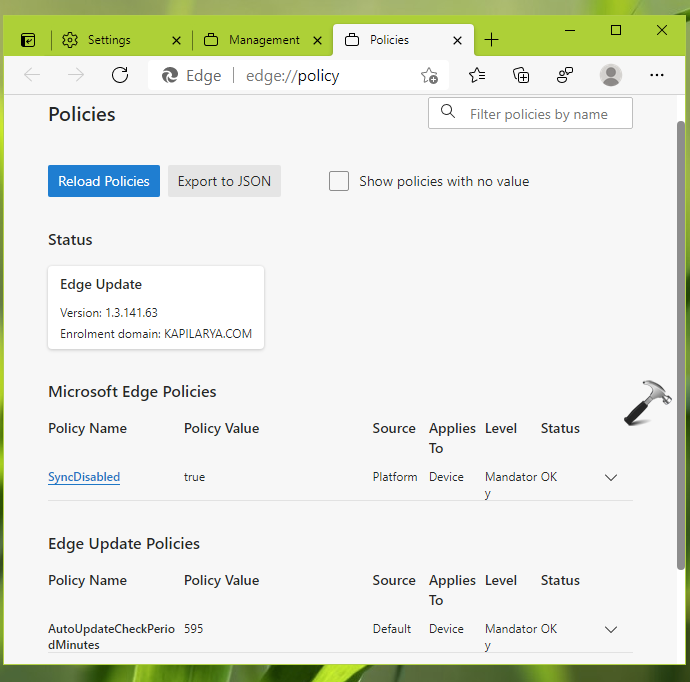
3. You’ve to remove those policy settings and revert them to default or not configured state. You can click on the link for a policy setting, which should take you to corresponding policy description on Microsoft Docs. Using the information available there, you can revert a policy setting easily.
Once you revert all the policies to not configured, your clients will no longer see Your browser is managed by your organisation message.
That’s it!
Read next: Configure Hardware Acceleration In Microsoft Edge (Chromium).