

We all know that how important Group Policy is for the IT admins. Using Group Policy, it is really easy for IT administrators to manage their client machines in their organization. Earlier, IT Pros was commonly using Active Directory to manage their clients. As far as Group Policy is concerned, we all have used GPO administrative templates which are XML based. Now since we’re in the cloud generation, we can use Microsoft Intune to deploy GPO templates. Microsoft Intune is 100% cloud-based solution to deploy administrative templates and manage your Windows 10 devices. In this article, we’ll see how to apply Group Policy settings using Microsoft Intune.
You can use Intune administrative templates as a part of mobile device management (MDM) solution. To use Group Policy settings with Intune, you first need to create a device configuration profile. You can then deploy this profile to Windows 10 devices in your organization. If you’re on Windows 10 Version 1903, most of the Group Policy settings can be configured with Intune. While if you’re on a prior version, not all settings may be available. To check, if a policy would work on specific Windows 10 edition, you can refer Windows policy CSPs.
Here’s how you can apply Group Policy settings using Microsoft Intune.
How to apply Group Policy settings using Microsoft Intune
1. Go to https://endpoint.microsoft.com and sign in with your global admin account. After login, click Devices in the left pane.

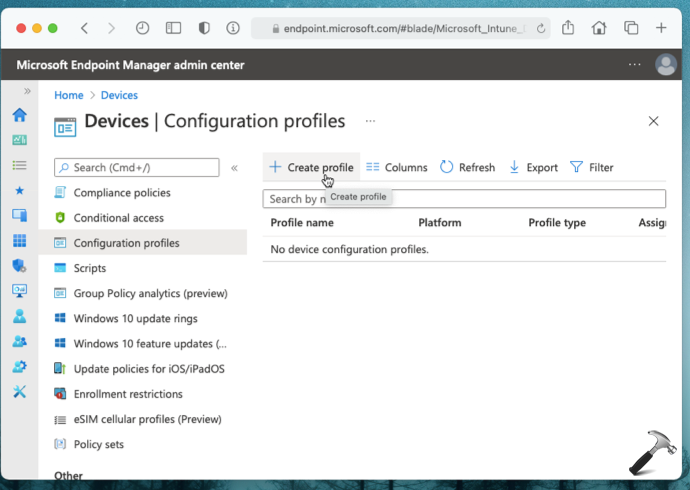
2. Under Devices, click on Configuration profiles and then click Create profile.
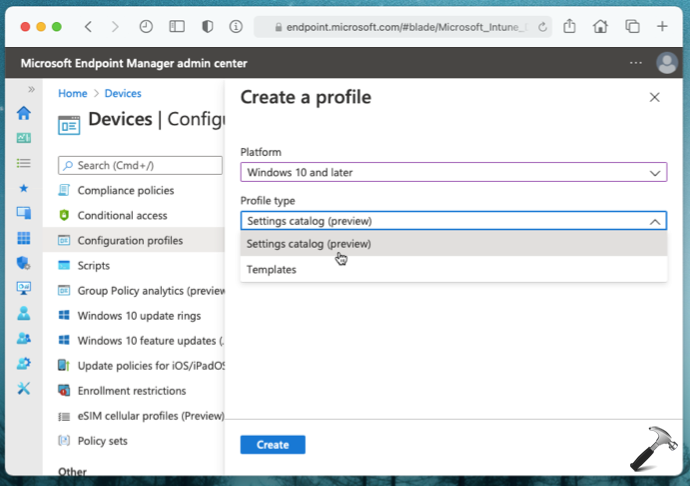
3. In the Create a profile pane, select Platform as Windows 10 and later. For Profile type, if you want logical grouping, you can select Templates. While if you want to see all settings, select Settings catalog (preview). In this example, we opted for Settings catalog.
4. Now you’ll be asked to create device configuration profile, so on Basics tab, type a Name followed by a Description. Click Next.

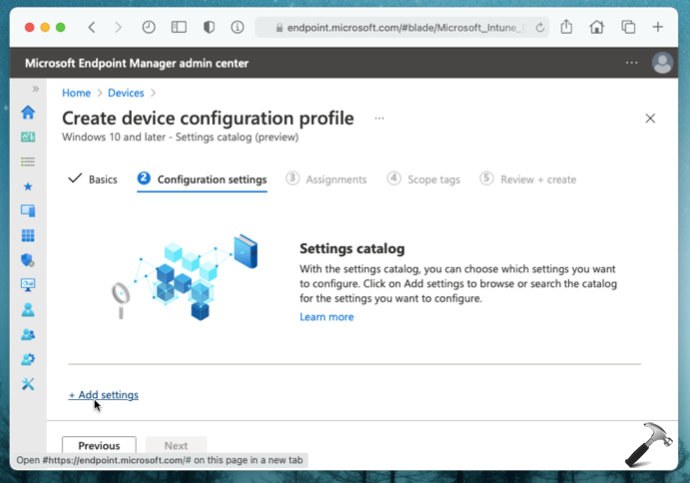
5. For Configuration settings, click Add settings.
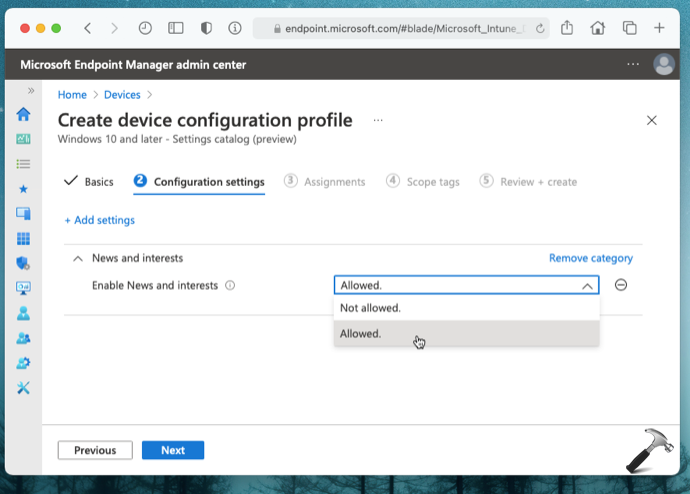
6. Under Settings picker, locate and select the Group Policy settings you want to configure. You can use search to find your desired settings. For this example, we’ve selected Enable News and interests policy setting. Hit Select all these settings then.

7. Now set your selected policy status, i.e. whether to allow or not allow a policy. Hit Next.
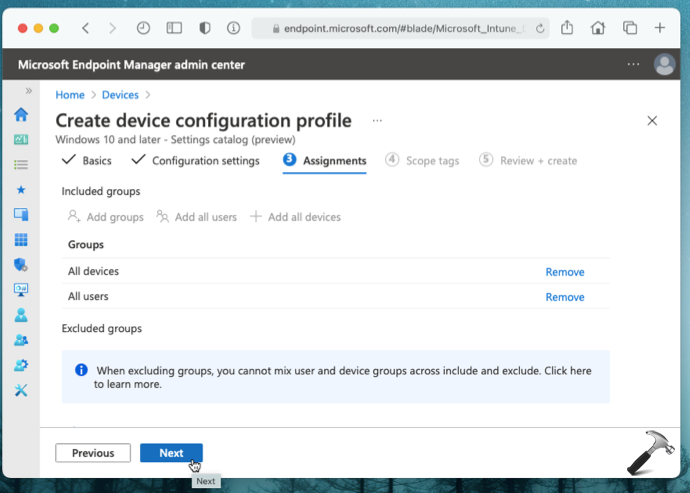
8. On Assignments, select the target groups, users or devices to which you want to apply your policy settings. Hit Next.
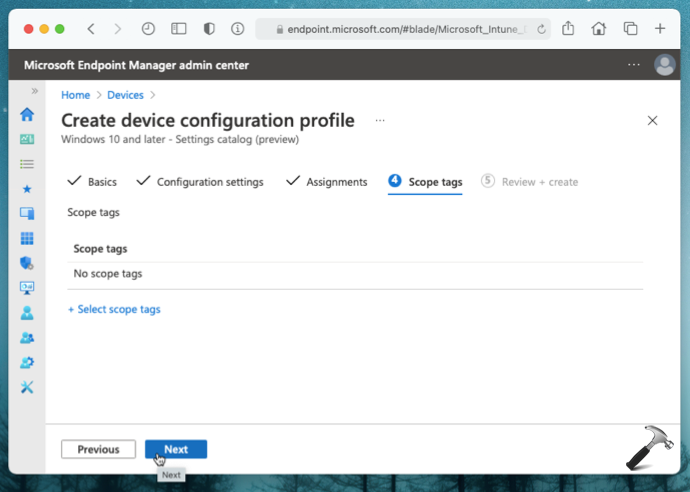
9. On Scope tags, you can apply some IT filters and this is optional step. Click Next.
10. Now on Review + create, hit the Create button.

11. In few moments, you’ll receive a notification of policy created successfully.

Now when the client’s machine check for configuration updates, your selected policy should be applied.
That’s it!
Related: Deploy A Registry Key Using Group Policy.




This is not a group policy
This IS a group policy