If you are often using command-line tools such as Command Prompt, Windows PowerShell, Azure Cloud Shell, Windows Subsystem for Linux (WSL) etc., the Terminal app will quite useful for you. Microsoft has included Terminal app in Windows 10 Build 21337 or later. This app works as a cross command-line tool platform to users. You can instantaneously use different command-line tools or profiles within this app. In this article, we’ll see how to use Terminal app in Windows 10.
According to Microsoft, the modern Windows Terminal app offers multiple tabs, panes, unicode and UTF-8 character support, a GPU accelerated text rendering engine, and the ability to create your own themes and customize text, colors, backgrounds, and shortcuts. It comes preinstalled in Windows 10 Build 21337 (Version 21H1) or later. Terminal app can be installed or updated via Microsoft Store, as required.
Now let us see how you can use this app on your system.
Page Contents
How to use Terminal app in Windows 10
How to open Terminal app
You can use search or Cortana to locate and open Windows Terminal app.
Also, you can use right click context menu to open an item in Terminal. The Open in Windows Terminal option will be appearing on supported items only. It will help you to quickly access Terminal app.

Switching between different profiles
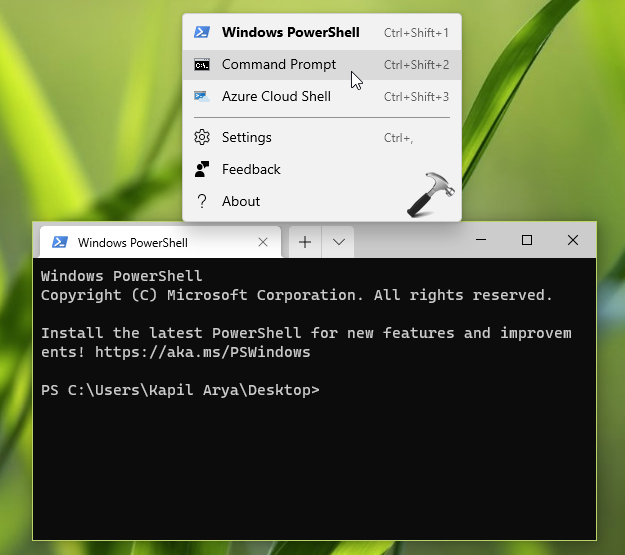
By default, Terminal app will open with Windows PowerShell profile. If you hit +, then another Windows PowerShell tab will open. To switch to other profiles, such as Command Prompt etc., you can click on ⌄ over tab bar and click the profile you want to switch.
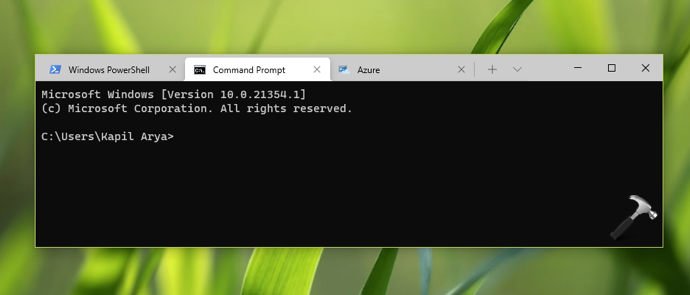
Below screenshot shows different profiles opened in Windows Terminal.
Customize Terminal app settings
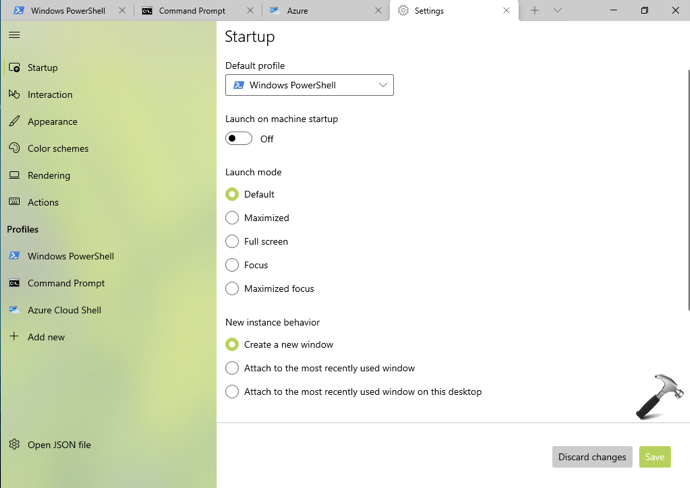
Windows Terminal app comes with customization abilities. You can click on ⌄ over tab bar and select Settings. Alternatively, you can press Ctrl+, key combination.
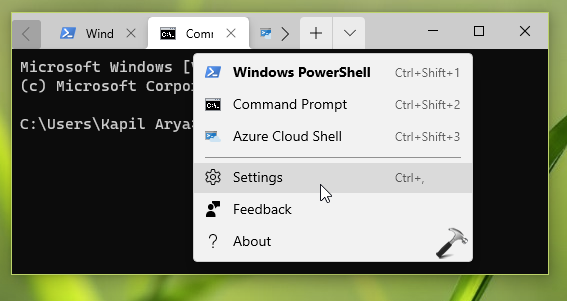
In the Settings tab, you can personalize your preferences and save them.
Troubleshoot Terminal app
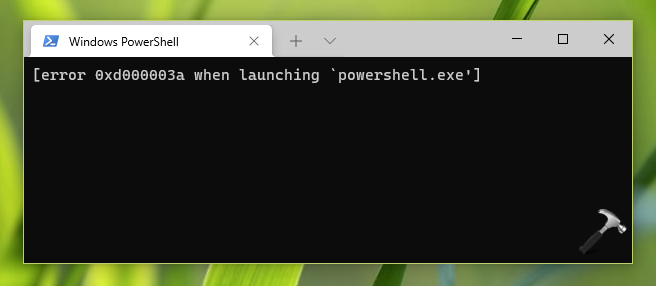
If the Terminal app is not working, first thing you can do is to sign out and sign in back or restart your system.
As this is an app, you can reset it, when it is not working as expected.
You can click on ⌄ over tab bar and hit Feedback, and send your feedback to Microsoft.
That’s it!
Read next: Recover permanently deleted files with Windows File Recovery app.