Earlier, in Windows operating system, we have been using password to sign in and to perform all the operations. Now passwords are becoming history as the new sign-in options arrived. Apart from password, there are many new sign-in options available in latest Windows 10. PIN is one of those sign-in options. PIN is easy to remember, short and provides better security than a traditional password. In this article, we will see how to allow or prevent PIN reset in Windows 10.
So when you use PIN as sign-in option, you have to enter a simple 4-digit or alphanumeric PIN to login. If you’ve PIN complexity configured, the PIN length may vary accordingly. When someone enters a wrong PIN, Windows may display I forgot my PIN link as shown in below screenshot. Using that link, one can reset their PIN and sign-in with new PIN they create.

If you are an IT administrator, you can manage whether you want to allow users to reset pin from the login screen. For that, you need to apply the registry solution shared below.
How to allow or prevent PIN reset in Windows 10
The registry based solution presented below can be deployed with Group Policy as well, using this guide.
1. Run regedit command to open Registry Editor.
2. In Registry Editor window, go to:
HKEY_LOCAL_MACHINE\SOFTWARE\Microsoft\Windows\CurrentVersion\Authentication\LogonUI\NgcPin
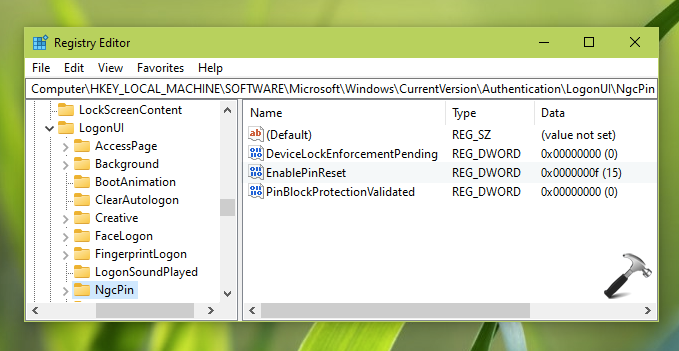
3. In the right pane of NgcPin, you’ll be able to locate EnablePinReset named registry DWORD (REG_DWORD). It should be set to f Value data in hexadecimal base, which is equivalent 15 in decimal base. And it implies that PIN reset is allowed at sign-in screen. If you want to prevent clients to reset PIN, you can set its Value data to 0.
4. Close Registry Editor, reboot to make changes effective.
That’s it!