Some users have reported encountering an issue where the File Explorer crashes when they try to right-click on a file or folder in Windows 11. This can be a frustrating experience, as right-clicking is a common way to access options and perform actions. In this article, we will provide some solutions to fix the right-click crashes in File Explorer on Windows 11.
Page Contents
Fix: Right-click crashes File Explorer in Windows 11
Fix 1: Run the SFC scan using the command prompt
- Open Run by clicking Windows + R keys together and type cmd. Then press Ctrl
+ Shift + Enter keys together to open as admin. - Type the command sfc /scannow and hit Enter.
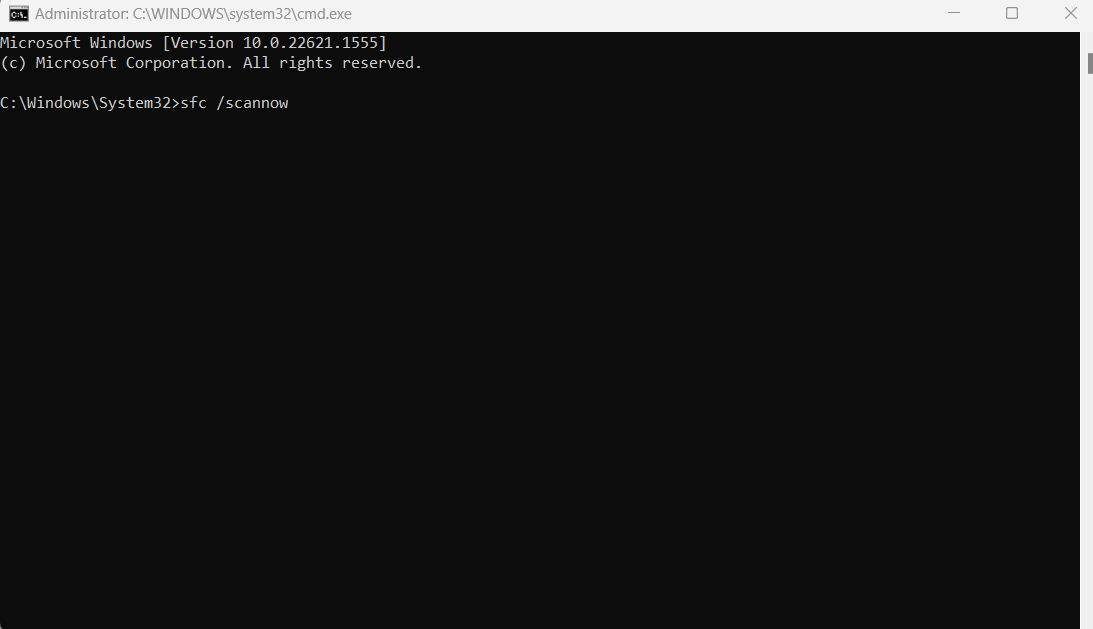
- When scanning is done, restart your computer.
Fix 2: Update Windows OS.
- Open Settings by pressing Windows + I keys together or search Settings in the Search given in your Taskbar.
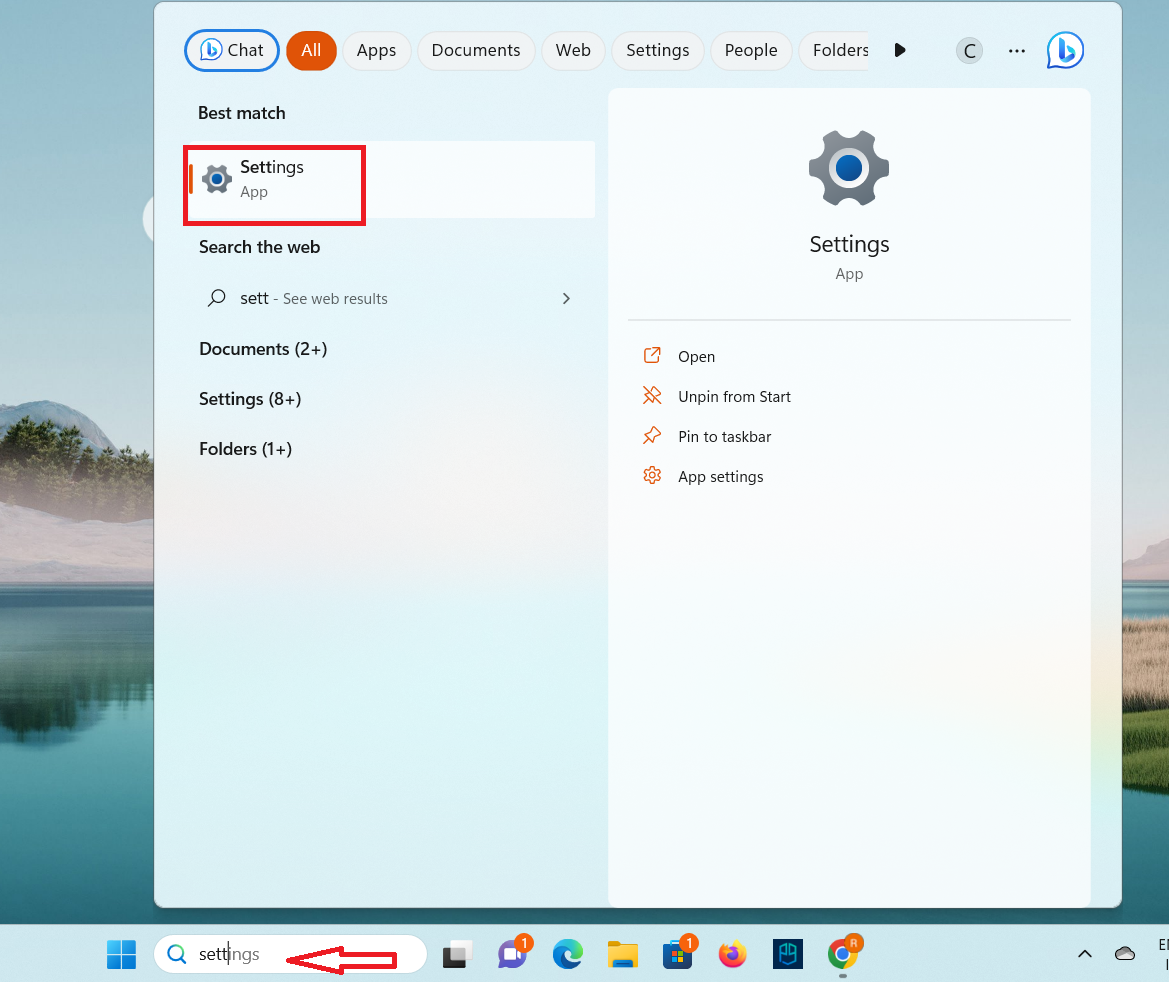
- Click on Updates and Security.
- Click on Windows update and then click Check for updates.
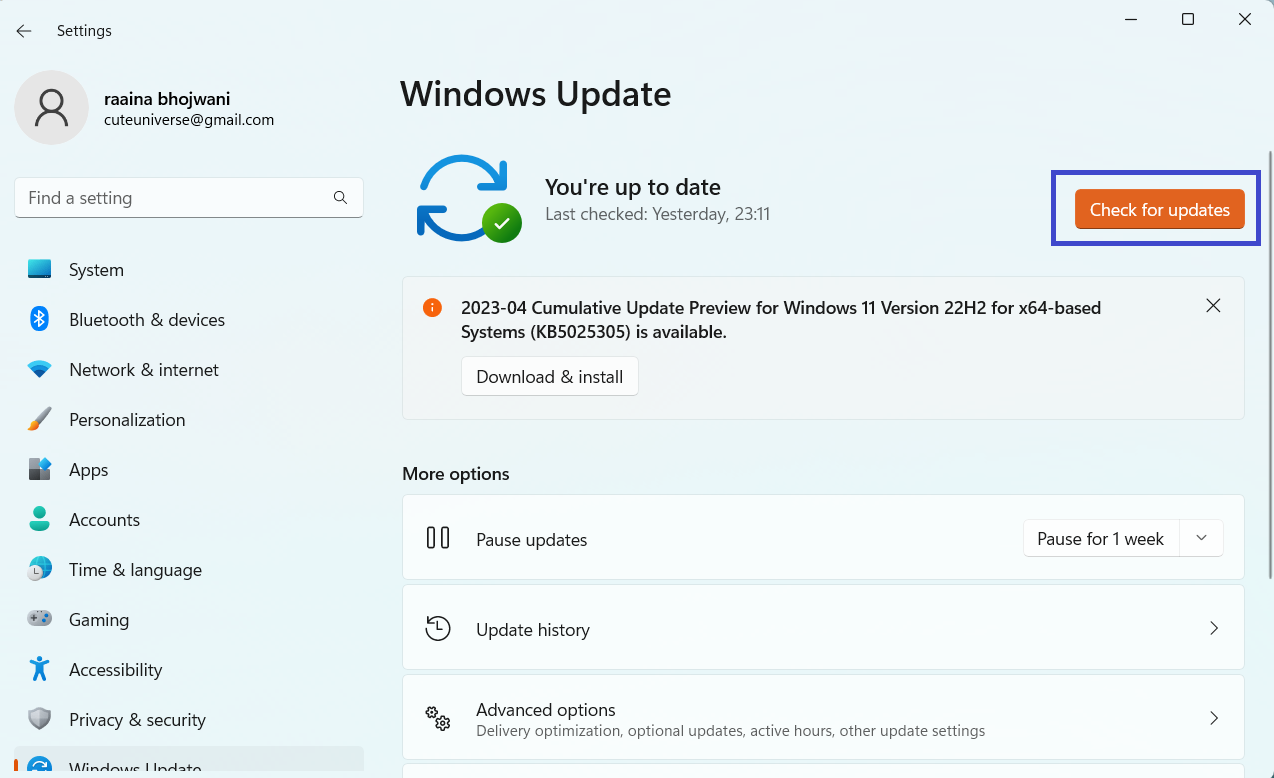
- Then click on Download and install.
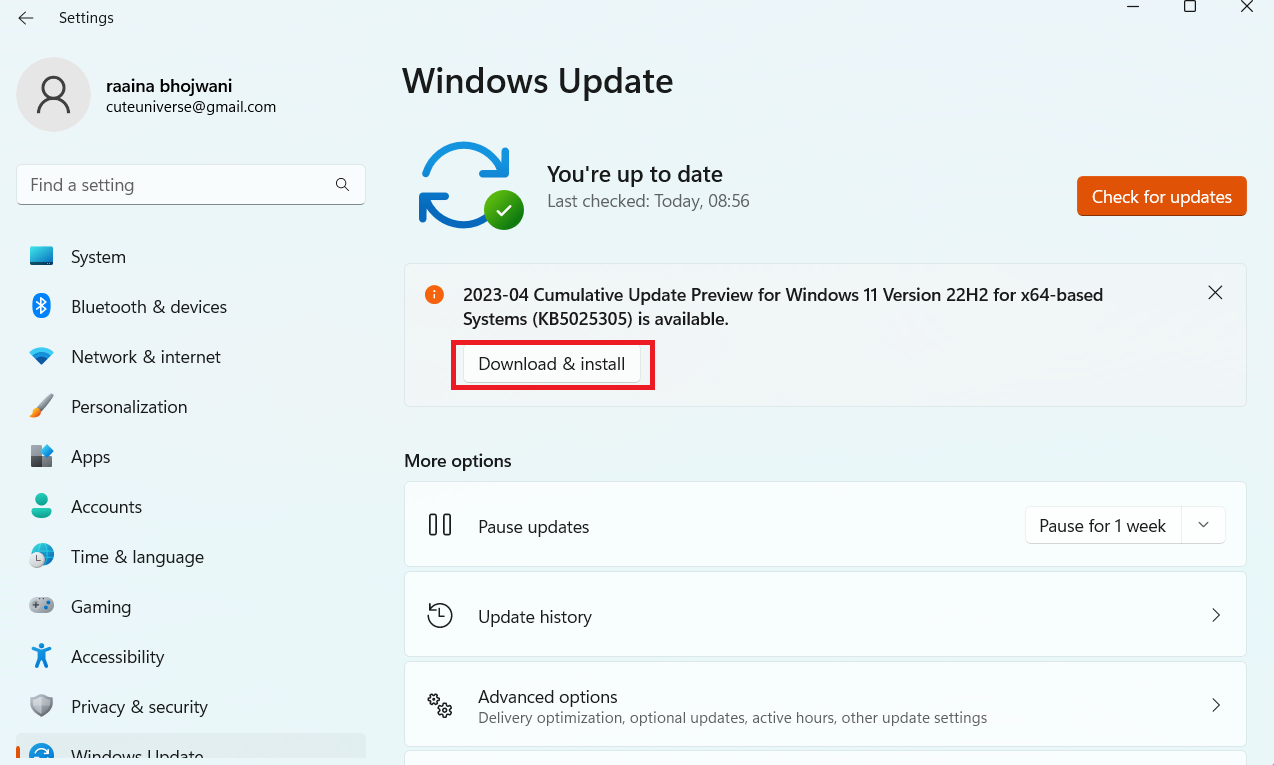
Fix 3: Restart Windows explorer from the task manager
- Press CTRL + ALT + Del keys together.
- Then, click on Task Manager.
- Select the Process tab and then right-click on the Windows Explorer option.
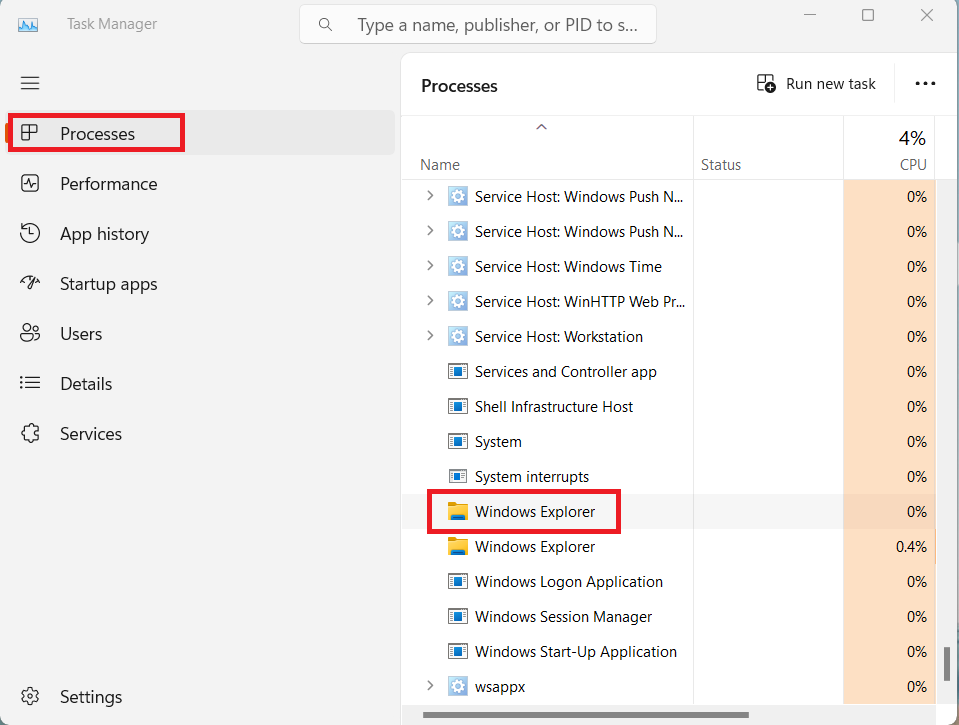
- Click Restart from the list.
Fix 4: Update GPU driver
It might be a possibility that you are using an outdated driver because of which Windows/File Explorer must be not responding. So update your graphic driver by following the instructions mentioned on your GPU manufacturer’s website.
Fix 5: Change File Explorer options
- Open the Control Panel by pressing Windows + Q keys together.
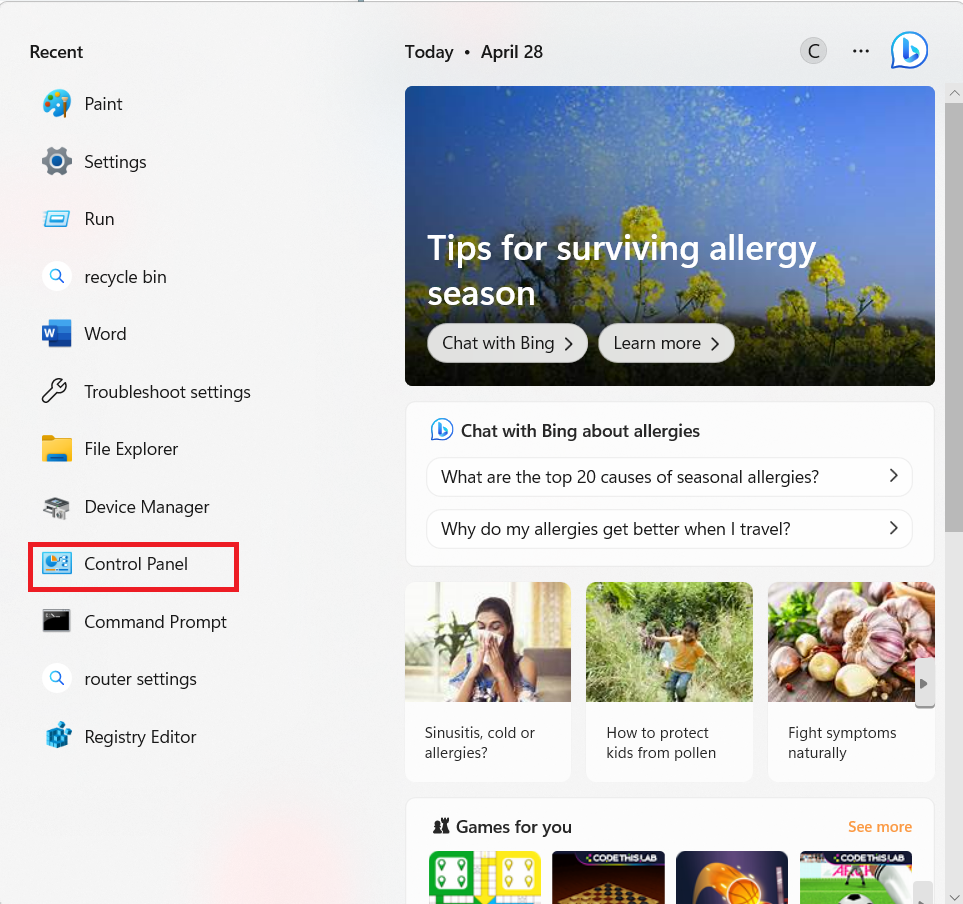
- Click on Appearance and Personalization.
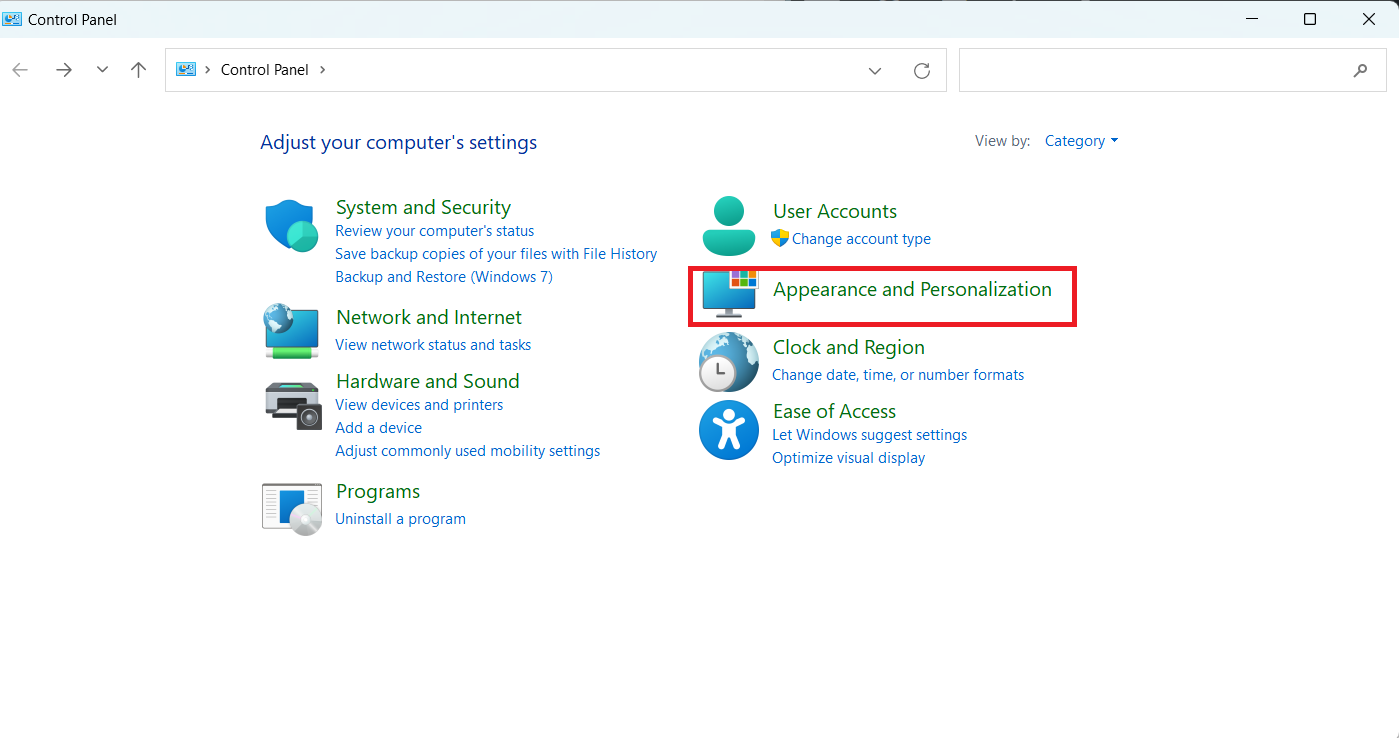
- Click on File Explorer Options.
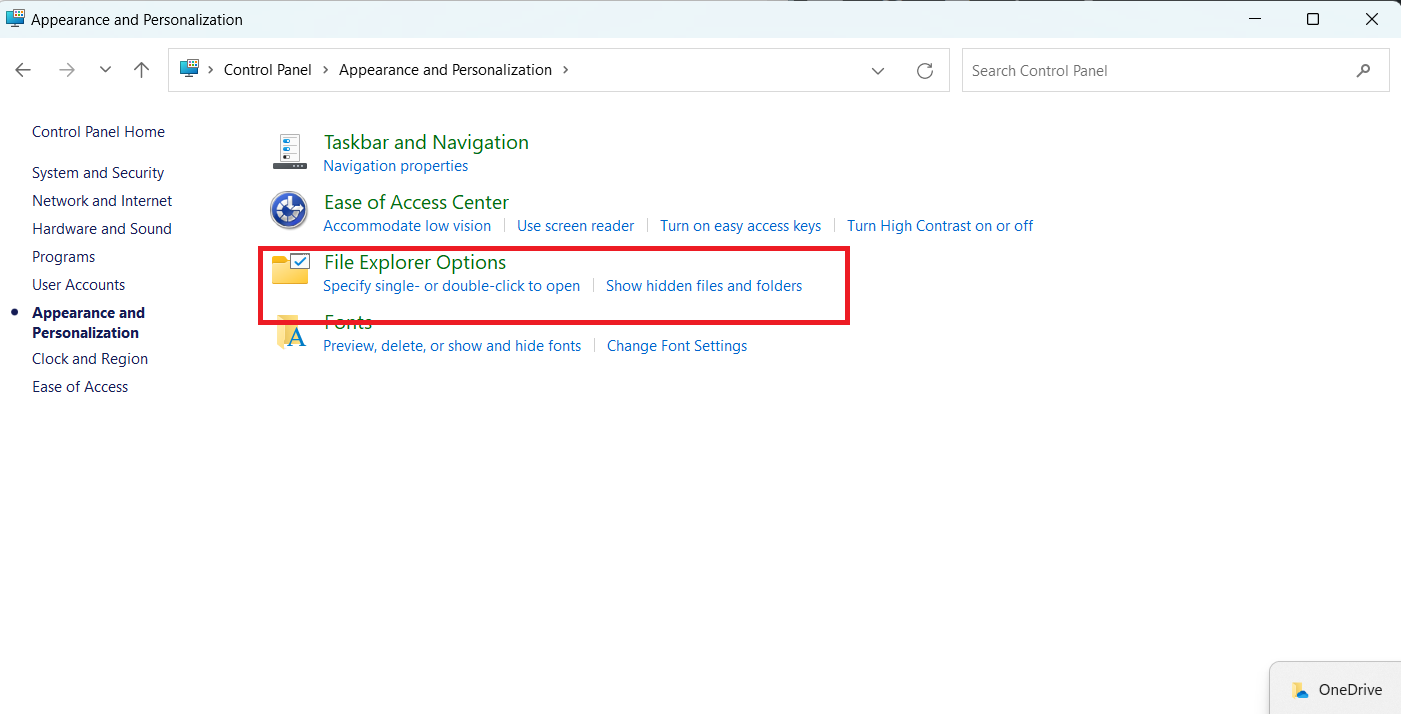
- Then select the General tab and in Open File Explorer select This PC.
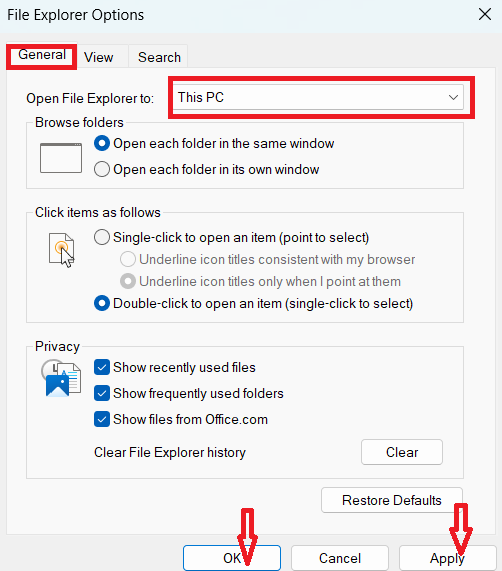
- Click on Apply > OK.
Fix 6: Clear Windows File Explorer Cache
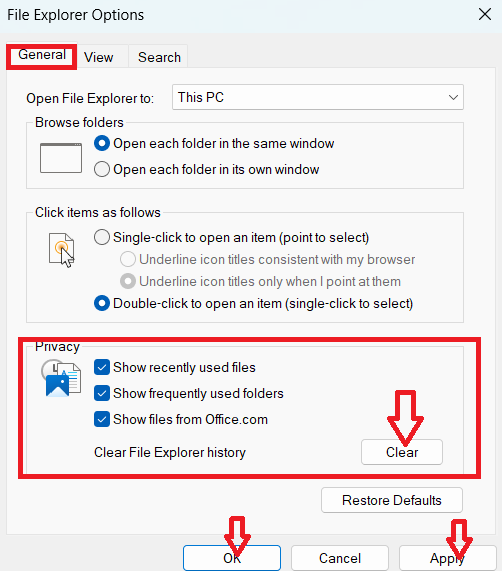
- Press the Window + Q keys together and open the Control Panel same as we did in the previous fix.
- Select the General tab and go to the Privacy section. Then click on Clear > Apply > OK.
Fix 7: Execute DISM commands in the command prompt
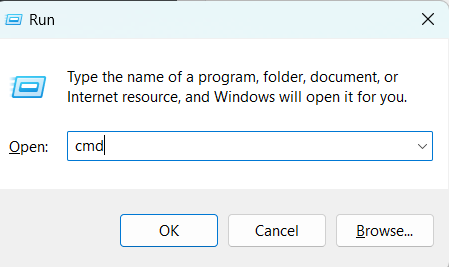
- Type Windows + R keys together and type cmd.
- Write command DISM.exe /Online /Cleanup-image /Scanhealth and hit Enter.
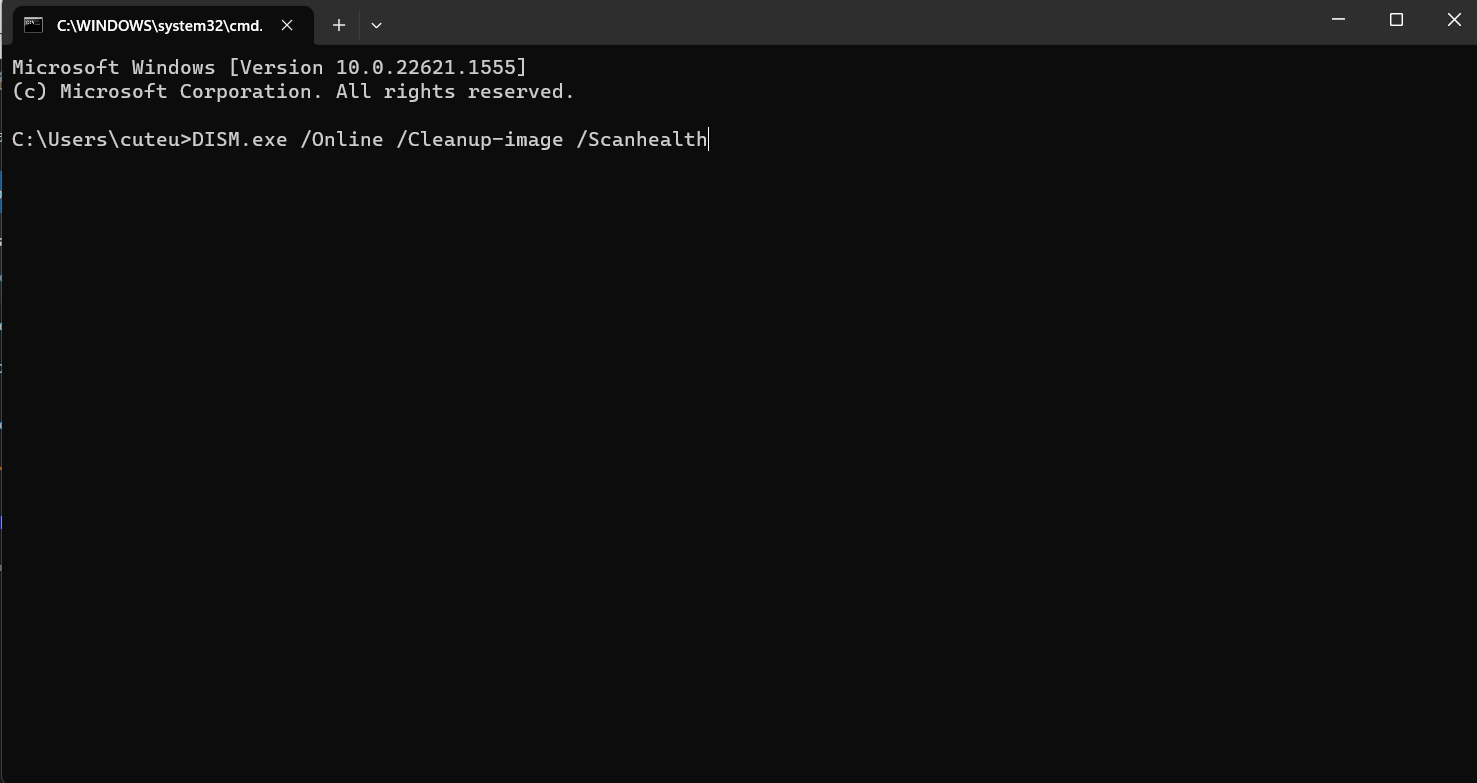
- Then type DISM.exe /Online /Cleanup-image /Restorehealth and hit Enter.
- Restart the system after the process is finished.
Hope this helps!