

Today we are going to discuss on the black screen issue found on Windows 7. After logging into Windows 7, nothing is shown except black screen. The desktop is seems missing.

Moreover there is no warning message about this issue and nothing to help to fix this problem, not even an error code. The black screen is looking so ugly and problem is that you can’t change it (The image shown above doesn’t resembles with actual problem. It is simply indicating black screen).
[FIX] Getting Black Screen After Logging In Windows 7
There are many ways to solve this issue so far. I’m going to tell you the way through Registry Editor, one of the easiest way. So lets start…
1. Press  + R and put regedit.exe in Run dialog box to open Registry Editor (if you’re not familiar with Registry Editor, then click here). Click OK.

2. Navigate to the following key:
HKEY_LOCAL_MACHINE\Software\Microsoft\Windows NT\CurrentVersion\Winlogon
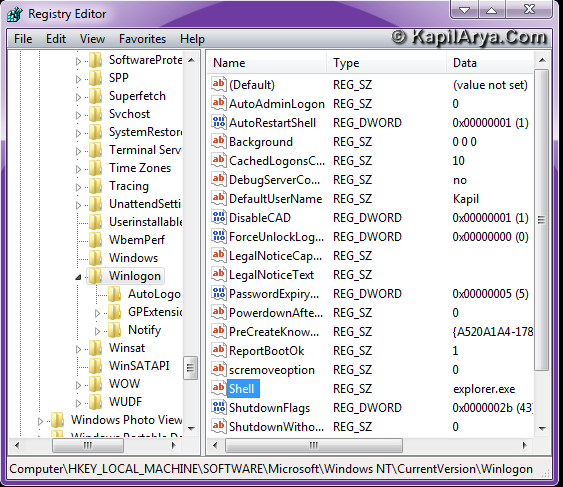
3. Right click on Winlogon, and select Export.

4. In the export registry file to desktop. In the right pane, right click and select Edit -> New -> String Value. Name the new string as Shell and put the string value explorer.exe. Reboot to get the results.
That’s it!



it can be fixed through system restore also… Just saying :P
never bothered with these before but +1’d for future… Thanks mate kapil
thinking on another way, if v directly run the backup registry.
If you cn provide the registry script many thanks alot..
COOL METHOD :d
thanks alot
^^ Glad we could help :)