Dealing with Windows Update error 0x80073712 can be confusing, but we’re here to assist. This issue can occur during updates due to problems like corrupted files, interrupted downloads, conflicts with other software, or low disk space. In this article, we’ll explain the reasons behind this error and provide straightforward solutions to help you fix Windows Update error 0x80073712 in Windows 11, ensuring a smooth and hassle-free Windows update experience.
Page Contents
What is Windows Update code 0x80073712 in Windows 11?
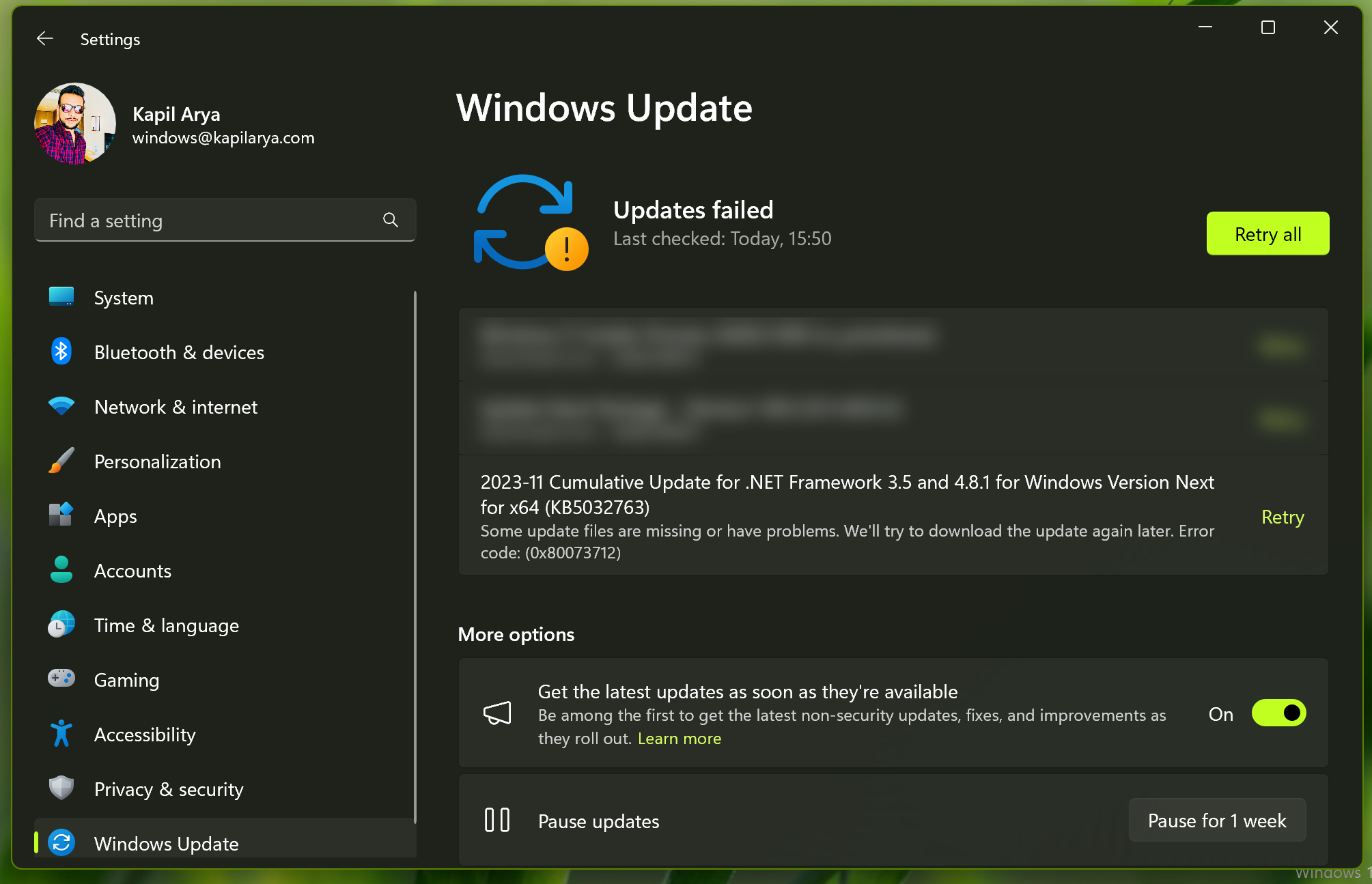
Windows Update error 0x80073712 is a numerical code that signifies a problem during the update process, preventing the successful installation of updates. When encountered, this error may manifest as a roadblock in the otherwise smooth journey of maintaining a healthy and optimized Windows environment. To solve the difficulties of this error, it is essential to understand its causes, implications, and, most importantly, the steps to rectify the issue.
Common Causes of Windows Update Error 0x80073712:
- Corrupted System Files: These files are vital for the proper functioning of the Windows operating system, and any impairment can lead to update failures.
- Incomplete Update Downloads: Sometimes, interrupted or incomplete download processes can result in the manifestation of this error. If an update is not downloaded and stored on the system correctly, it may trigger the 0x80073712 error during the installation phase.
- Third-Party Software Interference: Conflicts with third-party antivirus programs, firewalls, or other security software can disrupt the update process. These conflicts may prevent certain files from being accessed or modified during installation, leading to the error.
- Registry Issues: Problems within the Windows Registry, a crucial database for system settings and configurations, can contribute to update errors. Incorrect or corrupted registry entries may hinder the seamless installation of updates.
- Disk Errors or Insufficient Disk Space: Disk-related issues, such as bad sectors or insufficient disk space, can impede the update process. Updates require a certain amount of free space to be successfully installed, and any hindrance in this regard can trigger error 0x80073712.
Fix: Windows Update error 0x80073712
Below are the simple solutions to fix this error:
Solution 1: Run Disk Cleanup
1. Open the search bar and type “Disk cleanup“.
2. Now, click the “Clean up system files” option.

Select “Windows Update Cleanup” and then click OK.
Windows will delete older update files.
3. Restart your PC.
Solution 2: Microsoft Update Assistant or Media Creation Tool
1. Download the tool from Microsoft website (https://www.microsoft.com/software-download/windows11)
2. Click on “Update now” to download the latest version.
To upgrade to the highest version, click the “Download now” option.

Launch the tool, it will automatically guide you through the upgrade process.
Solution 3: SFC and DISM Scan
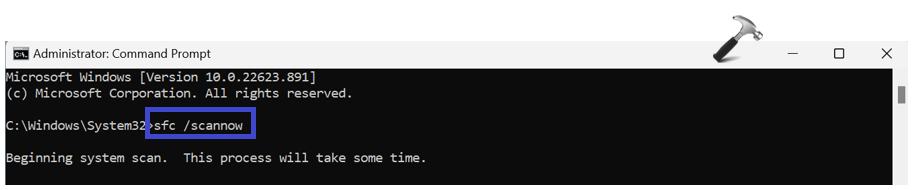
1. Open the Command prompt and run as administrator.
2. Copy and paste the below command:
sfc/scannow
Press Enter.
3. Now, copy and paste the below commands one by one:
DISM.exe /Online /Cleanup-image /Scanhealth
Press Enter. Then try next command:
DISM.exe /Online /Cleanup-image /Restorehealth
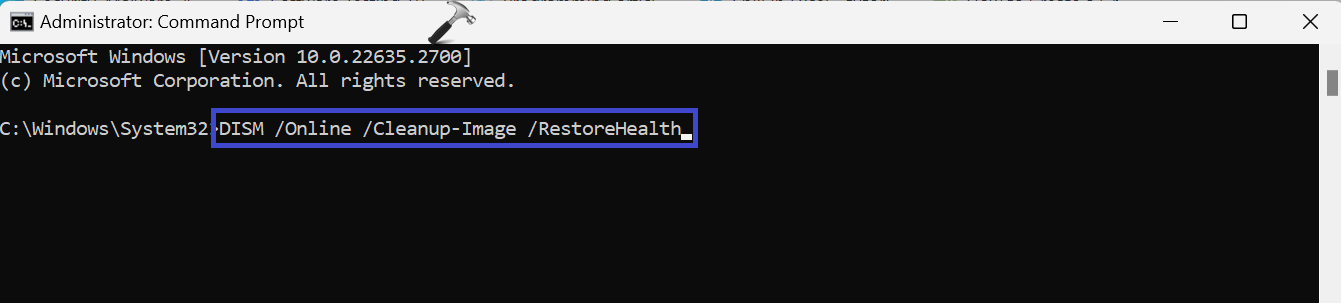
Press Enter.
4. After executing the above commands, restart the PC.
Solution 4: Reset Windows Update Components
1. Open the Command prompt and run as administrator.
2. Copy and paste the below commands (Press Enter after each command):
net stop wuauserv
net stop cryptSvc
net stop bits
net stop msiserver
ren C:\Windows\SoftwareDistribution SoftwareDistribution.old
ren C:\Windows\System32\catroot2 Catroot2.old
The above commands will reset the update components in Windows.
3. Now, copy and paste the below commands to restart it again:
(Press Enter after each command)
net start wuauserv
net start cryptSvc
net start bits
net start msiserver
4. After executing all the commands restart the PC.
You can also refer this video guide to reset update components:
Solution 5: Configure Update Settings
1. Open the Settings App and go to “Windows Update“.
2. Now, go to “Advanced Options“.

3. Uncheck the “Receive updates for other Microsoft products” option.
4. Restart your system and try updates again.
Hope this helps!