

The Kernel-mode hardware-enforced stack protection is a security program of Windows which protects the PC from various dangers. It mainly helps in the prevention of attack which may create memory stack vulnerabilities. It is generally turned off in the PC. However, the users of Windows 11 can at times face issues while manually enabling this feature. Thereafter, this blog deals with the main fixes which will allow the users to solve this issue.
An error message saying, “Kernel-mode Hardware-enforced stack Protection is off” can appear while the users attempt to enable the kennel-mode hardware-enforced Stack Protection. Therefore, let us check the main fixes which will allow the users to fix this issue in detail.

Page Contents
Fix: Kernel-Mode Hardware-Enforced Stack Protection is off
Moreover, the users should at first update to the latest BIOS which supports Control-flow Enforcement Technology (CET) for enabling the kernel-mode hardware-enforced stack protection. For doing that, at first download the latest BIOS version and copy it to a USB drive. Next, follow the steps-
Step 1- Plug the USB drive to the PC. Then go to Settings > Update & Security.
Step 2- Press Recovery.
Step 3- Now, below Advanced startup, select Restart now.
Step 4- Thereafter, select Troubleshoot > Advanced Options in Advanced Startup Options once Windows boot into it.

Step 5- Press UEFI Firmware Settings and click Restart. The PC will now boot into BIOS.

Step 6- After entering into BIOS, select BIOS update.
Step 7- Finally, select the BIOS update file from the USB drive and wait for the process to finish.
Next, run the fixes below for enabling the kernel-mode hardware-enforced stack protection.
Fix 1: Enabling DEP
Enabling the Data Execution Prevention is a feature which runs along with kennel-mode hardware-enforced stack protection for better security. Thus, for enabling this feature, follow the steps below-
Step 1- Firstly, right-click This PC, Next, press Properties > Advanced system settings.

Step 2- Now, below Performance, select Settings. Then, visit the Data Execution Prevention tab.


Step 3- Next, as necessary click either Turn on DEP for essential Windows program and services only or Turn on DEP for all programs.

Fix 2: Modifying Windows Registry
Changing the settings of Windows Registry can also help the users in fixing the issue and enable the kennel-mode hardware-enforced stack protection. Now, follow the steps below for doing the same.
Step 1- Primarily, press Win + R. The Run dialog box will appear. Here, write the prompt below and press OK.
regedit
Step 2- Next, go to the path below-
HKEY_LOCAL_MACHINESYSTEMCurrentControlSet\Control\Session Manager\Memory Management
Step 3- Further, double-click FeatureSettingsOverride.

Step 4- Press DWORD(32-bit) Value. Name it FeatureSettingsOverride.
Step 5- Next, double-click. Set the value to 9 and press OK.
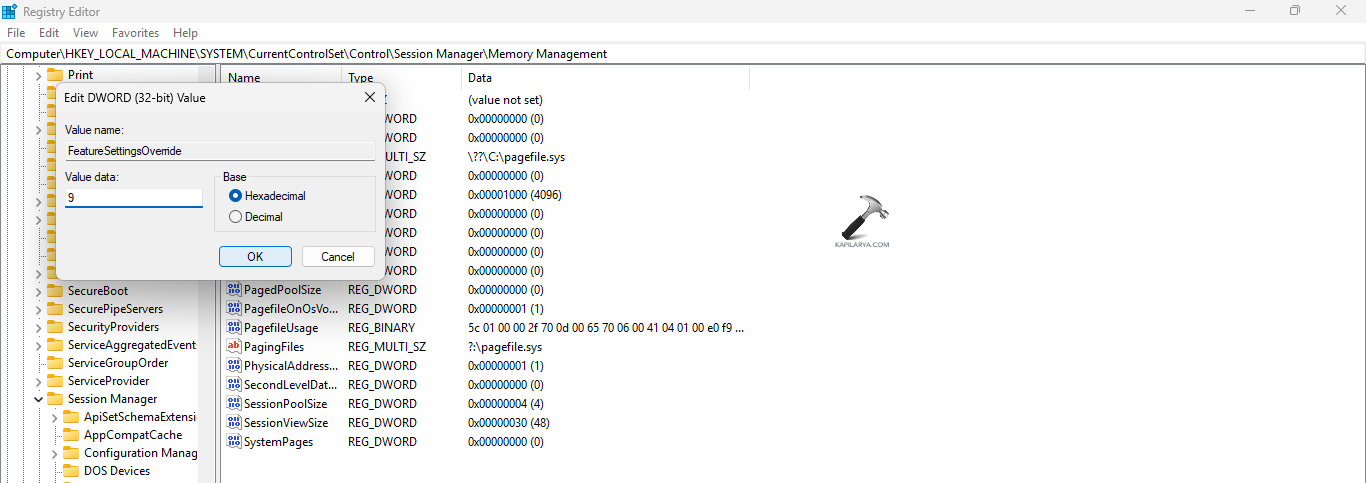
Step 6- Finally, exit the Registry Editor and restart the PC.
Fix 3: Uninstalling Problematic Programs
If any incompatible or problematic software is installed in the PC, it can create conflicts in the system. This may forbid the kernel-mode hardware-enforced stack protection feature from turning on. For fixing this issue, review the installed programs in Control Panel/Settings. Here, check any recently installed software which may be the primary reason for the existence of this problem. Uninstall such programs and turn on the kernel-mode hardware-enabled stack protection after the installation again and check if the issue is resolved.

Fix 4: Enabling CPU Virtualization in BIOS
Another fix which the users can try is enabling the CPU Virtualization in BIOS for fixing the problem. Hence, follow the instructions below for doing it.
Step 1- Restart the PC and press F2/Del for entering into BIOS.
Step 2- Now, below Advanced CPU configuration/Chipset/Security, visit the virtualization settings.
Step 3- Here, find and enable the virtualization option. It may appear as VT-x/AMD-V/SVM.

Fix 5: Enabling VBS and HVCI
If the above fixes are not working then the users should enable the Virtualization-based Security (VBS) and Hypervisor-enforced Code Integrity for enabling the kennel-mode hardware-enforced stack protection.
Step 1- At first, open Windows Security. Next, click Device Security > Core isolation details > Memory integrity.


Step 2- Lastly, enable the Memory Integrity feature and restart the PC.

Hope this helps!
![Solved: Memory integrity is turned off in Windows 11 [2026 FIX]](https://www.kapilarya.com/assets/Memory-1-768x509.jpg)


