The users of Windows 11 can come across the obstacle of Bluetooth audio stuttering or Sound distortion while using Bluetooth. This problem may arise due to various reasons such as outdated drivers, enabled Bluetooth collaboration, frequency problems, same frequency of Wi-Fi and Bluetooth, etc. However, this issue is solvable. Therefore, this article lists all the possible solutions which will help the users in Bluetooth audio stuttering fix.
Page Contents
Fix Windows 11 Bluetooth audio stuttering
Now, let us check all the possible solutions for Bluetooth audio stuttering fix in detail.
Fix 1: Disabling Bluetooth Collaboration
The Bluetooth collaboration when enabled may cause the issue of audio stuttering. Hence, the users can disable the Bluetooth collaboration using the steps below for fixing the issue of Bluetooth audio stuttering.
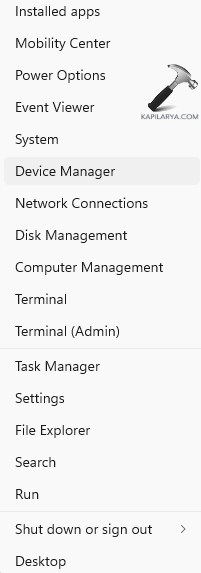
Step 1- Open Device Manager.
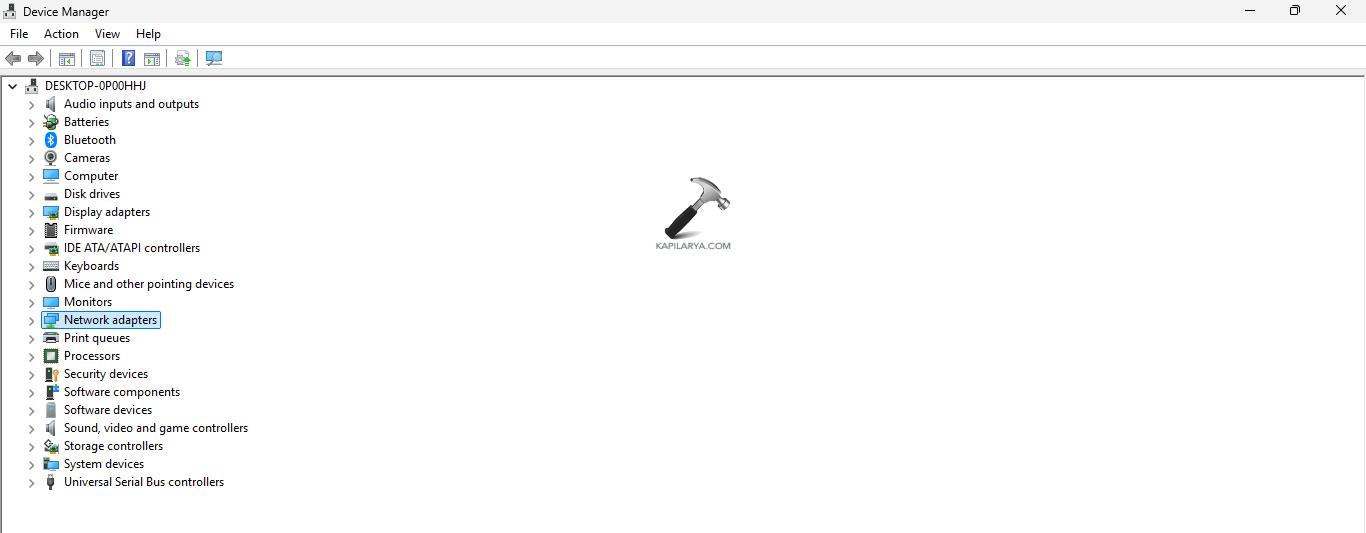
Step 2- Next, expand Network adapters. Right-click Broadcom Network adapter and press Properties.
 Step 3- Select Advanced tab and choose Bluetooth Collaboration from the property box.
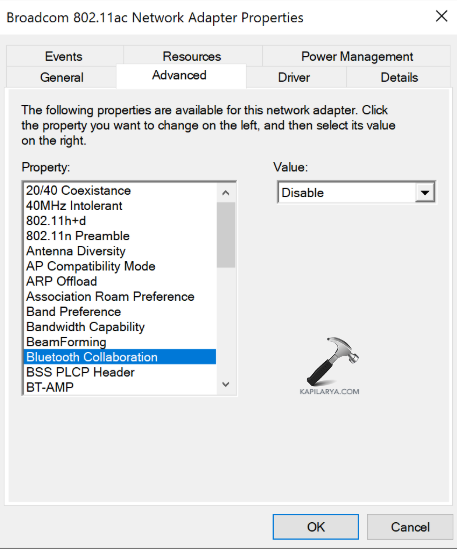
Step 4- Press the Value drop-down menu and press Disable.
Step 5- Lastly, press OK for saving the changes.
Fix 2: Switching between Wi-Fi bands
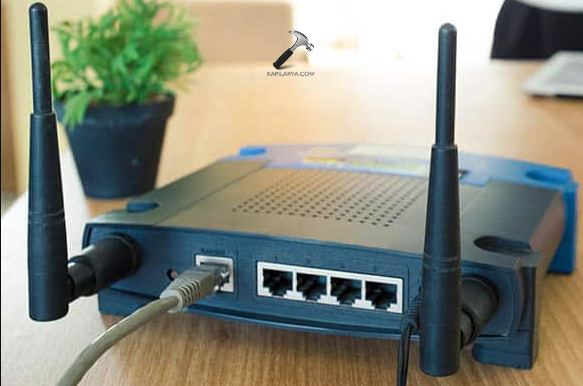
If two wireless devices are using the same frequency then it causes an interference which may cause the Bluetooth audio stuttering error. For instance, the frequency of Bluetooth device and Wi-Fi may be the same. For resolving it turn off the Wi-Fi router and check it this solves the issue. The users can also try changing the frequency of the Wi-Fi router which an aid in fixing the problem.
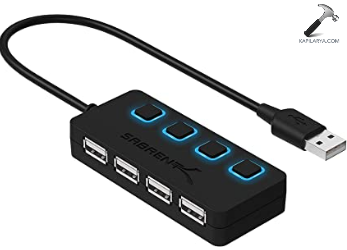
Fix 3: Using a USB cable
Electrical interference issue occurring on the motherboard’s Bluetooth’s module is another reason for the appearance of the issue. Hence, increasing the distance between the USB Bluetooth dongle and the USB port of the PC will allow the users to fix the issue. The users should connect their USB Bluetooth dongle via a USB cable for doing the same.
Fix 4: Setting Roaming Aggressiveness to the Lowest value
The user can also adapt setting roaming aggressiveness to the lowest as this can allow to solve the problem. Follow the instructions below for doing the same.
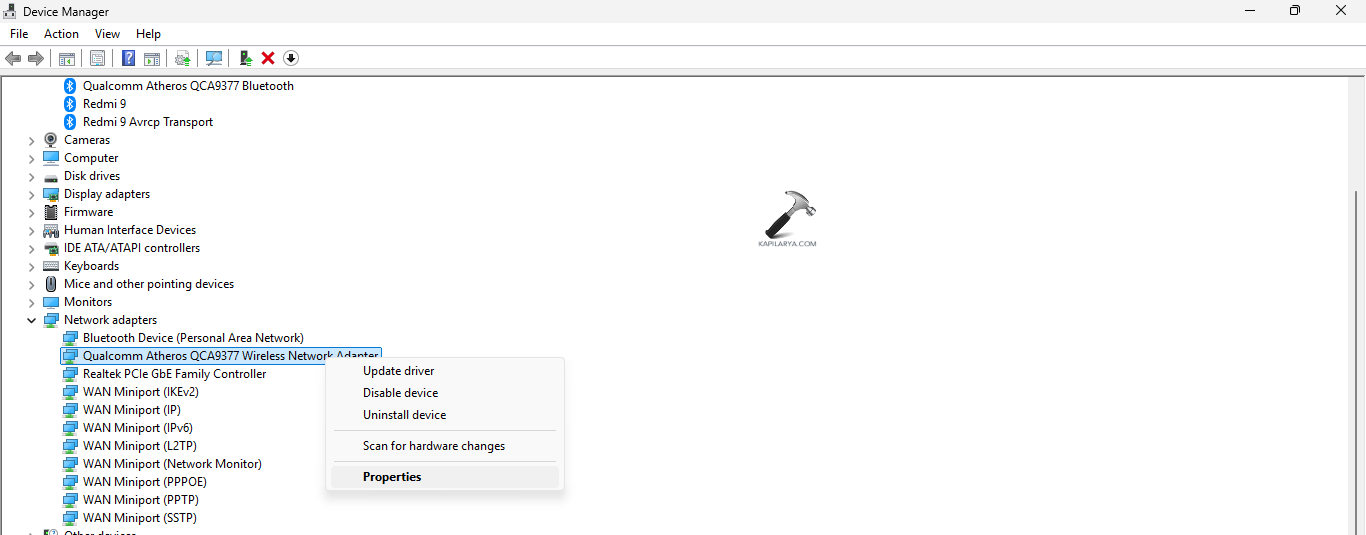
Step 1- Open Device Manager. Then go to Network adapters.
Step 2- Right-click the Wi-fi adapter driver and press Properties.
Step 3- Go to Advanced tab and click Roaming Aggressiveness in the Property box.
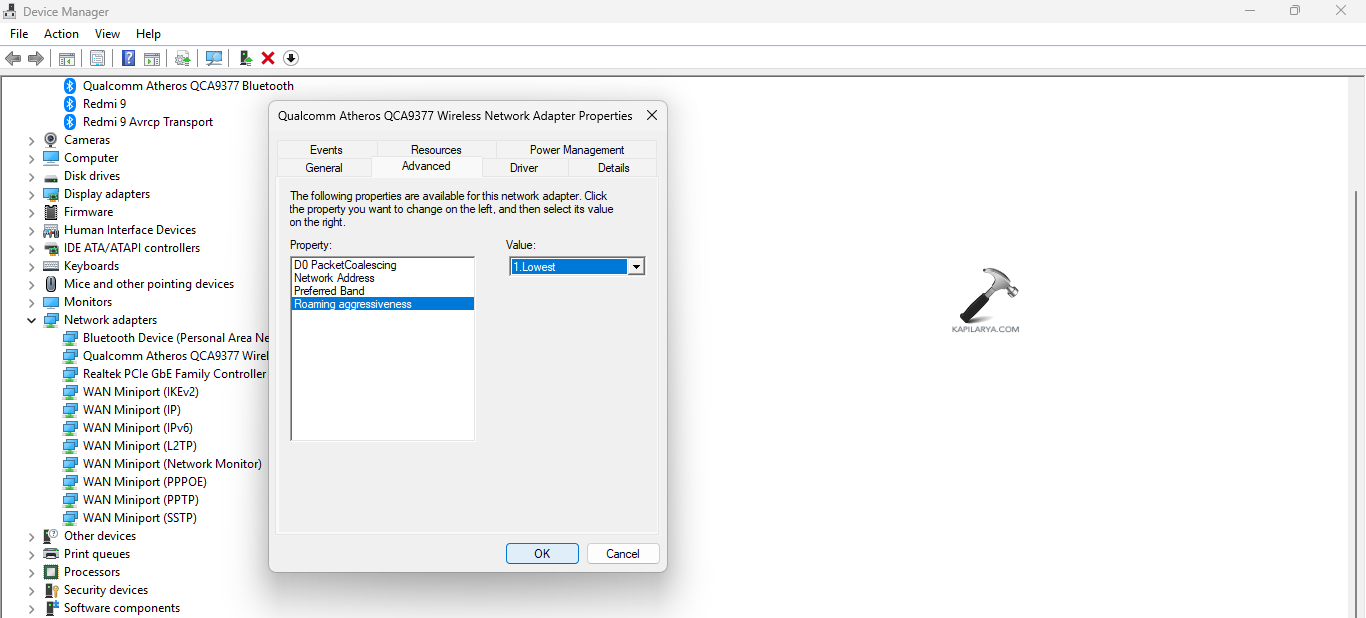
Step 4- Select Value drop-down menu press Lowest.
Step 5- Press OK for saving the changed.
Fix 5: Running Bluetooth Troubleshooter
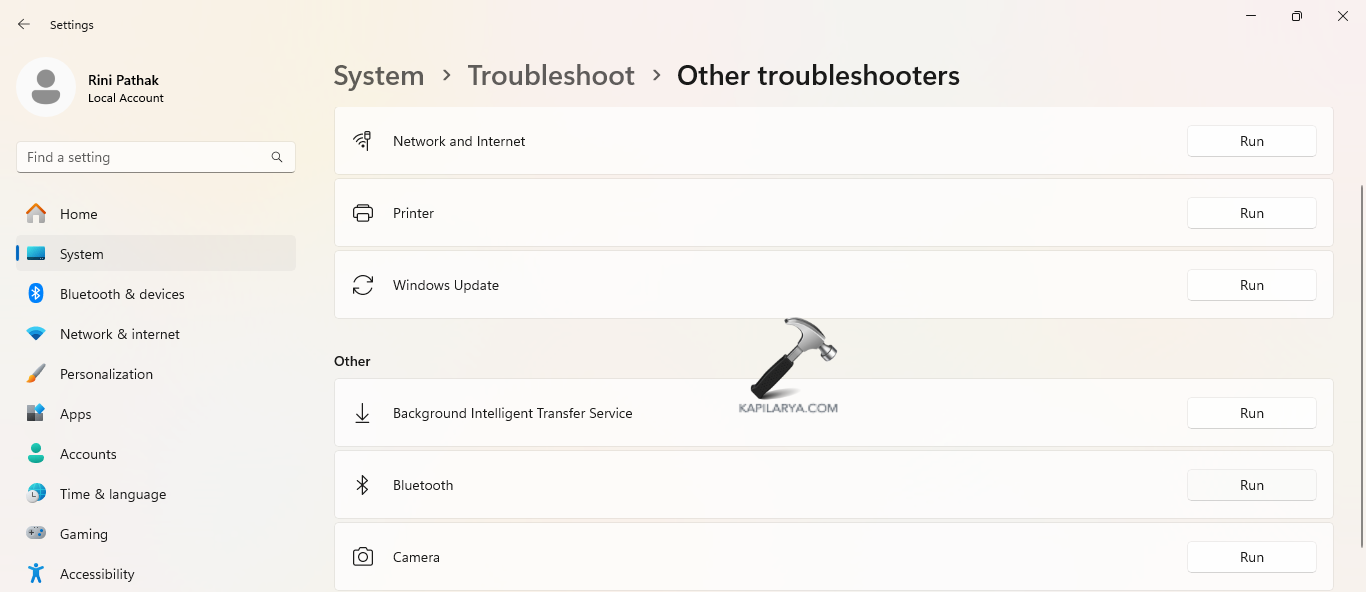
The Bluetooth troubleshooter when run solves any kind of issue with the Bluetooth. Thus, the users can run the Bluetooth troubleshooter with the steps below for fixing the problem.
Step 1- At first, open Settings.
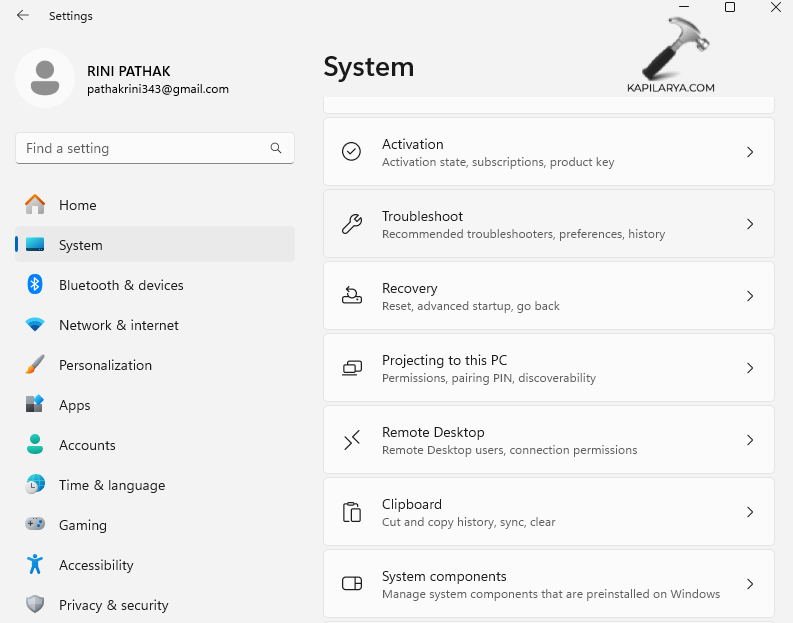
Step 2- Next, go to System > Troubleshoot > Other troubleshooters.
Step 3- Now, press Bluetooth and select Run the troubleshooter button.
Fix 6: Disabling Remote Control property
For disabling remote control property, check the steps provided below. This could be a potential solution for solving the problem.
Step 1- Open Control Panel. Set the View by mode to Category.
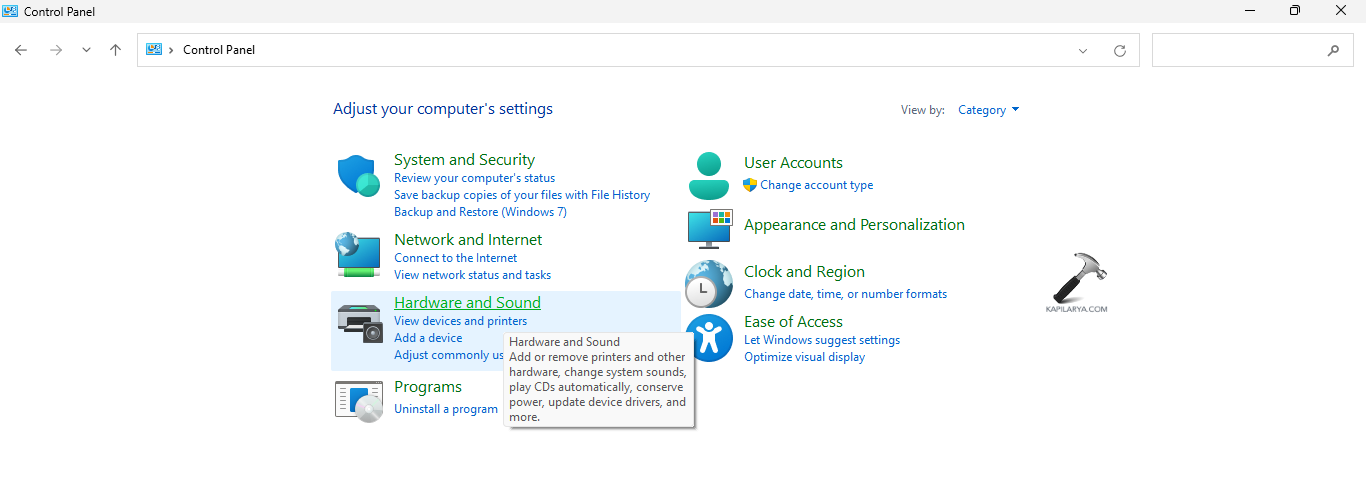
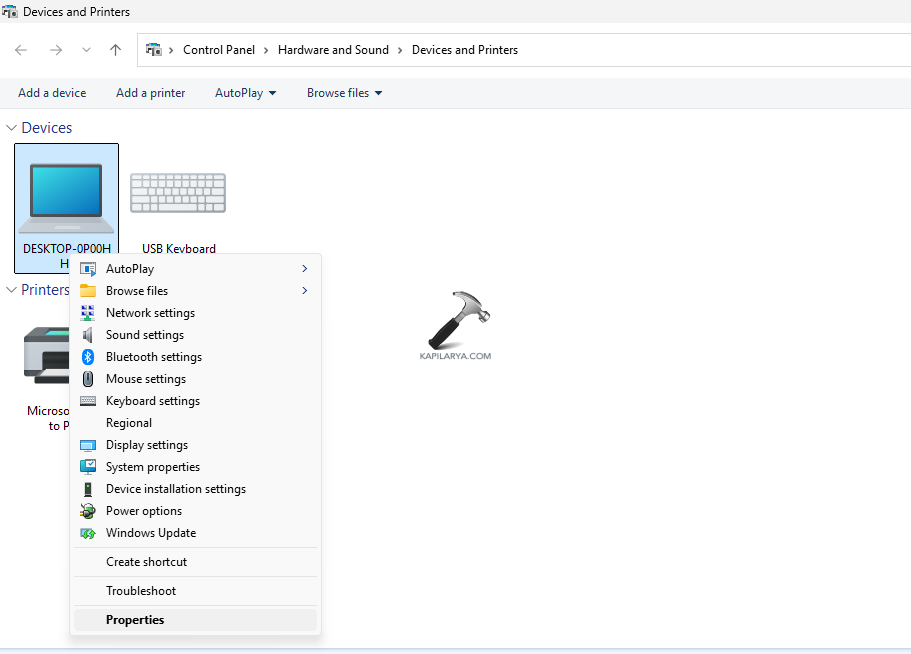
Step 2- Next, select Hardware and Sound > Devices and Printers.
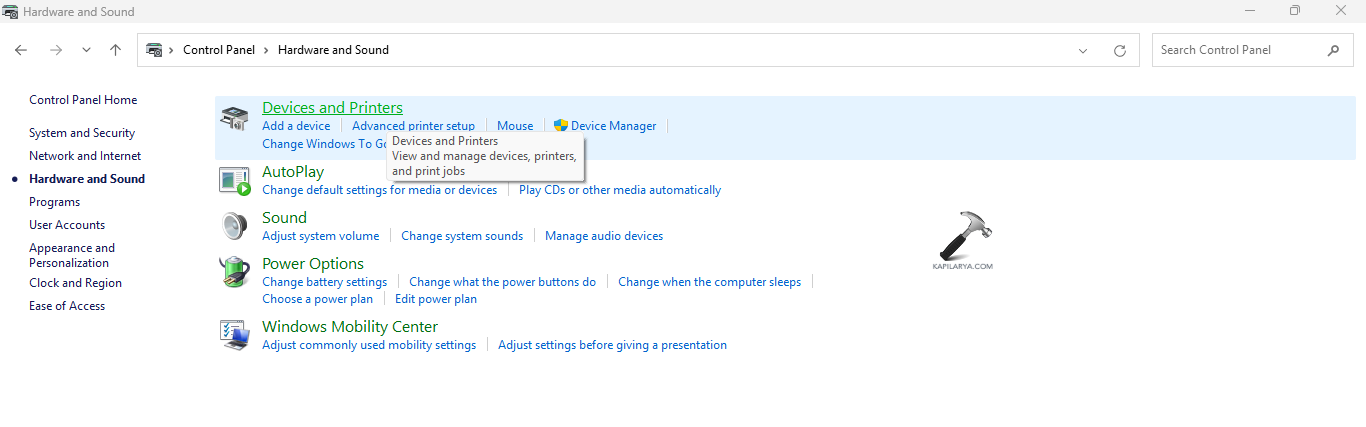
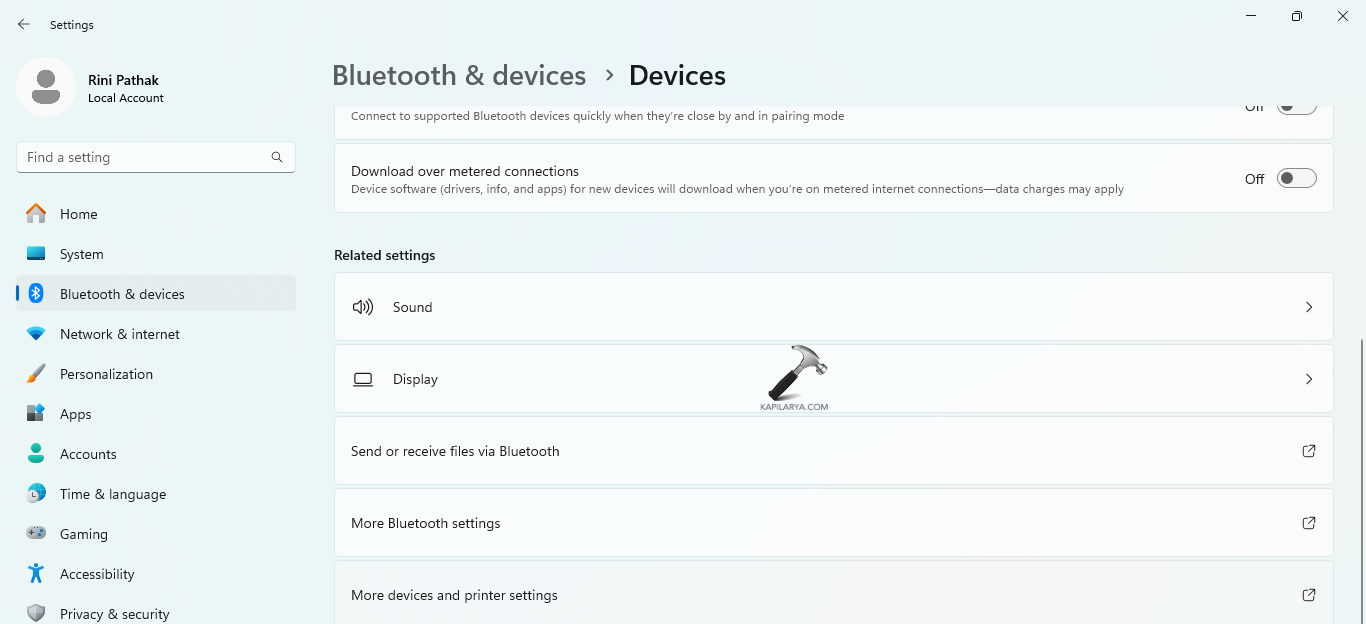
Step 3- Now, select Add device near Devices. Then go to More devices and printer settings
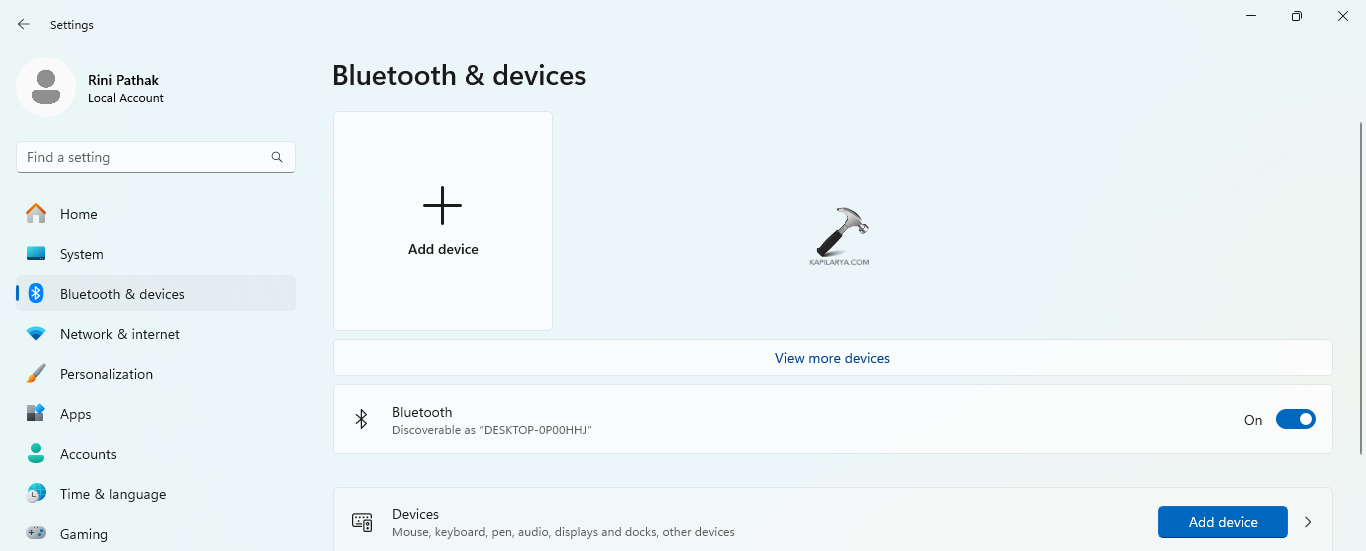
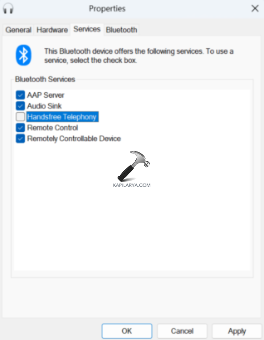
Step 4- Thereafter, right-click a Bluetooth device and select Properties. Here, go to Services tab and disable the Remote Control.
Step 5- Finally, press Apply > OK
Fix 7: Disabling and re-enabling the Audio Enhancements
Another fix which the users can adapt if the above fixes are not working is disabling and reenabling the audio enhancements. Following the instructions below will allow the users to do the same.
Step 1- At first, go to Settings > System.
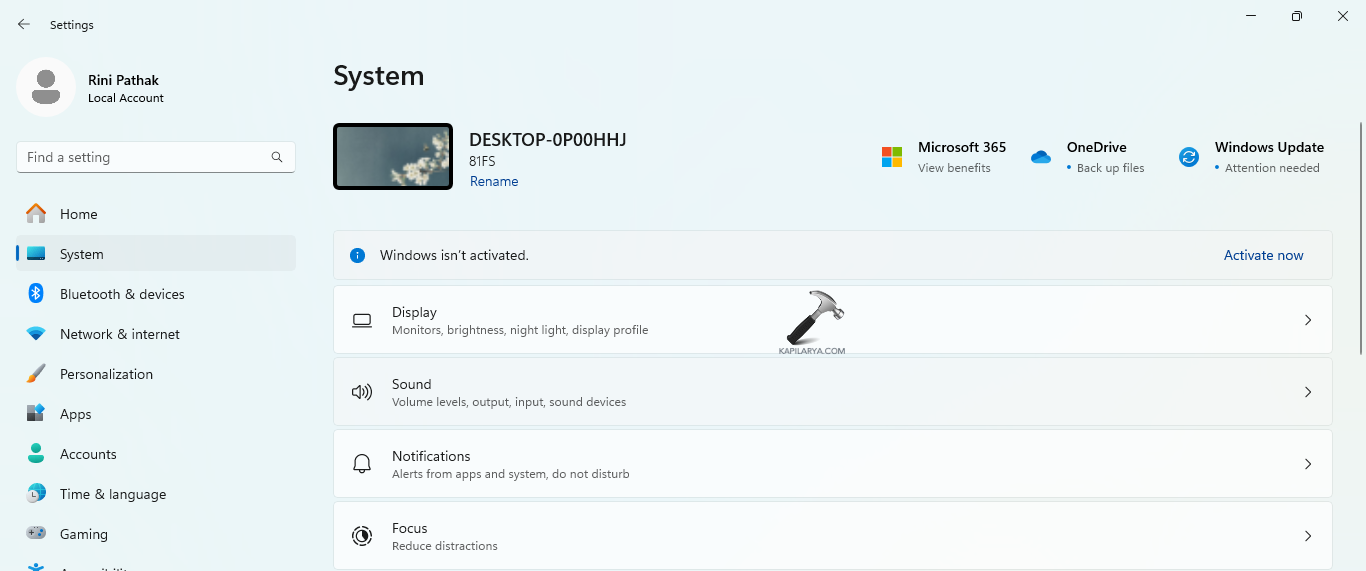
Step 2- Now, select All sound devices. Then go to Speakers.
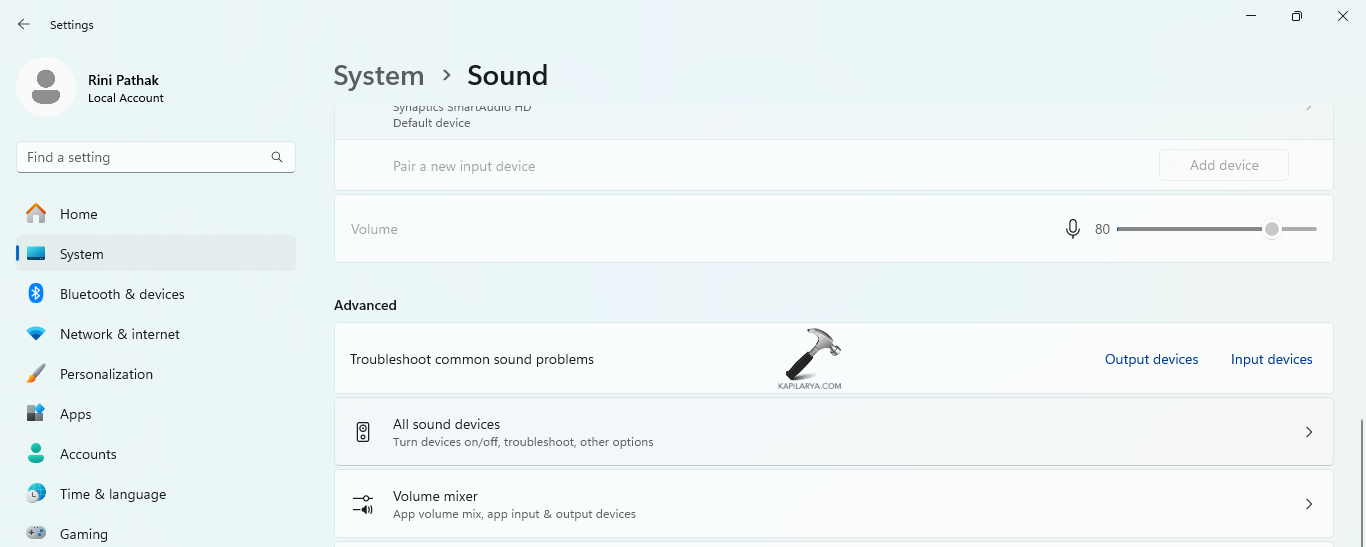
Step 3- Next, in the Speakers Properties box, go to Enhancements tab and enable the Disable all enhancements.

Step 4- Check if this works, if it doesn’t then re-enable the audio enhancements.

Fix 8: Turning off the Bluetooth for other devices
Several Bluetooth devices like smartphones, Bluetooth audio devices, etc. being connected to a particular device at one time simultaneously can too be a potential reason for the audio interference issue. Thus, turning off the Bluetooth of any device which is not in current use can aid the users in fixing the issue. The users can also consider unpairing other Bluetooth devices if the problem persists.
Fix 9: Reinstalling Bluetooth and Wi-Fi drivers
Problematic Bluetooth and Wi-Fi drivers can be a potential reason for the audio stuttering backlash. Therefore, the users can adopt the instructions below for reinstalling the Bluetooth and WIFI drivers for solving the problem.
Step 1- Open Device Manager.
Step 2- Right-click the Bluetooth device driver and press Uninstall device. Next, follow any on-screen prompts.

Step 3- After the completion of the un-installation process, reboot the PC.
Step 4- Now, Windows will scan for any existing hardware changes and download any missing Bluetooth device driver automatically.
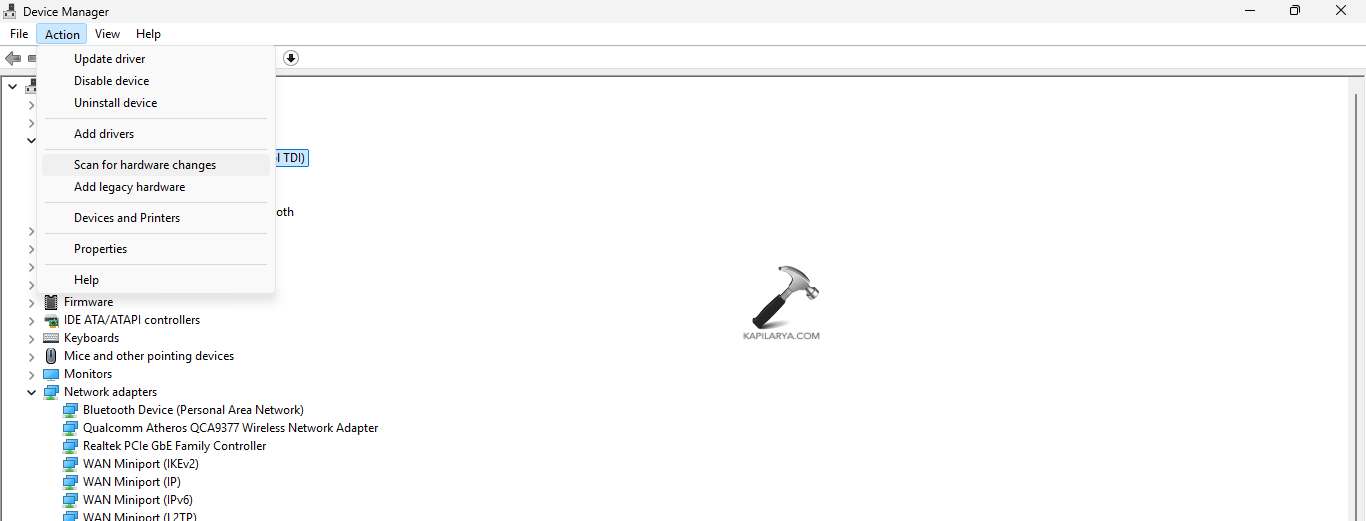
Step 5- If the driver is not downloaded automatically then again open Device Manager. Thereafter, visit Action > Scan for hardware changes. It will reinstall the Bluetooth device driver uninstalled recently.
Fix 10: Restarting Bluetooth Support Service
The last slot which the users can adopt is restarting Bluetooth support service using the steps below. This should fix any existing issue with the Bluetooth.
Step 1- Press Windows + R and open the Run dialog box. Now, write the command below and press Enter.
services.msc
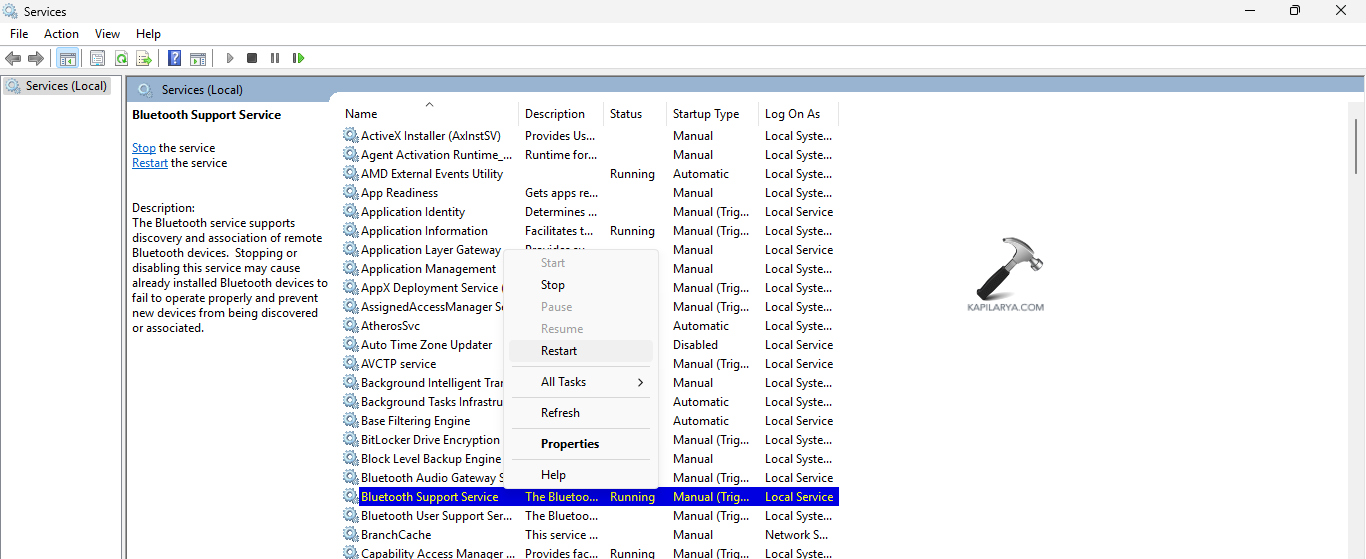
Step 2- Next, locate the Bluetooth Support Service. Right-click it and press Restart.
That’s it!