

If you encounter Error 0x80070570 in Windows, it indicates that the file or directory is unreadable or damaged. This error occurs when someone copies a file, erases data, or installs a new application. In most cases, there is no fault with the PC but a minor disk error, file corruption, or a glitch in the installed media.
Here are some ways to solve the problem and repair the error:
Page Contents
Fix Windows cannot install required files, error 0x80070570
Fix 1: Restart your system
While this might sound basic for an error like this, this solution is highly capable. To restart a Windows PC:
Click on Start > Power Button> Restart.

You can try to check if the problem persists, even after restart. If issue still persists, refer next fix.
Fix 2: Use the Windows Update Troubleshooter
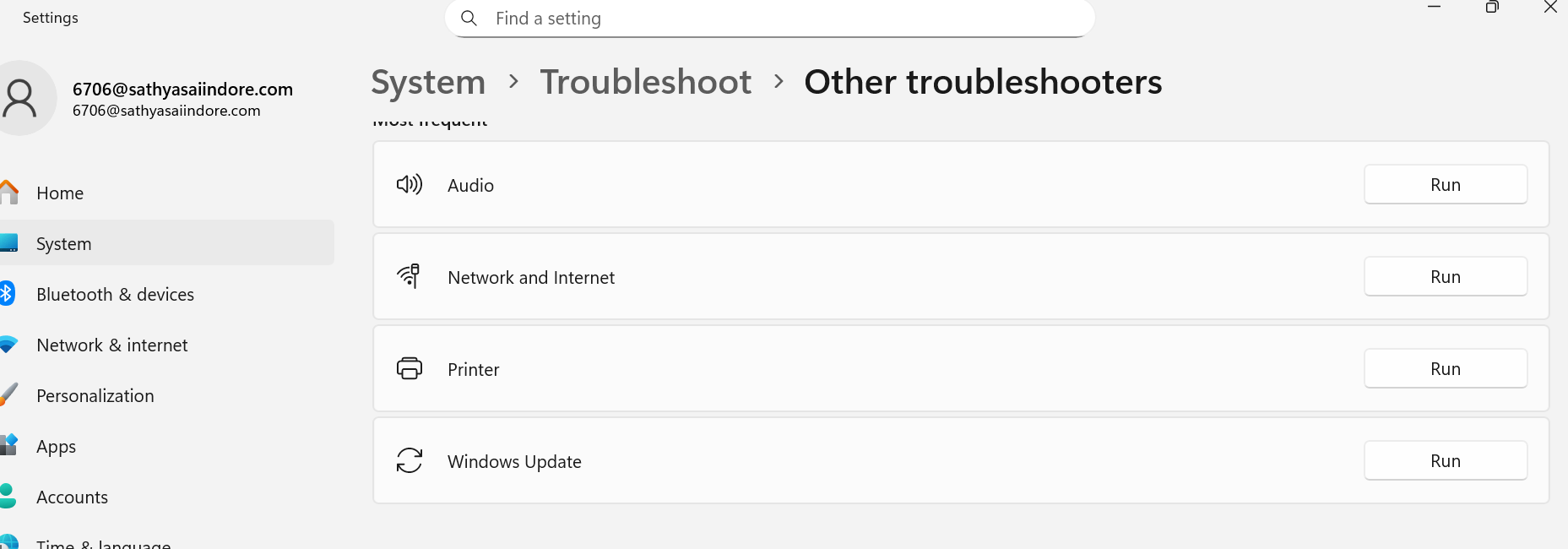
If the 0x80070570 error keeps resurfacing while performing a Windows update, to fix it efficiently, one can use the Windows Update Troubleshooter.
- Press Windows + S to search.
- Open Settings> Update and Security > Troubleshoot.
- Click on Additional Troubleshooters and go to Windows Update.
- Click on Run the Troubleshooter.
Fix 3: Look for Disk Errors
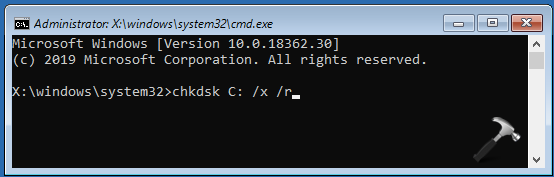
Due to improper shutdowns and wear and tear, disk error can occur. It also causes the 0x80070570 error on the Windows PC. For this use the built-in: CHKDSK command-line tool. It examines your drive for inaccuracy and corrects it.
- Look for Command Prompt in the Taskbar and click on Run as Administrator.
- Within the Command Prompt, type chkdsk and click on Enter.
- If the scan displays errors, enter chkdsk /r in the Command Prompt and press Enter.
- It will resolve and recover the damaged hard drive sectors.
Fix 4: Repair Windows image
To fix any primary error, Windows has two built-in tools: System File Checker (SFC) and Deployment Imaging Service and Management Tool(DISM).
- Look for Command Prompt in the Taskbar and click on Run as Administrator.
- Perform the following Command for SFC scan: sfc /scannow
- Perform the following Command for DISM scan: DISM /Online /Cleanup-Image /RestoreHealth
- Restart the device to check if the issue is settled.

Fix 5: Update Windows
- Click on Settings > Windows Update > Check for updates.
- Tap on Install if there is a new update.
- Restart your Windows PC to apply the change.

Fix 6: Perform repair upgrade
If previous solutions didn’t helped, you can perform repair upgrade using Windows 11 ISO file.
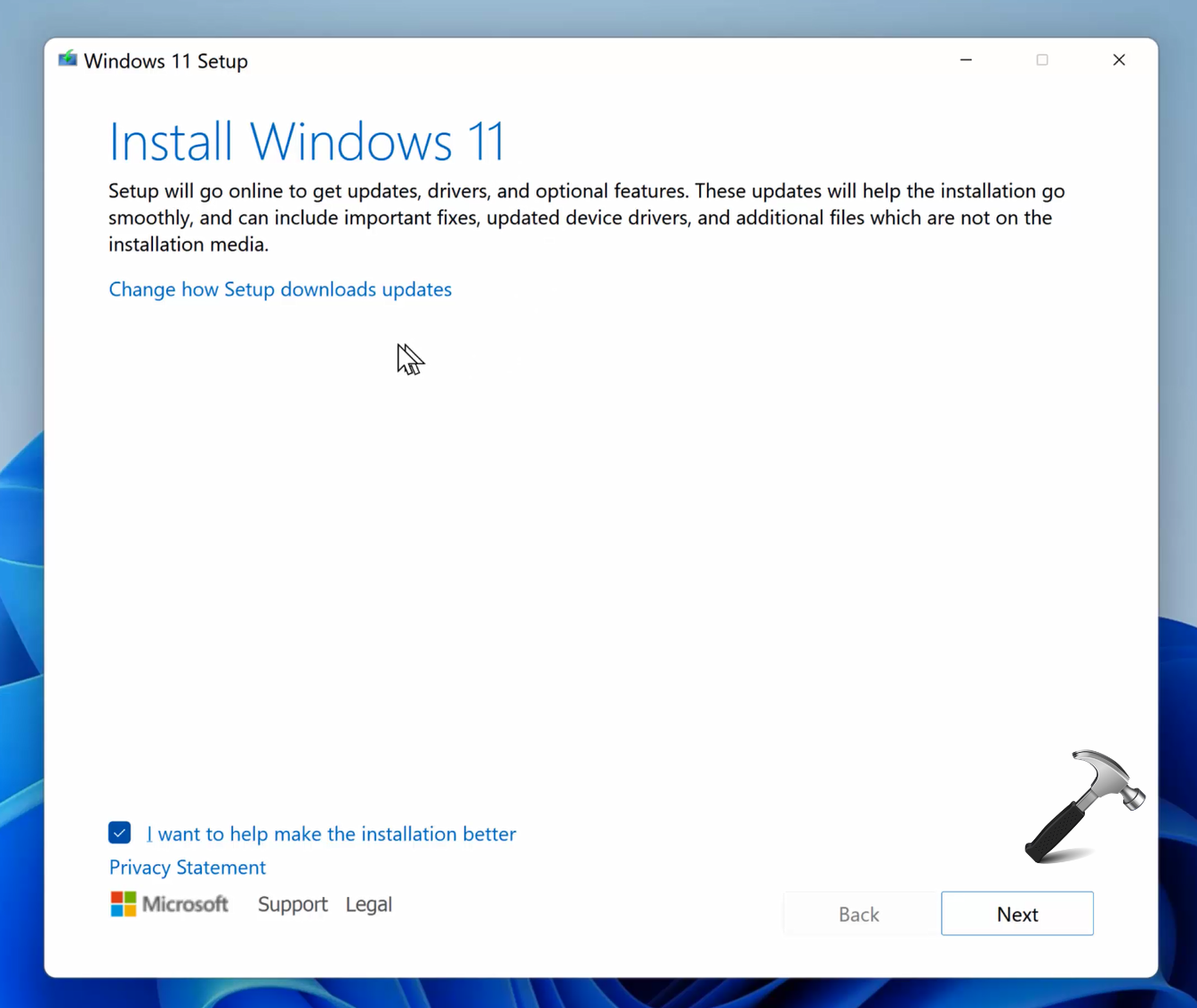
The detailed instructions to perform repair upgrade are mentioned in this article.
Hope this is useful!





