

In case you have been struggling to connect your virtual machine, but realize that the VMware network adapter is oddly missing on Windows 11, this has been among the most frequent VMware problems that have occurred due to a Windows Update. It could also be due to misconfiguration of the network or corruption of the virtual drivers.
Here, we will take you through a step-by-step guide on how to solve the missing VMware network adapter problem on Windows 11. Whichever way your internet is not working within the VM, or the adaptor just does not show up in Network Connections, these steps will inform you on how to get it working again.
Page Contents
Why Does the VMware Network Adapter Go Missing on Windows 11?
Before we get into fixes, however, we need to know the cause of such. The network device can be lost as a result of.
- A damaged or obsolete virtual network driver.
- Virtual adapters are being removed by Windows updates.
- Wrong VMware configurations.
- Unavailable network services in VMware Workstation.
- The installation of the VMware Bridge Protocol was not done correctly.
Now we are going to eliminate this issue permanently with these solutions.
Fix: Missing VMware Network Adapter on Windows 11
Fix 1: Update VMware Workstation and Windows 11
The recent Windows 11 updates are compatible with earlier versions of VMware, so the problems with the adapter can occur.
1. Go to the VMware Workstation download web page (https://www.vmware.com/products/desktop-hypervisor/workstation-and-fusion). Download and update the current version.

2. Update Windows through Settings > Windows Update > Check for updates.

Maintaining the two platforms is a guarantee that the virtual networking performance will be stable.
Fix 2: Reinstall VMware Virtual Network Drivers
When a VMware network adapter is not available on Windows 11, repairing VMware Workstation is one of the best solutions. It restores all the needed components, such as the sender, virtual network drivers, without interfering with your current virtual machines or data.
1. To begin with, open the Settings menu by typing Win + I keyboard shortcut. Click on Apps > Installed Apps.
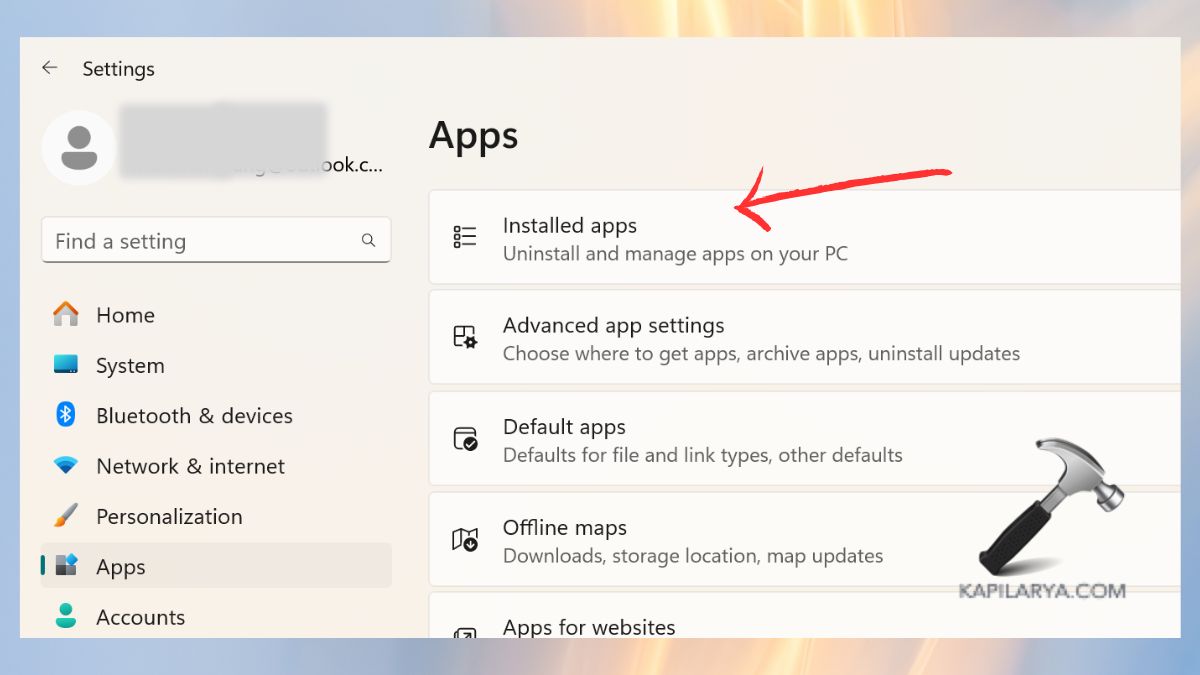
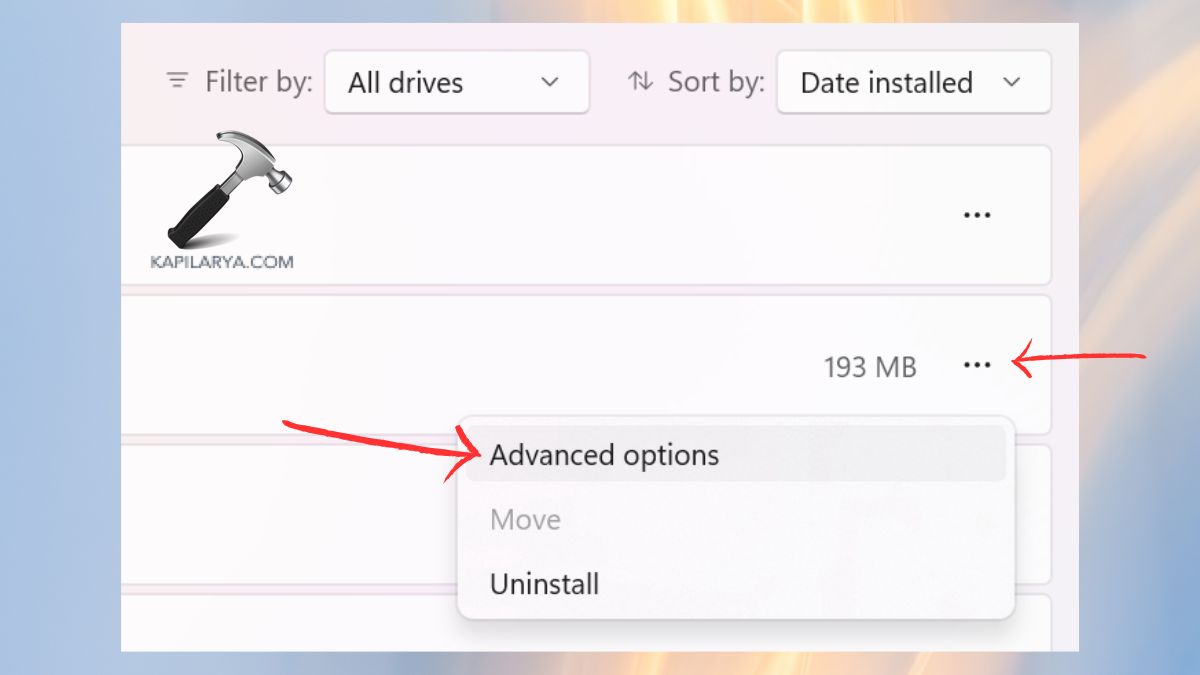
2. In the search bar, enter VMware Workstation. There are three dots beside it, and when you click those dots, there is an option “Advanced options” and click it.
3. Once the set-up window has appeared you have to select Repair option. The process of repair should be followed, using the instructions on the display.
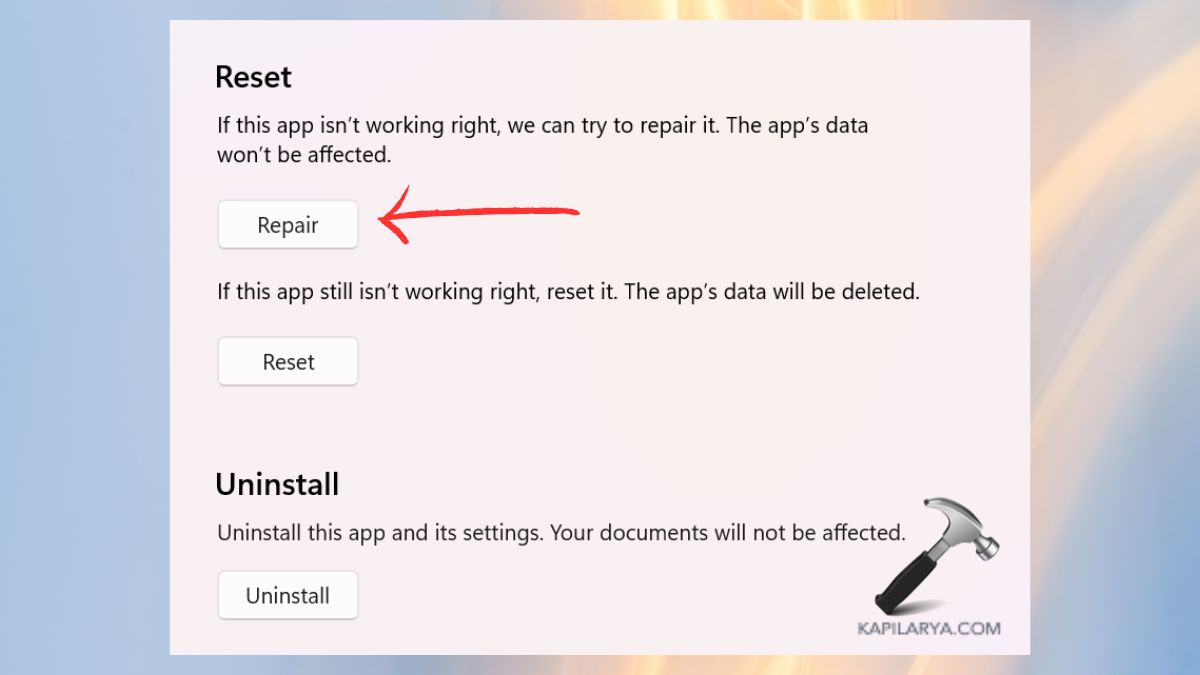
After the repair is complete, restart your computer. This will reboot the VMware drivers and automatically revert any adapters that are missing.
Fix 3: Install VMware Bridge Protocol
When your virtual machines cannot connect to the internet, or even if the adapter is not present, then it may be due to the lack of the VMware Bridge Protocol. Follow these steps to manually install it.
1. Press Win+R keys, enter this command, and press Enter.
ncpa.cpl

2. Right-click or double-click on your active connection to the network (e.g., Ethernet or Wi-Fi).
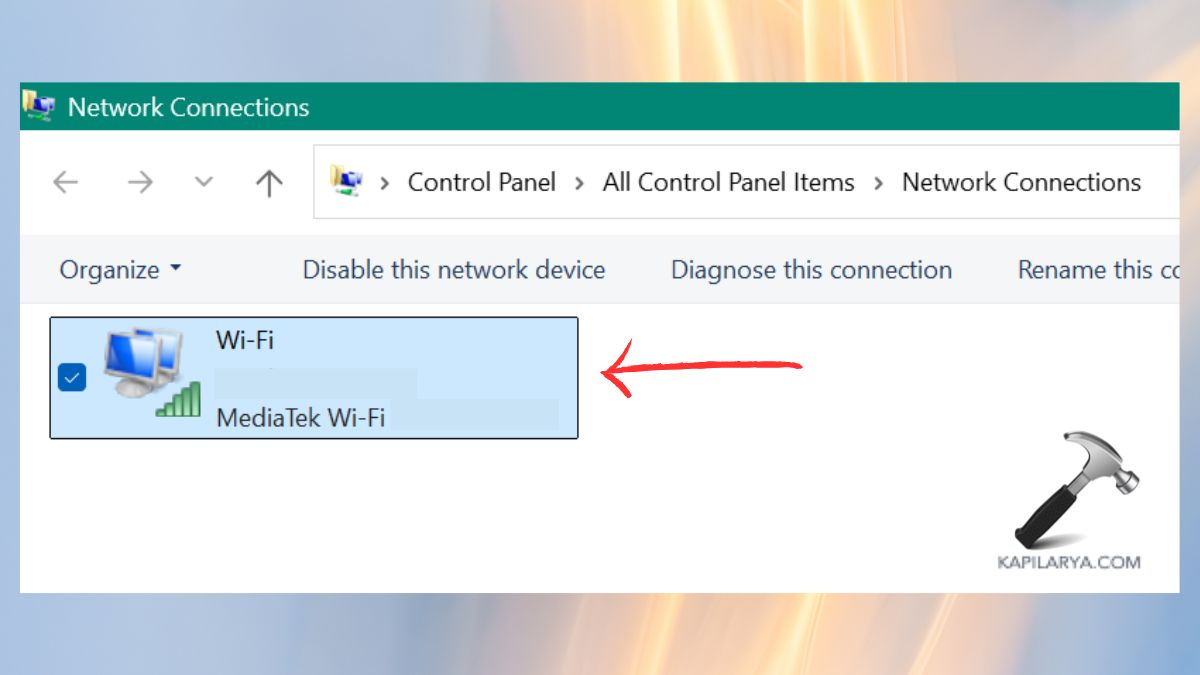
3. Choose Properties.
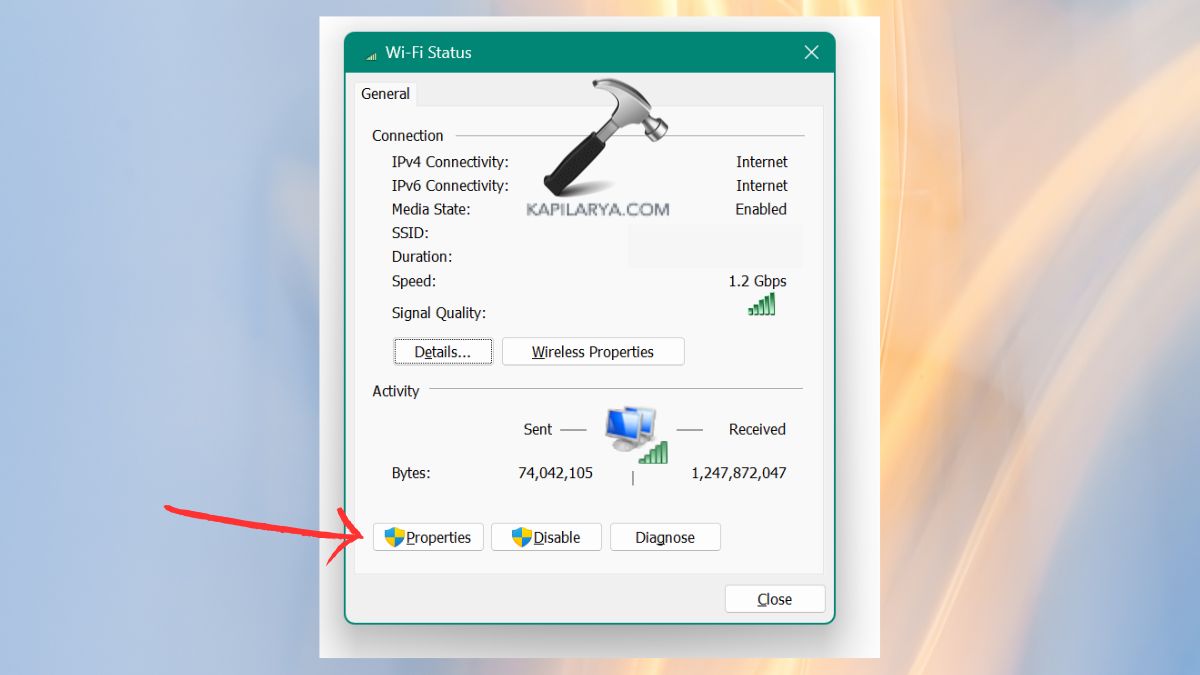
4. Click Install below protocol list. Select “Protocol” and click on Add > VMware Bridge Protocol. Click OK and restart your PC.
Fix 4: Check for Hidden Network Adapters
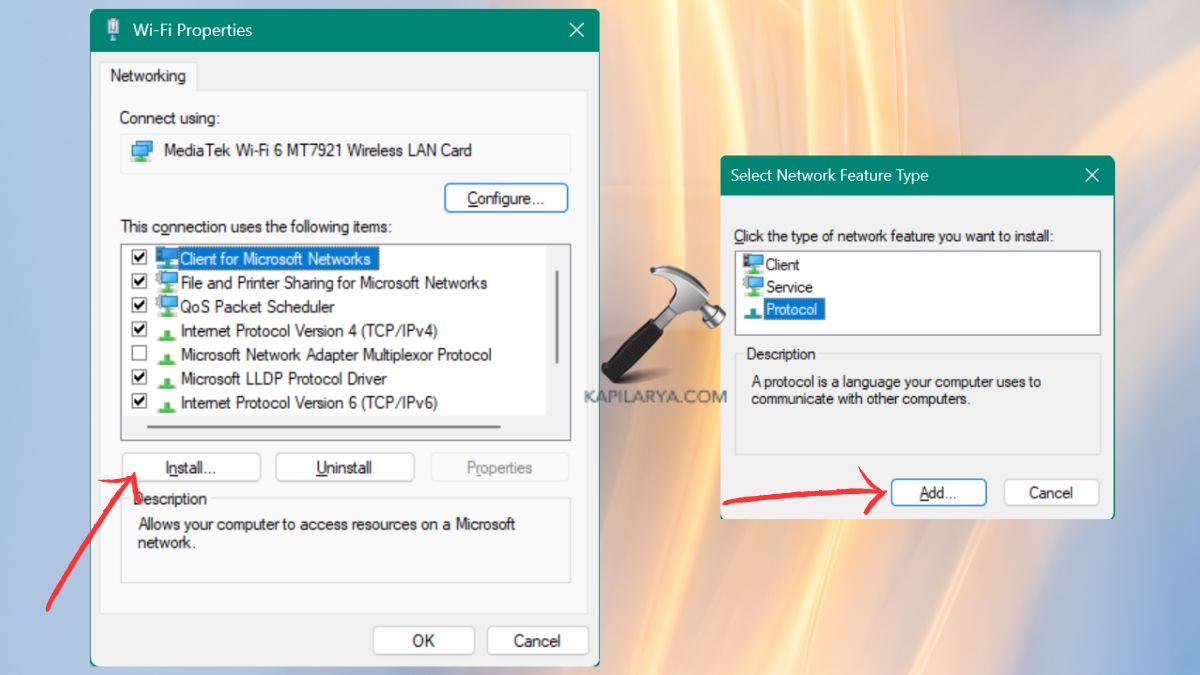
The VMware network adapter is sometimes present, only that it does not appear in the Network Connections window. This is the way to get it back on the table.
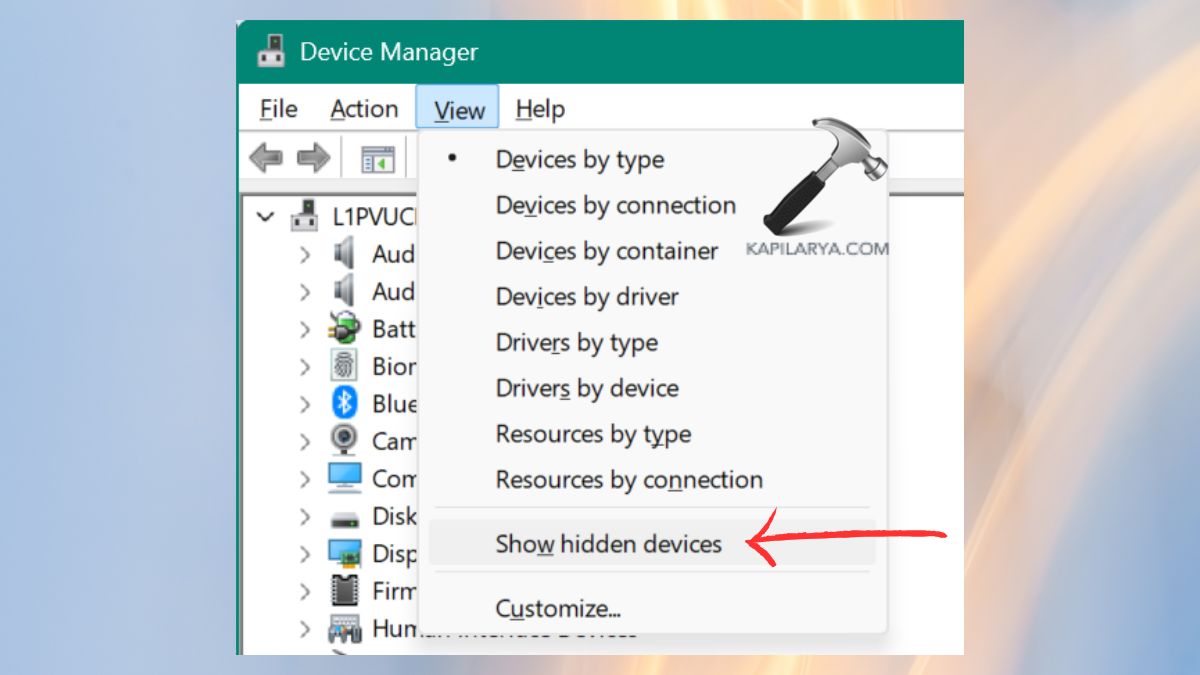
1. Press the keyboard keys of Win+X, then select the option of Device Manager in the list.

2. Go to View > Show hidden devices.
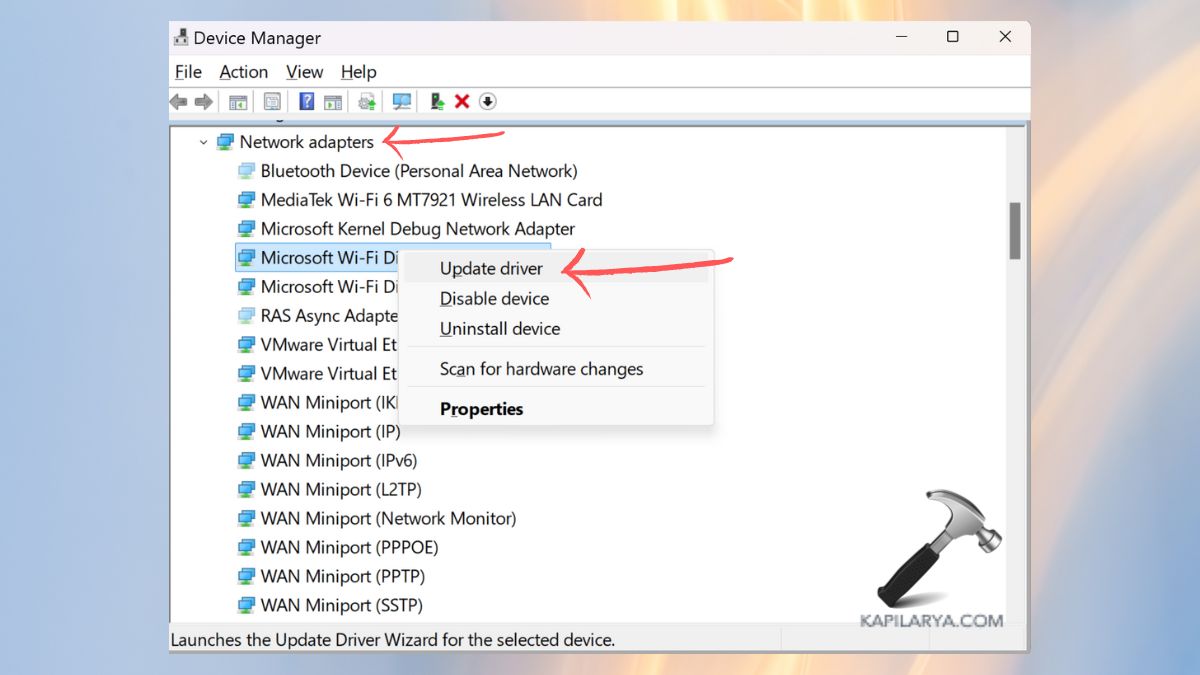
3. You have to expand the Network adapters section. In case you observe VMware Virtual Ethernet Adapter willing VMnet1 or VMnet8, right-click and choose “Enable” or “Update driver”.
Fix 5: Verify and Restart VMware Services
Without VMware services, your virtual network will not work well.
1. Once again, open the Run box, which is done through Win + R. Enter this command, then press Enter.
services.msc
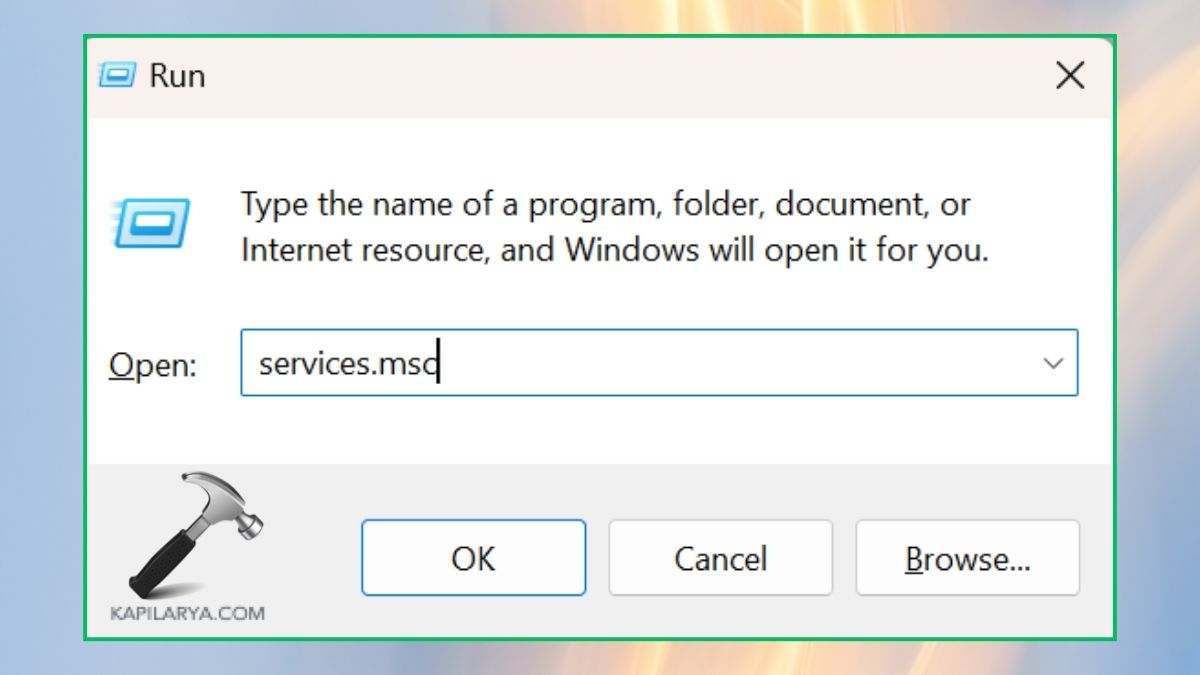
2. Find and make sure these services are running and are going to be set to Automatic.
- VMware DHCP Service
- VMware NAT Service
- VMware Workstation Server
Otherwise, right-click on each of the offered services to open Properties, where Startup type is Automatic > Startup > Apply.

Fix 6: Reset the Host Network Stack
And in case of continuing the problem, it may be your Windows network stack. Corrupted configurations can be with the resetting, which is possible.
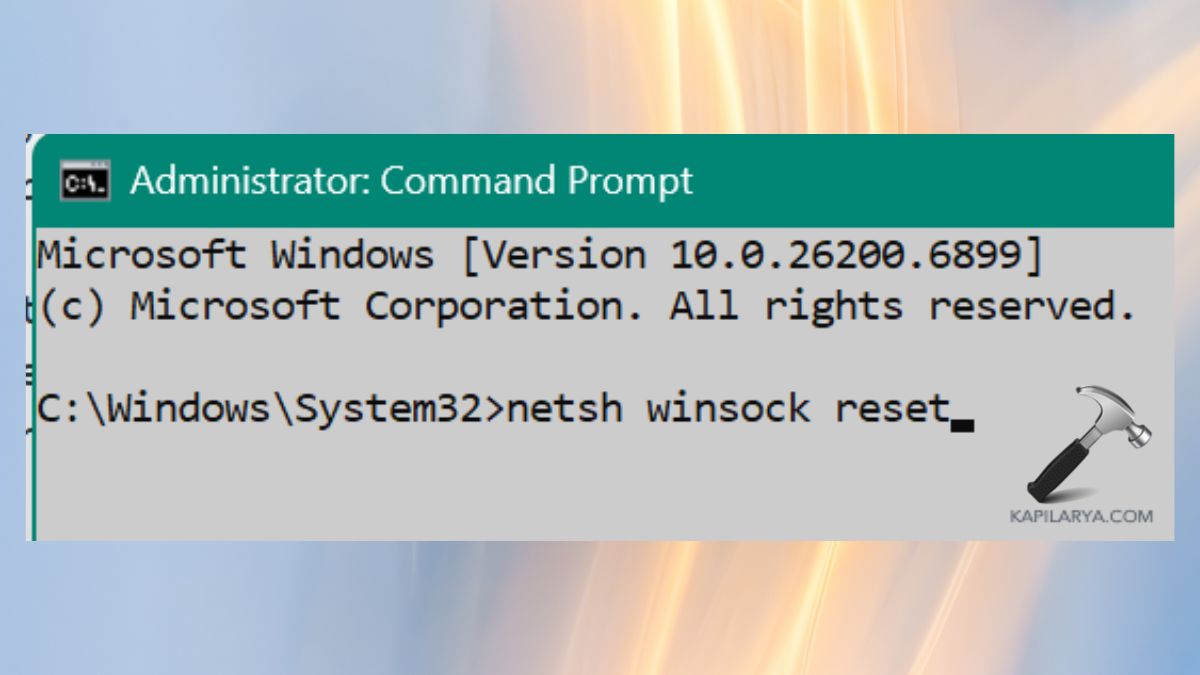
1. Open the Command Prompt with the “Run as Administrator” option.

2. Run these commands one by one.
netsh winsock reset
netsh int ip reset
ipconfig /release
ipconfig /renew
ipconfig /flushdns
Restart your PC. Restart VMware and verify whether the network adapter has appeared or not.
Frequently Asked Questions (FAQs)
That’s it!


