

If you’re getting an error while installing or uninstalling an app, this guide will help you fix the Installer error 2503 on Windows 11 step-by-step. The issue usually occurs when the installer doesn’t have permission to write temporary files or modify certain folders. It can also appear after permission changes, antivirus interference, or when the Windows Installer service isn’t running correctly.

Page Contents
Fix Installer Error 2503 on Windows 11
Below are six tested fixes. Try each one, then rerun the installer. Use an administrator account when required, and re-enable security software after tests.
Fix 1: Modify Temp folder permissions
First, ensure the Temp folder allows your user to write files.
- Press Windows + R, type %temp%, and press OK.
- Click the up arrow to go to the Local folder.
- Right-click the Temp folder and choose Properties.
- Go to the Security tab and then Edit. Select your user and check Full control.
- Apply the changes and retry the installer.

See also: Taking ownership of files and folders in Windows.
Fix 2: Run the installer as administrator
To begin, give the setup full rights.
- Locate the installer file.
- Right-click it and choose Run as administrator.
- Follow the prompts and watch for the error.

Fix 3: Temporarily disable third-party antivirus
Sometimes security tools block installers.
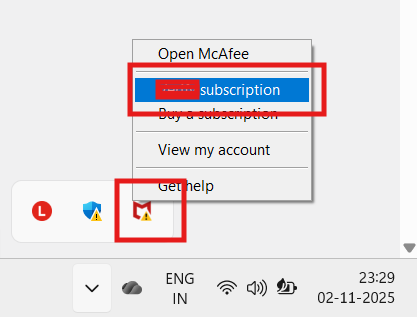
- Right-click your antivirus icon in the system tray.
- Choose the option to disable or pause protection temporarily.
- Run the installer. Then immediately re-enable protection.
Fix 4: Ensure sufficient disk space to fix Installer Error 2503
Low free space can stop installations.
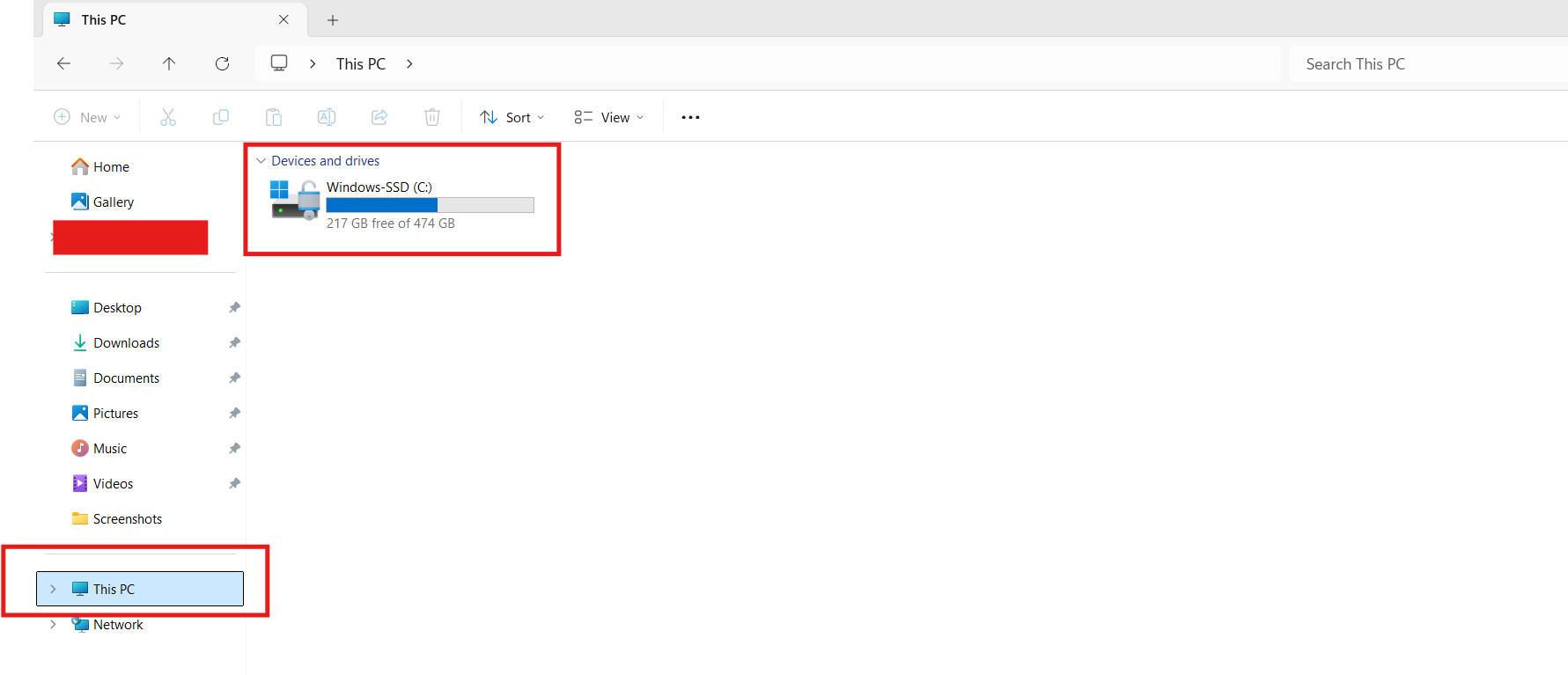
- Open File Explorer, go to This PC, and check the system drive’s free space.
- Free up at least 2–5 GB by emptying the Recycle Bin, using Disk Cleanup, or uninstalling unused apps.
- Retry the installation.
Fix 5: Start or restart the Windows Installer service
If the installer service is stopped, start it.
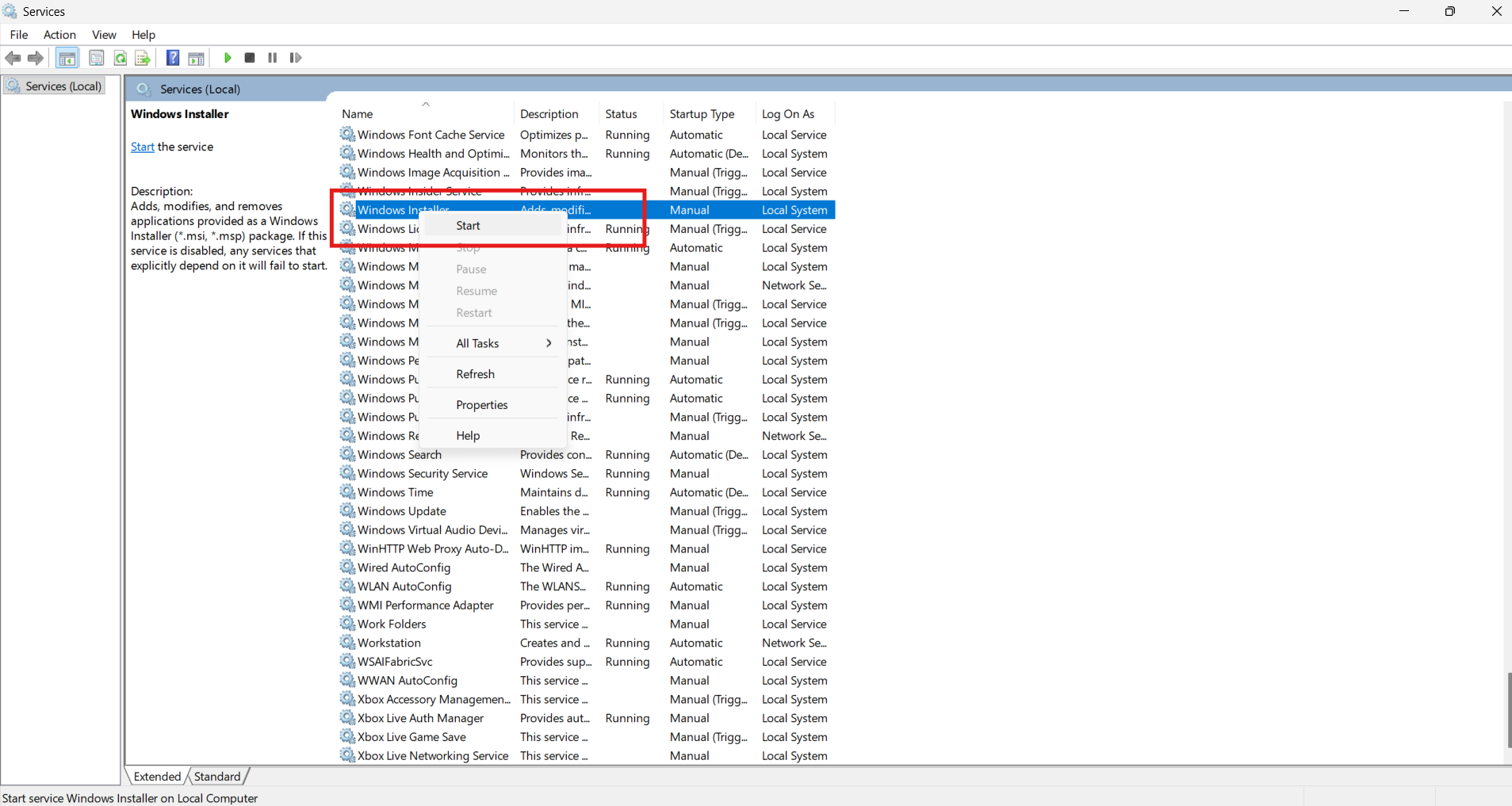
- Press Windows + R, type
services.msc, and press Enter. - Find Windows Installer, right-click, and choose Start or Restart.
- Try the installer again (as admin).
If the problem persists, restore Windows to a point before the error or use the Reset options under Settings; go to System and then Recovery. Back up important files first.
Hope this helps!

![[FIX] ‘This Installation Package Could Not Be Opened’ In Windows 10/8/7](https://www.kapilarya.com/assets/settings_icon_windows_10_1705413498-768x432.jpg)

