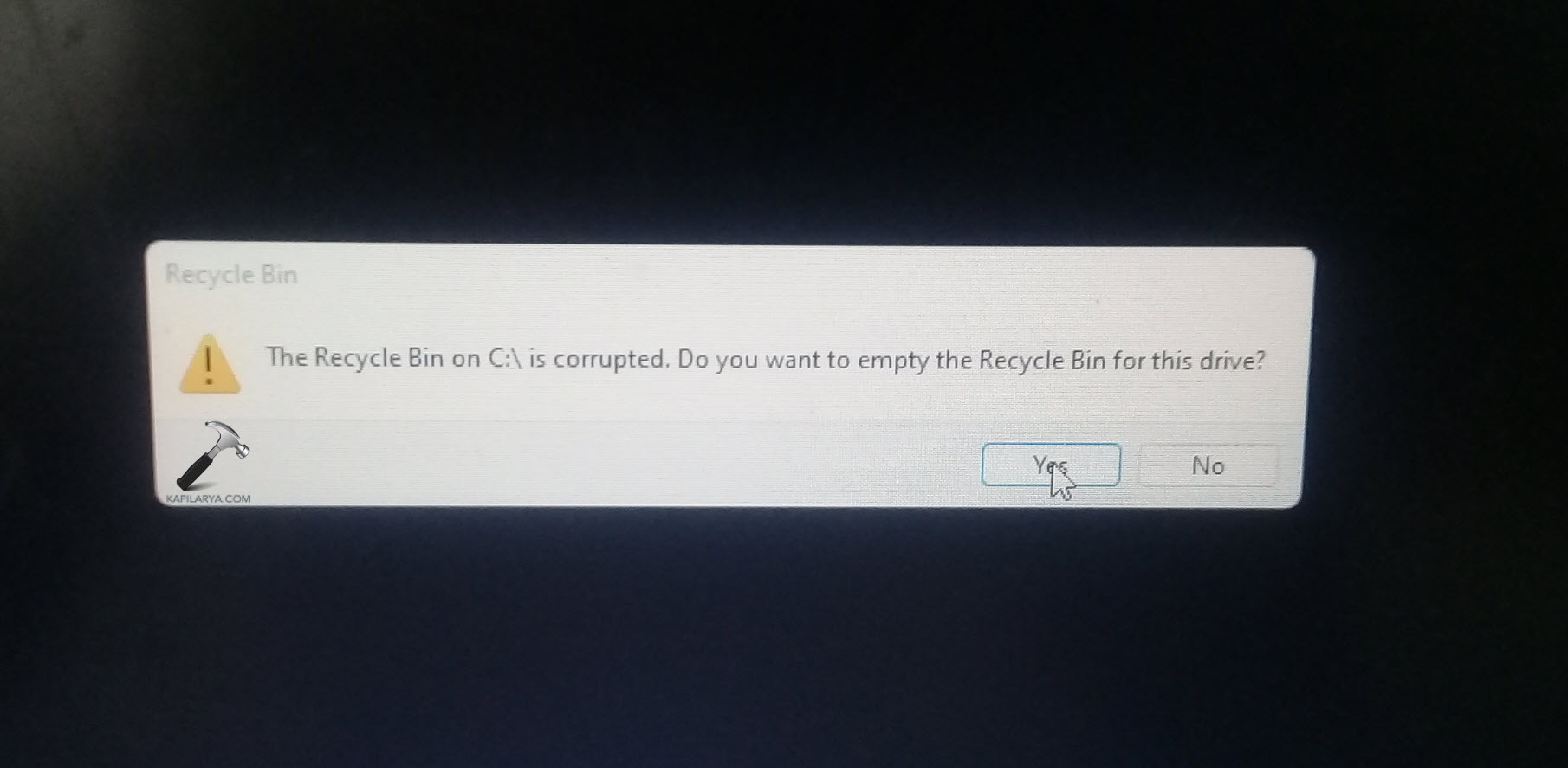
If you receive an error like “The Recycle Bin on C: is corrupted” in Windows 11 or deleted files don’t show up properly, the issue is typically caused by a damaged Recycle Bin folder, file-system errors, or unexpected shutdowns. The good news is you can restore full Recycle Bin functionality with built-in Windows tools and a few safe steps to fix corrupted Recycle Bin in Windows 11.
Page Contents
Fix Corrupted Recycle Bin in Windows 11
Below are eight effective methods. Work through each one and restart your PC after each change.
Fix 1: Reset the Recycle Bin using Command Prompt
When the Recycle bin folder is corrupted, resetting it forces Windows to recreate a fresh version.
1. Open Command Prompt as administrator.
2. Type:
rd /s /q C:\$Recycle.bin
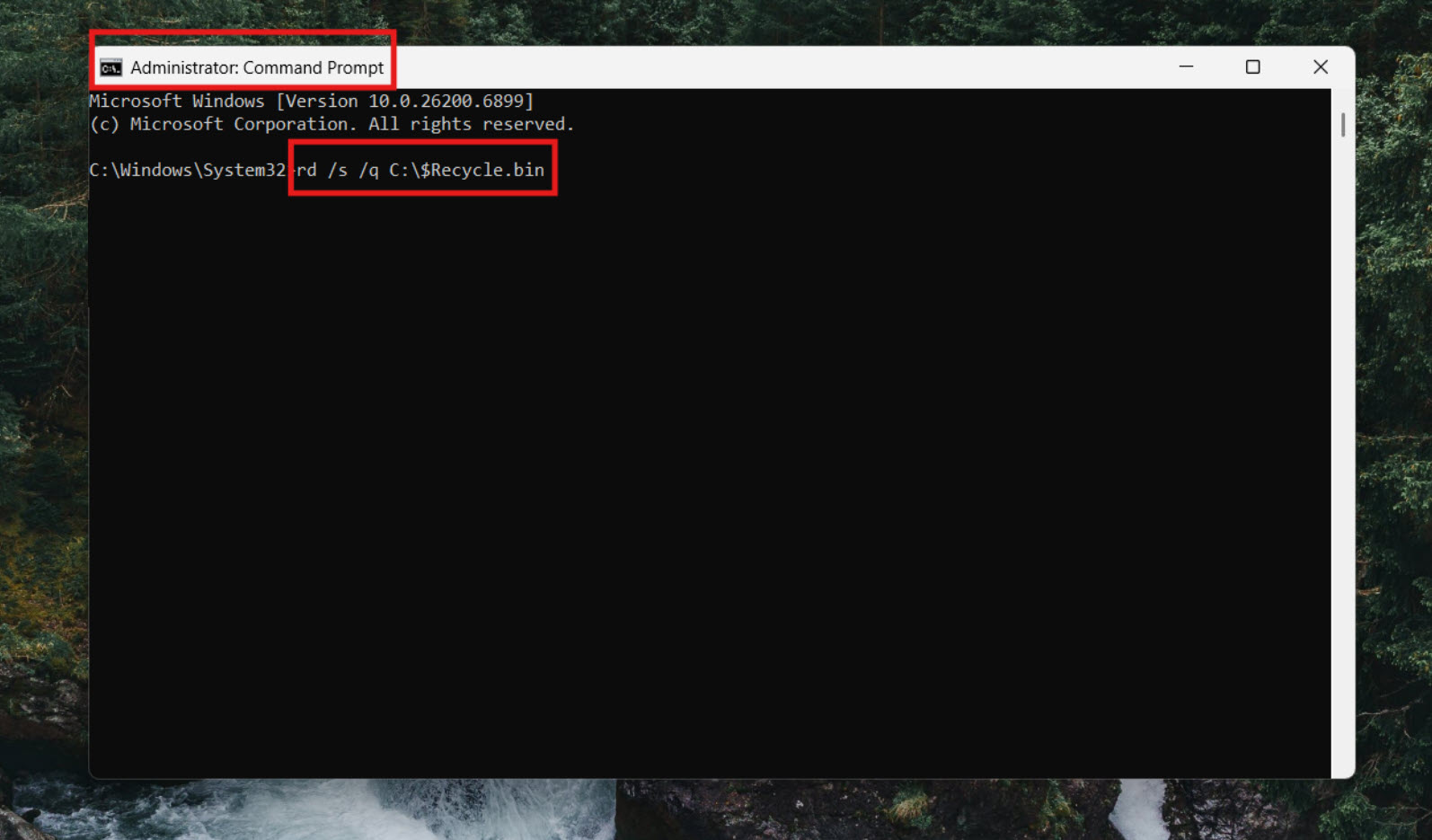
3. Replace C with other drive letters if needed and press Enter.
4. Repeat for each drive.
5. Restart your PC and check if the Recycle Bin works normally.
Fix 2: Run System File Checker and DISM
Corrupted system files can prevent the Recycle Bin from functioning properly.
1. Open Command Prompt (Admin).
2. Type:
sfc /scannow
And press Enter.
3. After that is complete, type:
DISM /Online /Cleanup-Image /RestoreHealth
And press Enter.
4. Once finished, restart the PC and test the Recycle Bin.

Fix 3: Check for disk errors with CHKDSK
If the file system is damaged or includes bad sectors, the Recycle Bin may fail.
1. Open Command Prompt as administrator.
2. Run:
chkdsk C: /f /r
Replace C if different.

3. If prompted to schedule for the next restart, type Y and press Enter.
4. Restart your PC to let the scan complete.
Fix 4: Delete and recreate the Recycle Bin folder
On some drives, the hidden folder might need manual removal.
1. In File Explorer, click on the ‘See more’ option, and select ‘Options.’
2. Enable ‘Show hidden items’ and uncheck ‘Hide protected operating system files’ from View options.
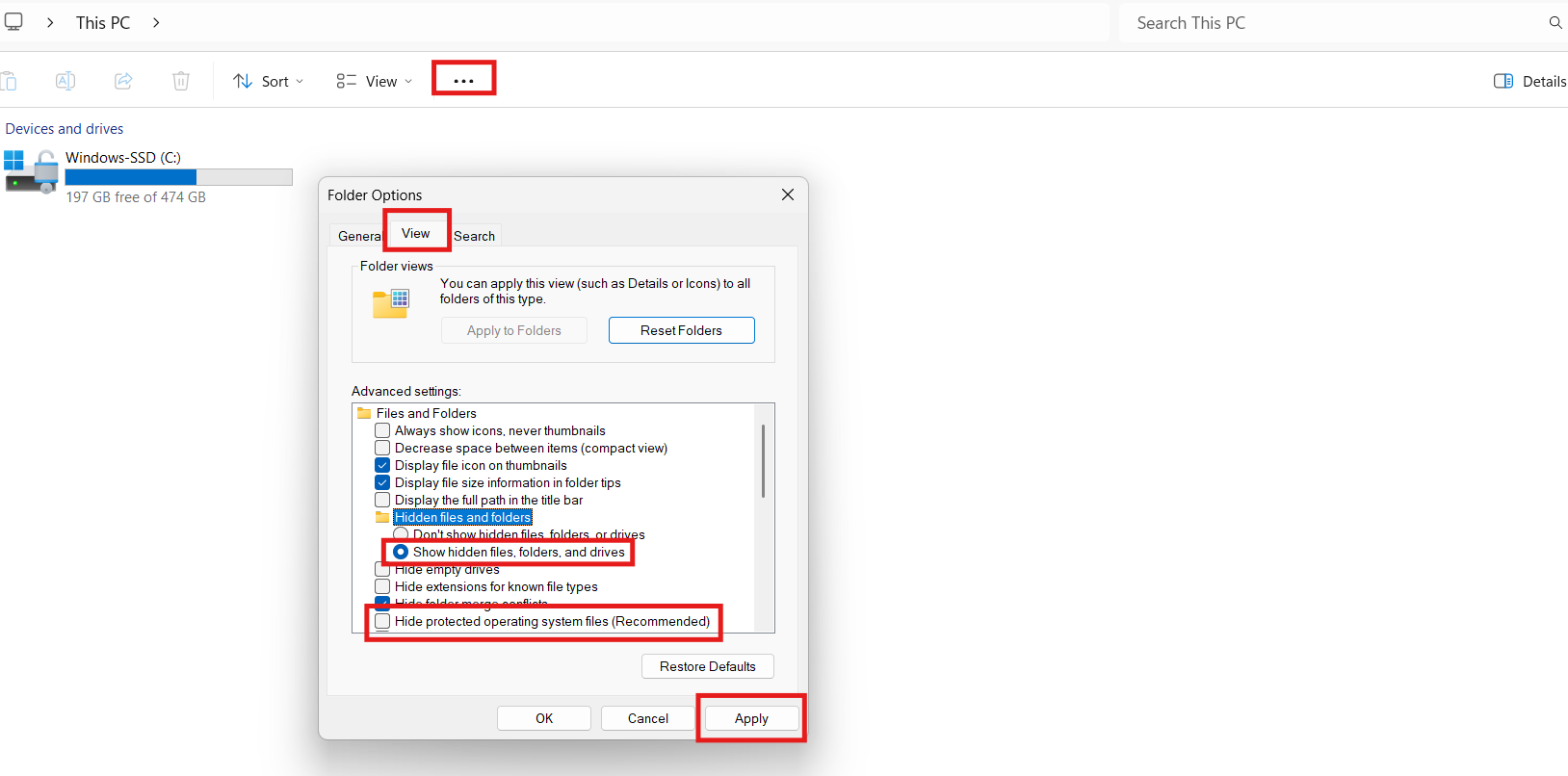
3. Navigate to C:\$Recycle.Bin (or other drive where it is located in your PC) and delete the folder.
4. Restart your PC. Windows will rebuild the folder anew.
Fix 5: Scan for malware or viruses
Malicious software can corrupt the Recycle Bin folder.
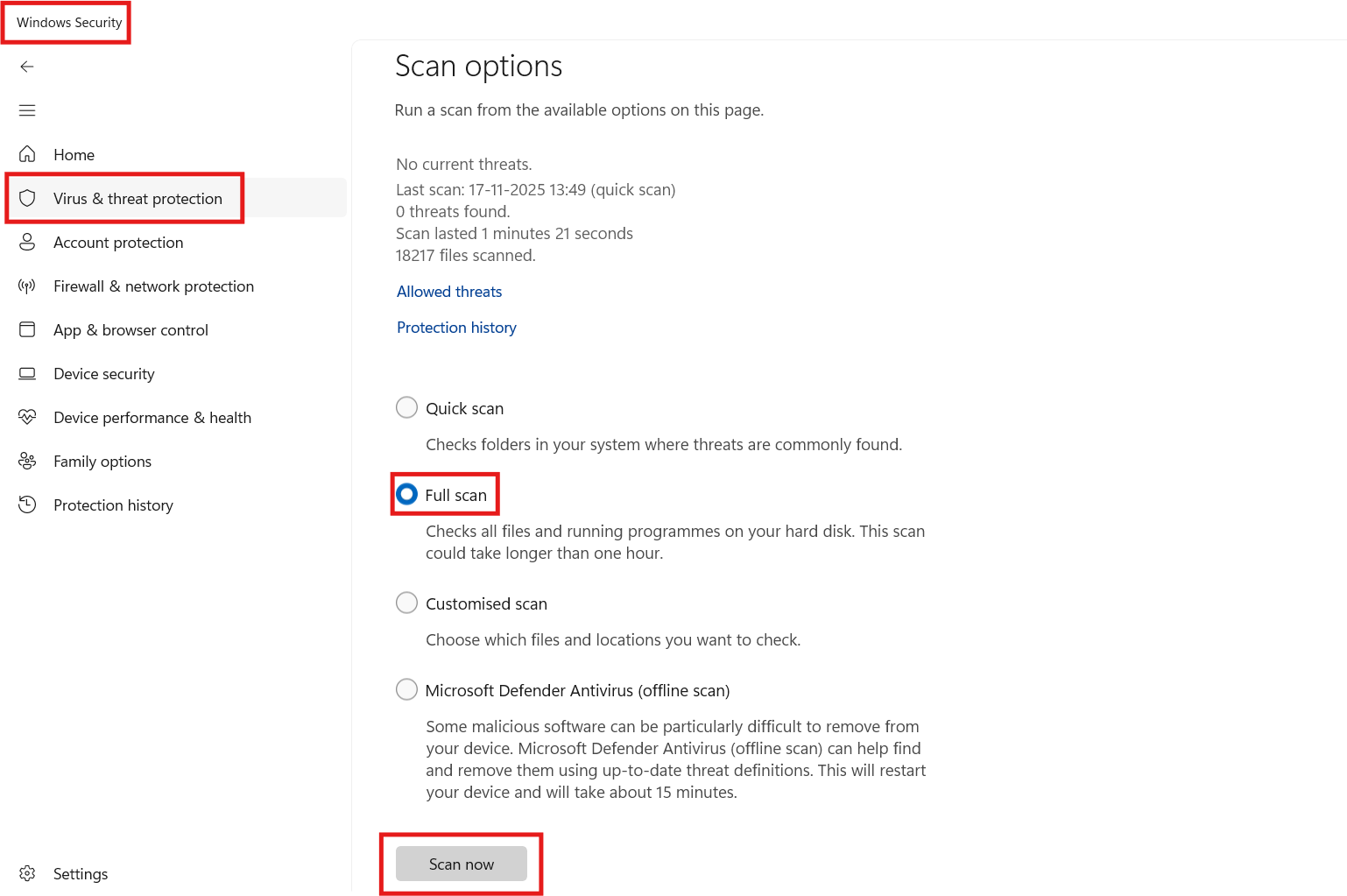
1. Open Windows Security and go to Virus & threat protection.
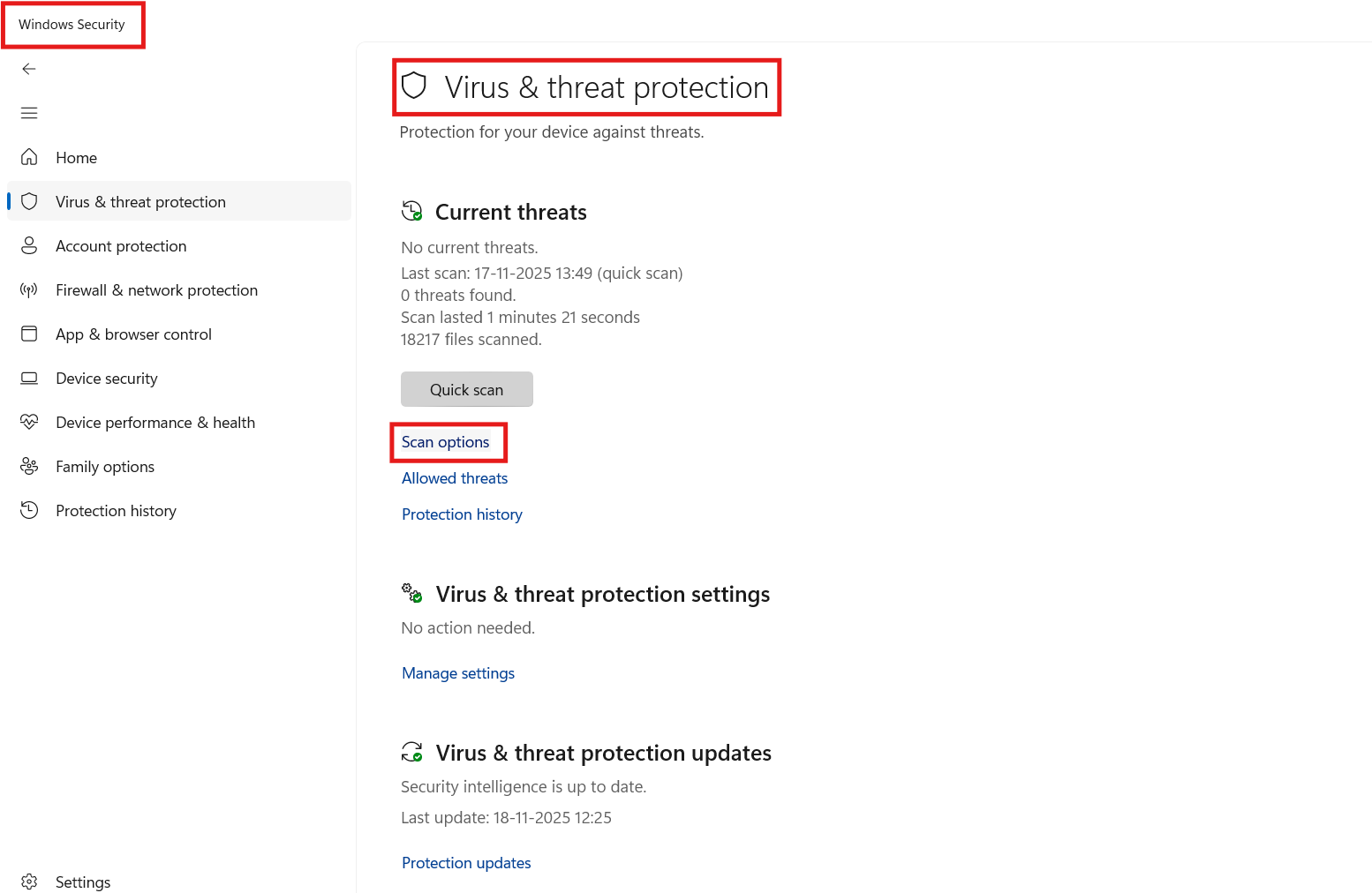
2. Run a full scan and allow Windows to remove threats.
3. After cleanup, restart your system.
Fix 6: Update Windows and drivers
Installing the latest updates may fix underlying bugs affecting the Recycle Bin.
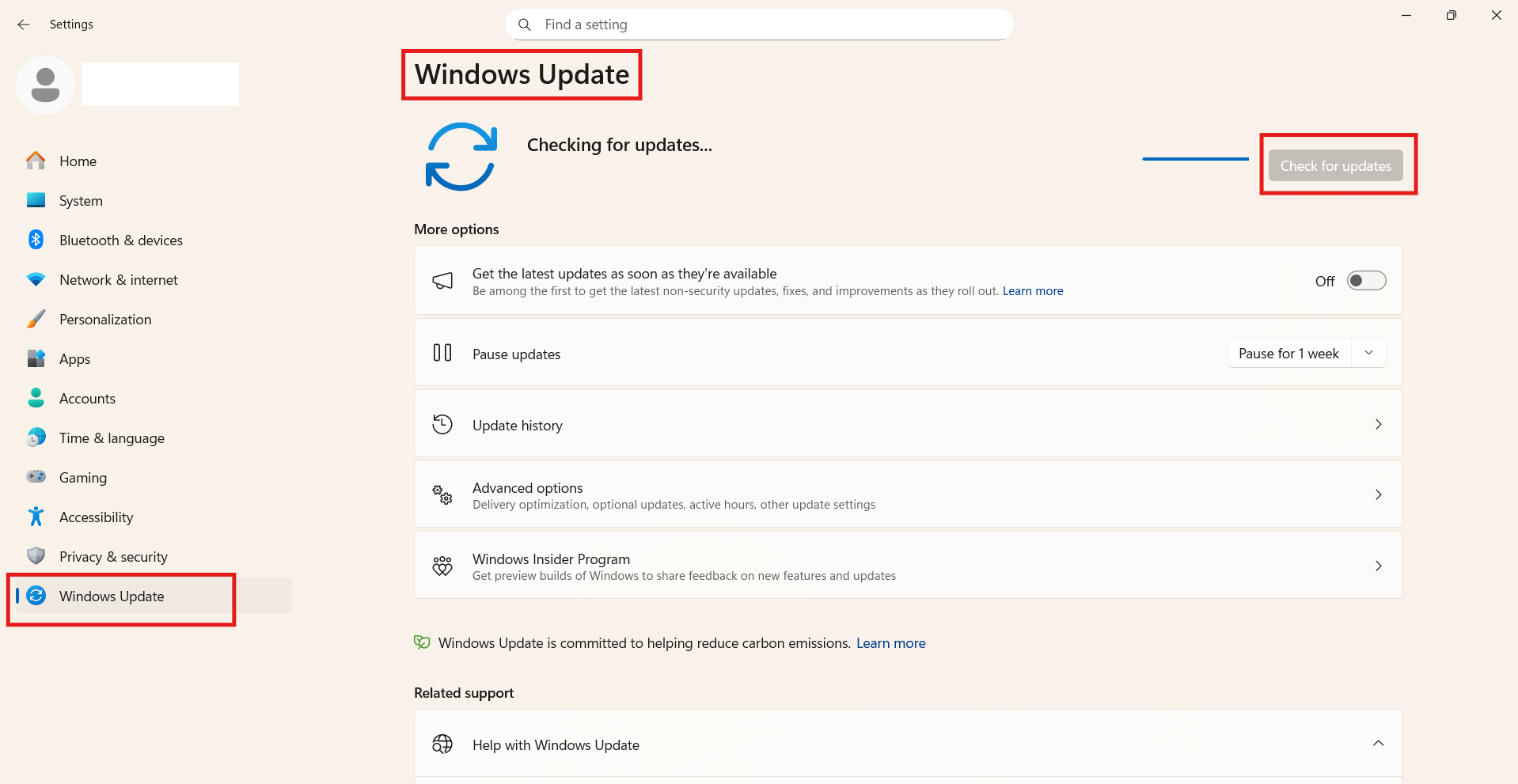
1. Go to Settings and go to Windows Update.
2. Click Check for updates, install pending updates, and reboot.
Fix 7: Use System Restore to a working state
If the problem started after an update or change, reverting may help.
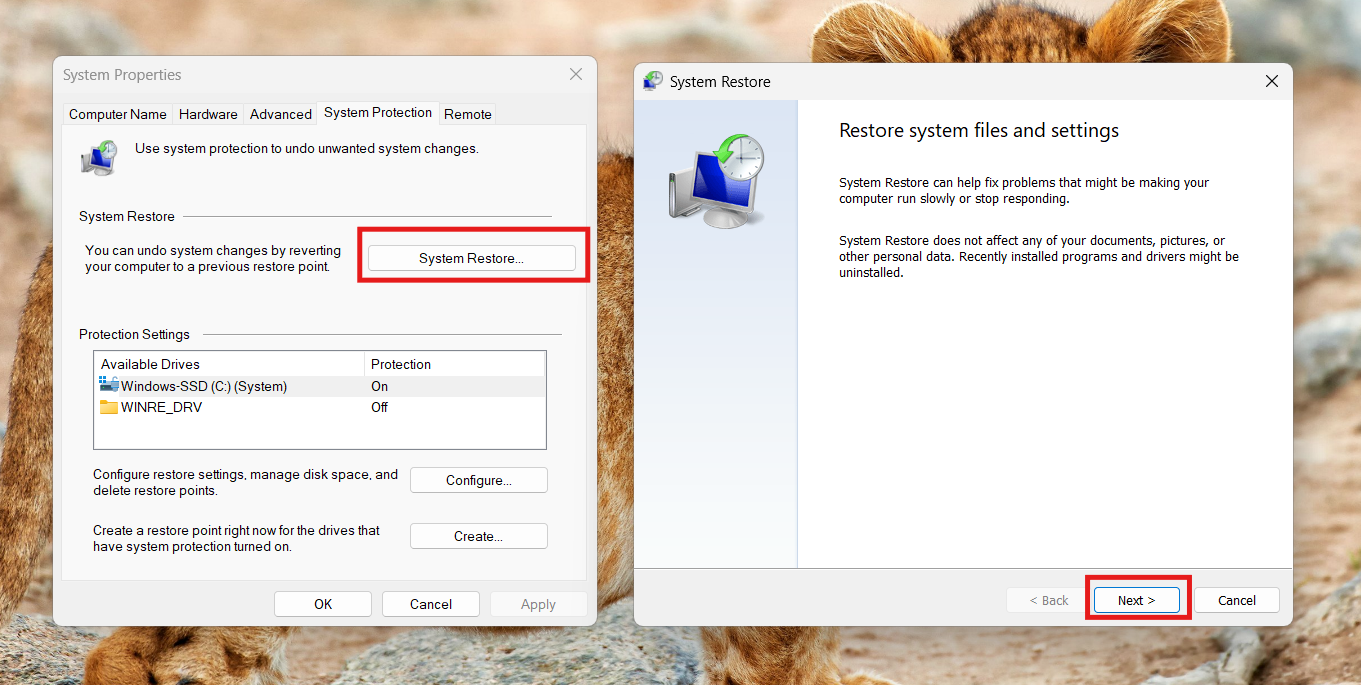
1. Search ‘Create a restore point’ and open it.
2. Click System Restore, select a point before the issue occurred, and follow prompts.
3. Restart the PC after restoration.
Fix 8: Reinstall Windows (last resort)
When all else fails, doing a repair install keeps your files while refreshing system files.
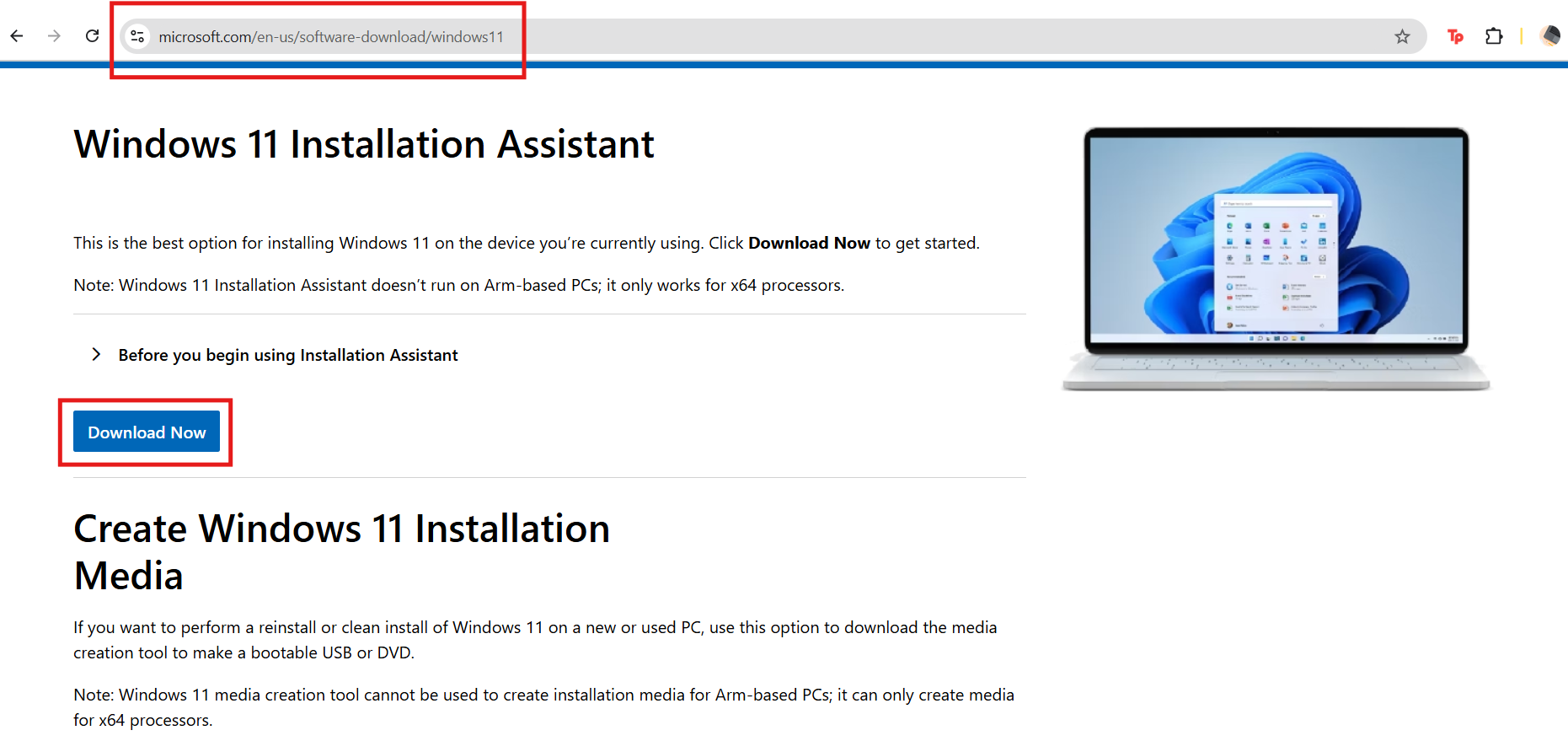
1. Download the latest Windows 11 ISO from Microsoft.
2. Run setup and choose “Keep personal files and apps.”
3. Follow the on-screen instructions and reboot.
Quick tips
1. Run each fix one at a time and check functionality after each.
2. Backup important files before performing folder deletions, system restores, or re-installation.
3. Avoid shutting down or interrupting the PC during critical scans or updates.