How to upgrade to Windows 11 version 25H2 is on the hype as the Windows 11 25H2 update has already been officially released with significant improvements, performance, and security additions. You might be wondering how to install this new version safely and fast. So this guide will take you through all of the ways in an easy manner.
To get to know everything that this release has to offer, have a read of our in-depth article on What’s new in Windows 11 Version 25H2.

Today, we are going to demonstrate to you four sure methods of upgrading your PC to Windows 11 25H2 without loss of data.
Page Contents
Why You Should Upgrade to Windows 11 Version 25H2
Windows 11 25H2 update is provided with some enhancements-
- Improved stability and performance of the system.
- New security levels and kernel security improvements.
- New AI updates, new personalization features, and refreshed UI.
- Bugs that were discovered in previous releases.
Best Pointers To a Trouble-Free Upgrade
- Ensure your laptop or PC has at least 20GB of space available.
- Do not unplug your laptop when installing.
- Disability of any unnecessary third-party antivirus software.
- Incidentally, you should save your important files beforehand.
To do the clean installation, use the following guide: How to clean install Windows 11 Version 25H2.
Methods to Upgrade to Windows 11 Version 25H2
Method 1: Upgrade to Windows 11 25H2 Using Windows Update
It is the simplest and most sure way of upgrading for the majority of users.
1. Go to Settings > Windows Update.
2. Enable the setting “Get the latest updates as soon as they’re available”.
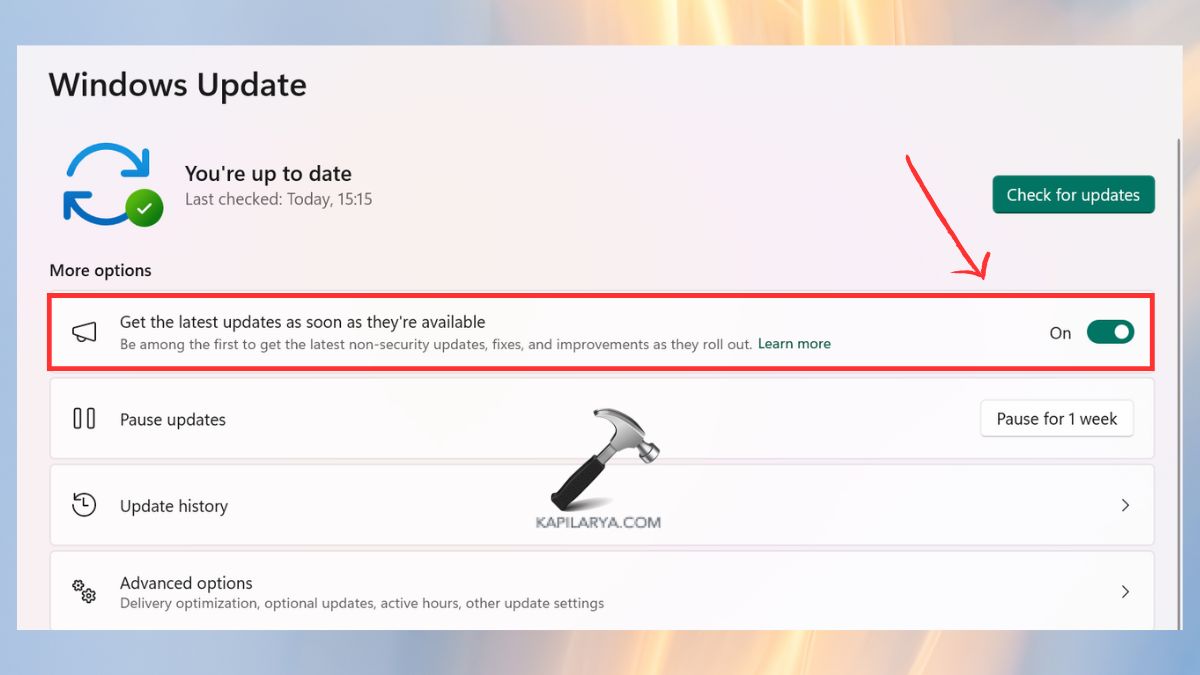
3. Click Check for updates.

4. In the case of Windows 11 Version 25H2, you have to press the option of Download and Install.
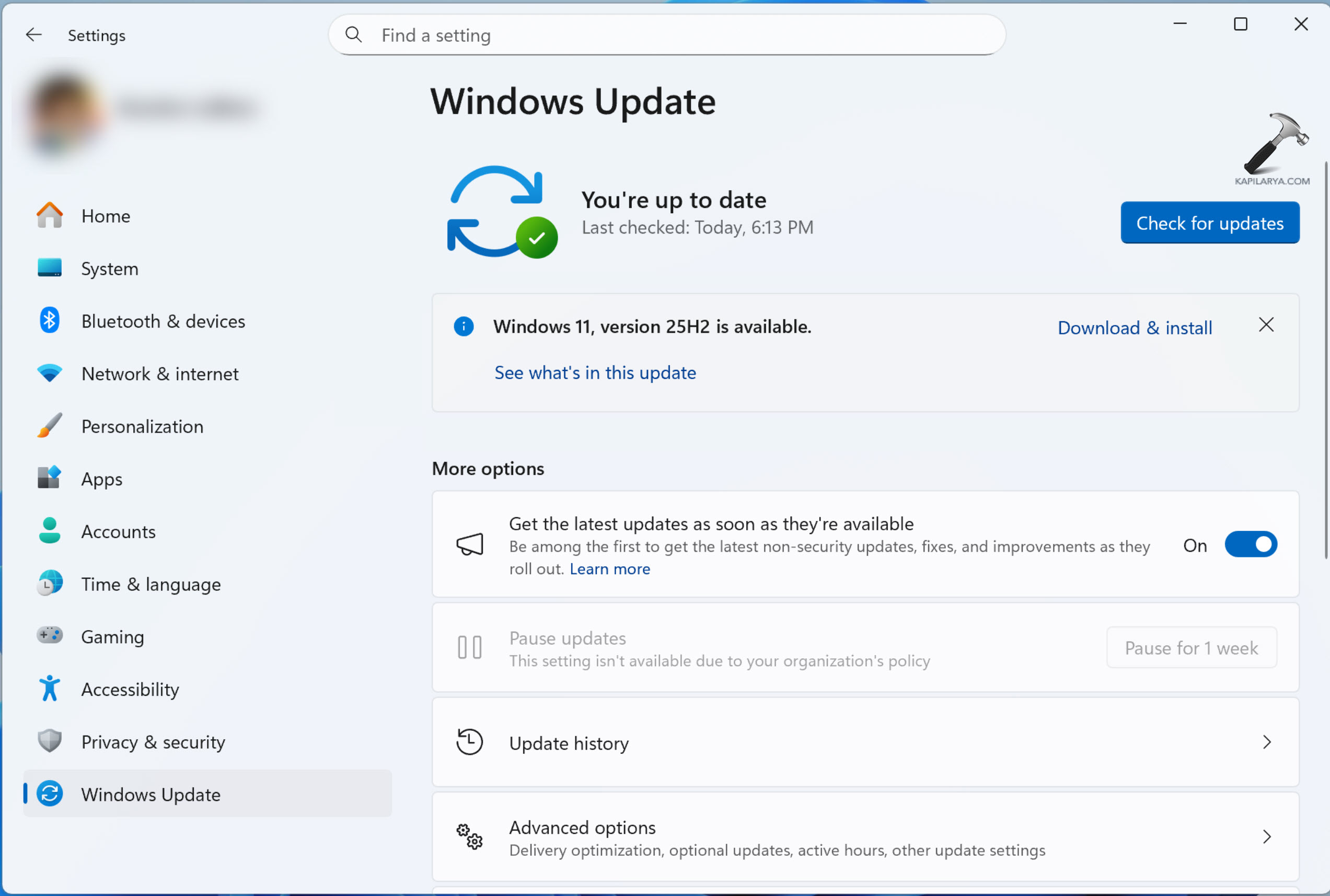
In case your update is stalled, refer to the instructions when your Windows 11 25H2 update is not downloading.
When you are asked, restart your computer.
Method 2: Upgrade to Windows 11 25H2 Using Installation Assistant
The Windows Update failure to display the new version is compensated for by the Microsoft Installation Assistant. Here are the steps to use it:-
1. Visit the official Microsoft page and download Windows 11 Installation Assistant at (https://www.microsoft.com/en-us/software-download/windows11).

2. Install the tool by clicking on Accept and Install.

3. Permit it to verify system requirements and download files. Restart your PC when done.
Method 3: Upgrade to Windows 11 25H2 using ISO File
The installation of ISO can be useful when the user is advanced or it is necessary to conduct repair installs.
1. Download the official Windows 11 25H2 ISO at Microsoft website (https://www.microsoft.com/en-us/software-download/windows11).

2. Right-click the ISO > click Mount.
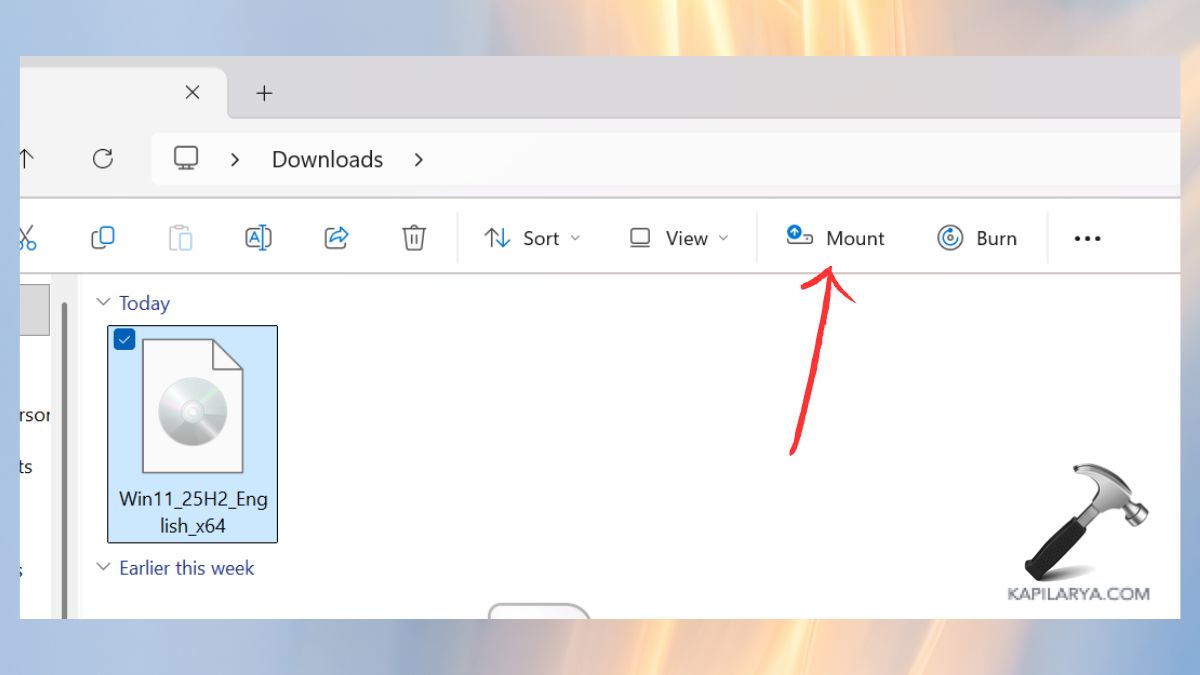
3. Click on the mounted drive > execute the “Setup.exe” file. Choose the setup options and proceed further.
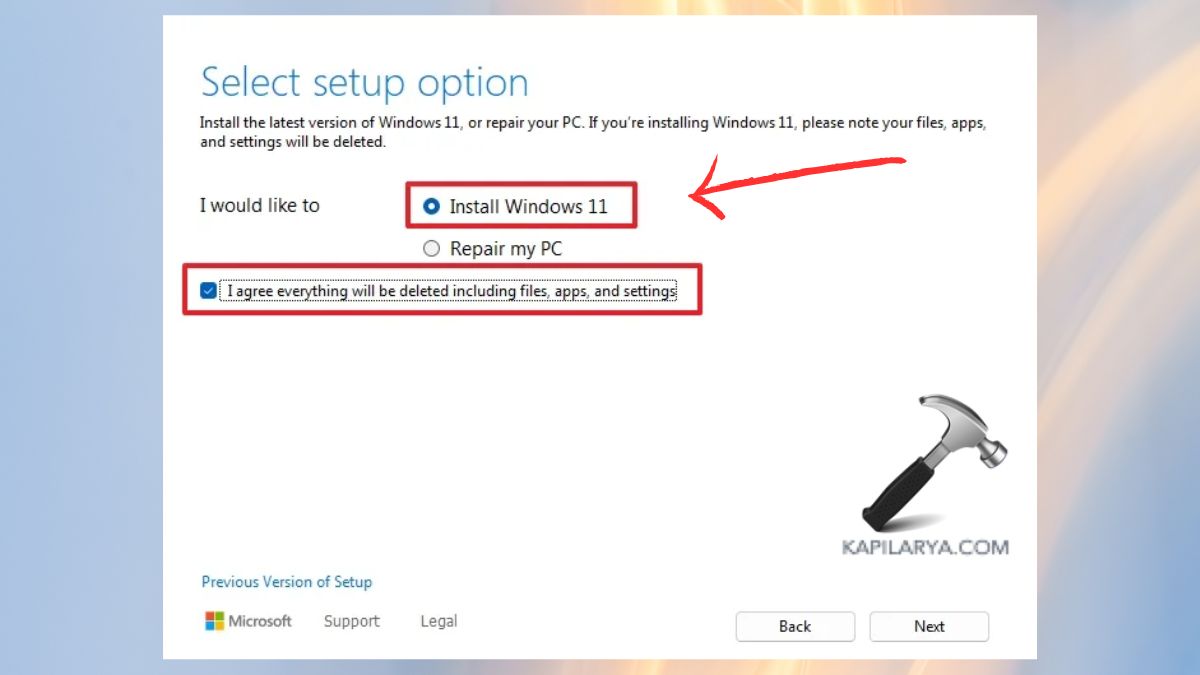
4. Select Keep personal files and apps.
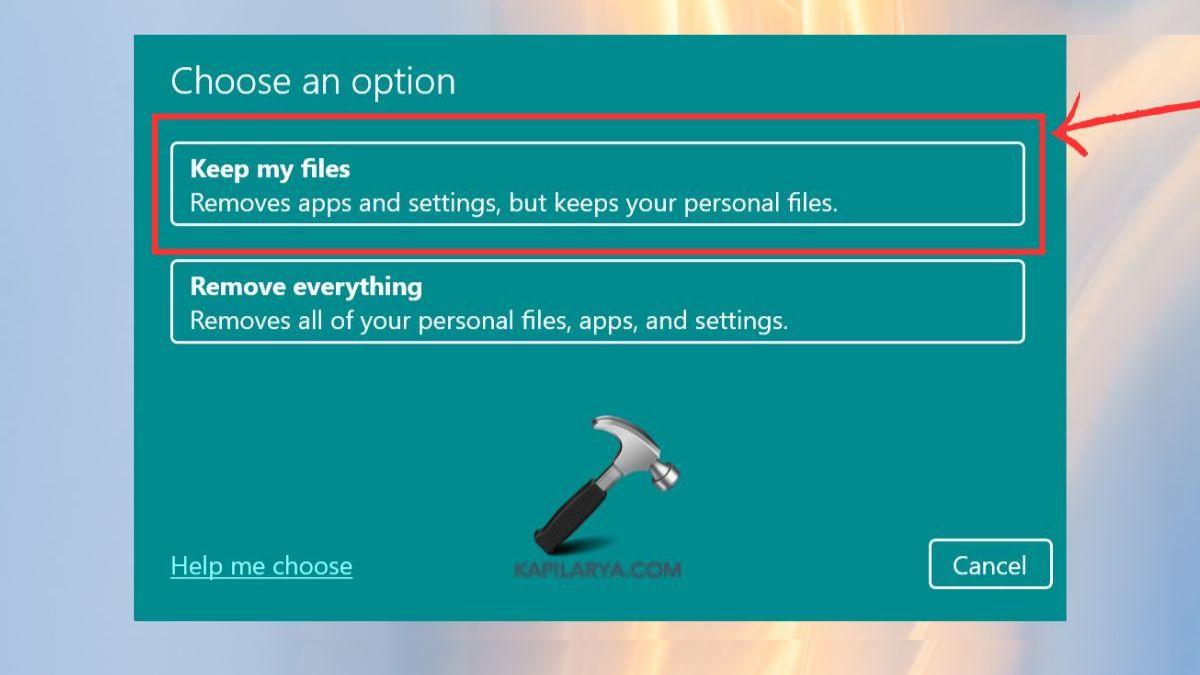
5. Press “Install” and wait until the upgrade has been made.
Method 4: Upgrade to Windows 11 25H2 in Windows Insider Program
If you’re in Windows 11 Insider Program, then you can use this technique to get Windows 11 25H2 on your device.
1. Select Settings > Windows Update > Windows Insider Program.

2. Log in with your Microsoft account.
3. Choose Release Preview Channel (recommended when updating with a stable).

4. Restart when prompted.
5. Return to Windows Update > Check For Updates.
Check the availability of Windows 11 25H2 to be installed.
Frequently Asked Questions (FAQs)
That’s it!