If you receive the message “Windows Hello is preventing some options from being shown” on your Windows 11 device, it typically means your biometric sign-in options (fingerprint, facial recognition) are blocked due to driver issues, disabled settings, or incorrect system policies. The problem might appear after a Windows update, a change in user profile, or when biometrics were disabled for security reasons.
Page Contents
Fix: Windows Hello is preventing some options from being shown in Windows 11
Below are five reliable fixes. Try each of them one by one and restart your PC after implementing a fix.
Fix 1: Update or reinstall biometric drivers
Outdated or incorrect drivers are one of the main reasons Windows Hello stops showing certain options.
1. Open Device Manager from the Start button.
2. Expand Biometric devices.
3. Right-click the fingerprint sensor and choose Update driver, then select Search automatically for drivers.
4. If updating does not work, choose Uninstall device instead.
5. Restart your computer, and Windows will install the correct driver automatically.

Fix 2: Turn off Fast Startup
Fast Startup may skip important checks during boot and cause fingerprint sensors to stop responding.
1. Open Control Panel and go to Power Options.
2. Select ‘Choose what the power buttons do.’
3. Click ‘Change settings that are currently unavailable.’
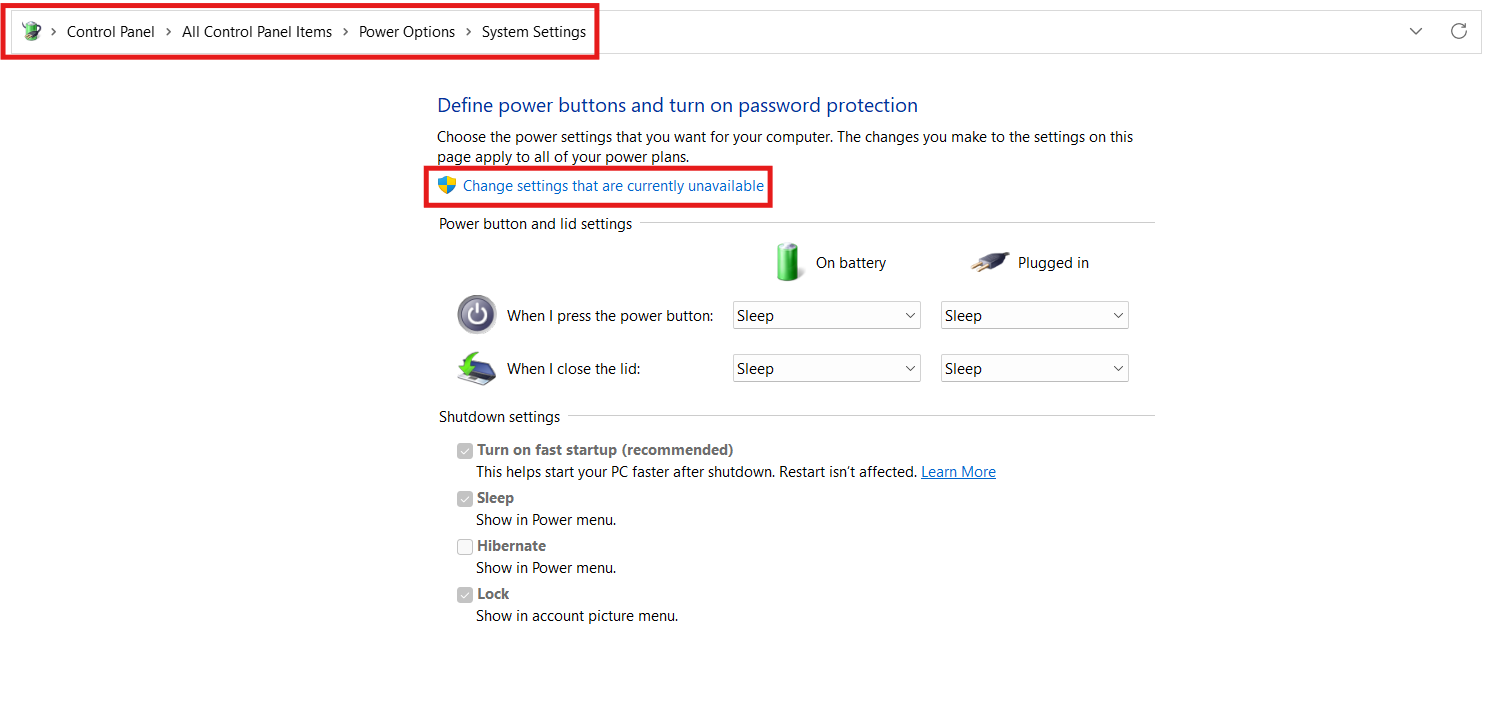
4. Uncheck ‘Turn on fast startup’ (recommended).

5. Save your changes and restart the PC to test the sensor again.
Fix 3: Enable biometrics in Group Policy
When policies are restricted, Windows Hello may hide or disable biometric options.
1. Press Windows + R, type gpedit.msc, and press Enter.
2. Navigate to Computer Configuration, then Administrative Templates, after that Windows Components, and then Biometrics.
3. Open ‘Allow the use of biometrics‘ and set it to Enabled.
4. Click OK and restart your system.

Fix 4: Repair system files
Damaged system files may cause Windows Hello components to malfunction.
1. Search cmd, right-click Command Prompt, and choose Run as administrator.
2. Type the following command and press Enter:
sfc /scannow
3. After the scan completes, type:
DISM /Online /Cleanup-Image /RestoreHealth
4. Restart your PC after the tool finishes the repair process.

Fix 5: Reset Windows Hello fingerprint data
When fingerprint data becomes corrupt, the sensor may stop working even if the hardware is fine.
1. Open Settings, then Accounts.
2. Go to Sign-in options.
3. Select ‘Fingerprint recognition’ (Windows Hello) and click Remove.
4. Restart your PC.
5. Return to the same menu and set up your fingerprint again from the beginning.

Quick tips
1. After each fix, restart your PC and then test.
2. If an organization manages your device, check with IT for biometric policy changes.
3. Clean your fingerprint sensor or camera and ensure proper lighting for face recognition.
4. If biometric options still don’t appear, fall back to a PIN or password, then retry the setup.
![Windows Hello not working in Windows 11/10 [2026 Fix]](https://www.kapilarya.com/assets/Windows-Hello-768x343.jpg)