

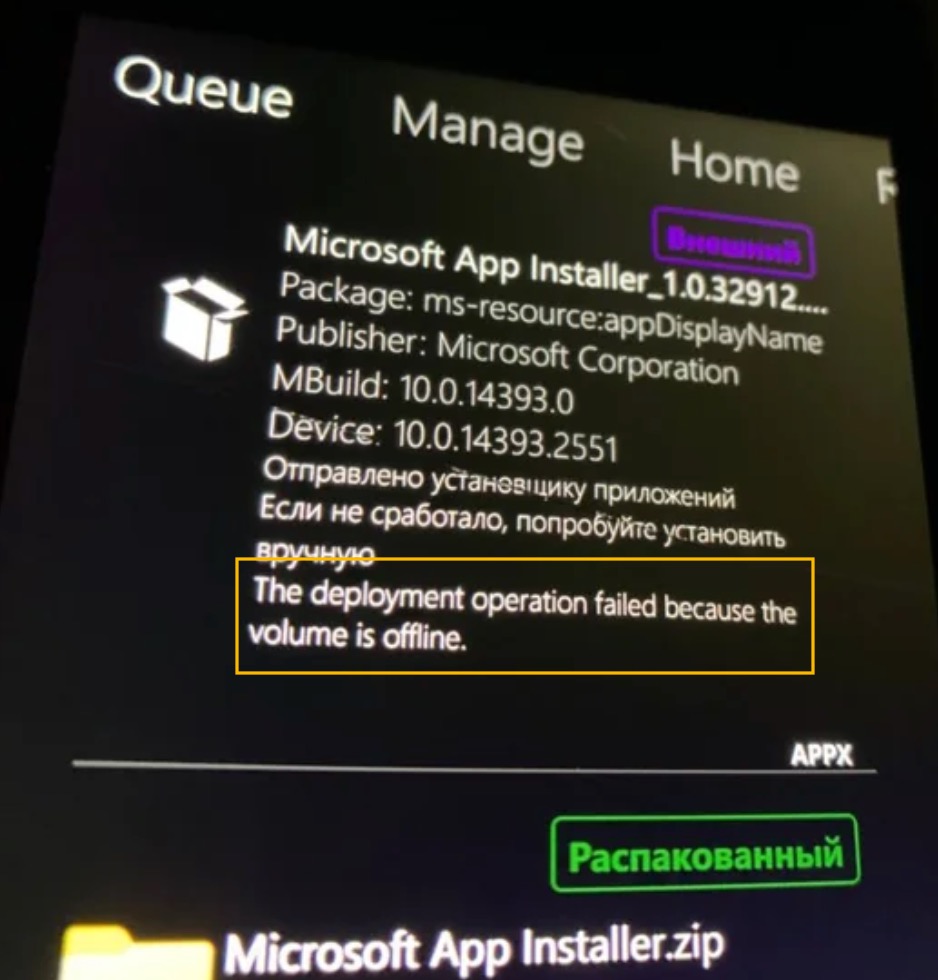
When you install or update apps (especially from the Microsoft Store or Xbox app), Windows 11 may show the error “The deployment operation failed because the volume is offline” with code 0x80073D0D. We’ll discuss more about this issue in this article and explain how you can fix it.
Page Contents
Fix: The deployment operation failed because the volume is offline
This usually means the drive Windows is trying to use for the install is either marked offline, inaccessible, or incorrectly configured. Below are effective methods to resolve it and complete your app deployment successfully.
Fix 1: Bring the Target Drive Online
If Windows sees your installation drive as unavailable or offline, the installation can’t proceed:
1. Right-click Start and choose Disk Management.
2. Find the problematic drive; if its status shows Offline, right-click it.
3. Choose Online to make it accessible.
4. Retry the app install/update.
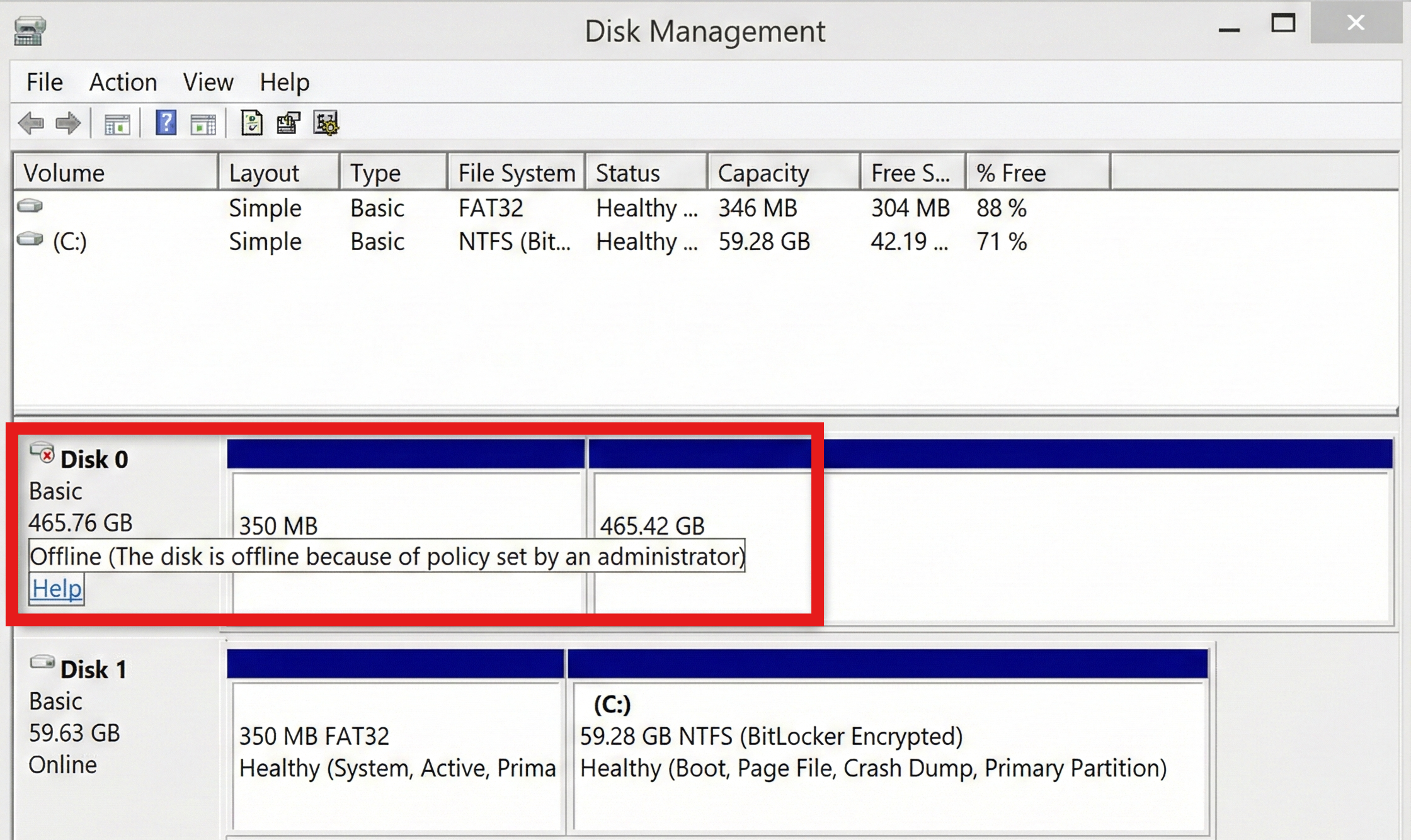
Marking the drive online allows Windows to access it for deployment.
Fix 2: Set the Correct Default Installation Location
Installing to a drive that isn’t intended for Store apps can trigger the offline error:
1. Open Settings and then System and go to Storage.
2. Click Advanced storage settings and go to Where new content is saved.
3. Under New apps will save to: select your system drive (usually C:).
4. Hit Apply and try again.
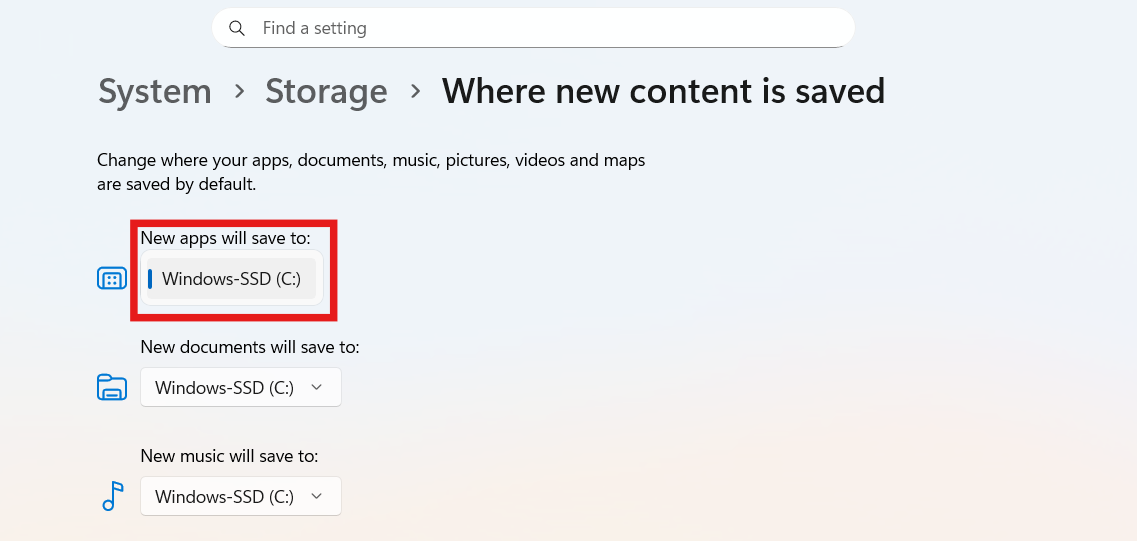
Ensuring the system drive is the default prevents Windows from trying to use external or secondary volumes that may disconnect.
Fix 3: Check Drive Health & File System Integrity
Corrupt file systems or disk errors can make Windows mark a drive offline:
1. Search Command Prompt, right-click it, and choose Run as administrator.
2. Type and run:
chkdsk /f C:
(Replace C: with the letter of your target drive if different.)
3. If prompted, press Y to schedule it on reboot, then restart your PC.
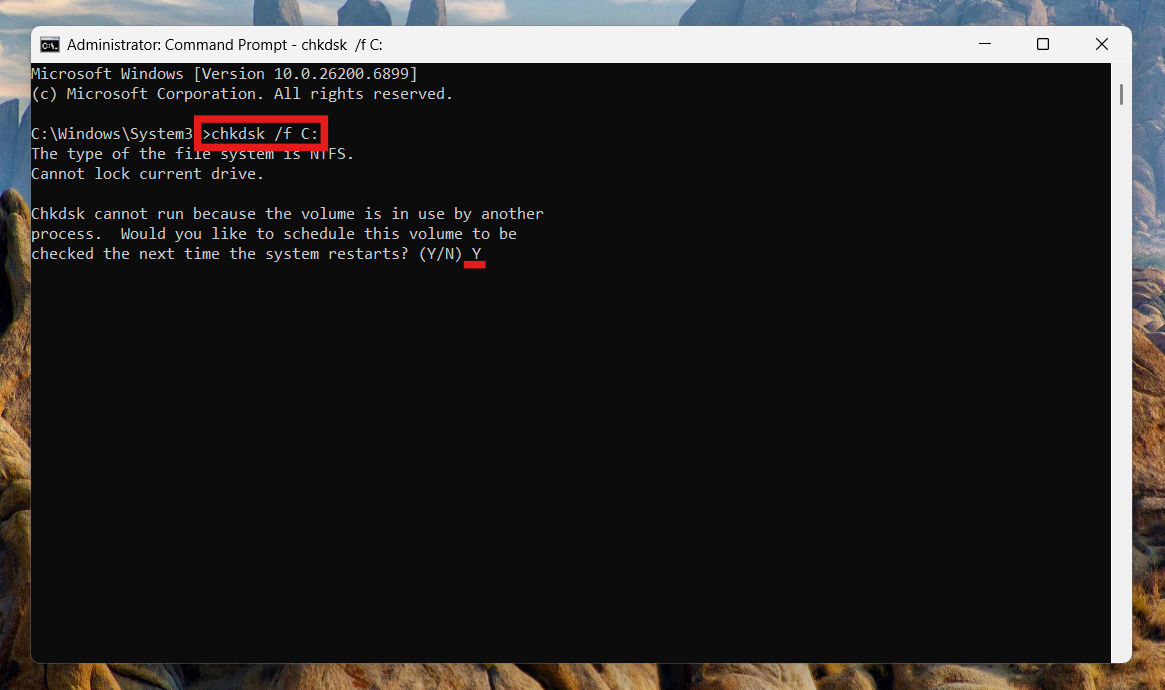
This scans and repairs disk problems that could block installations.
Fix 4: Repair or Reset Microsoft Store / Xbox App
Corrupted Store components can fail to deploy apps correctly:
1. Open Settings and go to Apps. Click on Installed apps.
2. Find Microsoft Store (and the Xbox app if relevant).
3. Click the three dots and then Advanced options.
4. First try Repair. If the issue persists, choose Reset.
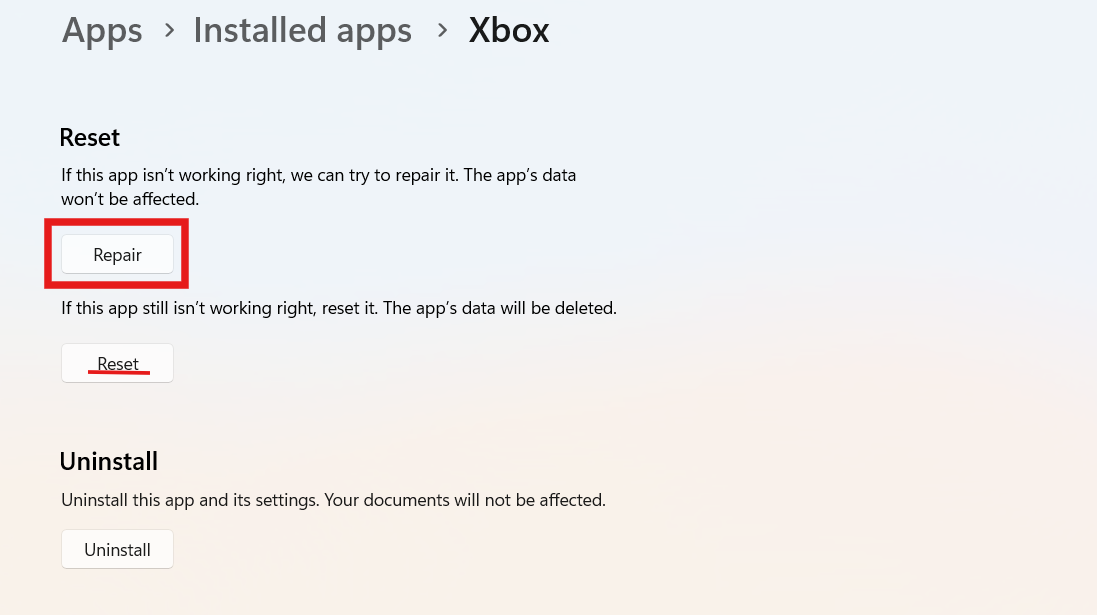
Repairing or resetting replaces broken app data that can cause deployment failures.
Fix 5: Ensure Essential Services Are Running
Windows needs certain system services to install apps:
1. Press Win + R, type services.msc, and press Enter.
2. Ensure these services are running:
- Windows Update
- Background Intelligent Transfer Service (BITS)
- Microsoft Store Install Service
3. If any aren’t running, right-click and click Start (or Restart if already running).
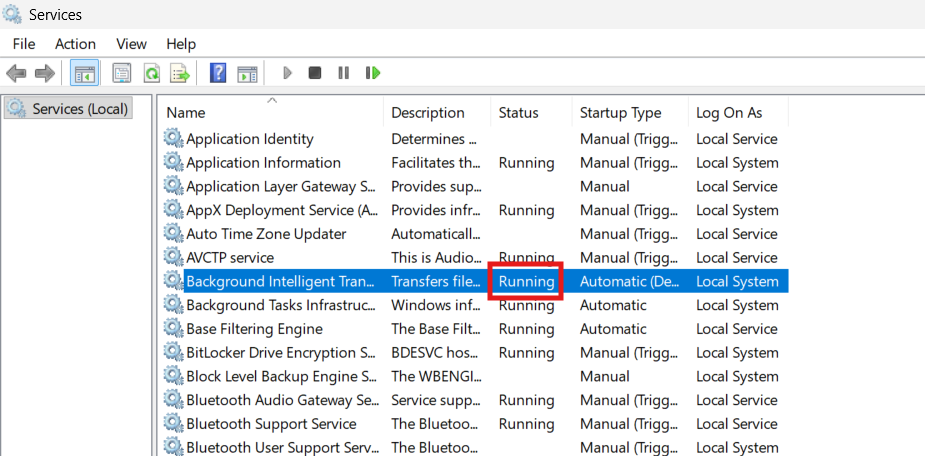
Active services ensure smooth deployment operations.
Fix 6: Check for latest Windows Updates
Installing the latest Windows patches can fix underlying platform bugs:
1. Go to Settings and then Windows Update.
2. Click Check for updates.
3. Install any available updates and restart your PC.
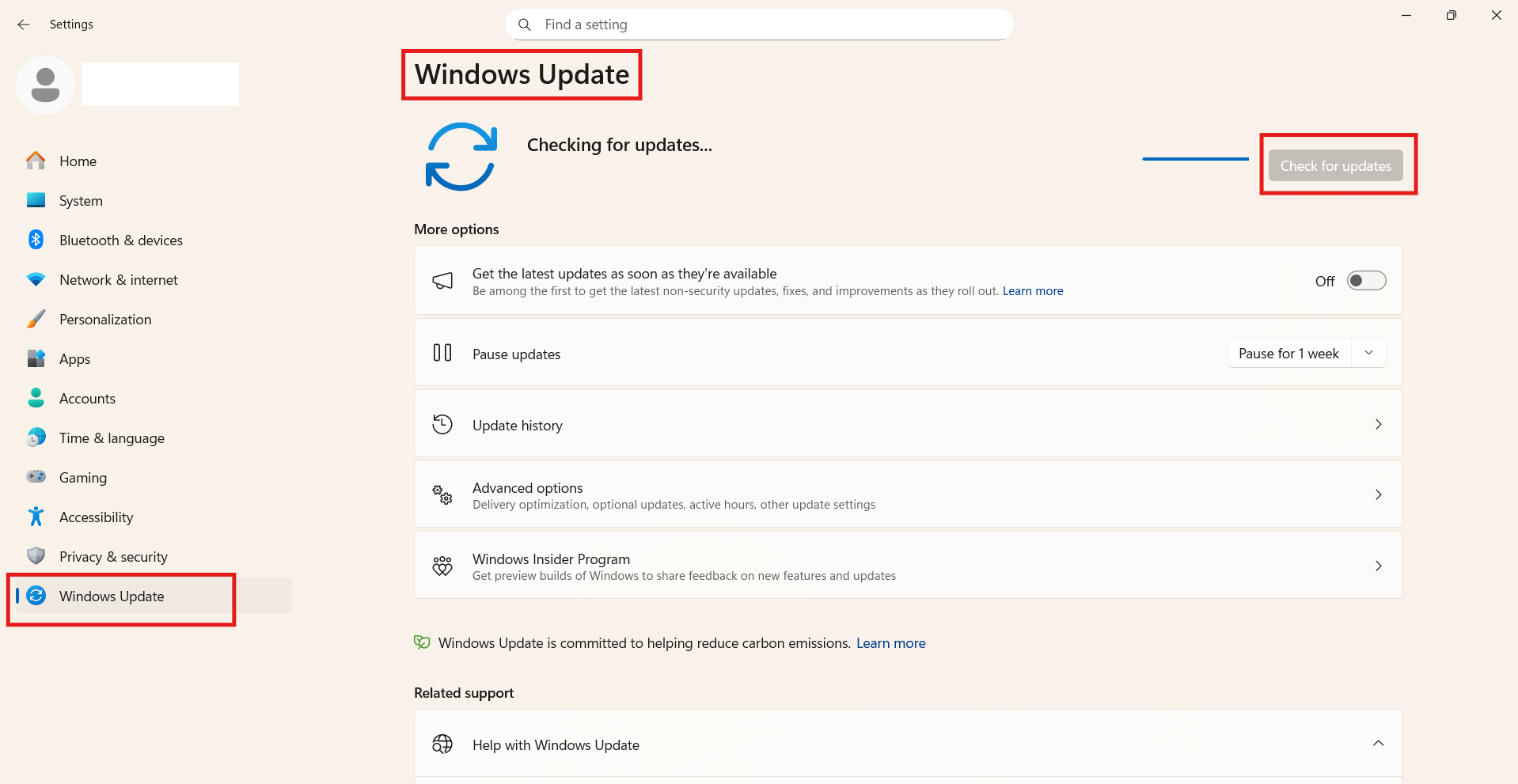
Keeping Windows up to date helps avoid errors tied to OS and Store integration.
Optional: Check Connection for External Drives
If the install target is on an external or removable drive:
1. Ensure it’s properly connected.
2. Try a different USB port.
3. Reboot before retrying the installation.
Loose cables or intermittent connections can make Windows mark a volume as offline.
Wrapping Up
The “volume is offline” error (HRESULT 0x80073D0D) mainly happens when Windows cannot access the storage location for app deployment. Always verify that the target drive is online, correctly assigned as the default install location, free of file system issues, and that core Store services are running. The above steps should let you complete installs and updates normally.




