When you encounter the error of the Microsoft account “Too many requests”, you may think it is a minor glitch. However, the fact is that one error is enough to stop all your working processes. Suppose you have to use your OneDrive files to complete an urgent task or to synchronize your Outlook mail before a meeting, only to get blocked again and again.
Because Microsoft integrates nearly all features of Windows 11 with a Microsoft account, the slightest mistake during the process of the login can ruin your routine. That is why we made this step-by-step guide, in order not to lose time on deep technical terms when you need to repair the issue.
Page Contents
Causes of Microsoft Account ‘Too Many Requests’ Error
‘Too many requests’ error in Windows 11 Microsoft account – This message is shown when the servers of Microsoft block your attempt to log in temporarily because of uncharacteristic or inappropriate activity. This is included in the inbuilt protection of Microsoft security and even actual users can be flagged. The following are the most prevalent reasons.
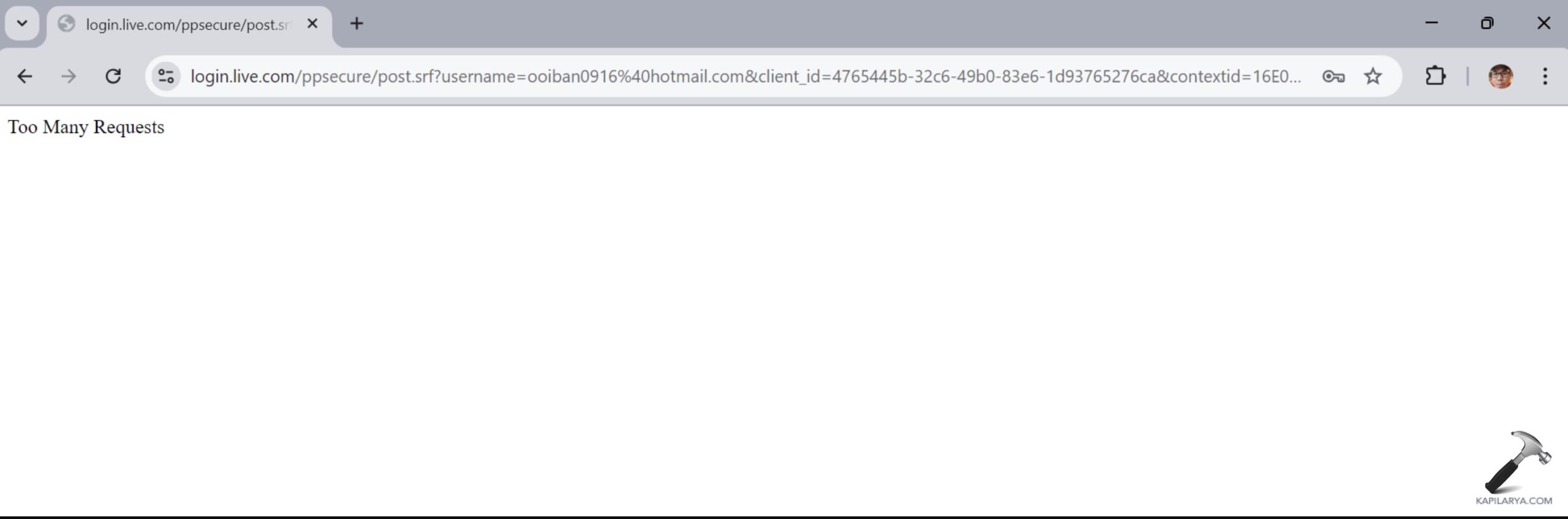
- Frequent repetitions of sign-ins in a short time may activate the rate-limit mechanism of Microsoft, which supposes that the process can be automated or even unsafe.
- The authentication process may be confused because of typing the incorrect password a few times or because of having recently changed your password, thus causing this error.
- It may be caused by a corrupted DNS cache, by an unstable Wi-Fi, or an ISP-level block that will make your login requests be rejected or slow.
- Accessing the VPN, a workplace network, or a proxy server might make your login activities look suspicious to Microsoft when share changes in your IP address keep fluctuating.
- The cookies, which have outdated or corrupted data, might contain some wrong log in tokens, and the user will fail to use them to access the Microsoft online services.
- In case Microsoft manages to notice suspicious activities such as signing in using other devices, locations or other networks, it will block your account temporarily as a measure to secure your account.
Fix Microsoft account ‘Too many requests’ error in Windows 11
The error with too many requests is not an ordinary error; it belongs to the security firewall implemented by Microsoft to prevent bots, hackers, malicious connections with the user account, etc. The next step will be to pursue the most efficient seven solutions to the Microsoft account “Too many requests” error in Windows 11.
Fix 1: Restart Your Computer and Router
A re-boot of your system cleans up your temporary glitches, and then it re-establishes your Internet connection.
1. Save all your work. Click Start > Power > Restart.
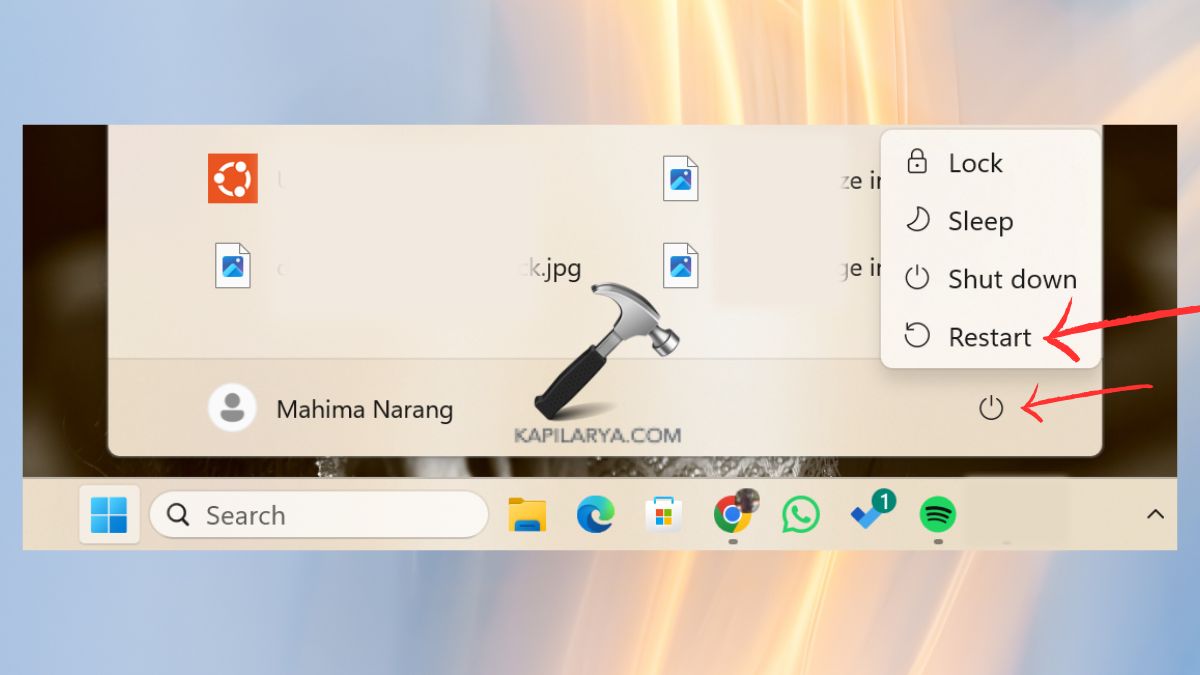
2. Following a restart, after a PC, turn off your router.
3. Allow 30 to 60 seconds, then use a restart button.
4. Attempt to sign in to the Microsoft account once more. This rapid restart is usually able to clear a login rate-limit error immediately.

Fix 2: Wait Before Trying to Log In Again
Microsoft prevents multiple attempts of logging out unwarranted attempts, and blocks unnecessary logins to safeguard your account.
1. Wait 10-30 minutes prior to signing in once again.
2. Do not be in a hurry when using the logins or use it repeatedly.
3. Make certain that your password is accurate and then retype it. Assuming you just changed your password, it will take Microsoft time before Microsoft synchronizes the service change.
Fix 3: Clear Browser Cache and Cookies
When you find the mistake when signing in using Outlook.com, OneDrive.com, or account.microsoft.com, it might be your browser.
1. Open Chrome > click three dots. Click on Settings.

2. Go to Privacy and security and clear browsing data.
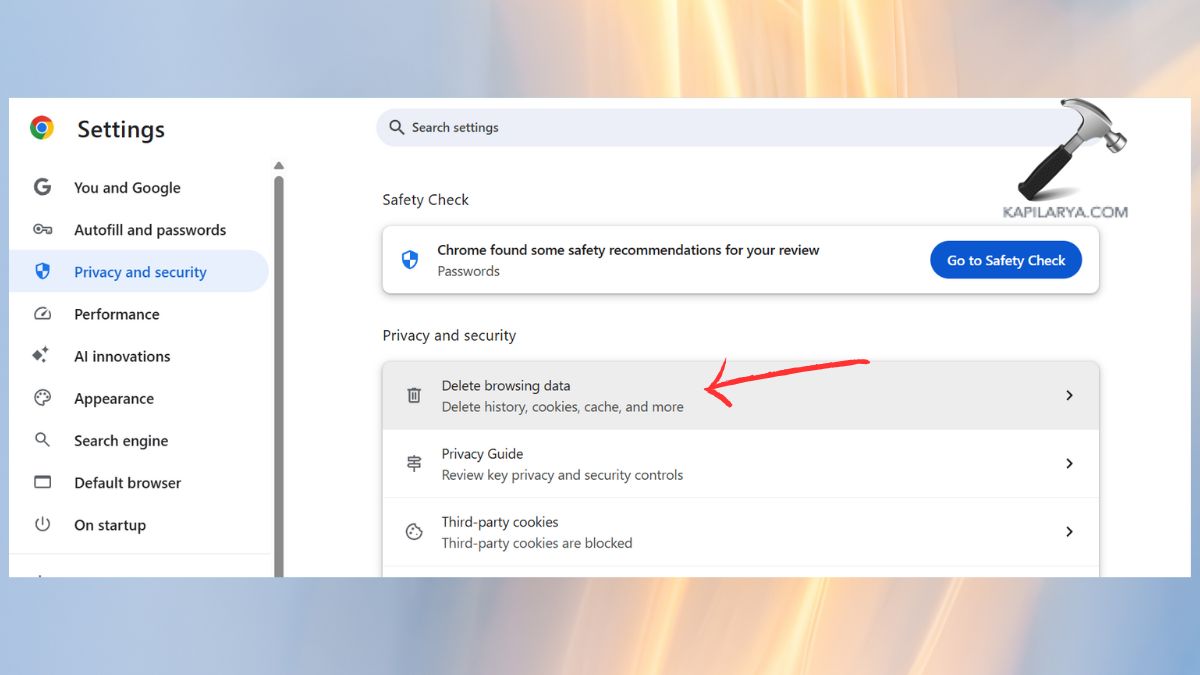
3. Click and check cookies and other site information, and Cached images and files. Choose “All time”. Click “Clear data”.

Close the browser and re-open and attempt to log-in. The same can be repeated in Edge or Firefox.
Fix 4: Disable Proxy and VPN Connections
Microsoft can consider proxy/VPN traffic as suspicious, preventing any user logging in.
1. Switch off your VPN application in case you have one.
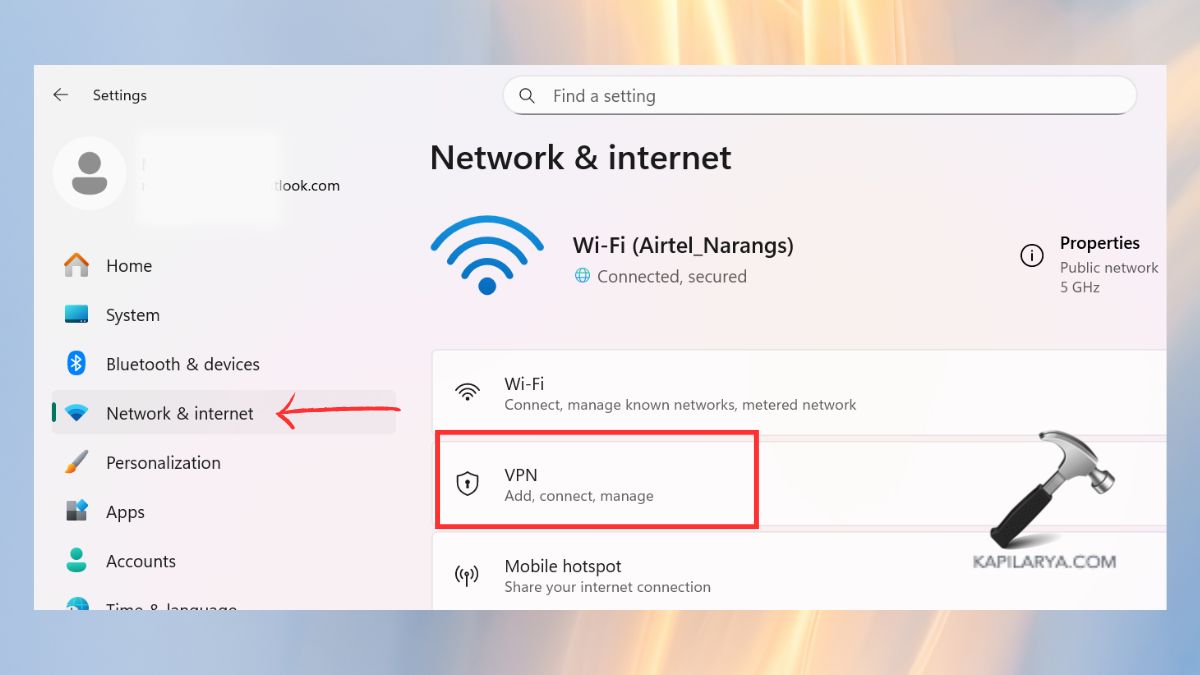
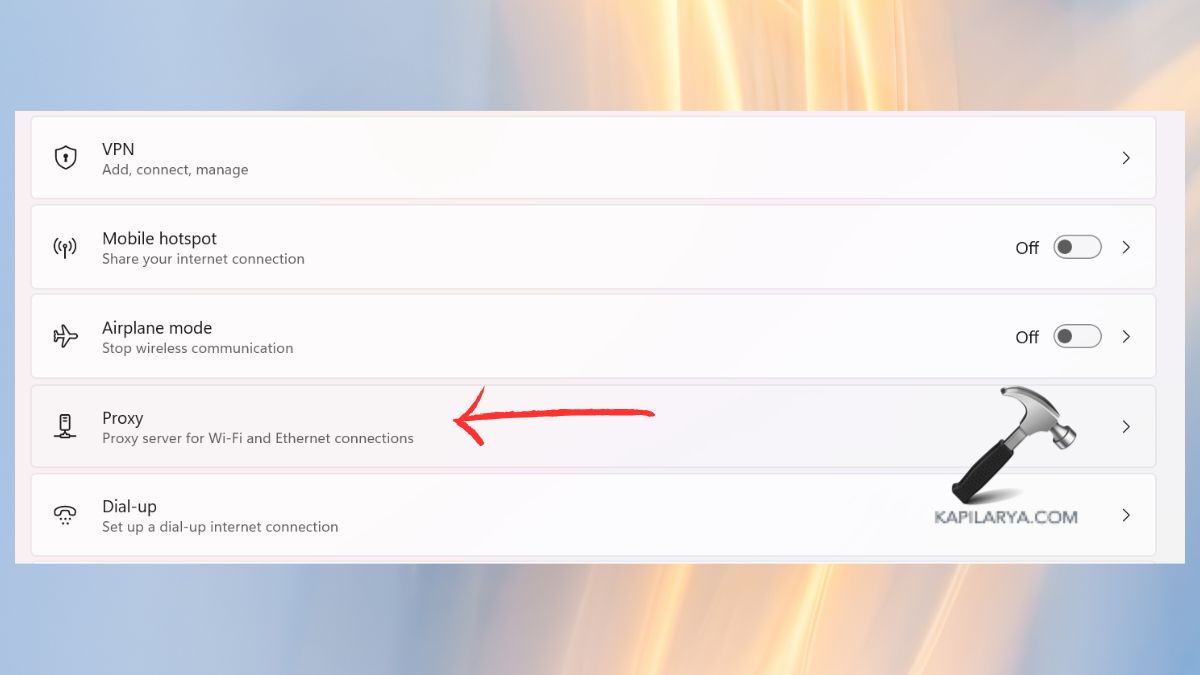
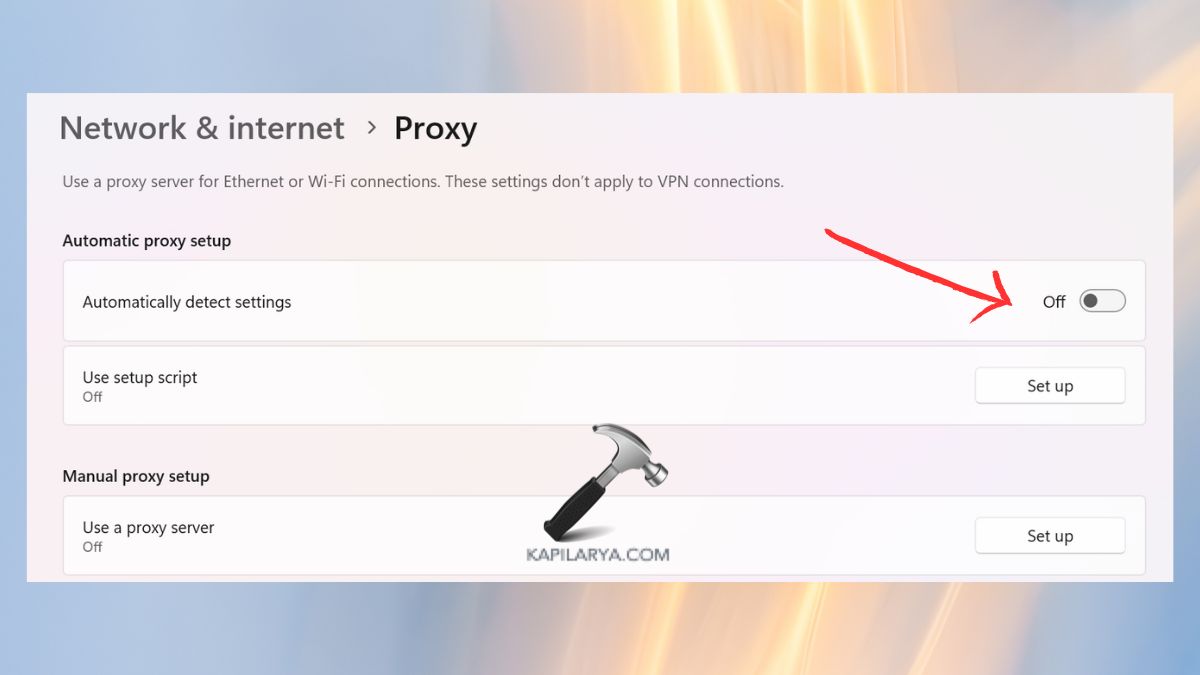
2. Open the Settings > Network and Internet. Open Proxy. In the Manual proxy set up, keep it OFF.
3. In Automatic proxy setup, activate Automatically detect setups. Now, retry your Microsoft account.
Fix 5: Flush DNS and Reset Network Settings
Failure to log into Microsoft is also attributed to DNS problems, which are mostly common with office networks.
1. To open the Command Prompt as an administrator, one has to press Win + R, type in cmd, and Ctrl + Shift + Enter.

2. Enter the following commands one after another.
ipconfig /flushdns
ipconfig /release
ipconfig /renew
netsh winsock reset
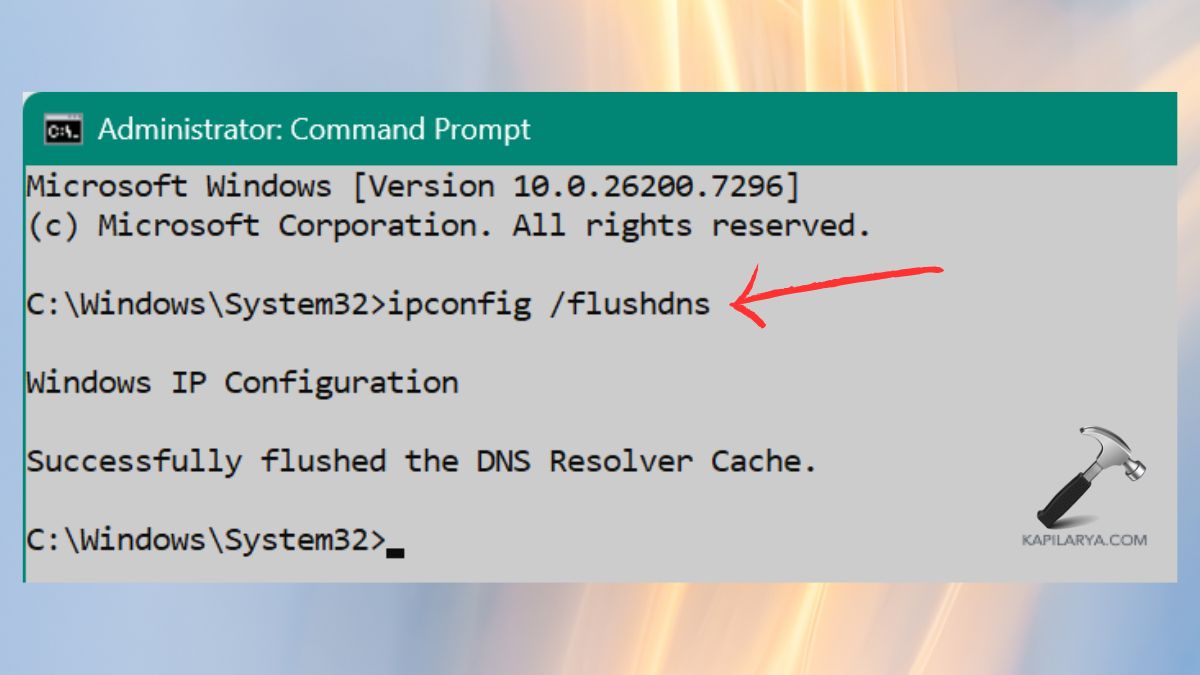
Restart your PC. Log in once again and see whether the error has been eliminated.
Fix 6: Switch to a Different Network
At times, there are limitations in your existing network that impacts on Microsoft authentication.
1. First, connect to the mobile hotspot.
2. Discontinue Wi-Fi or Ethernet, and other way around.
3. Test another Wi-Fi connection. When it is effective on a different network, then chances are that there is a problem with your router or the internet service provider.
Fix 7: Run a Clean Boot in Windows 11
One boot with a clean boot loads Windows and has minimum drivers, as well as startup programs. In case the third-party applications disrupt the Microsoft services, it will be detected.
1. Press Win + R, type, and hit Enter.
msconfig
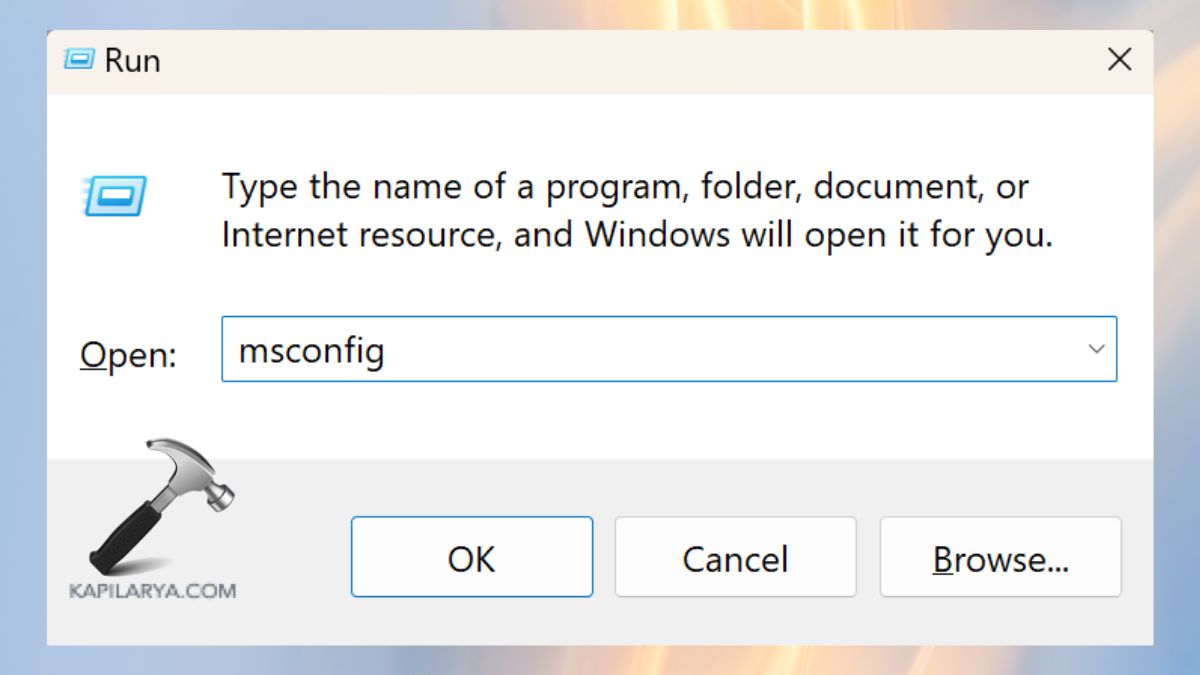
2. Select Services. Tick off: Hide all Microsoft services. Click “Disable all”.

3. In the Startup tab, there is an option open Task Manager.

4. Disable all startup apps.
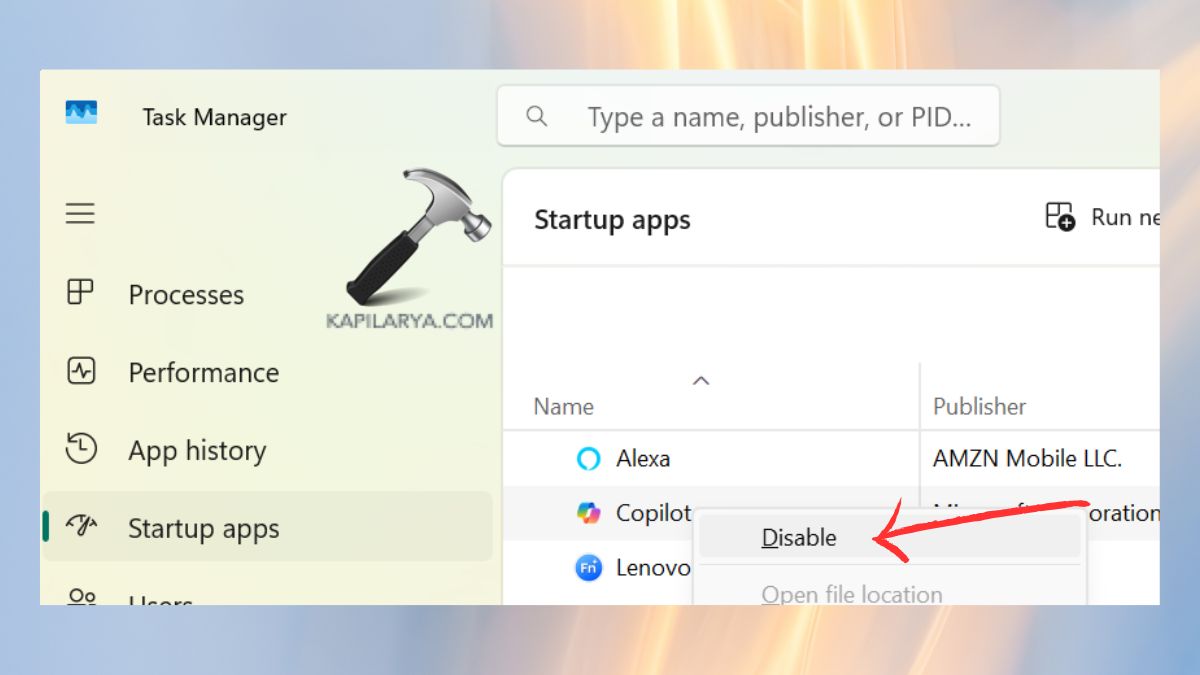
Restart your PC. And now attempt to log in with your Microsoft account. In case it succeeds, one service by another, find out what is wrong.
Frequently Asked Questions (FAQs)
Why does my Microsoft account show ‘Too many requests’?
This occurs when Microsoft blocks sign-in attempts out temporarily owing to duplicate sign-ins, probable lack of integrity, or network issues.
How long should I wait before trying again?
Microsoft rate limit normally takes 10-30 minutes to reset.
Does changing my network fix this error?
Yes, when you have either DNS or firewall restrictions within your current network, then you can switch to a different network or hotspot and the problem is solved automatically.
Will resetting DNS harm my PC?
No, clearing DNS does not cause much damage, and it can help correct errors in logging into the system as well as connection problems with minimal effect on your files and settings.
That’s it!