

Windows 11 offers several built-in tools and support options to help you resolve problems, learn features, or get direct help from Microsoft or the community.

Page Contents
How to Get Help in Windows 11
Whether you’re troubleshooting issues or just learning how to use new features, these methods make help accessible right from your PC.
Use the Get Help App
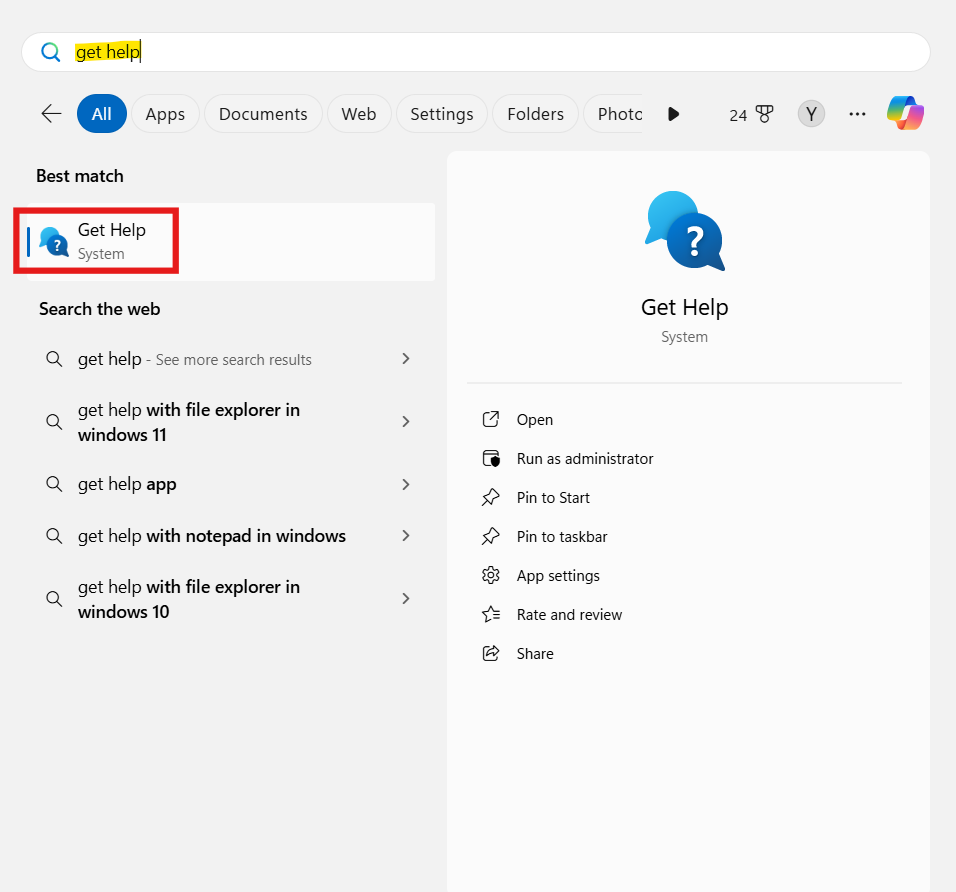
One of the most direct ways to get support is with the Get Help app, a built-in support hub. You can search for solutions, browse common issues, and even contact Microsoft support through chat or scheduled callbacks.
Open the Start menu, type Get Help, and launch the app to describe your problem, then follow the on-screen guidance.
Search for Help on the Taskbar
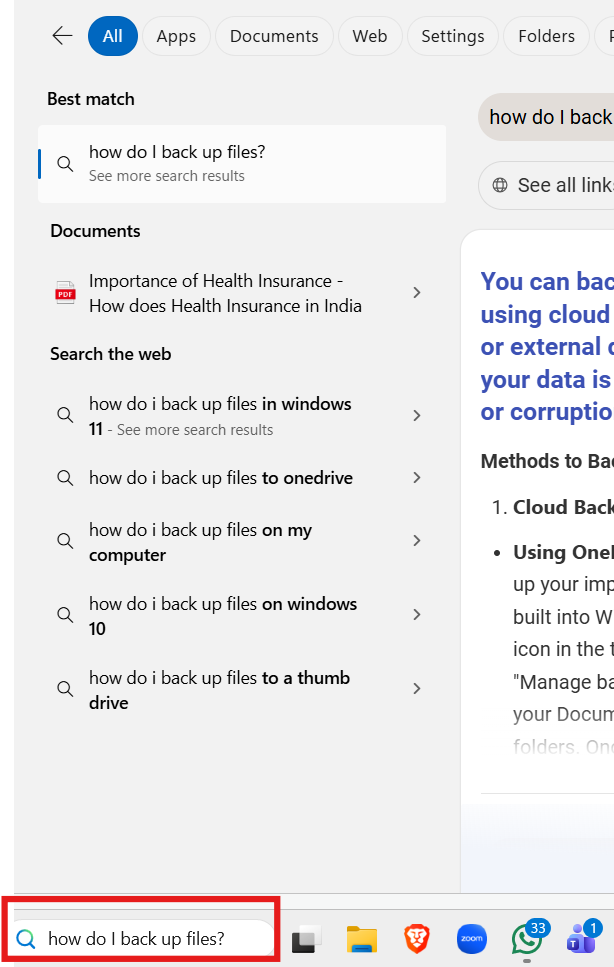
The search box on the taskbar isn’t just for apps and files; it can surface help topics too. Simply type a question like how do I back up files? Or Windows won’t update, and it will show relevant settings, support articles, or suggestions to help you.
Explore Microsoft Support Online
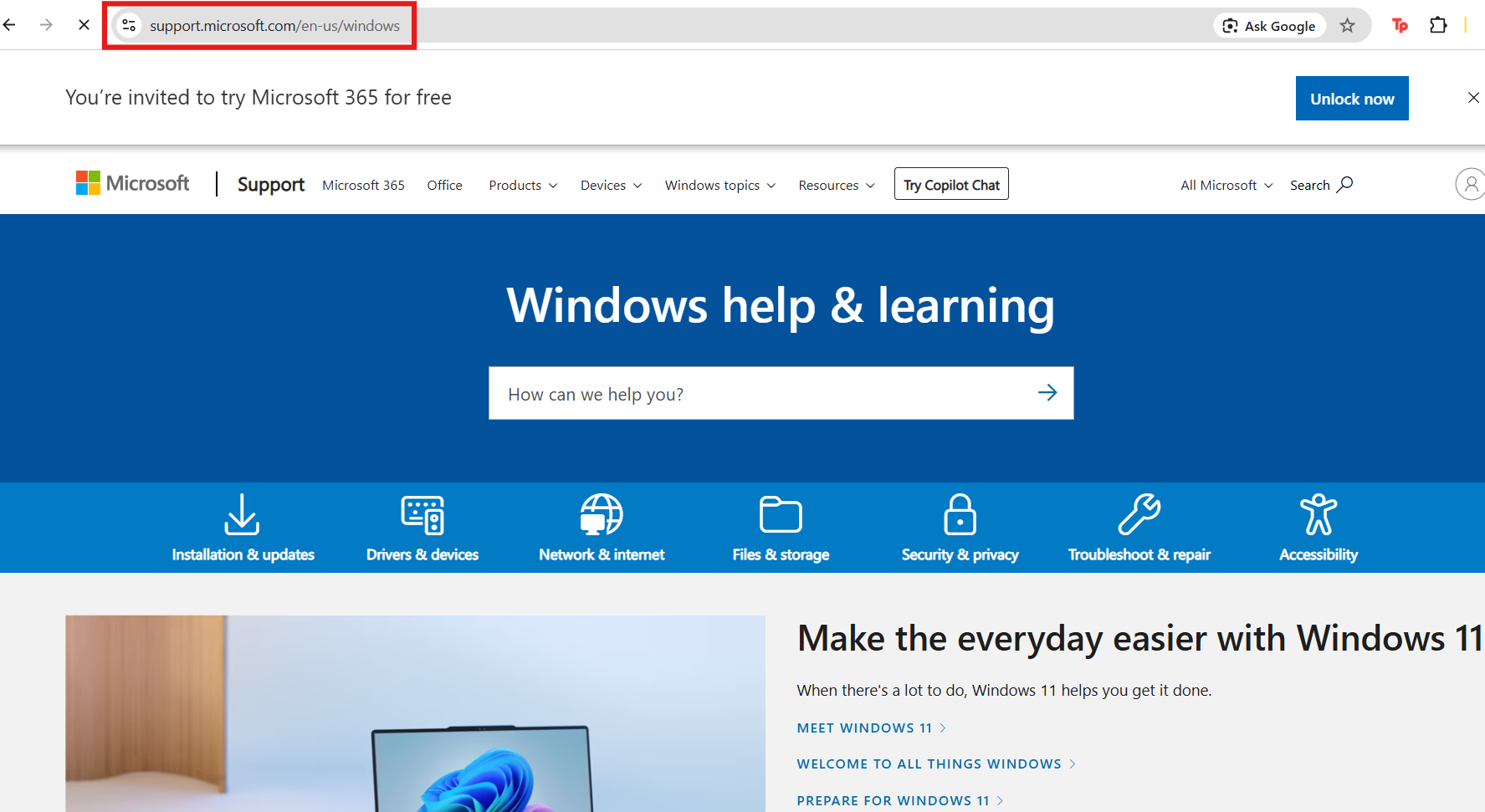
For more detailed articles, videos, and troubleshooting steps, head to support.microsoft.com/windows. This site offers rich documentation for everything from installation and updates to device-specific problems and advanced guides. It also includes links for contacting Microsoft directly if needed.
Enable Tips and Suggestions in System Settings
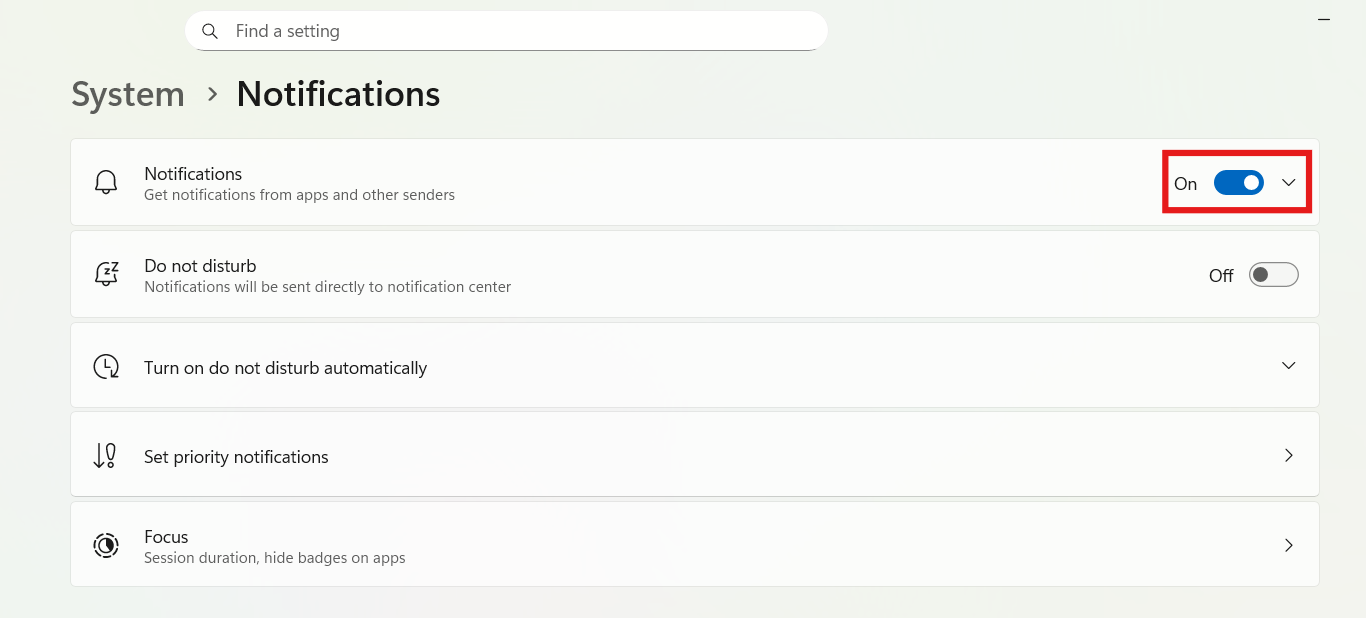
Windows 11 can display contextual help while you’re working. Turn on Tips and suggestions in Settings.
Open Settings and go to System. Then go to Notifications and turn it on to receive explanations, hints, and helpful notifications as you use the OS.
Ask Through the Settings App
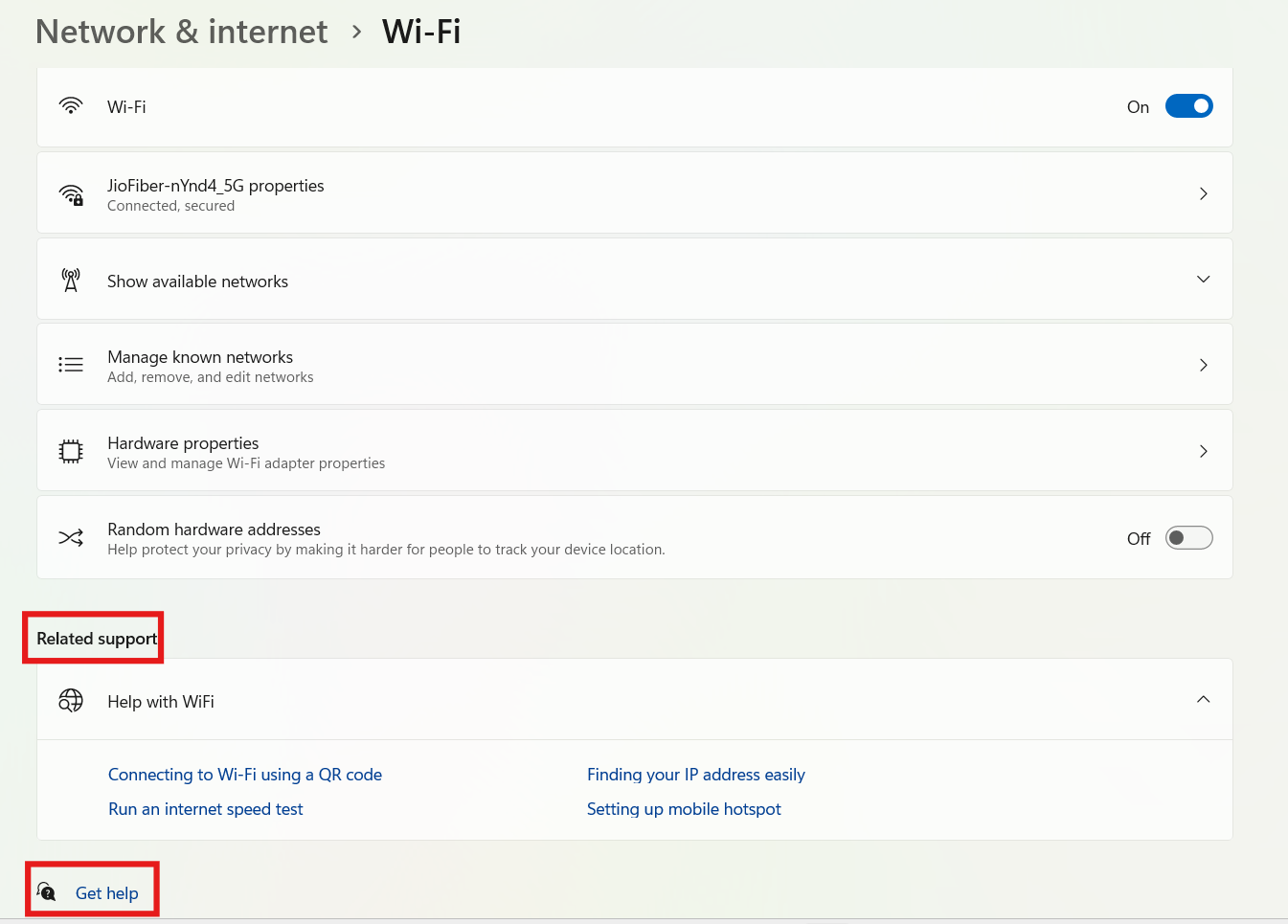
Within many Settings screens, you’ll find Get help links that provide specific guidance related to that particular page, for example, on network or privacy screens. Clicking these opens relevant support articles or the Get Help app.
Use Built-in Troubleshooters
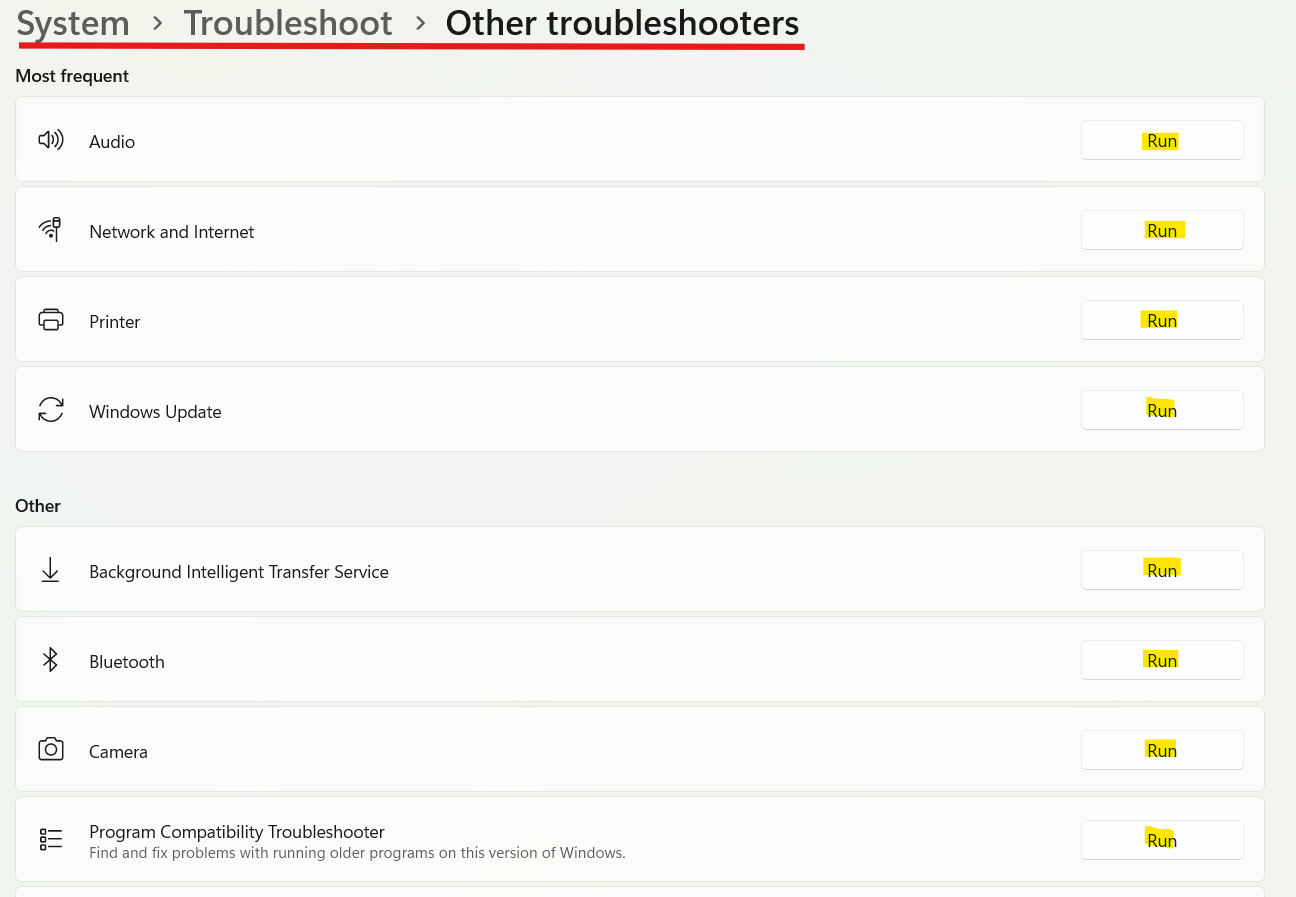
Windows 11 includes numerous troubleshooters for specific categories like audio, Bluetooth, printers, and more.
Go to Settings and then click on System. Then go to Troubleshoot and then Other troubleshooters and run the ones relevant to your issue.
You can run all troubleshooters using command-line as well.
Ask Copilot
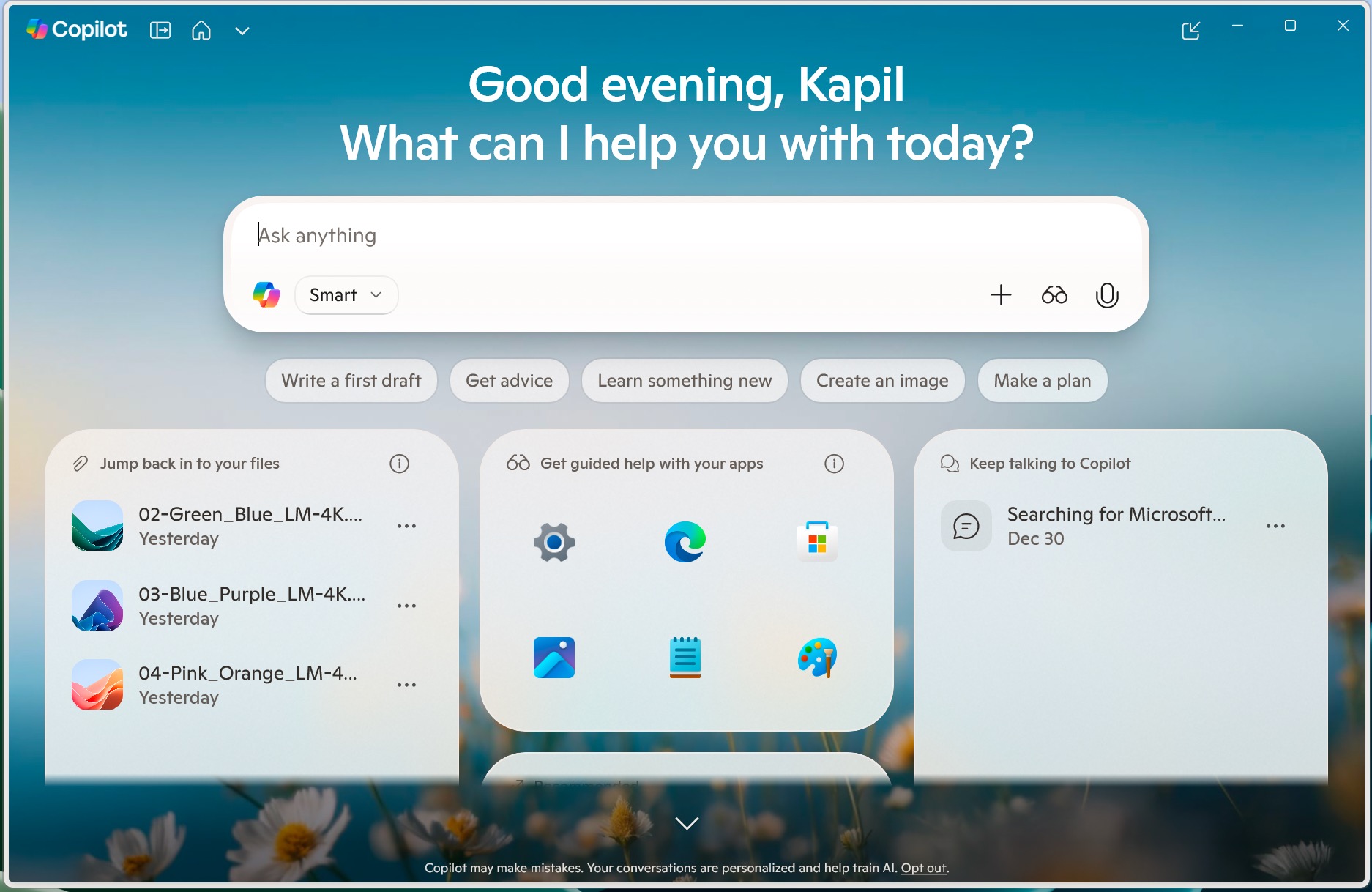
Copilot comes as a pre-installed app in Windows 11. For casual issues, you can ask this personal assistant available in the OS itself. Copilot uses AI to answer your queries which can be most of times helpful to resolve certain issues.
Ask the Community or Support Forums
If you prefer real-world answers, you can try official Microsoft forums:
- Microsoft Learn aka Community QA forums (https://learn.microsoft.com/en-us/answers/tags/824/windows-home)
- Microsoft Tech Community (https://techcommunity.microsoft.com/t5/windows/ct-p/Windows)
Both forums offers practical solutions from other Windows users. These are especially helpful for uncommon problems.
Remote Assistance Options
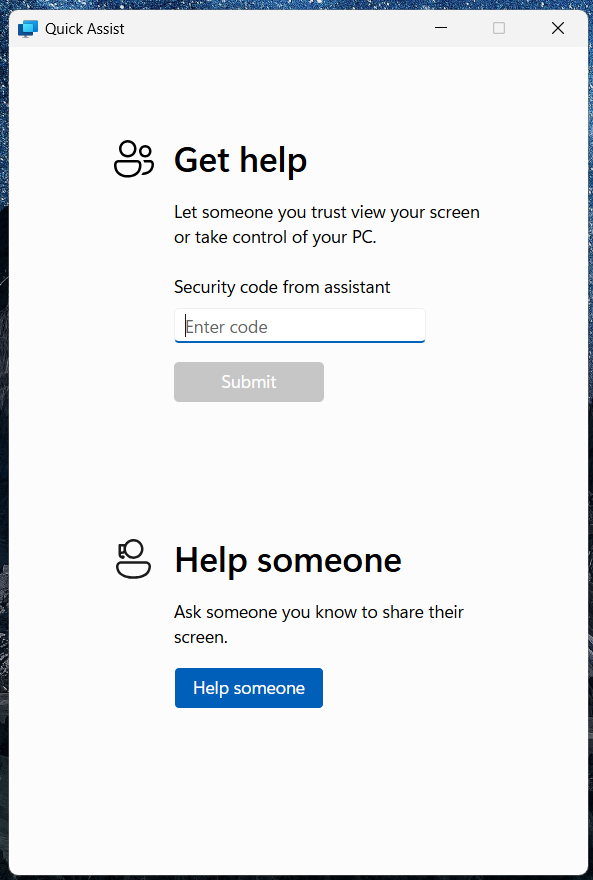
For hands-on help, features like Quick Assist let a trusted friend or professional connect to your PC remotely to troubleshoot alongside you.
Wrapping Up
Windows 11 brings help right to your fingertips from guided support tools and searchable documentation to community-based answers and direct Microsoft contact options. Use the method that best matches your situation, and you’ll usually find what you need without leaving the system.




