

If your Windows 11 PC feels slow or underpowered because tasks or apps seem to be handled by the CPU rather than the dedicated GPU, it’s usually due to configuration issues, driver problems, or how Windows is choosing which processor to use.
Page Contents
Solved: Windows 11 PC Is Using CPU Instead of GPU
Below are a few practical methods to help you force your system to utilize the GPU when appropriate. Try each of them one by one to see which one works for you.
Fix 1: Update or Reinstall Graphics Drivers
Outdated or corrupt GPU drivers are one of the most common reasons a PC ends up using the CPU rather than the graphics card:
1. Open Device Manager.
2. Expand Display adapters.
3. Right-click your dedicated GPU and choose Update driver.
4. If the issue persists, uninstall the driver and reinstall the latest version from NVIDIA/AMD.
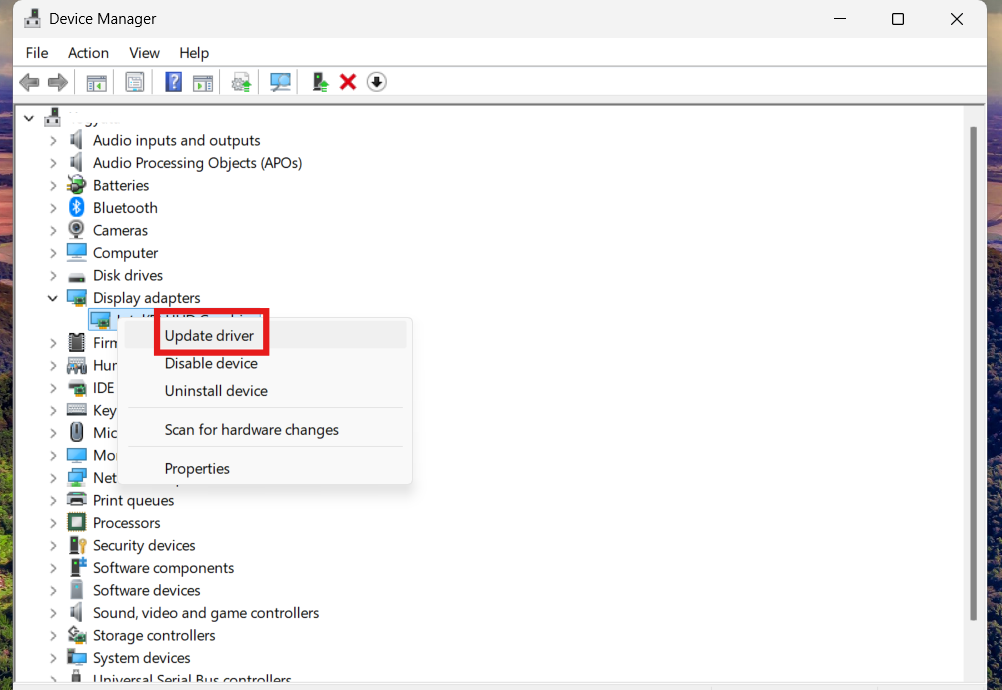
This ensures Windows can correctly recognize and use your GPU.
Fix 2: Change Windows Graphics Settings
Windows lets you assign which GPU a specific app should use:
1. Open Settings and go to System. Then click on Display and then Graphics.
2. Click Browse and add the app/executable that should use the GPU.
3. Select the app, choose Options, go to High performance, and then Save.
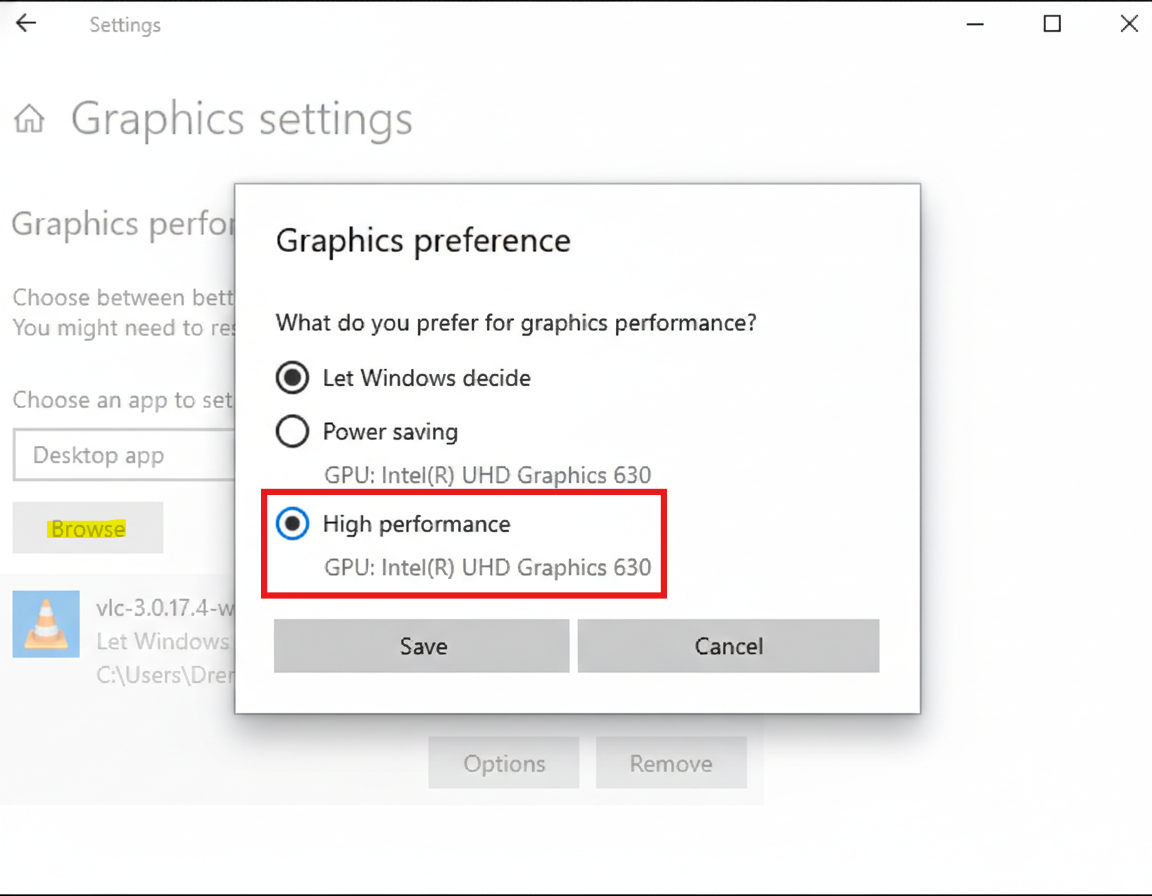
This forces Windows to give that app GPU priority.
Fix 3: Set High Performance in Power Plan
Windows might default to power saving, using low-power integrated graphics instead of the GPU:
1. Open Control Panel and go to Hardware and Sound and then Power Options.
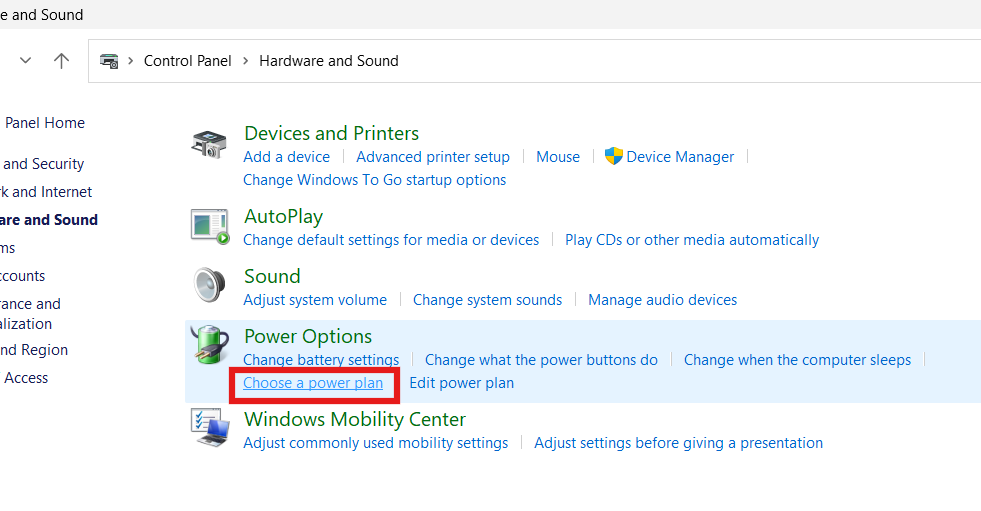
2. Choose High performance for your power plan.
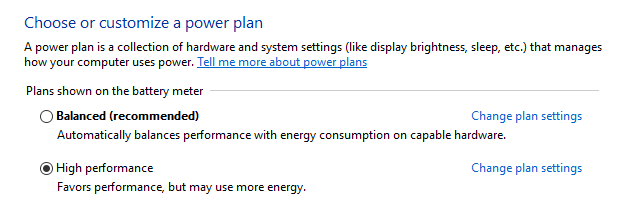
This encourages Windows to prefer the dedicated GPU where possible.
Fix 4: Use GPU Preference per App
For gaming and graphics-intensive software, specify GPU usage:
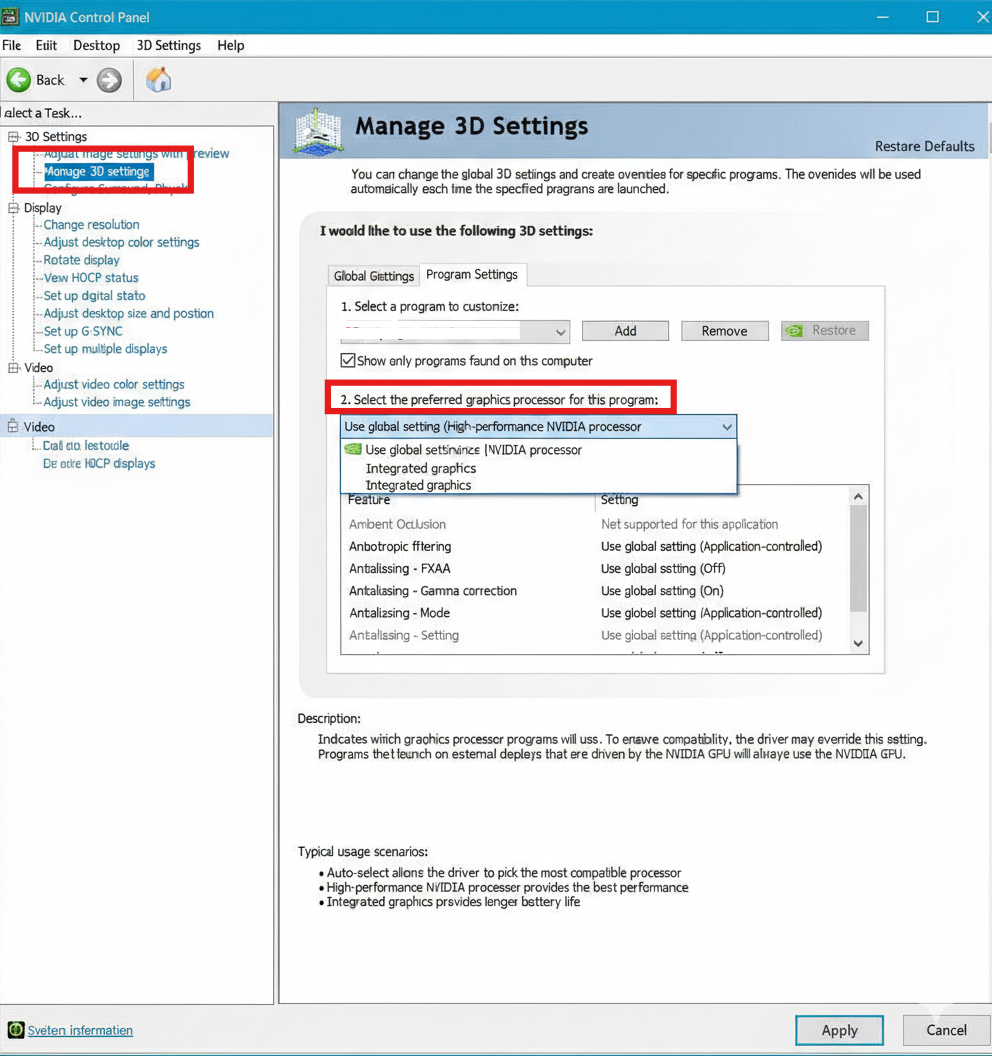
1. In NVIDIA Control Panel, go to Manage 3D Settings, click on set Preferred graphics processor, and then High-performance NVIDIA processor for demanding apps.
2. Similarly, use AMD Radeon settings for AMD cards. This overrides default app behavior.
Fix 5: Make Sure GPU Is Enabled
If the GPU is disabled in Device Manager, Windows will fall back to the CPU or integrated graphics:
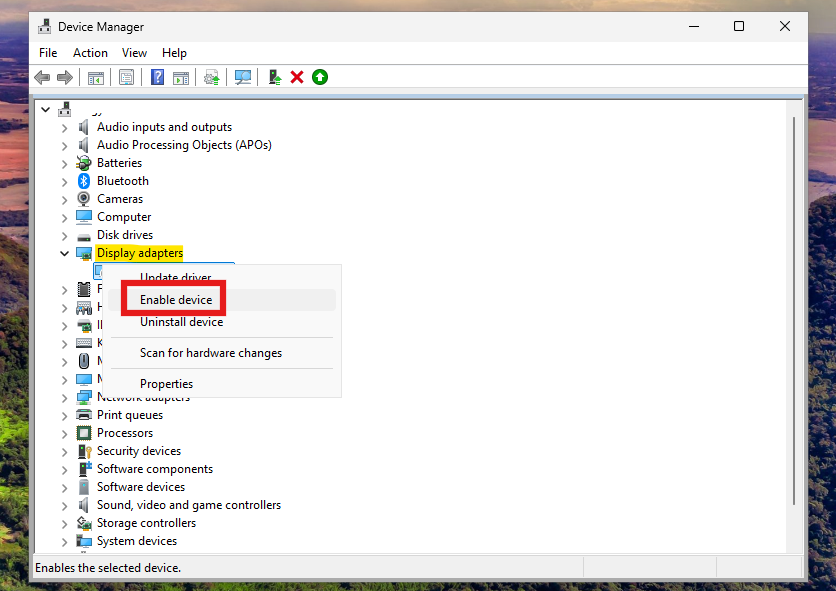
1. Open Device Manager and go to Display adapters.
2. Right-click and Enable your dedicated GPU if disabled.
3. Reboot afterward to ensure it’s active.
Fix 6: Update Windows 11
An outdated OS build can mismanage hardware switching and GPU usage:
1. Go to Settings and click on Windows Update.
2. Click Check for updates and install all pending updates.
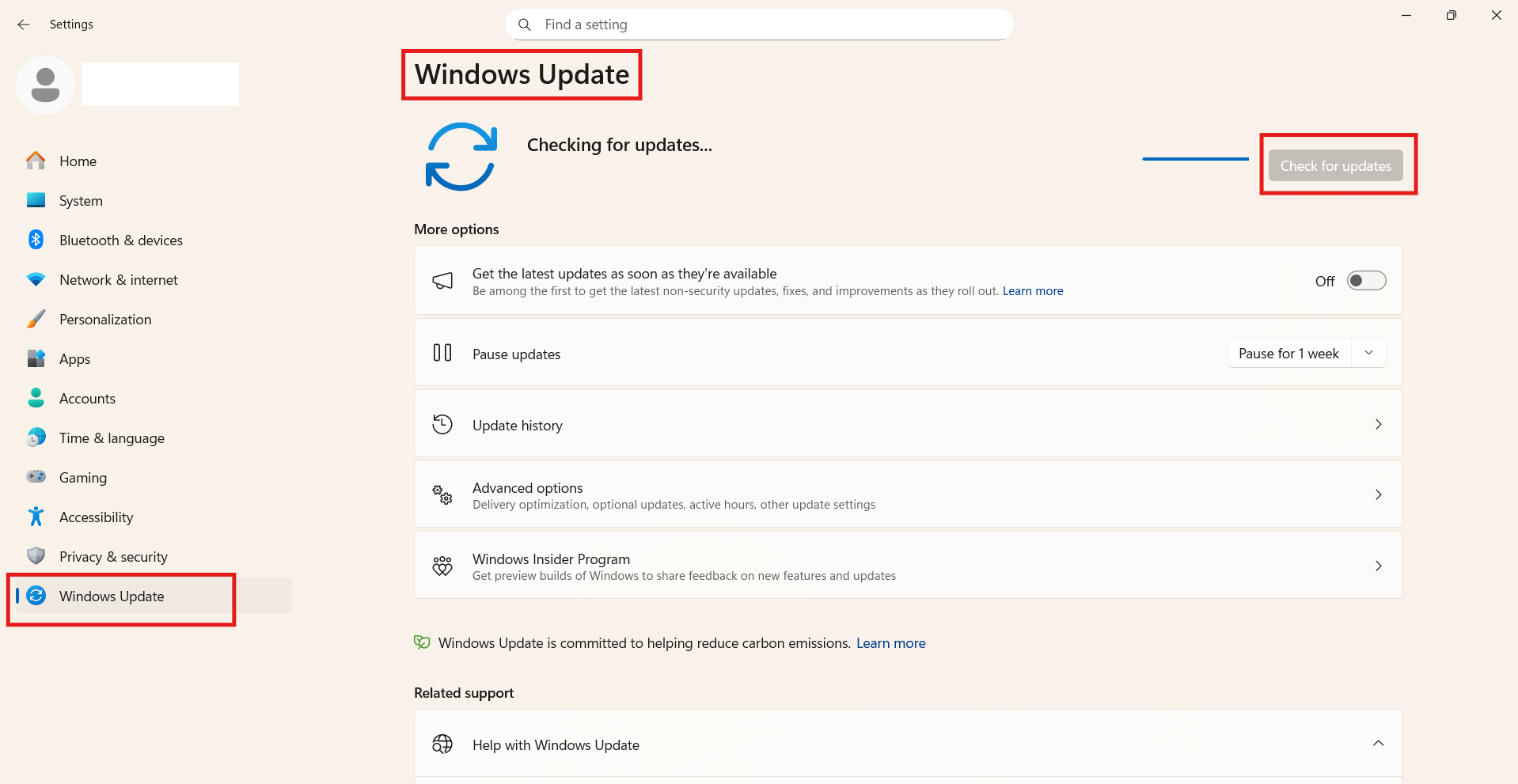
This includes driver and system-level fixes.
Fix 7: Check Task Manager GPU Usage
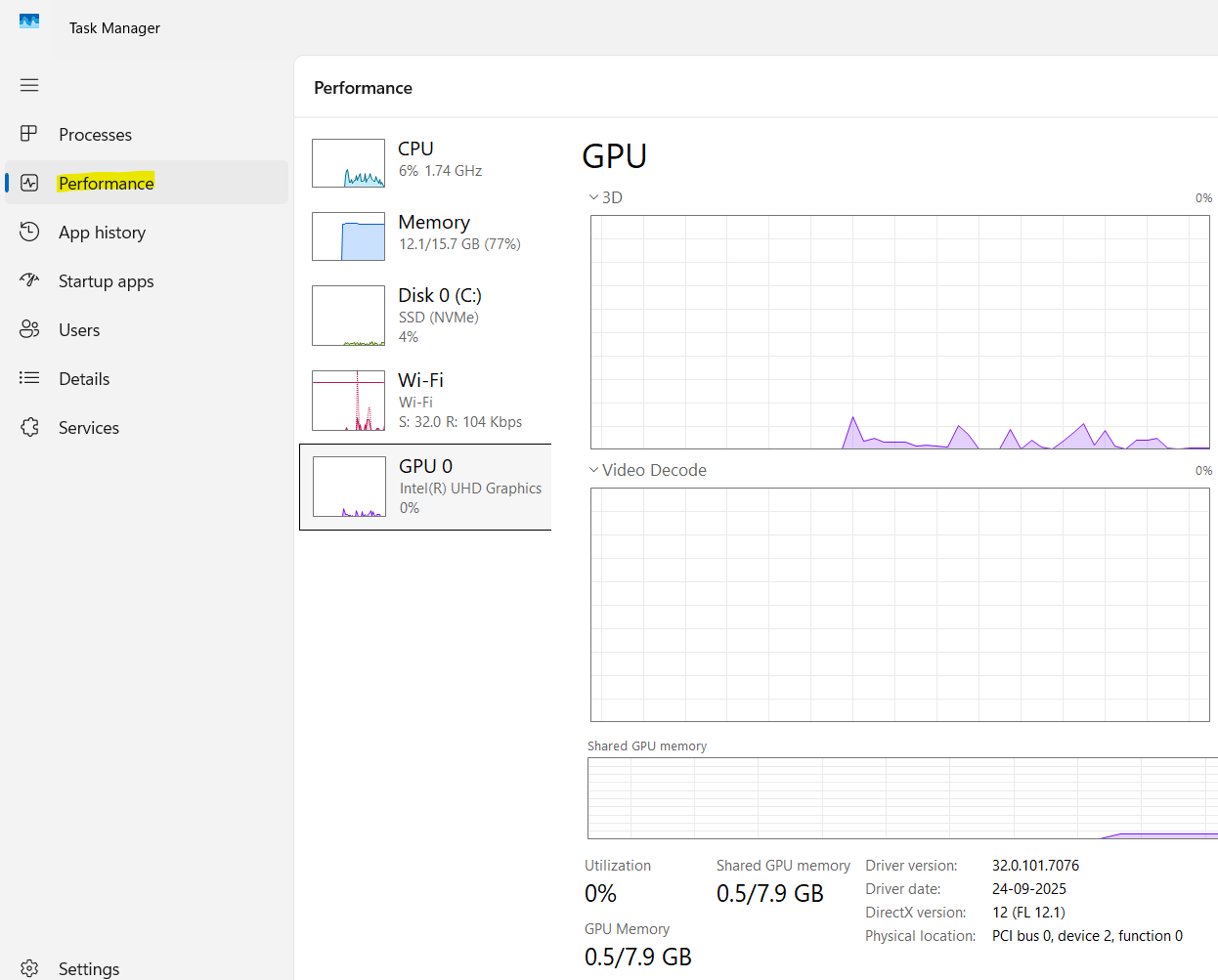
Before assuming the GPU isn’t used, check Task Manager. Go to Performance and then GPU. Low GPU usage during light tasks (like browsing) is normal; Windows often prefers the CPU for basic work to save power and battery.
Summary
If Windows 11 appears to use the CPU instead of the GPU for graphics-related tasks, it’s more about how Windows prioritizes hardware than a hardware failure. Updating drivers, force-assigning GPU usage for apps, choosing the right power plan, and confirming GPU settings in both Windows and BIOS usually resolve the issue and ensure your GPU is used for the right tasks.





These are not screenshots from Windows 11 used to illustrate the steps. Many things are no longer in the same place between Windows 10 and 11. Especially for Fix 2.