If Microsoft Teams repeatedly prompts you to sign in on your Windows 11 even after entering your credentials, it often signals a cached credentials issue, app data corruption, saved credentials conflict, or outdated installation.

Page Contents
Fix: Microsoft Teams Keeps Asking to Sign In on Windows 11
This constant sign-in loop can be frustrating and interrupt meetings, chats, or work. Below are several practical fixes that typically resolve the problem in Windows 11.
Fix 1: Restart Teams Completely
A hidden background process can cause repeated sign-in loops:
1. Press Ctrl + Shift + Esc to open Task Manager.
2. Under Processes, right-click Microsoft Teams and choose End task.
3. Relaunch Teams and sign in again.
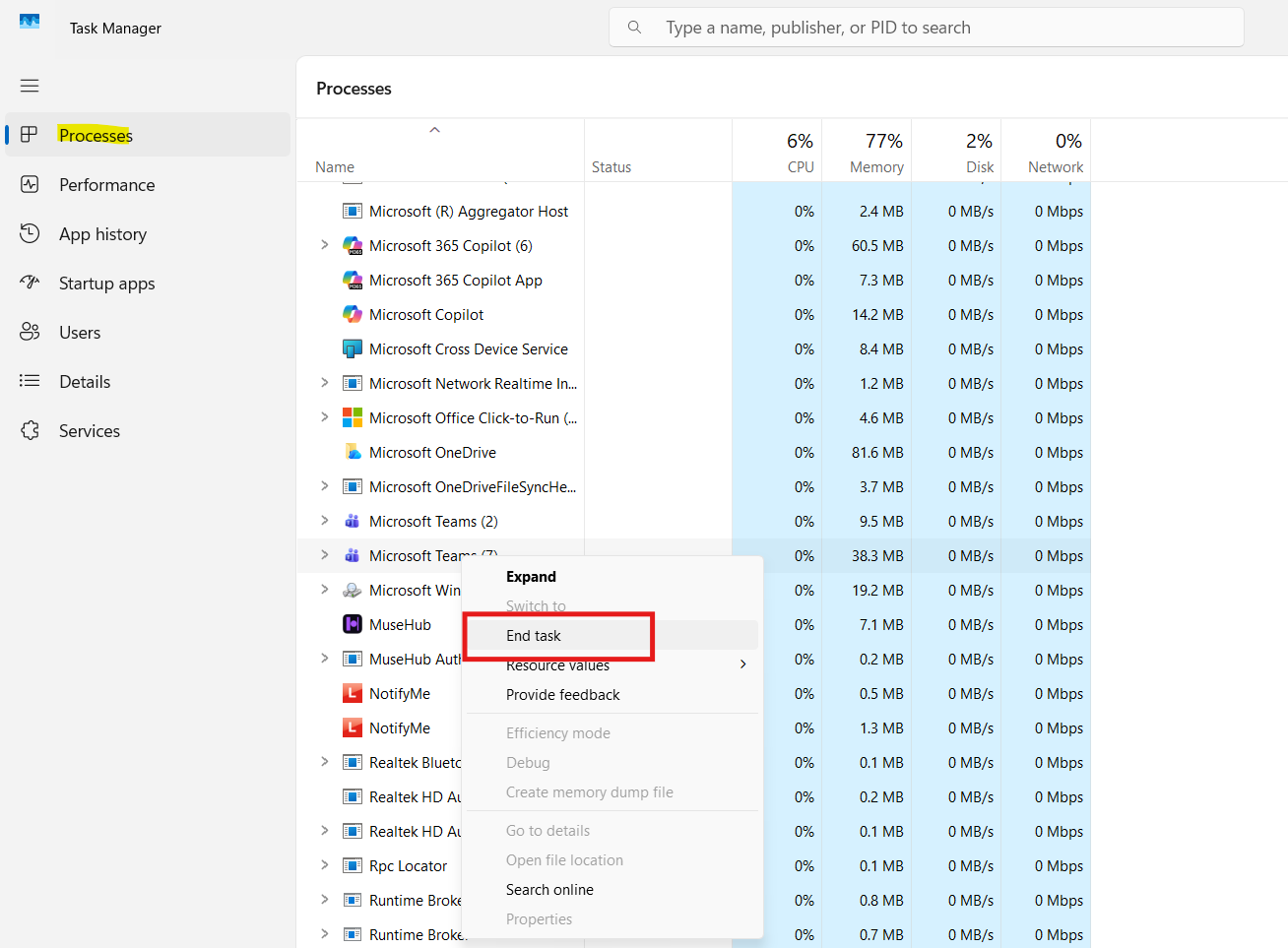
Ending all Teams processes forces a fresh startup.
Fix 2: Update Microsoft Teams
Old builds may not authenticate correctly:
1. Open Teams.
2. Click your profile photo and go to About. Then click on Check for updates.
3. Let Teams install any updates and restart.

Keeping Teams updated eliminates bugs in older releases.
Fix 3: Clear the New Teams Cache
For the current Windows 11 Teams, the cache is stored in a different location than the old classic version.
1. Press Win + R, type:
%localappdata%\Packages\MSTeams_8wekyb3d8bbwe\LocalCache\Microsoft\MSTeams
and press Enter.
2. Delete all files and folders in this MSTeams Cache folder.
3. Restart Teams and sign in.
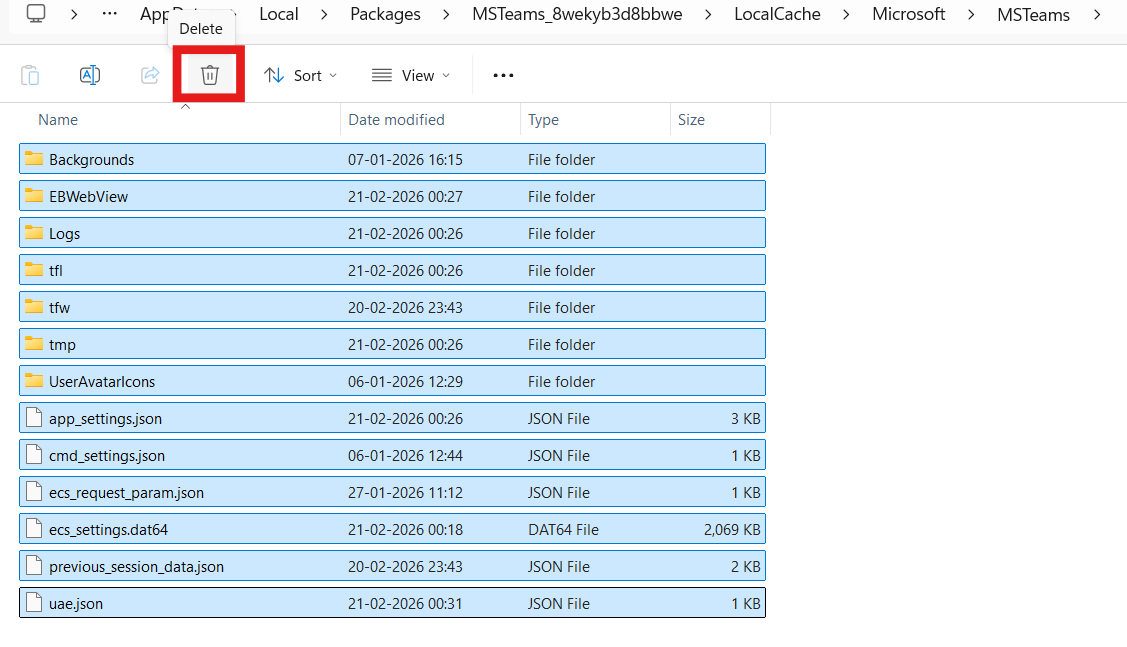
This removes corrupted cache that often causes sign-in loops.
Fix 4: Repair or Reset the Teams App
Windows lets you troubleshoot corrupted apps:
1. Open Settings and go to Apps. Click on Installed apps.
2. Find Microsoft Teams and go to Advanced options.
3. First try Repair; if that doesn’t fix it, choose Reset.
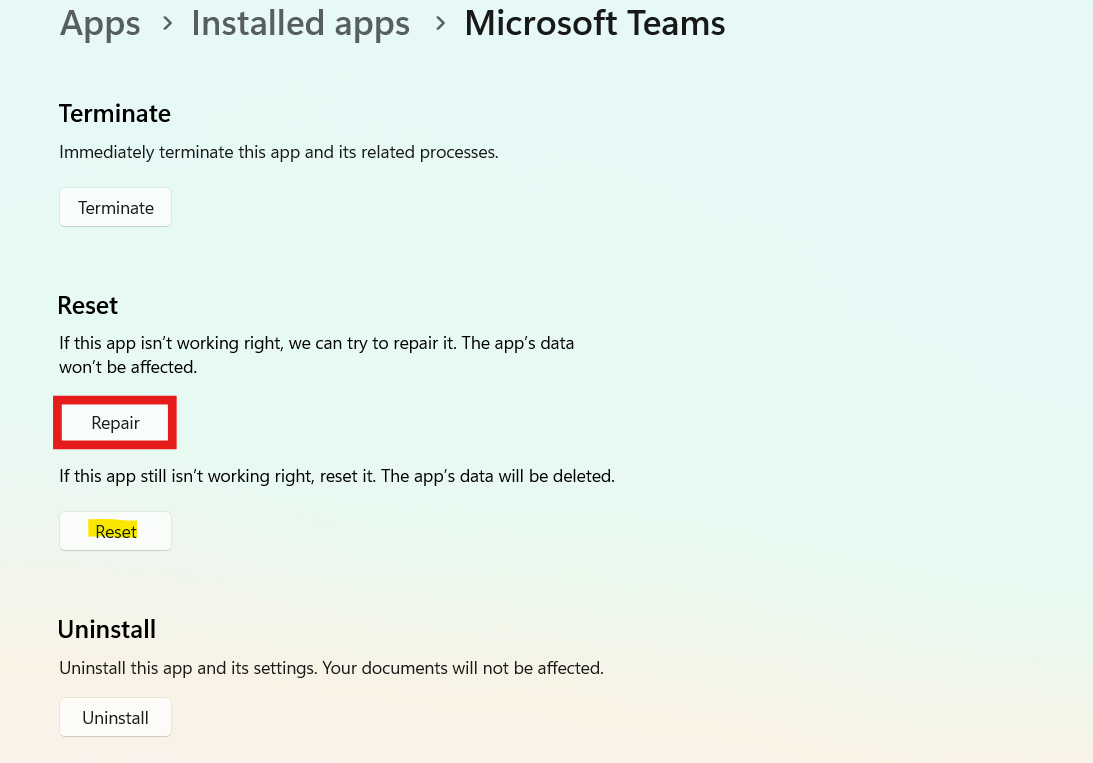
Repair fixes broken components; Reset restores defaults.
Fix 5: Clear Stored Credentials
Old credential entries can conflict:
1. Press Win + R, type:
control /name Microsoft.CredentialManager
and press Enter.
2. Open Windows Credentials.
3. Remove any entries related to Microsoft Teams.
4. Restart Teams and sign in.
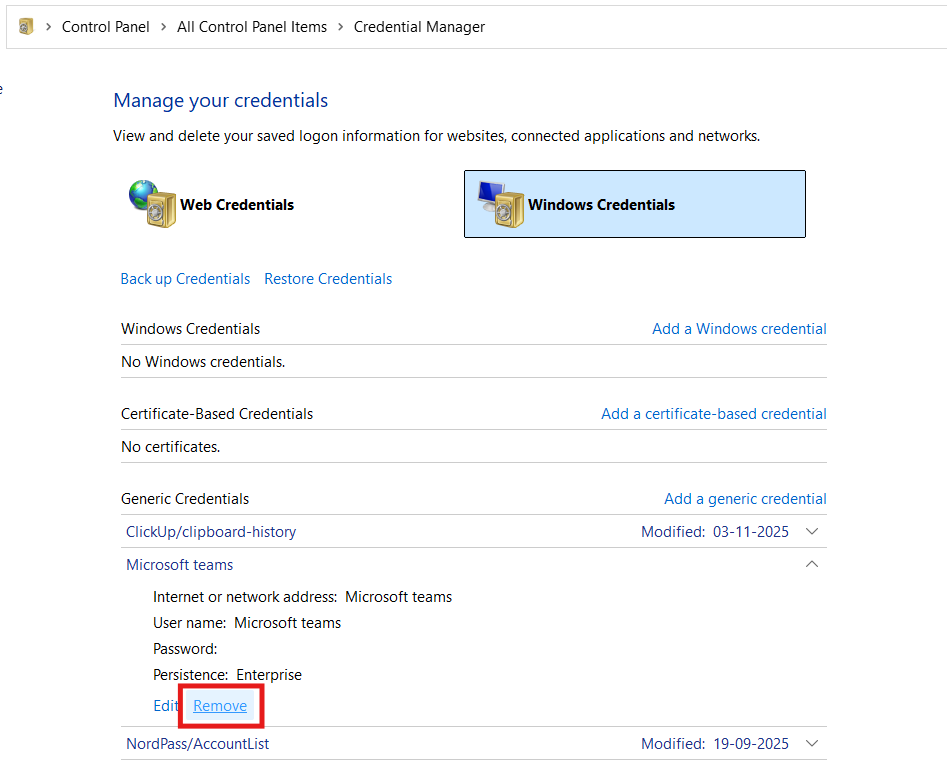
This forces Teams to fetch fresh authentication tokens.
Fix 6: Update Windows 11
System updates sometimes fix authentication frameworks:
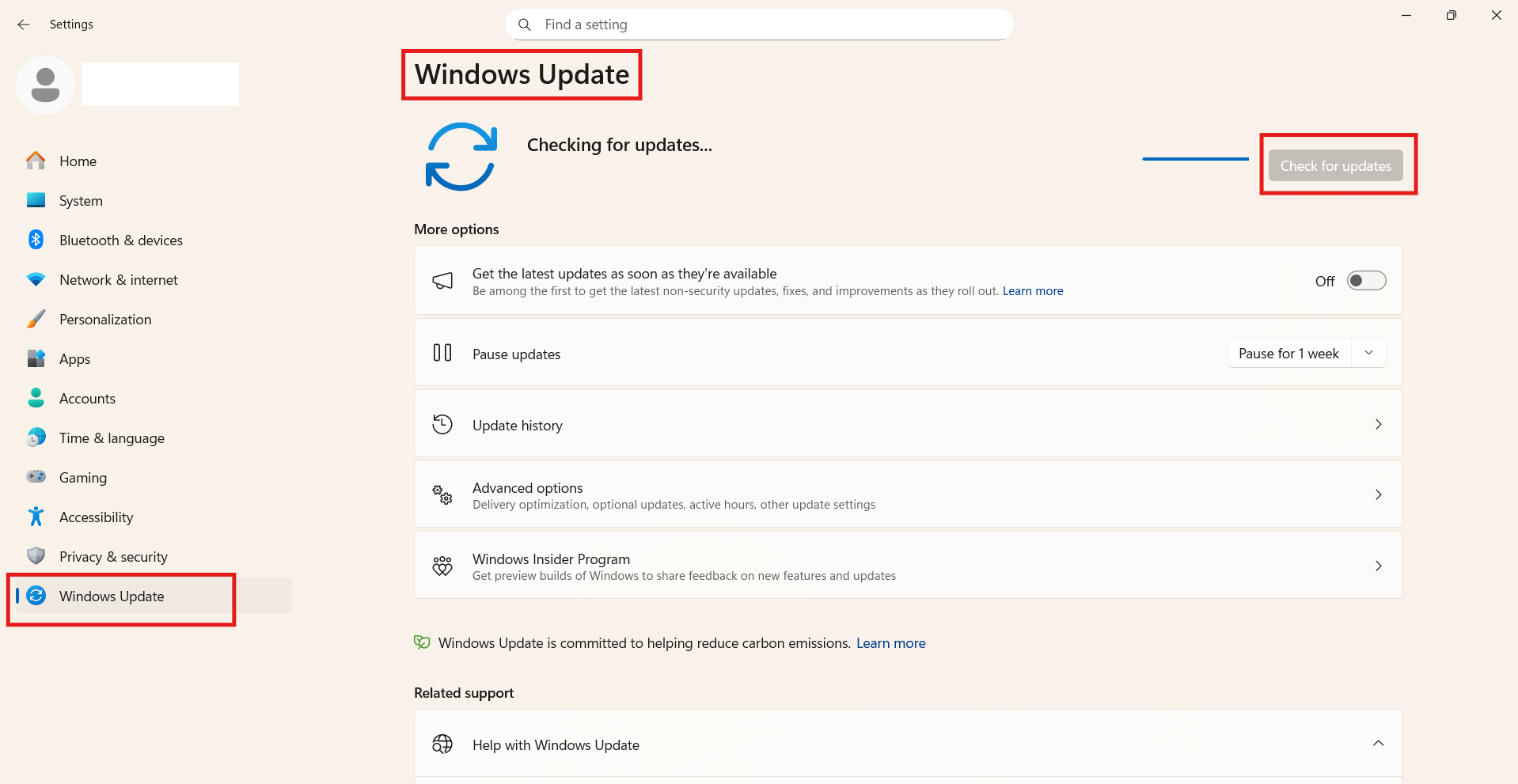
1. Go to Settings and then Windows Update.
2. Click Check for updates, install pending patches, and reboot.
This ensures that the system components Teams relies on are current.
Summary
A persistent Teams sign-in prompt is usually caused by cached data or saved credentials conflicts. Clearing the correct Teams cache path, removing stale Windows credentials, updating both Teams and Windows, and repairing/resetting the Teams app typically resolves this issue on Windows 11.