

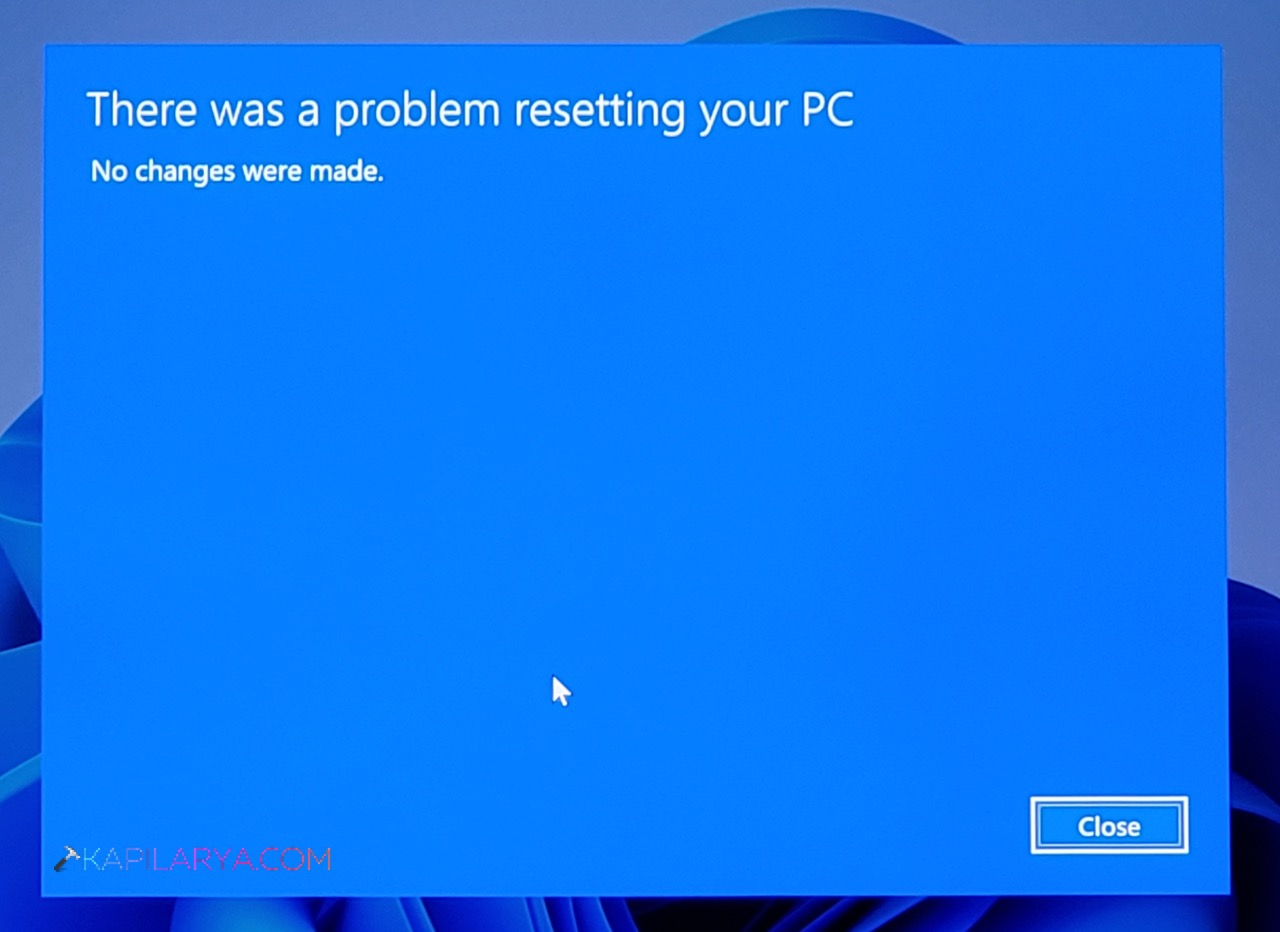
The Reset this PC feature in Windows 11 helps restore your system to factory settings without reinstalling the OS manually. However, sometimes the reset process fails and shows errors like: There was a problem resetting your PC. No changes were made. This guide talks about the situation when you can’t reset Windows 11 PC to factory settings, followed by possible resolutions.
Page Contents
Fix: Can’t Reset Windows 11 PC to Factory Settings
This can happen due to corrupted system files, broken recovery components, or configuration problems. Fortunately, several methods can help you fix the issue and reset your Windows 11 PC successfully.
Fix 1: Run Startup Repair
Startup Repair can detect and fix system issues that prevent Windows from resetting.
1. Restart your PC and force shutdown when the Windows logo appears.
2. Repeat this process three times to open the Windows Recovery Environment.
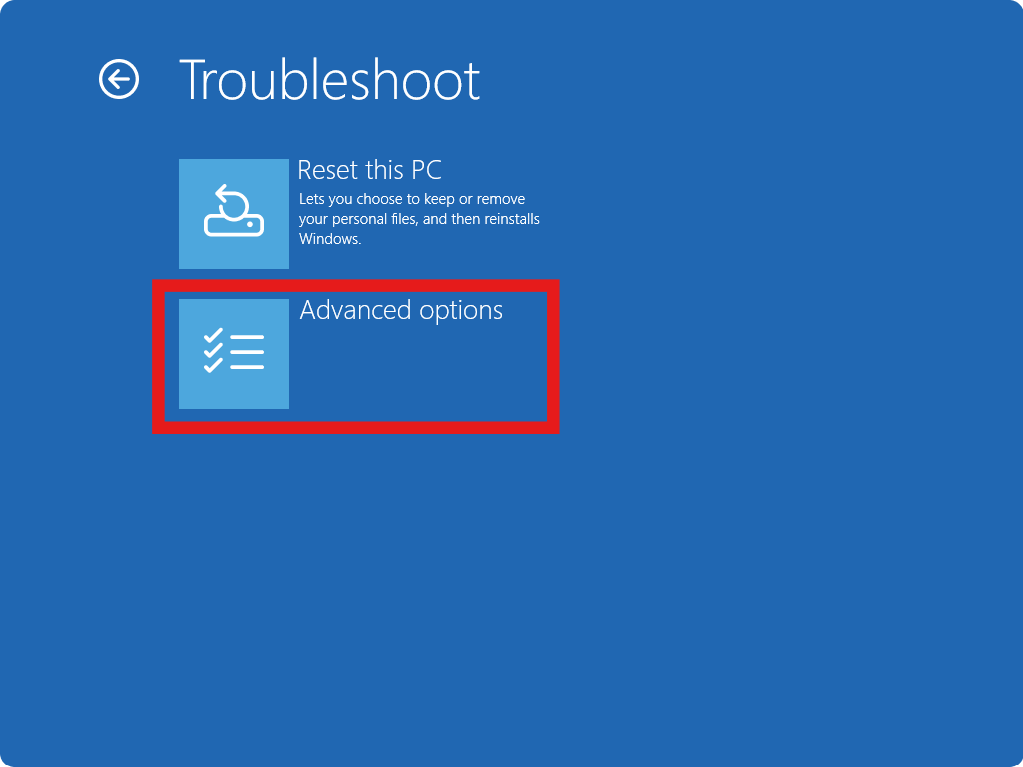
3. Select Troubleshoot and go to Advanced options. Choose Startup Repair.
4. Follow the on-screen instructions.
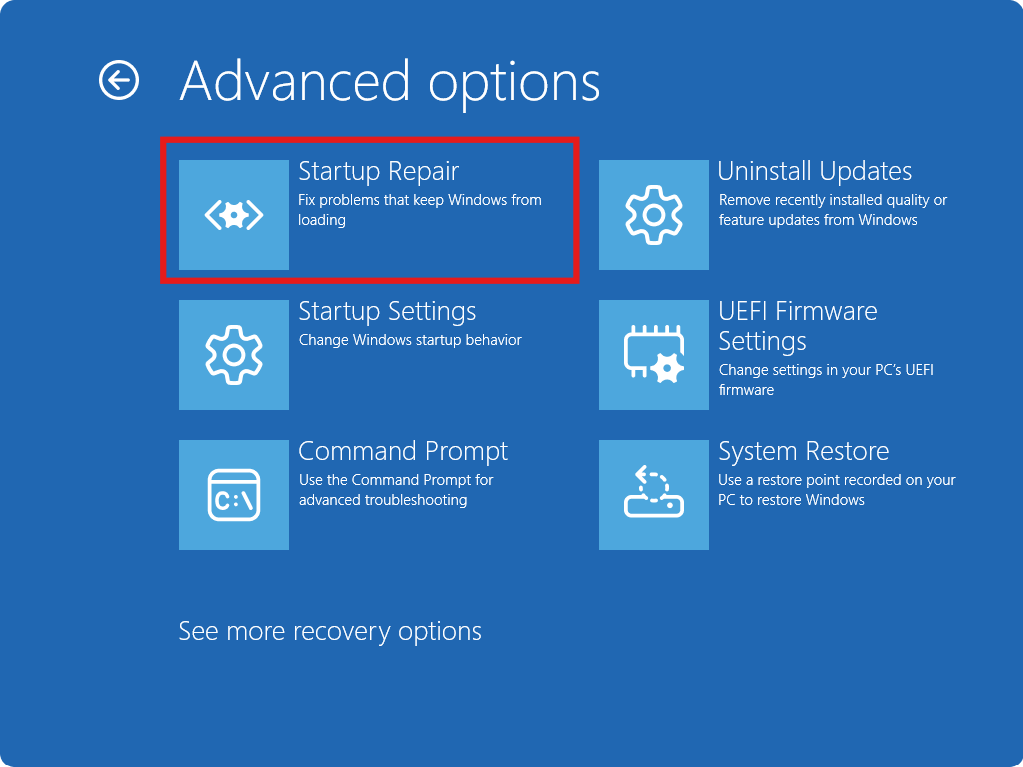
This tool scans for system problems and repairs boot-related issues that may block the reset process.
Fix 2: Use System Restore
If the reset stopped working after recent changes, restoring your system to an earlier point may fix the issue.
1. Press Win + R, type sysdm.cpl, and press Enter.
2. Go to the System Protection tab.
3. Click System Restore.
4. Choose a restore point created before the problem began.
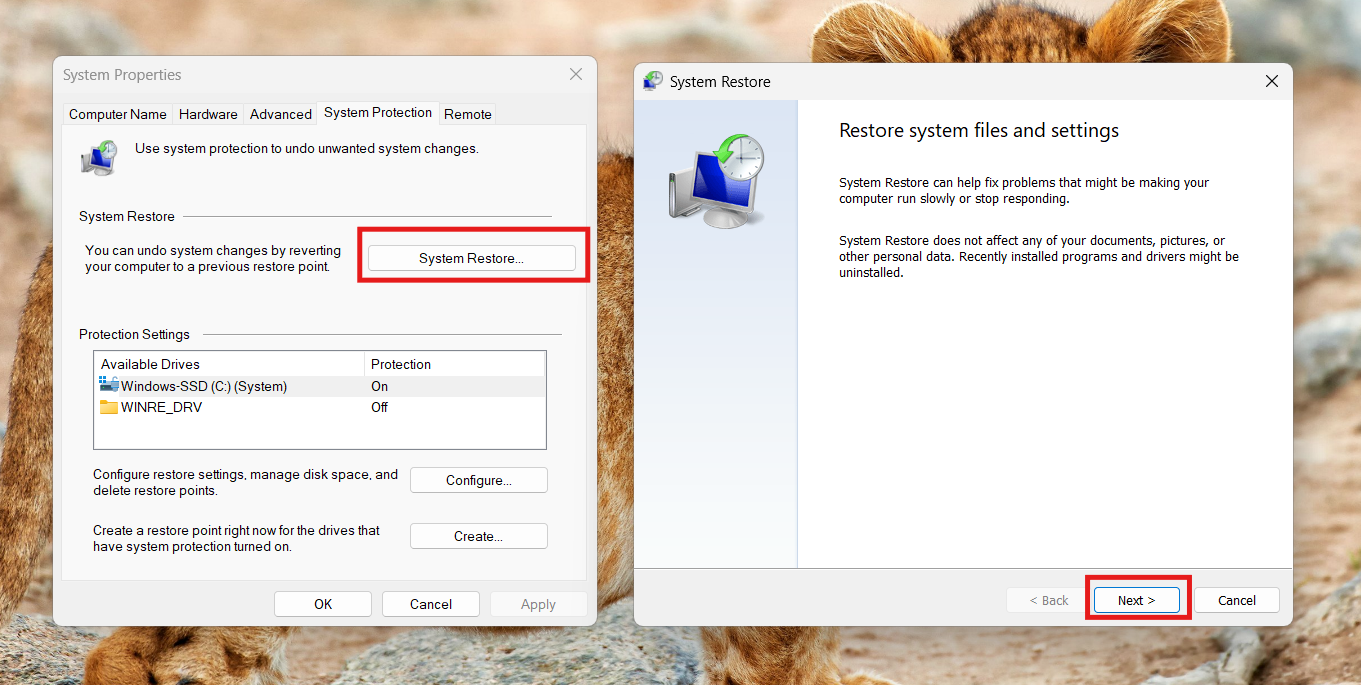
System Restore rolls back system files and settings without affecting personal files.
Fix 3: Run SFC and DISM Commands
Corrupted Windows files can prevent the reset function from working.
1. Open Command Prompt as Administrator.
2. Run the following command:
sfc /scannow
3. After it finishes, run:
DISM /Online /Cleanup-Image /RestoreHealth
4. Restart your PC and try resetting again.
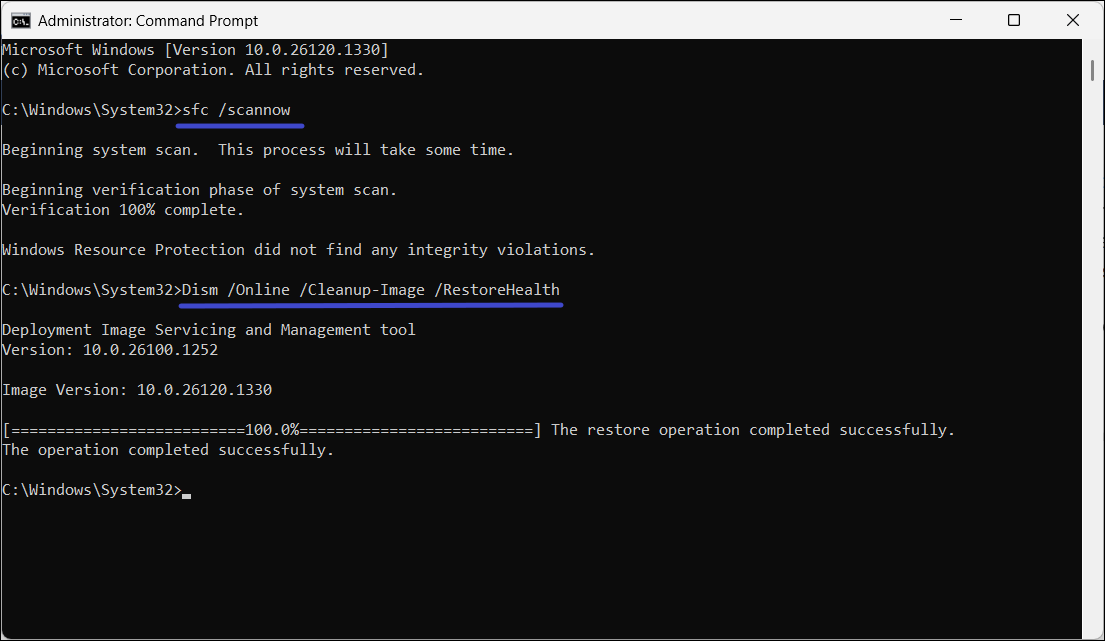
These commands repair damaged system files and restore the Windows image.
Fix 4: Restore from a System Image Backup
If you previously created a system image, you can restore Windows from it.
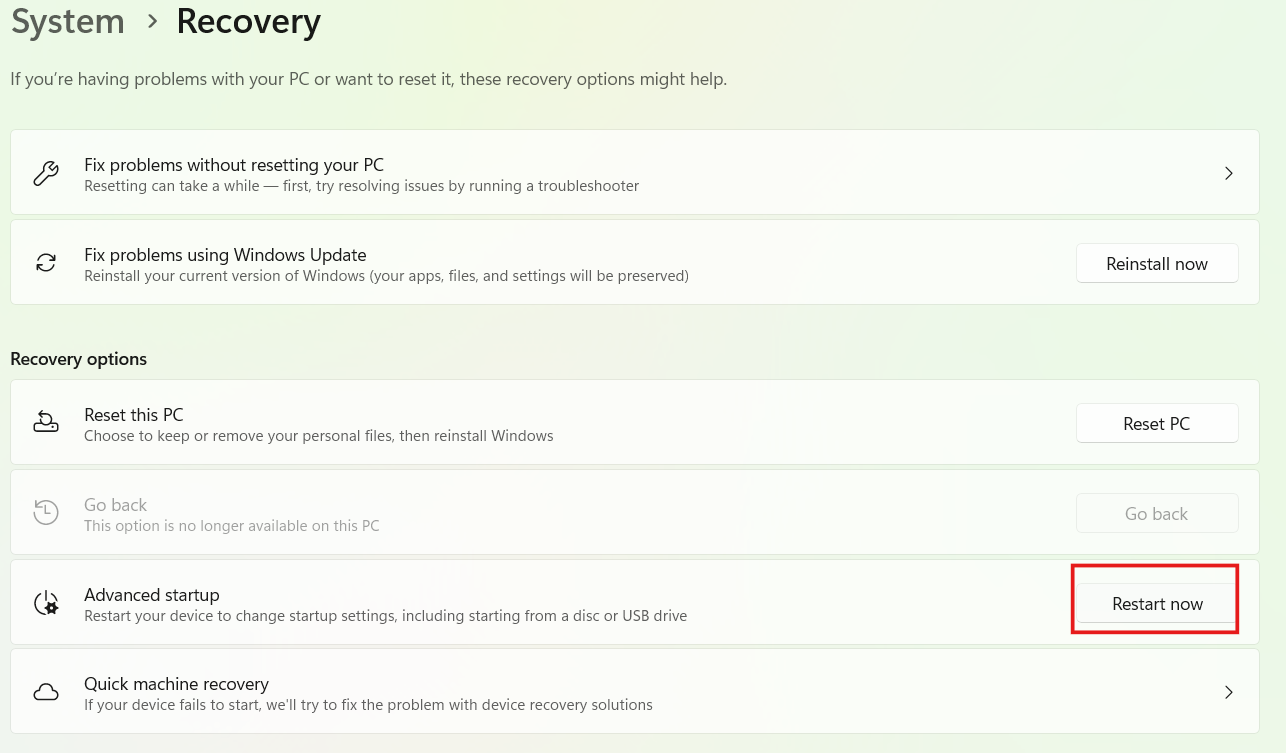
1. Open Settings and go to System. Select Recovery.
2. Under Advanced startup, click Restart now.
3. Go to Troubleshoot and click on Advanced options. Then choose System Image Recovery.
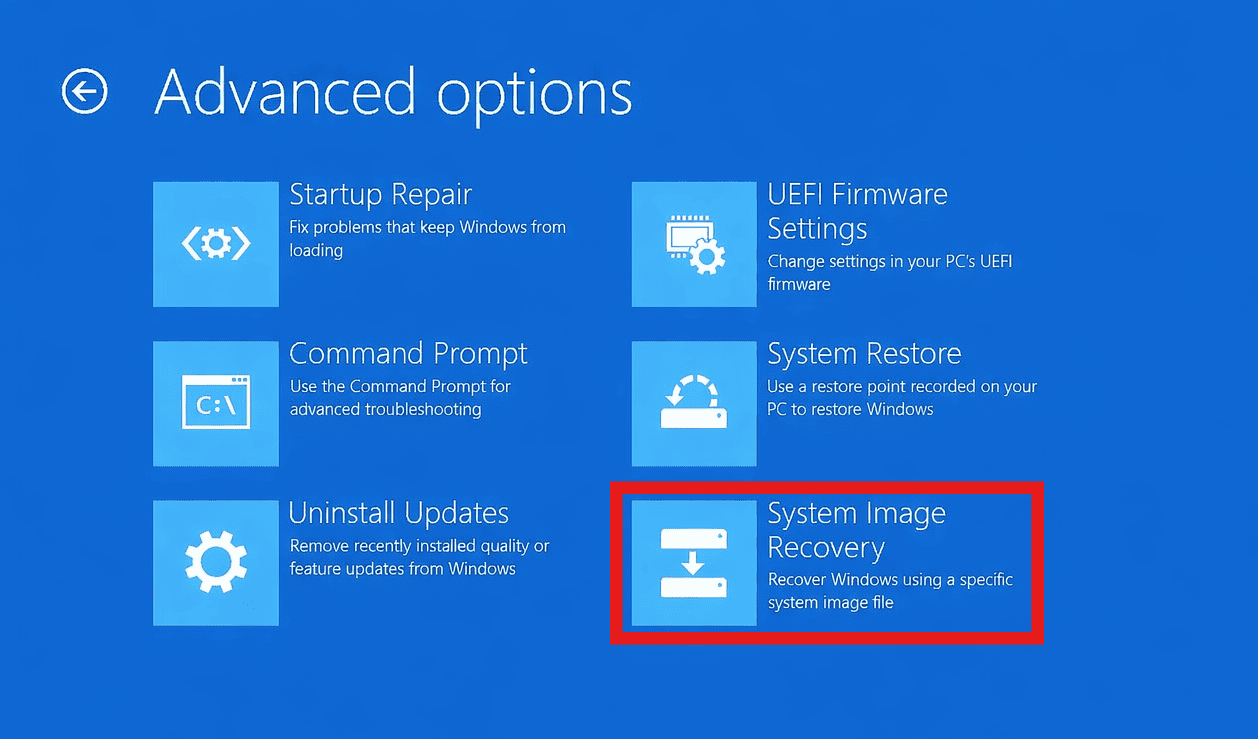
4. Choose the backup image and follow the instructions.
This restores the entire system to a previous working state.
Fix 5: Use a Recovery Drive
A recovery USB drive can reset Windows when the built-in reset option fails.
1. Insert the recovery USB drive into your PC.
2. Restart and boot from the USB device.
3. Select Troubleshoot and then Recover from a drive.
4. Follow the prompts to reset Windows.
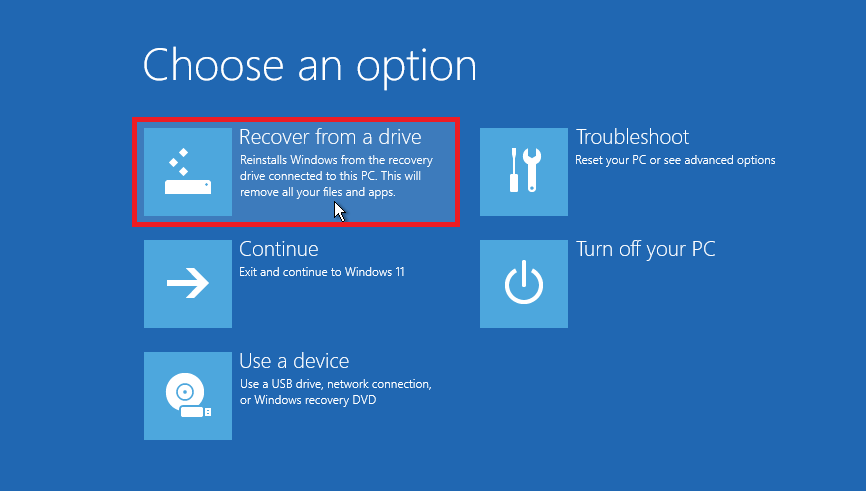
This method reinstalls Windows using recovery files stored on the USB drive.
Summary
If your Windows 11 PC won’t reset to factory settings, the problem is usually caused by corrupted system files or recovery environment issues. Running Startup Repair, repairing system files with SFC/DISM, using System Restore, restoring a system image, or resetting through a recovery drive are effective ways to resolve the problem and reset your computer successfully.





I can’t seem to get the administrator password off of my laptop, which has been changed because my computer has been hacked. What can I do?