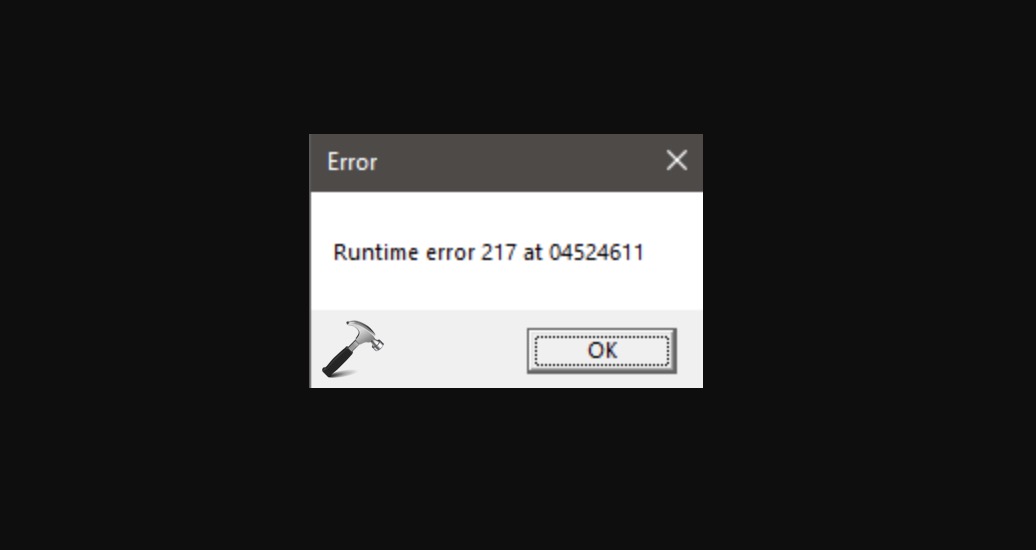
Runtime Error 217 in Windows 11 usually appears when launching a program and prevents it from starting. This error is commonly linked to corrupted system files, faulty Visual C++ components, or incomplete software installation.
Page Contents
Fix Runtime Error 217 in Windows 11/10
Below are the 5 most effective fixes that you can try to resolve Runtime Error 217 in Windows 11/10.
Fix 1: Repair Microsoft Visual C++ Redistributable
Many apps rely on Visual C++ libraries, and corruption in those libraries often causes this error. Repairing these libraries can be helpful.
1. Press Win + R, type appwiz.cpl, and press Enter.
2. Locate Microsoft Visual C++ Redistributable.
3. Click Change and then Repair.
4. Restart your PC.
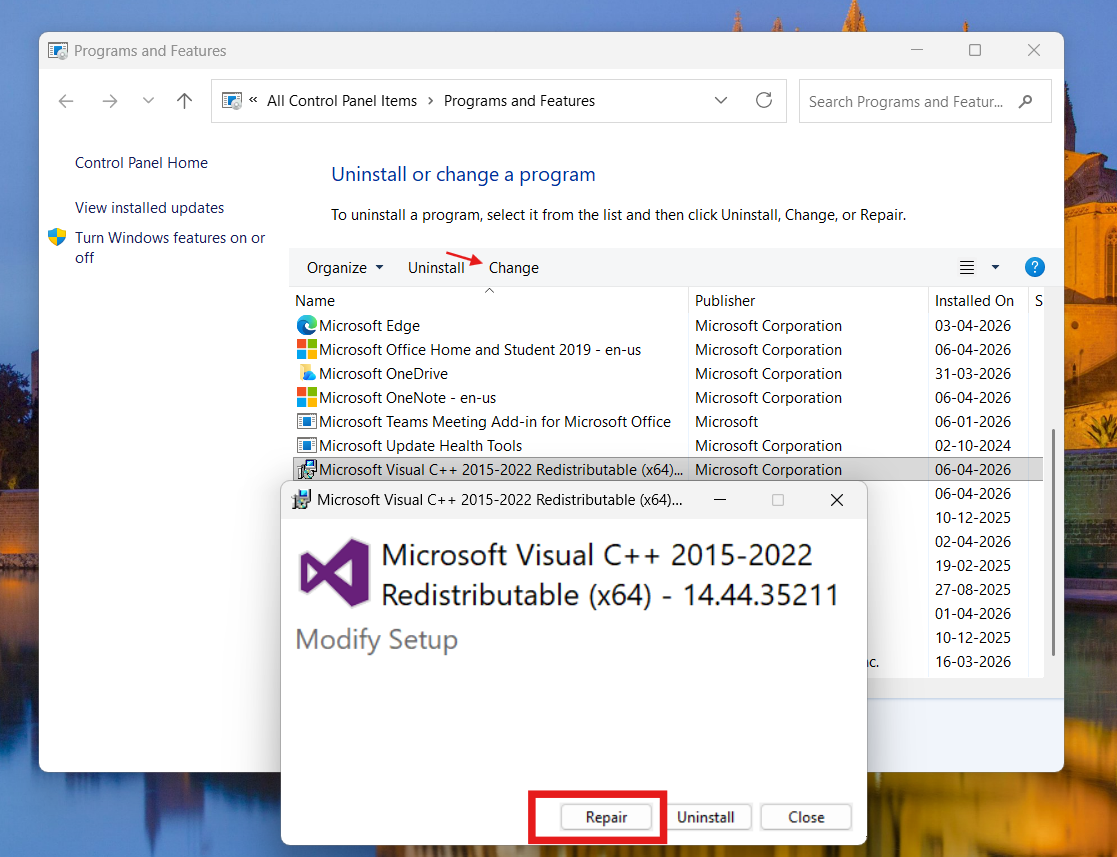
Repairing this package restores missing runtime components required by apps.
Fix 2: Run SFC and DISM Scans
Corrupted system files are a major cause of runtime errors. Run the SFC or DISM scans, helps you to fix these issues.
1. Open Command Prompt (Admin).
2. Run:
sfc /scannow
3. Then run:
DISM /Online /Cleanup-Image /RestoreHealth
4. Restart your system.
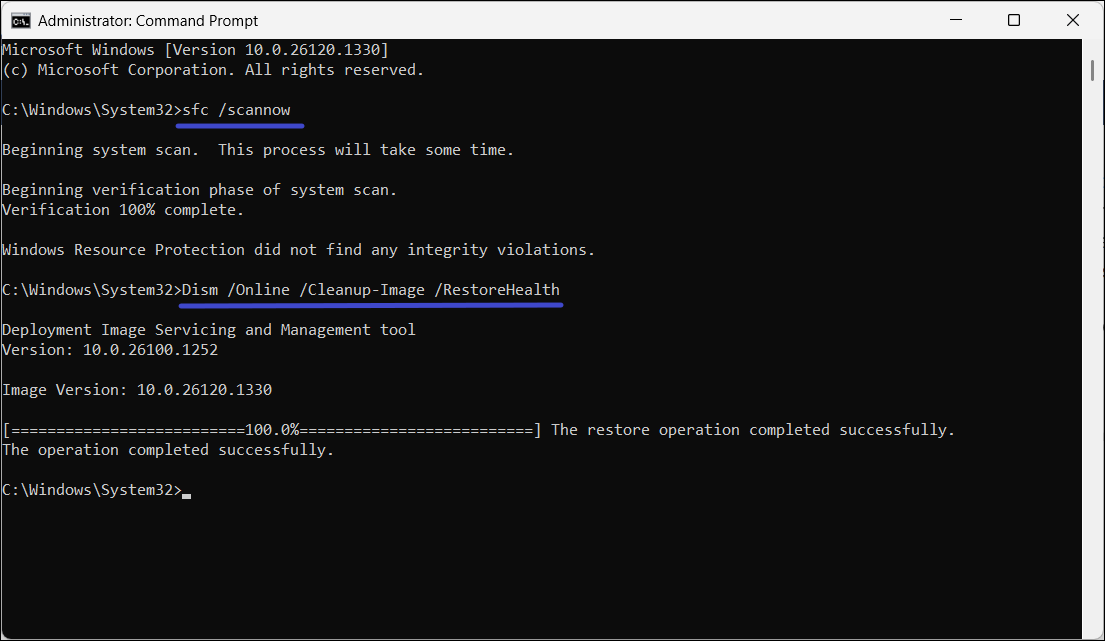
These tools repair Windows image and system files that may be triggering the error.
Fix 3: Reinstall the Problematic Application
If the error appears in a specific program, its installation may be broken. You may try reinstalling it, see if that helps.
1. Open Settings and click on Apps. Go to Installed apps.
2. Find the affected program and click Uninstall.
3. Restart your PC.
4. Download and reinstall the latest version from the official site.
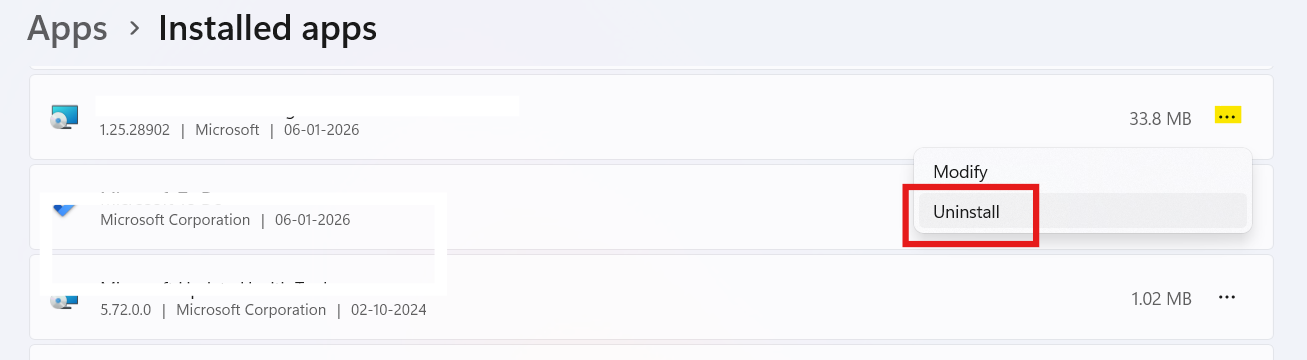
Reinstalling ensures all required files are correctly installed.
Fix 4: Perform a Clean Boot
Conflicts from background apps can trigger runtime errors. Performing a clean boot can be helpful in these cases.
1. Press Win + R, type msconfig, and press Enter.
2. Go to the Services tab and check Hide all Microsoft services.
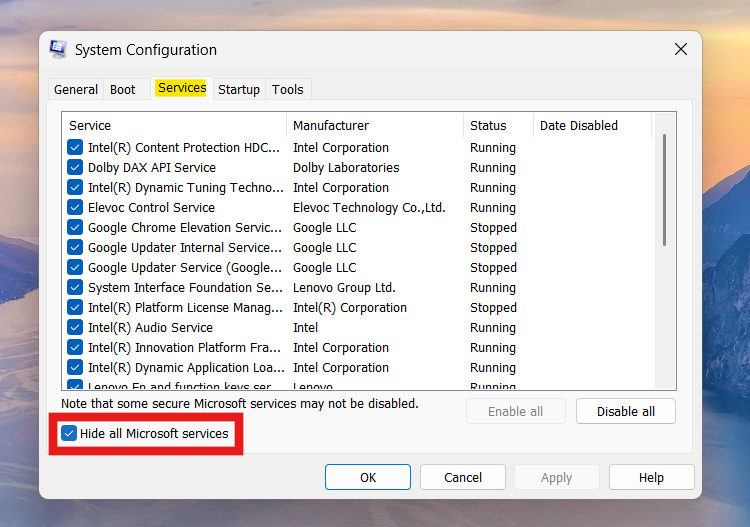
3. Click Disable all.
4. Then, go to Startup and then Open Task Manager.
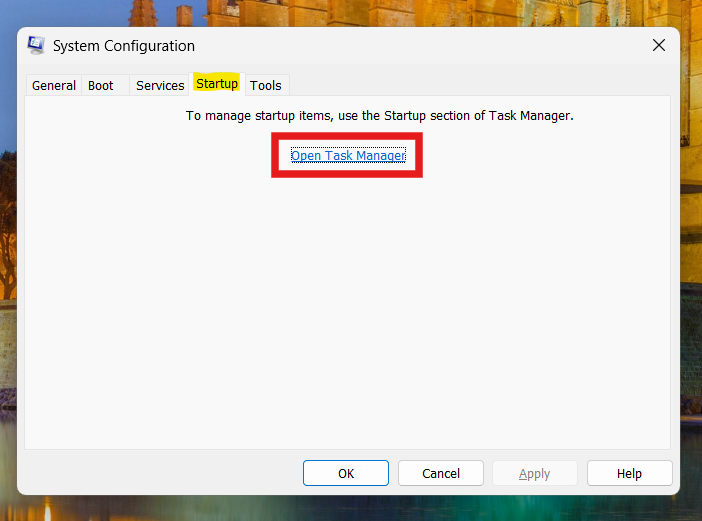
5. Choose Disable all items.
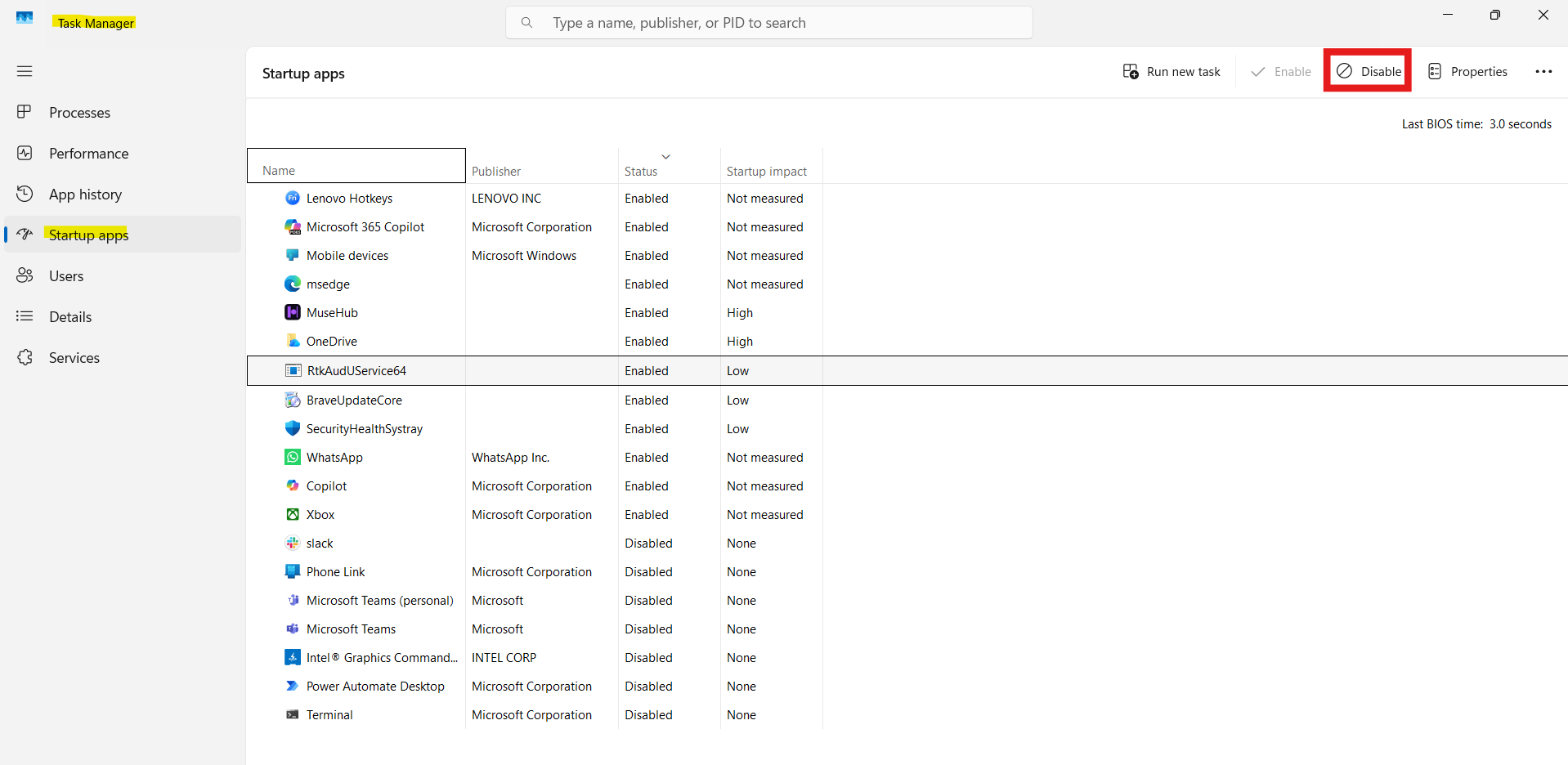
6. Restart your PC.
If the error disappears, a third-party app was causing the conflict.
Fix 5: Scan for Malware and Update Windows
Malware or outdated system components can interfere with runtime processes.
1. Run a full virus scan using Windows Security. Go to Windows Security > Virus & threat protection > Full scan.
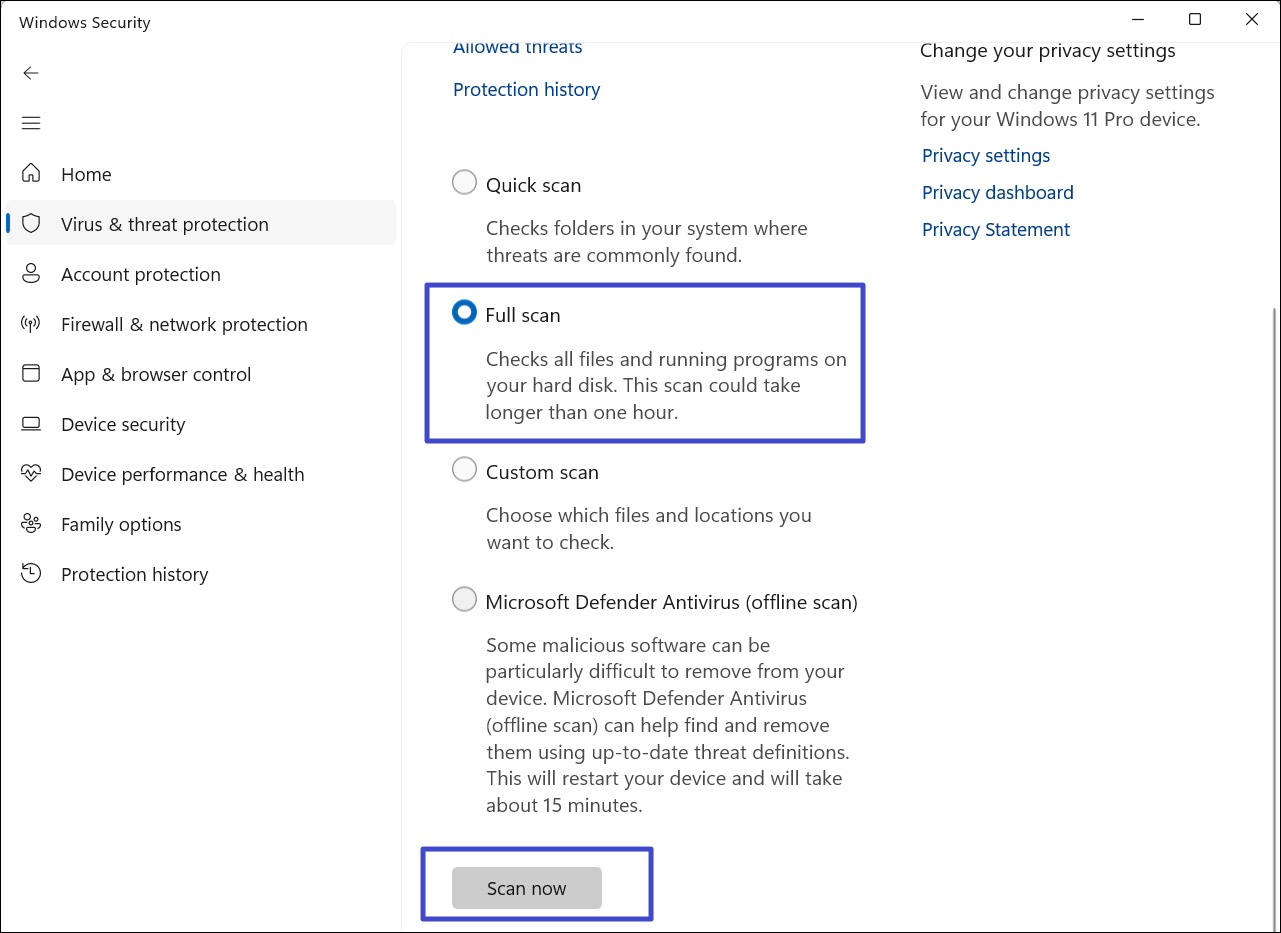
2. Go to Settings, then Windows Update, and click Check for updates.
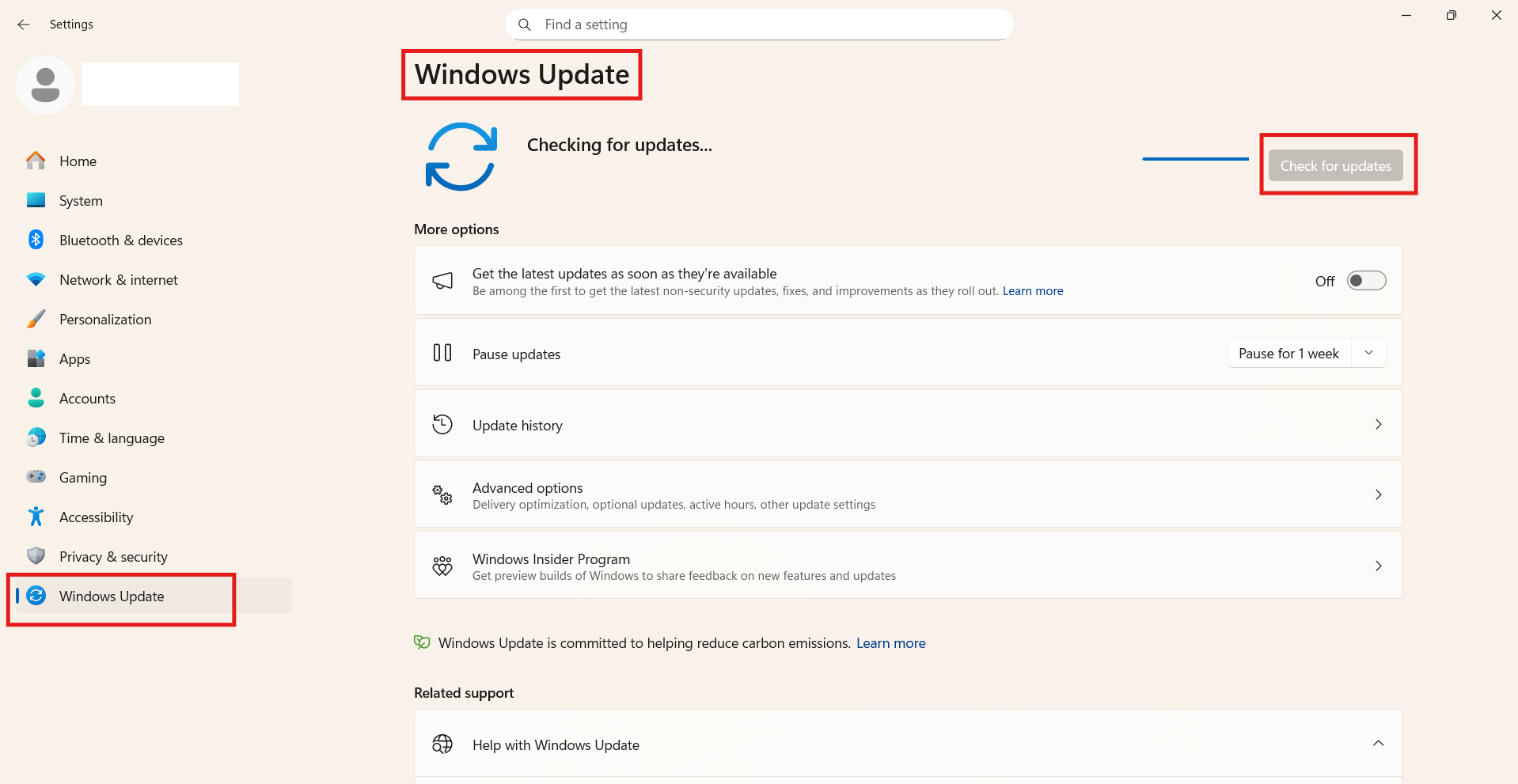
Keeping your system secure and updated prevents compatibility issues.
That’s it!