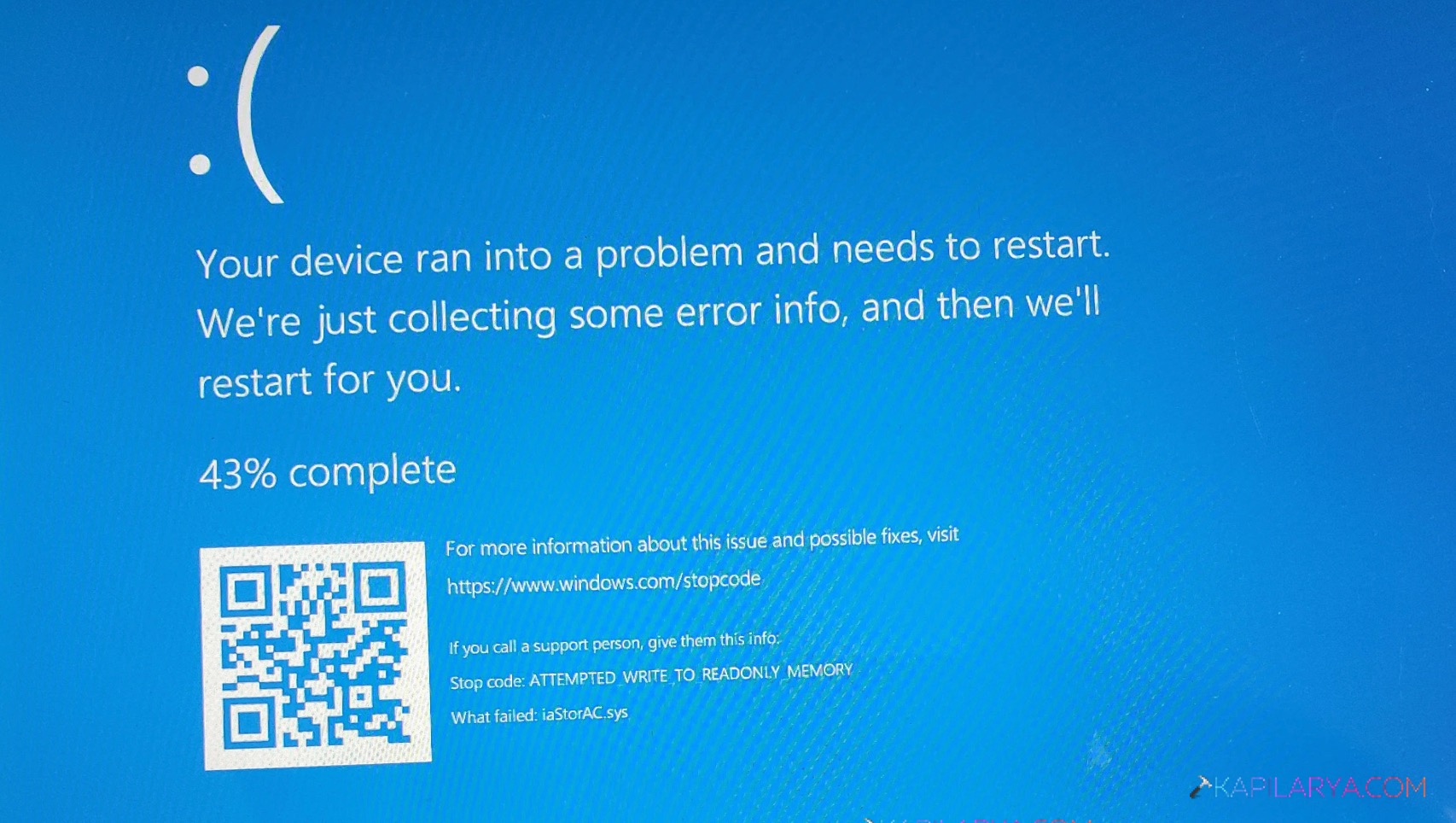
The iaStorA.sys Blue Screen error (often with codes like DRIVER_IRQL_NOT_LESS_OR_EQUAL) is usually caused by issues with the Intel Rapid Storage Technology (RST) driver. This driver manages storage communication between your system and hard drives/SSDs. When it becomes outdated, corrupted, or incompatible, it can trigger repeated BSOD crashes in Windows 11.
Page Contents
Fix iaStorA.sys Blue Screen in Windows 11
Below are the 5 most effective fixes to resolve this error in Windows 11.
Fix 1: Update Intel Rapid Storage (RST) Driver
This error is most commonly caused by outdated or incompatible storage drivers. Updating the Intel RST driver ensures compatibility with Windows 11 and fixes driver conflicts. You can also download the latest driver from your motherboard or laptop manufacturer for better stability.
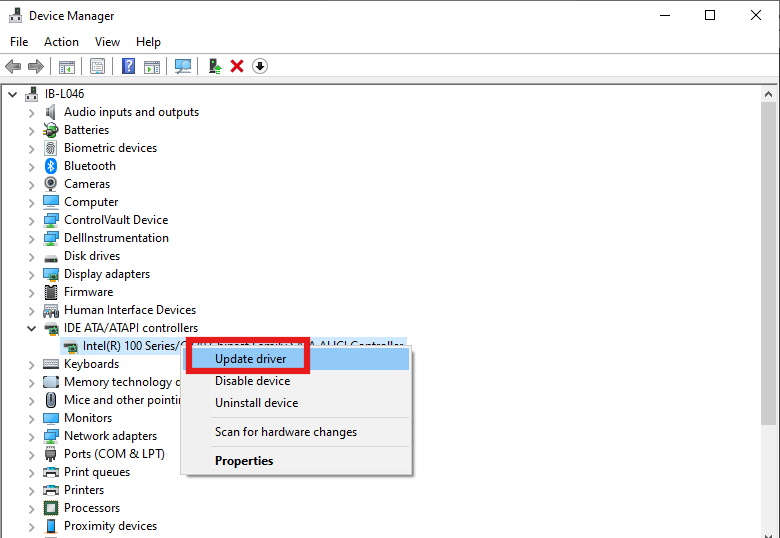
1. Open Device Manager.
2. Expand IDE ATA/ATAPI controllers.
3. Right-click the Intel RST driver and then choose Update driver.
4. Choose Search automatically.
Fix 2: Uninstall and Reinstall RST Driver
If updating doesn’t work, the driver may be corrupted. You can then install the latest RST driver manually if needed. Reinstalling removes faulty files and replaces them with fresh ones.
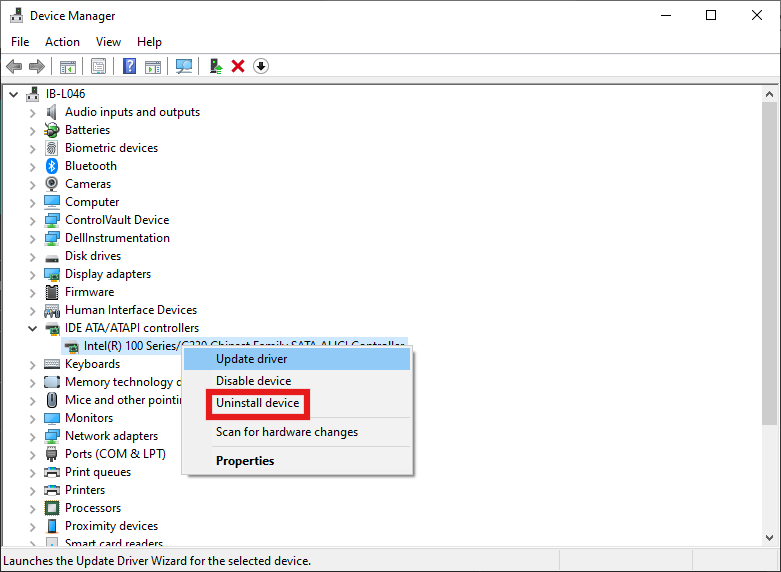
1. Open Device Manager.
2. Expand IDE ATA/ATAPI controllers.
3. Right-click each entry and choose Uninstall device.
4. Restart your PC.
Fix 3: Switch to the Standard AHCI Driver
In some systems, Intel RST causes conflicts with Windows. Switching to the built-in AHCI driver can resolve this. This removes dependency on Intel RST and stabilizes the system. It is especially useful for non-RAID setups.
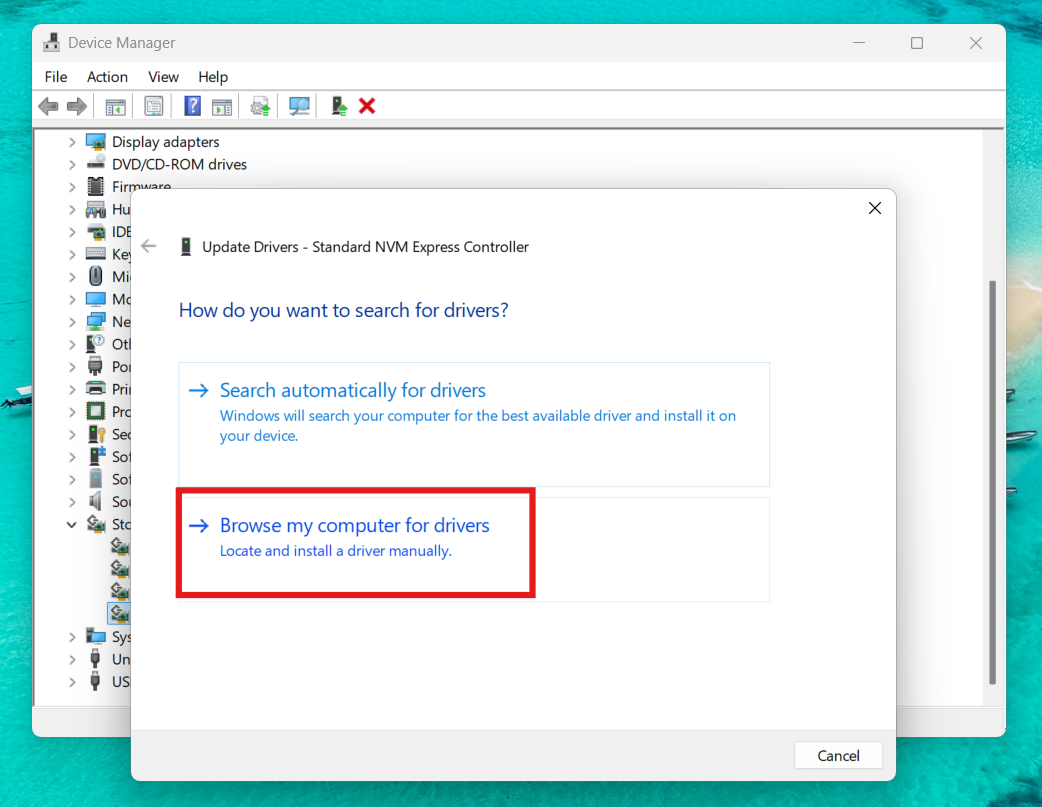
1. Open Device Manager.
2. Go to Storage controllers.
3. Choose Update driver and choose Browse my computer for drivers.
4. Select Standard SATA AHCI Controller.
Fix 4: Run System File Checker (SFC)
Corrupted system files can worsen driver-related crashes. Running SFC helps repair these hidden issues. This scans and repairs damaged system files. It helps eliminate deeper OS-level corruption, causing BSOD errors.
1. Open Command Prompt (Admin).
2. Run:
sfc /scannow
3. Restart your PC.

Fix 5: Update BIOS and Chipset Drivers
Sometimes the issue is not just the driver but firmware compatibility. Updating BIOS and chipset drivers can fix low-level conflicts.
1. Visit your manufacturer’s website.
2. Download the latest BIOS and chipset drivers.
3. Install carefully.
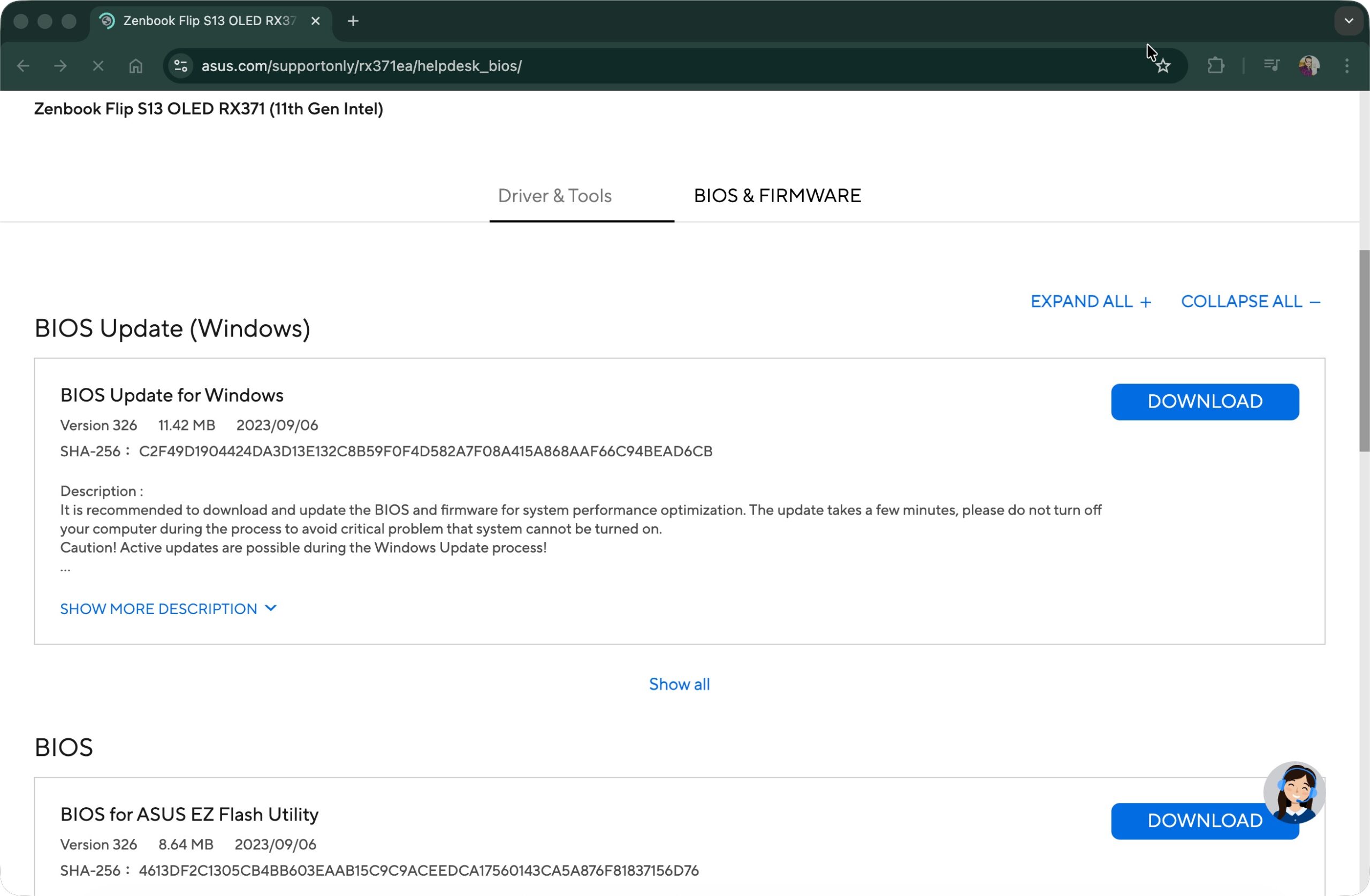
Outdated firmware can cause storage driver instability. Always follow official instructions while updating BIOS.
Summary
The iaStorA.The sys BSOD error is mainly caused by Intel RST driver issues or system incompatibility. Updating or reinstalling the driver, switching to AHCI, running system scans, and updating BIOS are the most effective fixes. In most cases, resolving the storage driver conflict will completely stop the blue screen crashes.