You tried to send a photo in Windows 11 using Bluetooth. The devices are paired. Bluetooth is on. But suddenly, you can’t send/receive files using Bluetooth in Windows 11. This problem is common in Windows 11. You can fix it using the simple methods mentioned in a few minutes.
So without wasting the time anymore, let’s checkout those fixes.
Page Contents
Can’t Send/Receive Files Using Bluetooth In Windows 11
Fix 1: Start With The Correct Bluetooth Transfer Option
A common mistake many users make is sending files directly from File Explorer. In Windows 11, Bluetooth transfers work better through the built-in transfer wizard.
So here is what you need to do if you can’t send/receive files using Bluetooth in Windows 11.
Step 1: Open Settings.
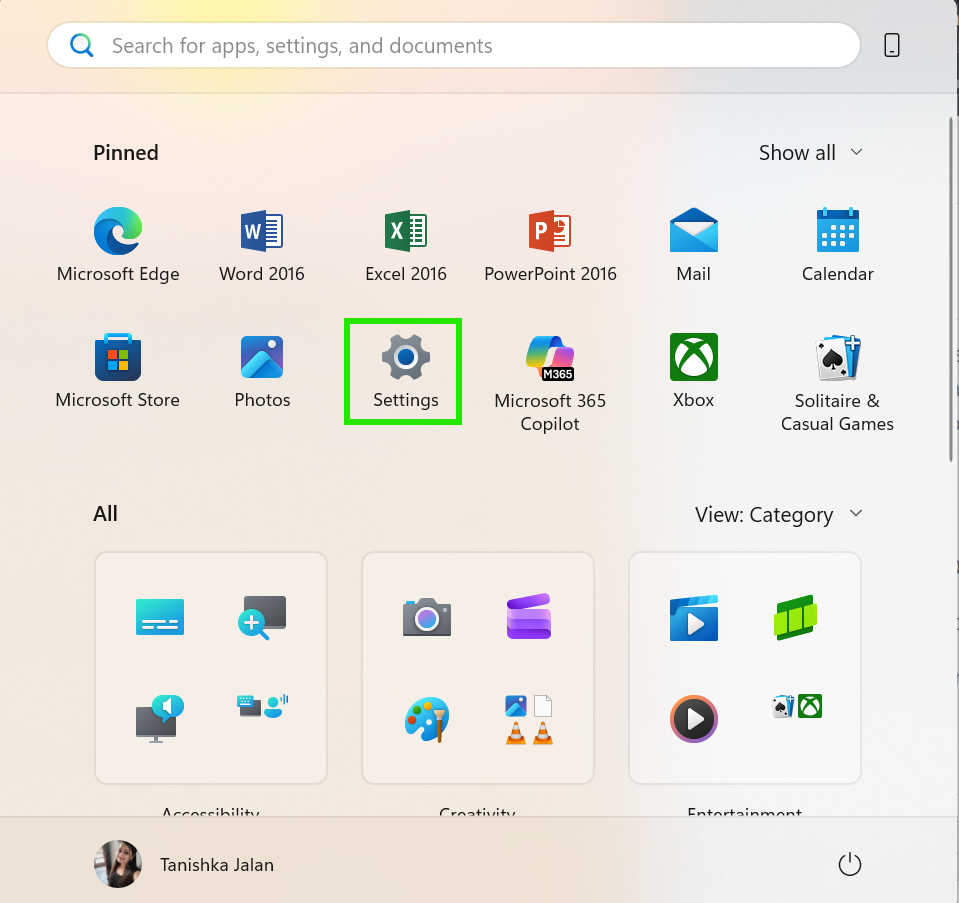
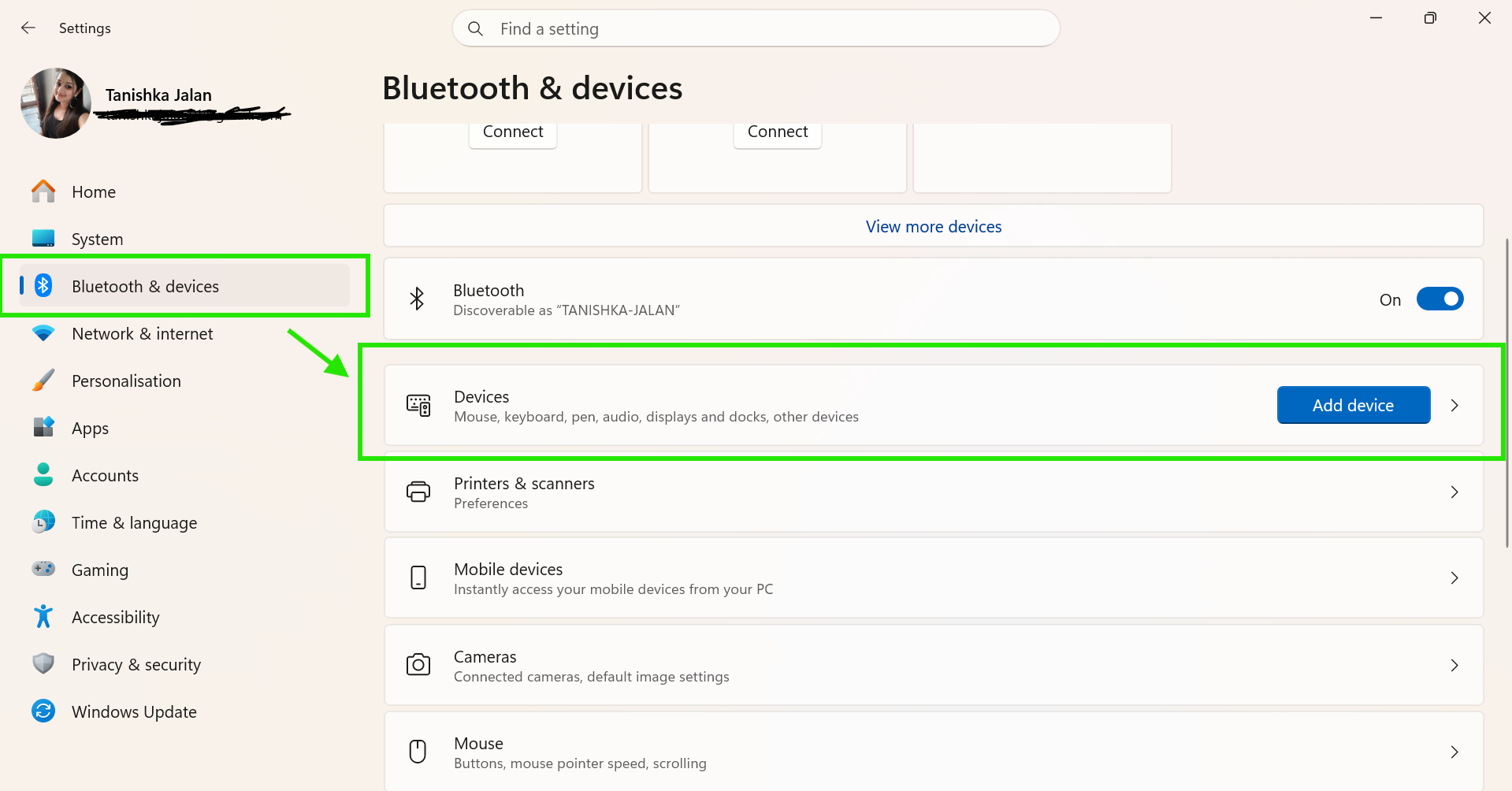
Step 2: Go to Bluetooth & Devices > Devices.
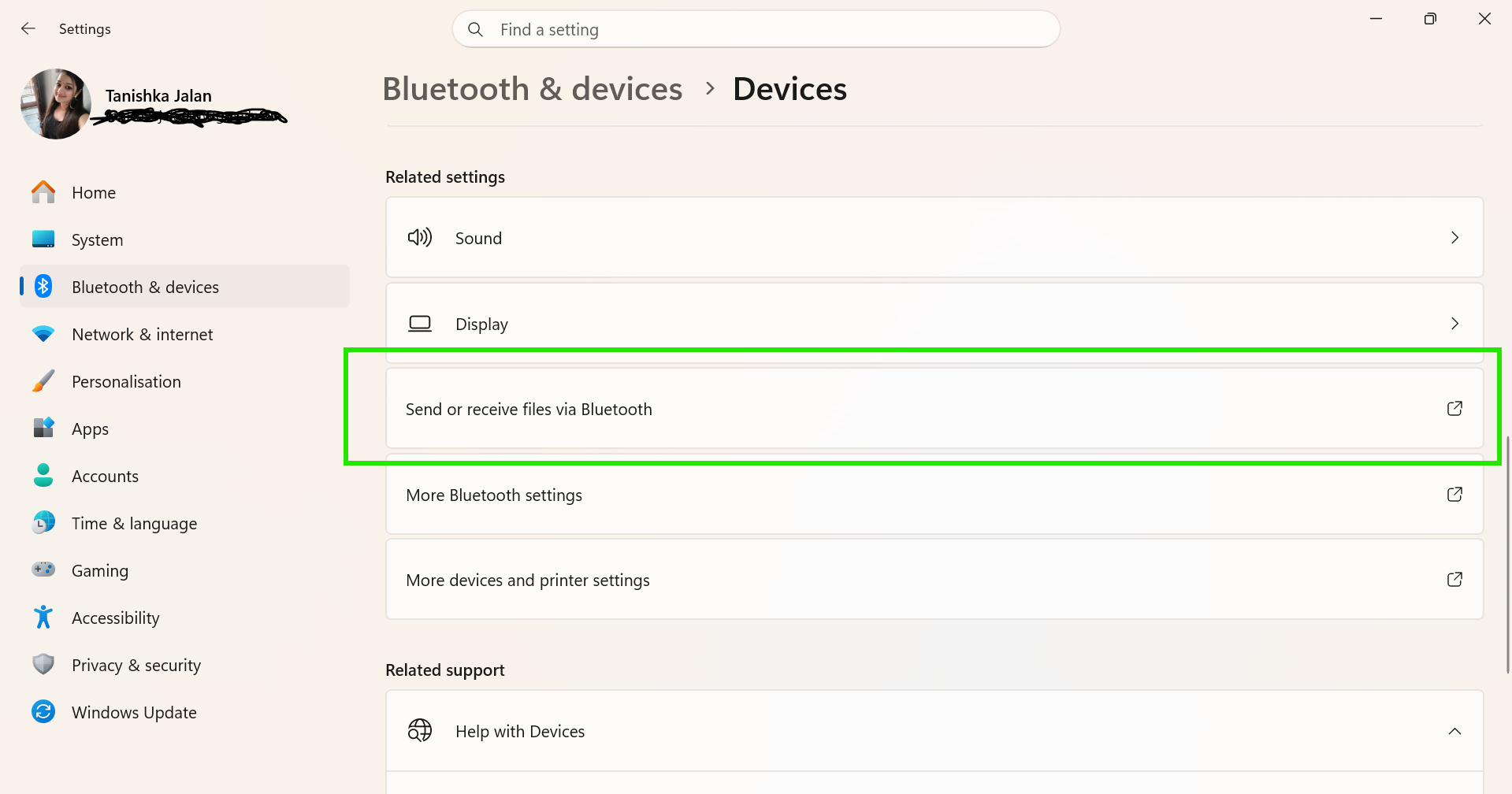
Step 3: Now scroll down and click Send or receive files via Bluetooth.
Step 4: Choose Send files or Receive files.
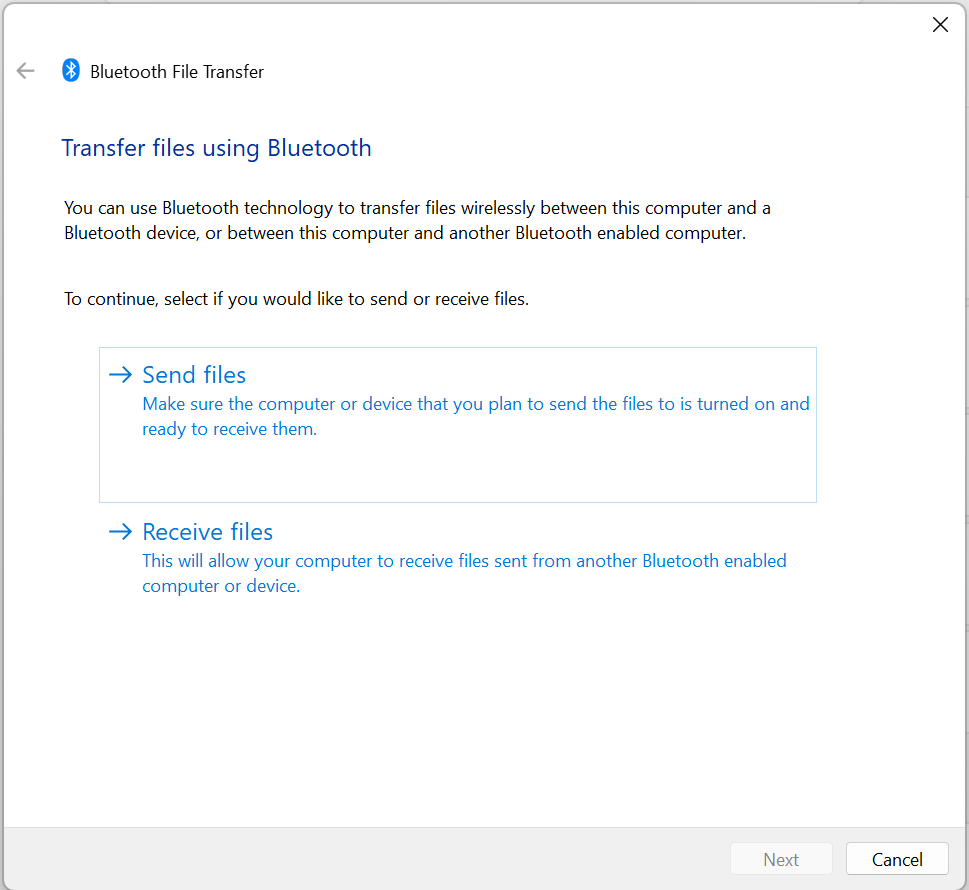
Now try transferring again.
Fix 2: Make Sure Both Device Stay Visible
Sometimes the phone or laptop becomes hidden during the transfer process. Before sending or receiving files using Bluetooth in Windows 11, make sure to check:
- Bluetooth is enabled on both devices.
- Devices are already paired.
- Phone is unlocked.
- Airplane mode is turned off.
Also, make sure to keep both devices close together.
Fix 3: Restart Bluetooth Services
Bluetooth services in Windows can freeze silently in the background. So you need to restart it by:
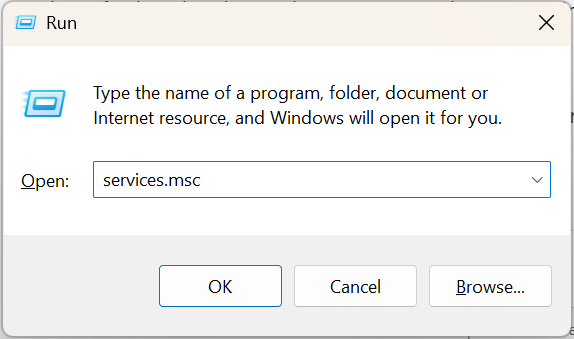
- Pressing the Start Button + R and typing services.msc.
- Find Bluetooth Support Service.
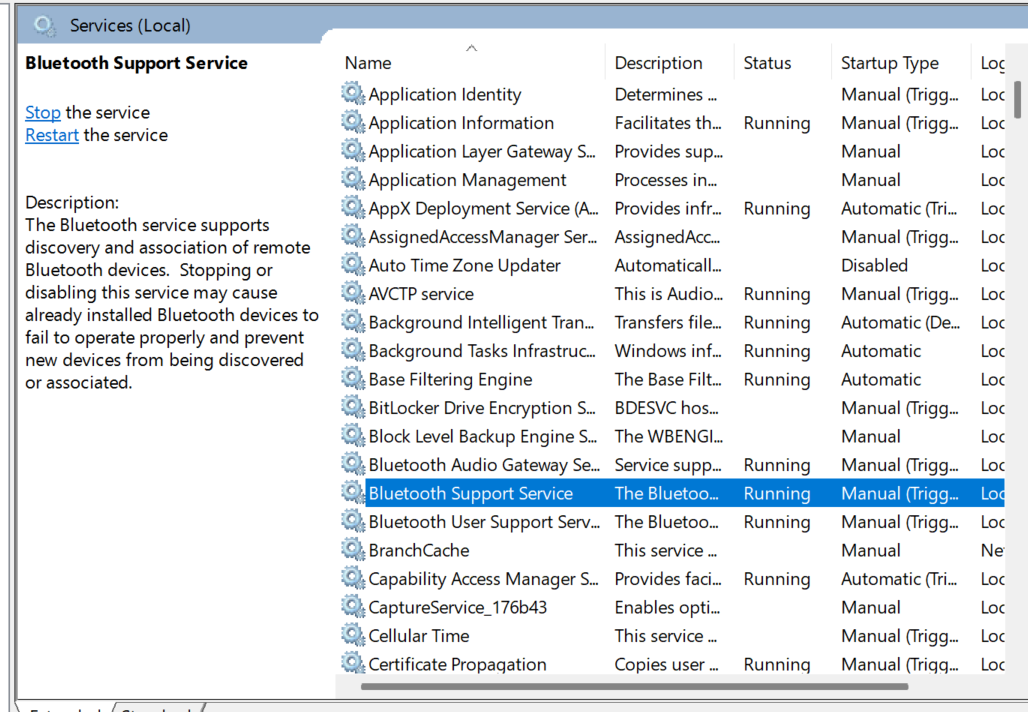
- Right-click it and select Restart.
This fix refreshes the Bluetooth connection without restarting the whole PC.
Fix 4: Run Bluetooth Troubleshooter
Windows 11 includes a built-in tool that automatically finds Bluetooth problems. To run it, you have to follow the steps below:
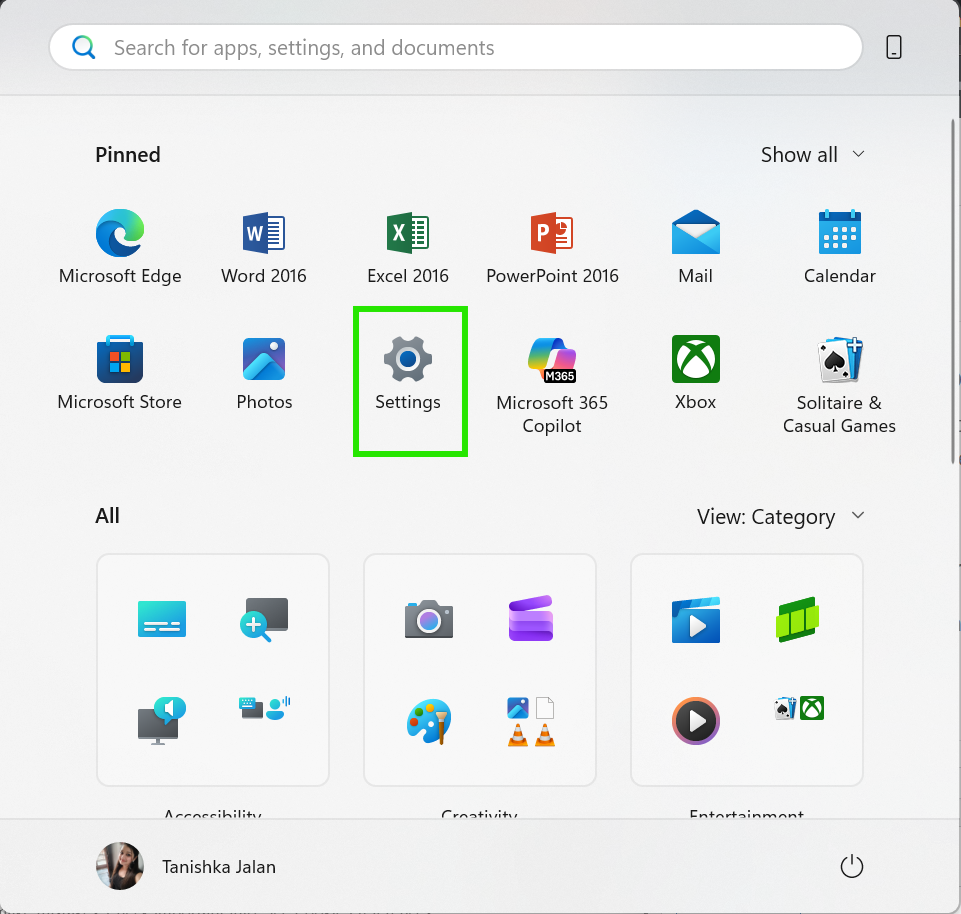
Step 1: Open Settings.
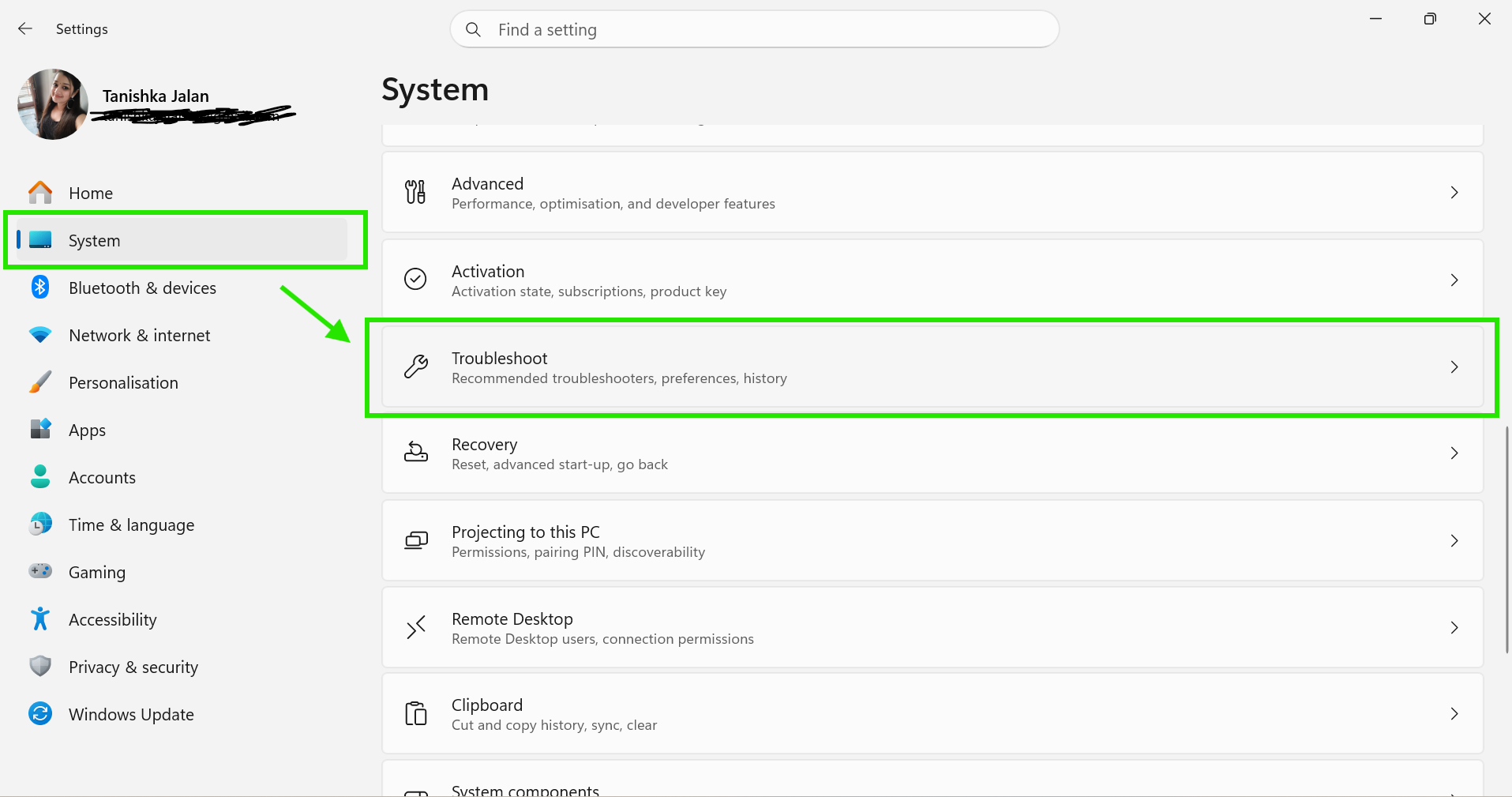
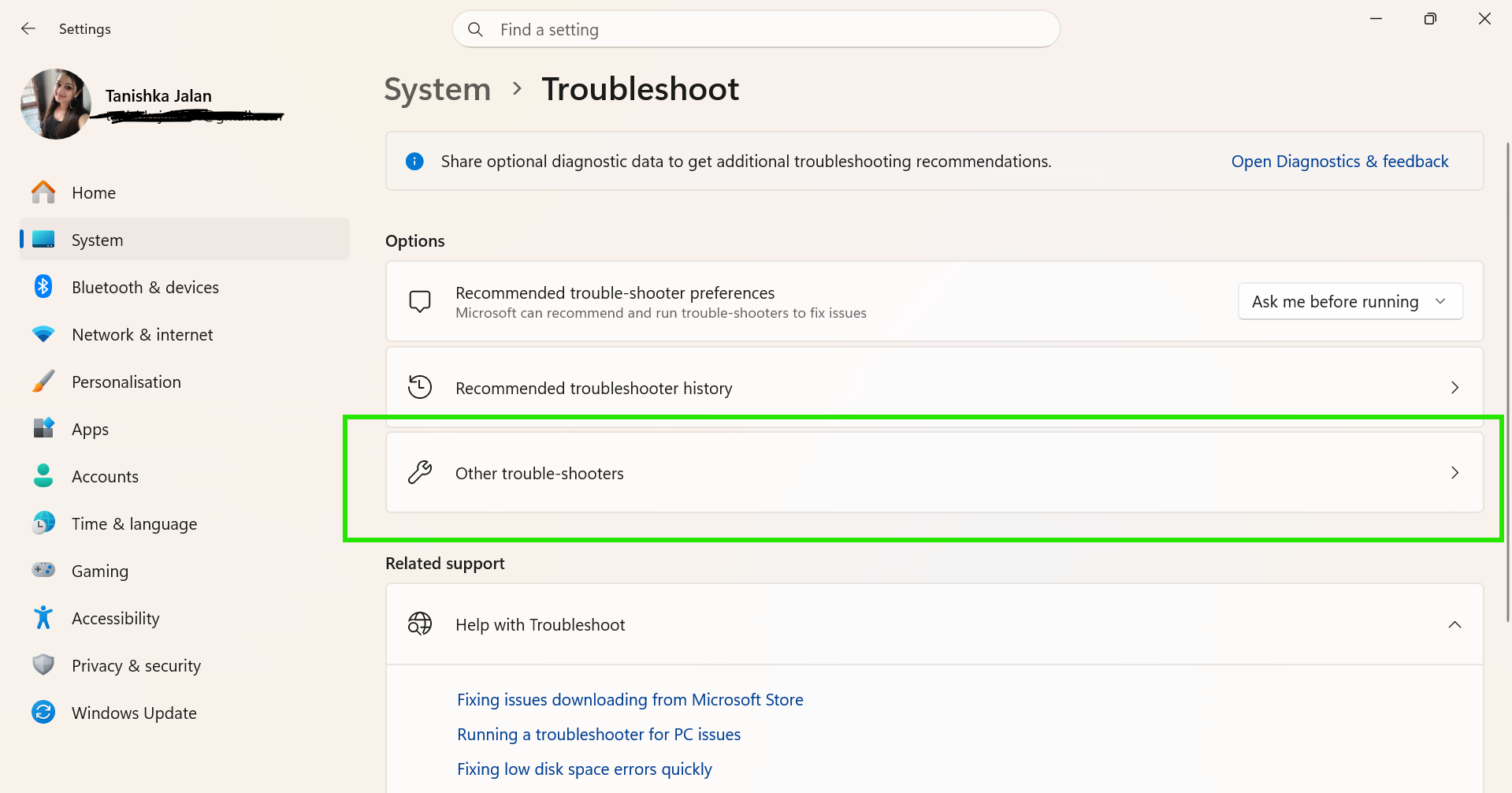
Step 2: Click on System > Troubleshoot > Other Troubleshooters.
Step 3: Now, find Bluetooth and click on Run.
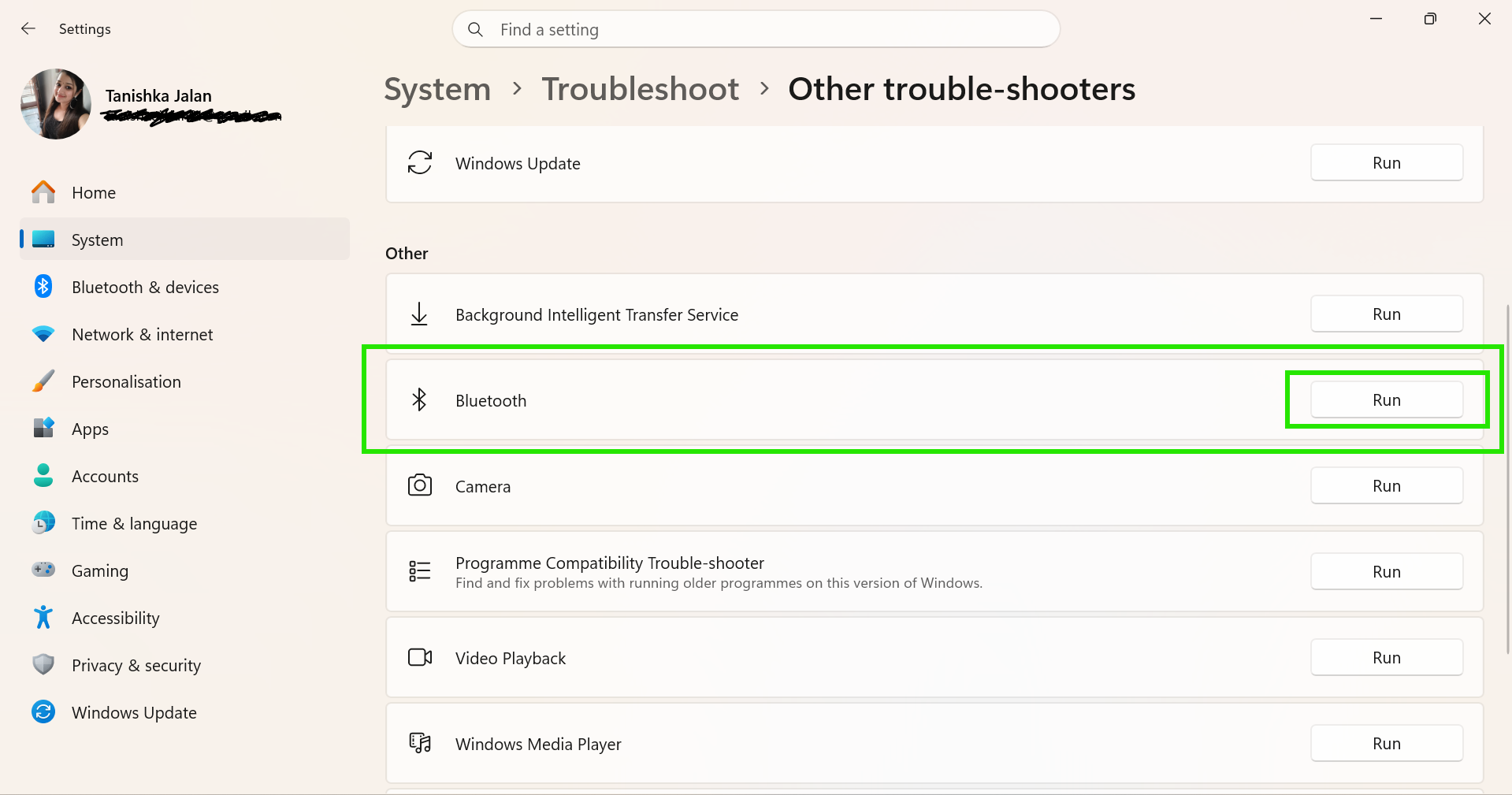
And now let the Windows scan and apply the recommended fixes.
Fix 5: Reinstall The Bluetooth Driver
If Bluetooth suddenly stops working after an update, the driver gets corrupted. Here is how to quickly fix it:
Step 1: Right-click on the Start Button.
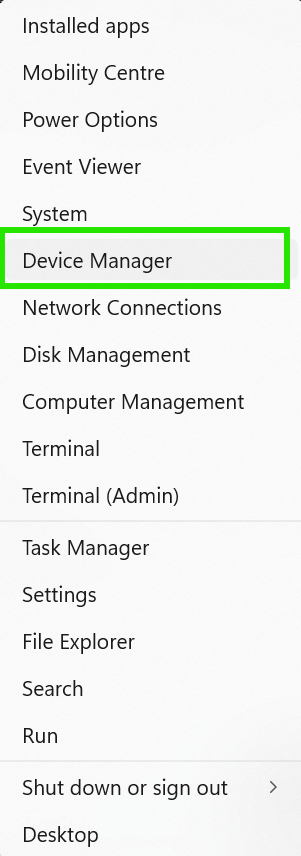
Step 2: Select Device Manager.
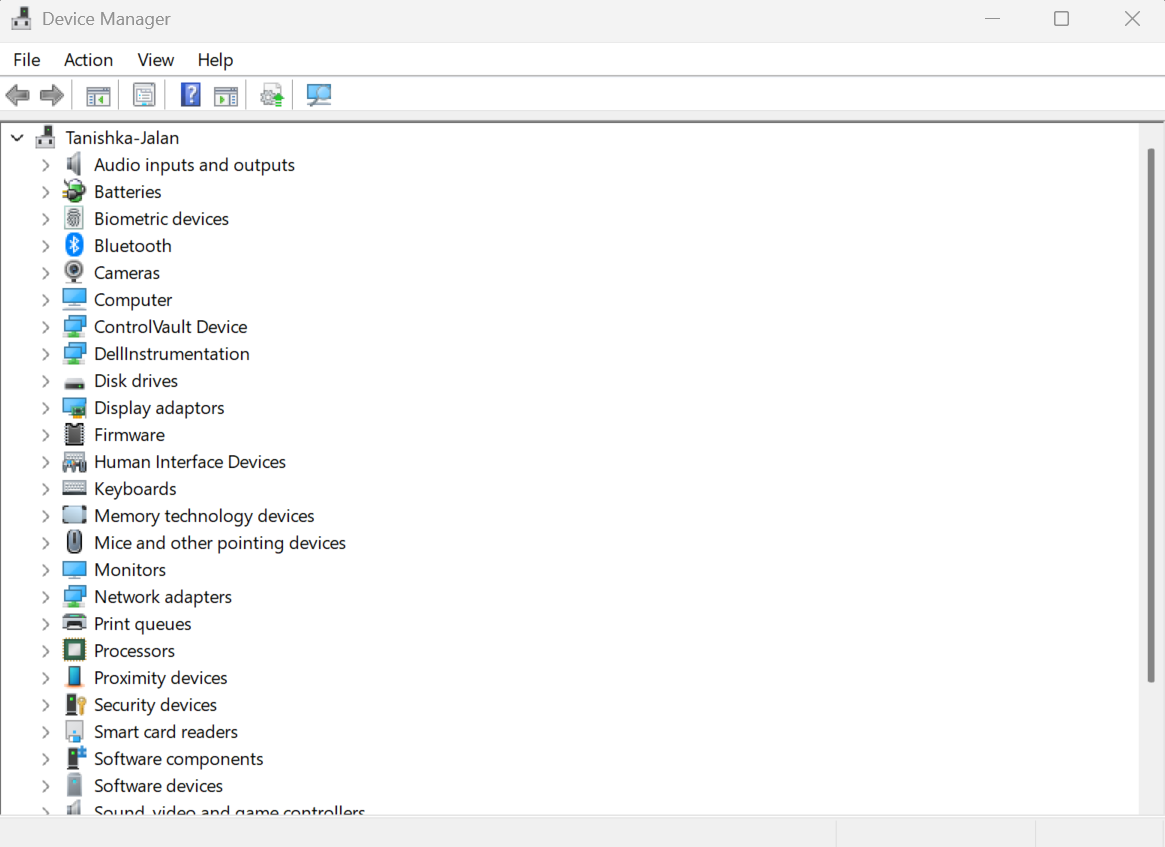
Step 3: Expand Bluetooth, then right-click the Bluetooth adapter.
Step 4: Uninstall the device.
Step 5: Restart PC.
Your Windows will reinstall the driver automatically after reboot.
Fix 6: Update Windows 11
Sometimes, if you can’t send or receive files via Bluetooth in Windows 11, it is simply due to an outdated version. Go to:
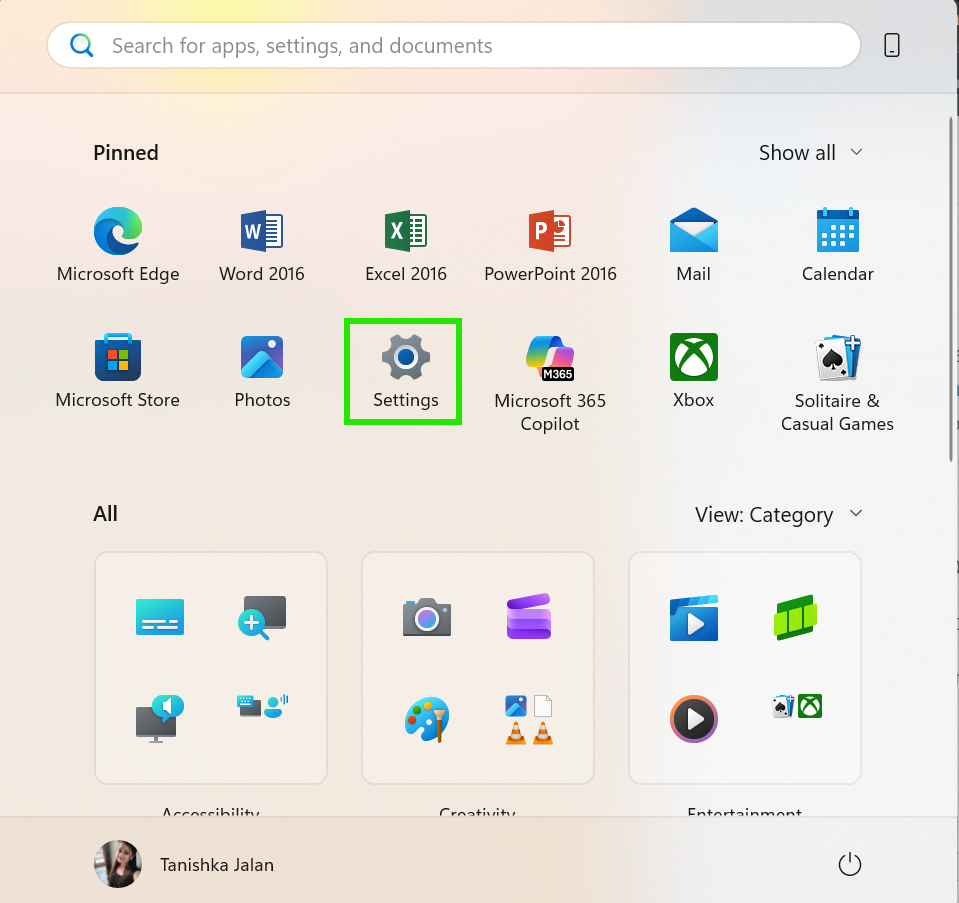
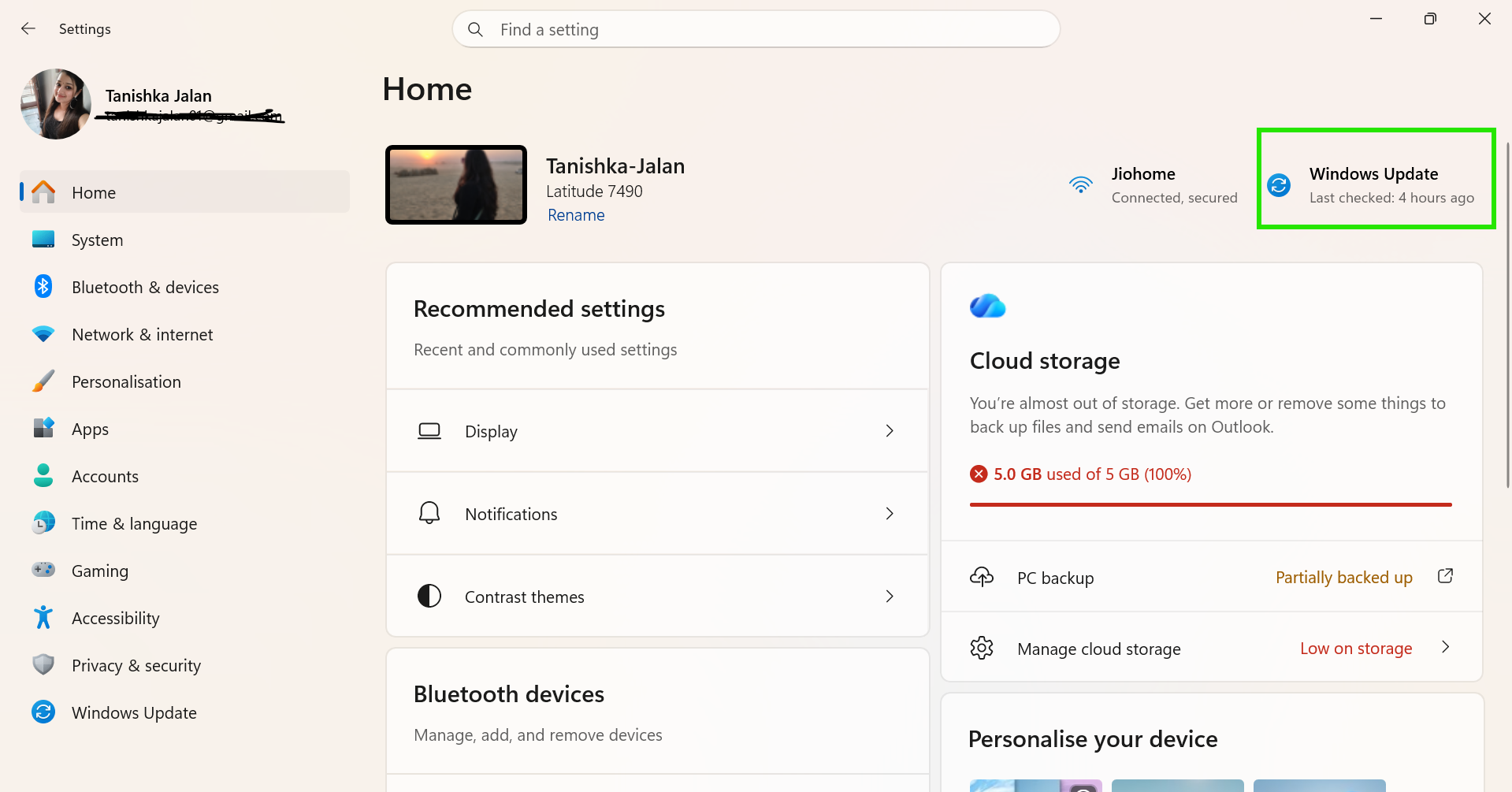
Step 1: Open Settings, then Windows Update.
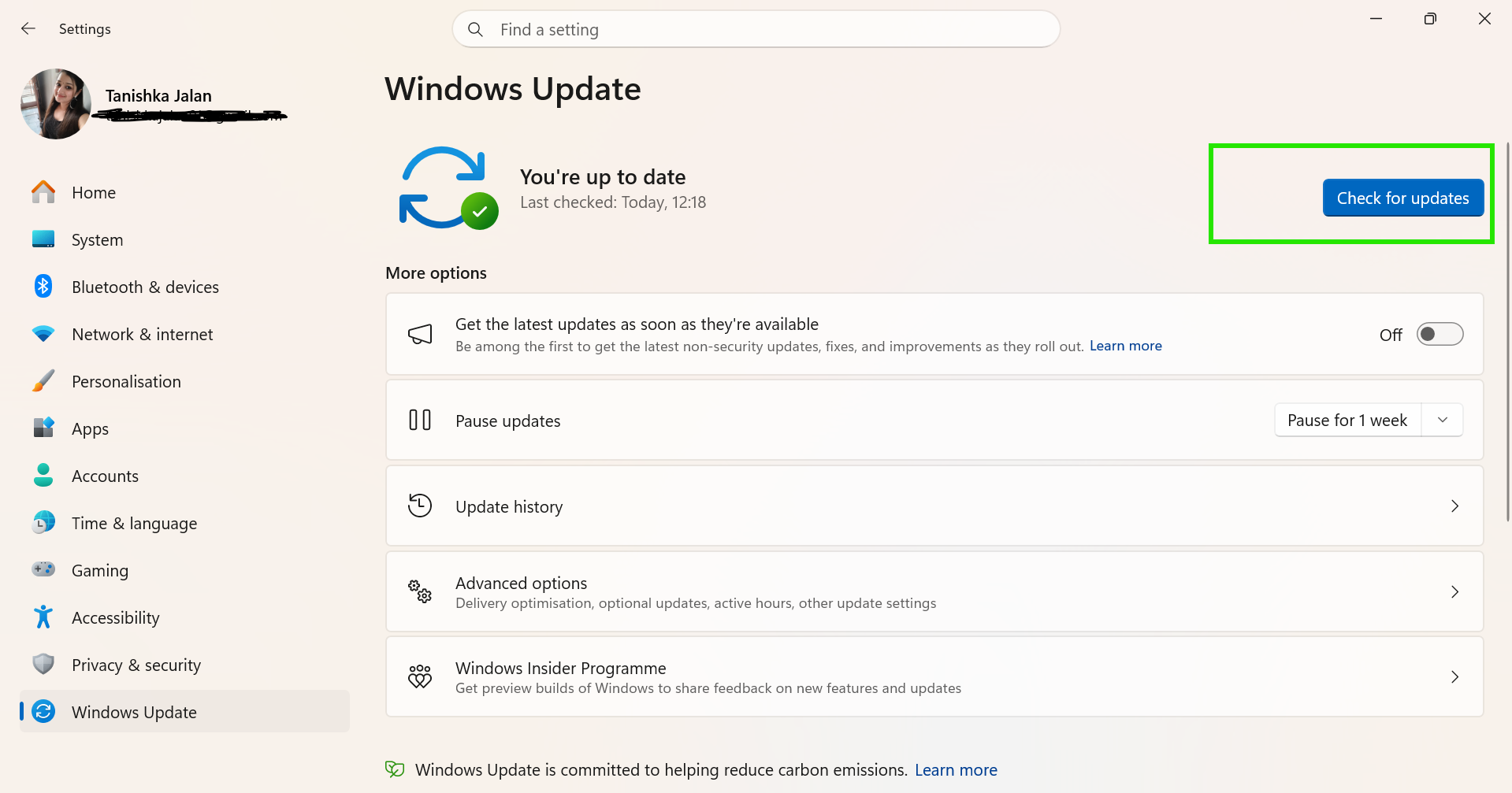
Step 2: Click on the Check for updates.
That’s it. Hope this helps.