A slow or freezing right-click context menu in Windows 11 can be frustrating. You right-click a file or folder, and File Explorer hangs, crashes, or takes several seconds to respond. The issue is caused by faulty third-party context menu extensions added by installed apps.
Fortunately, there are a few simple ways to fix it. Let us show you:
Page Contents
Fix Freezing Right-Click Context Menu In Windows 11
Fix 1: Disable Faulty Shell Extensions
Third-party apps often add extra options to the right-click menu. If one of these extensions becomes corrupted or incompatible, the context menu may freeze. So you need to use ShellExView to find the problem. And here is how to do that:
1. Download ShellExView from the NirSoft website (https://www.nirsoft.net/utils/shexview.html).
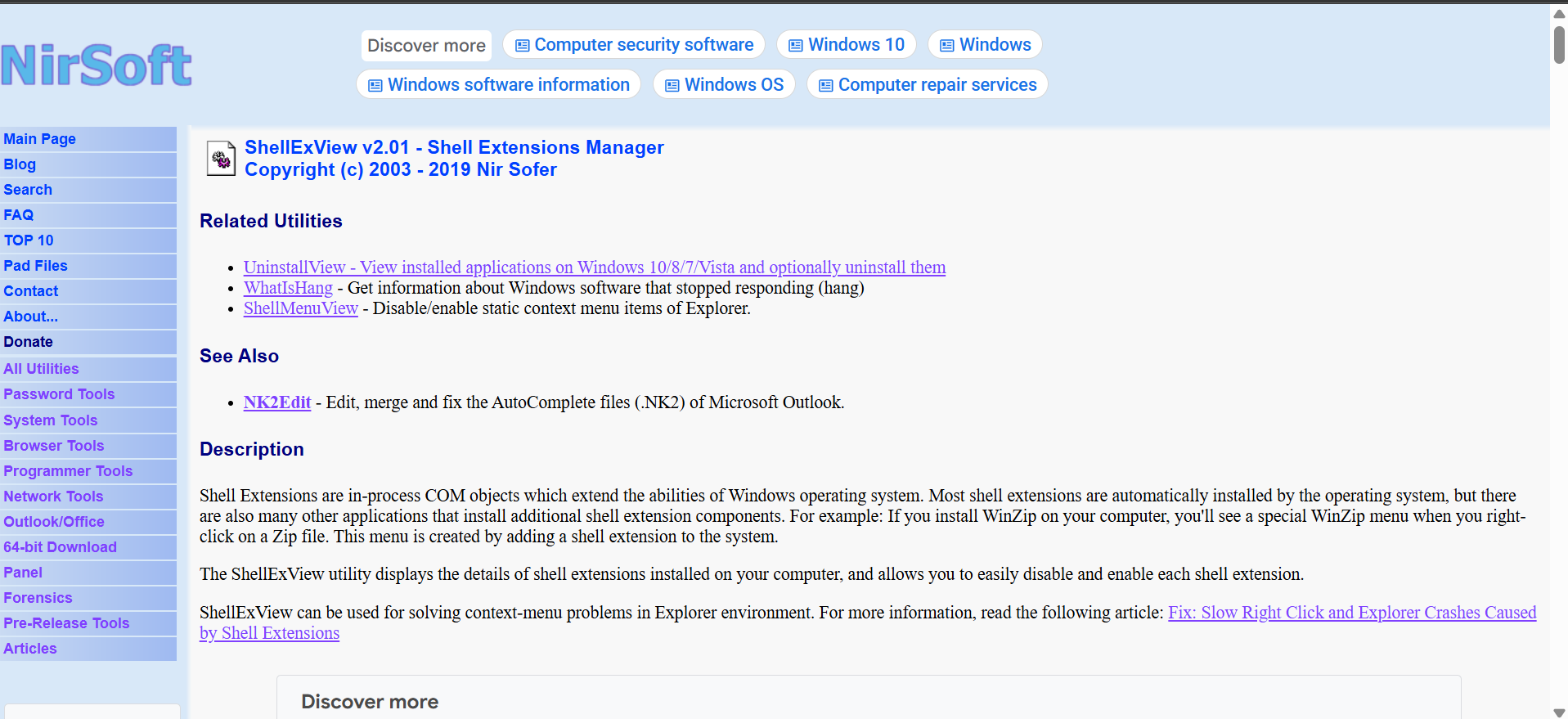
2. Extract the downloaded ZIP file and open the folder.
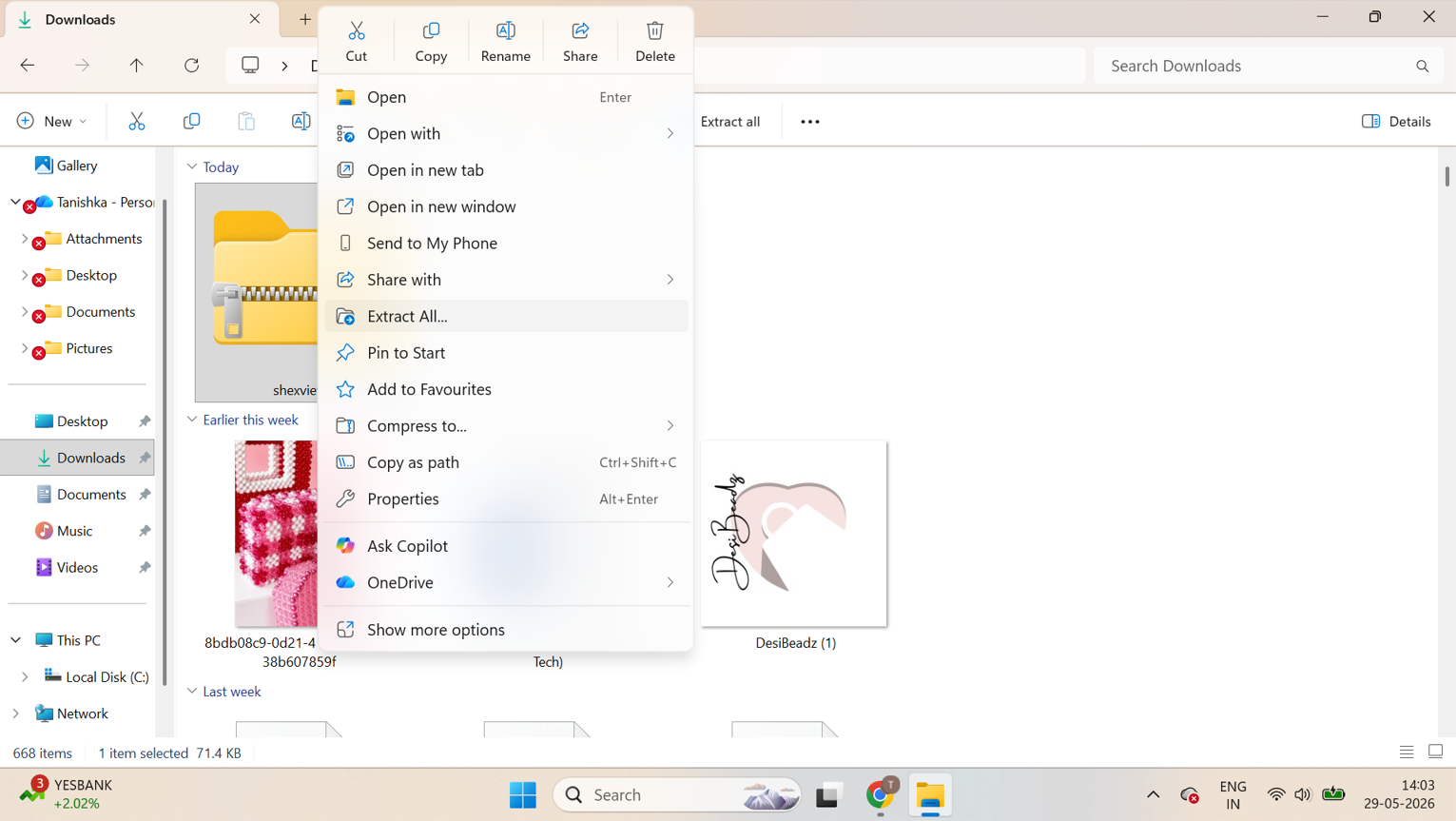
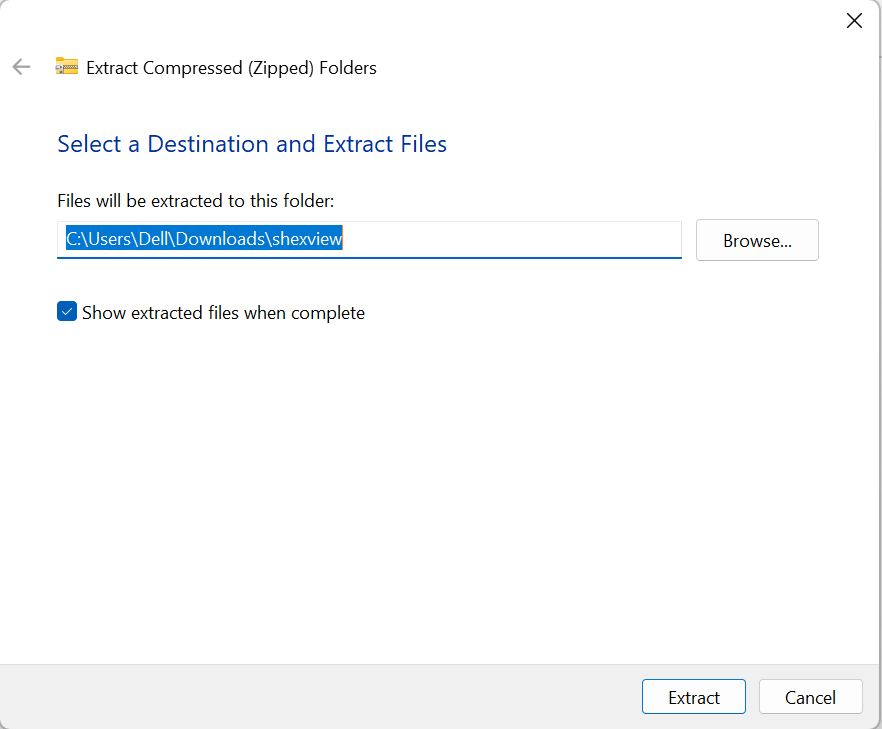
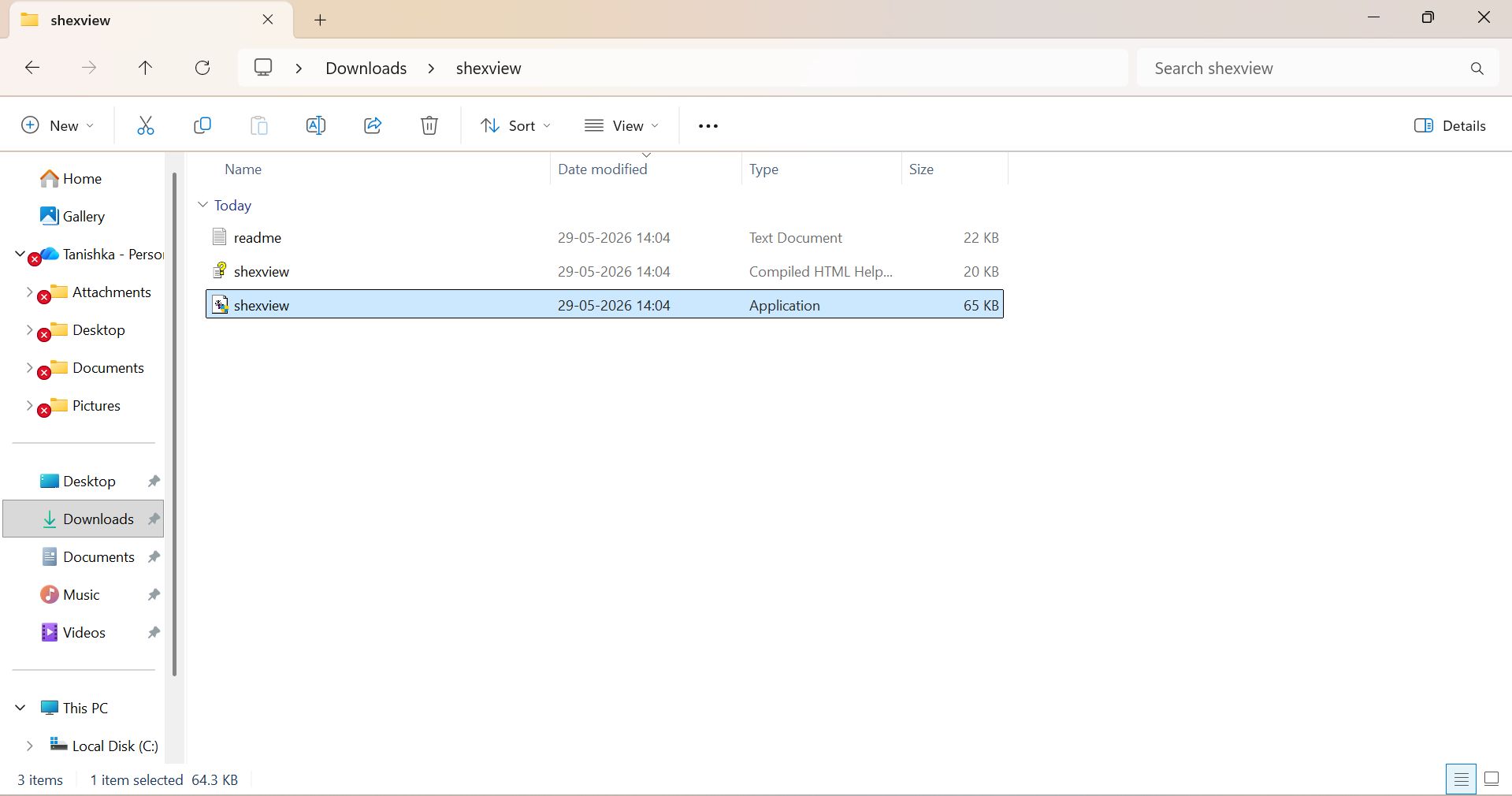
3. Run shexview.exe and click Yes on the UAC prompt.
4. Click Options > Hide All Microsoft Extensions.
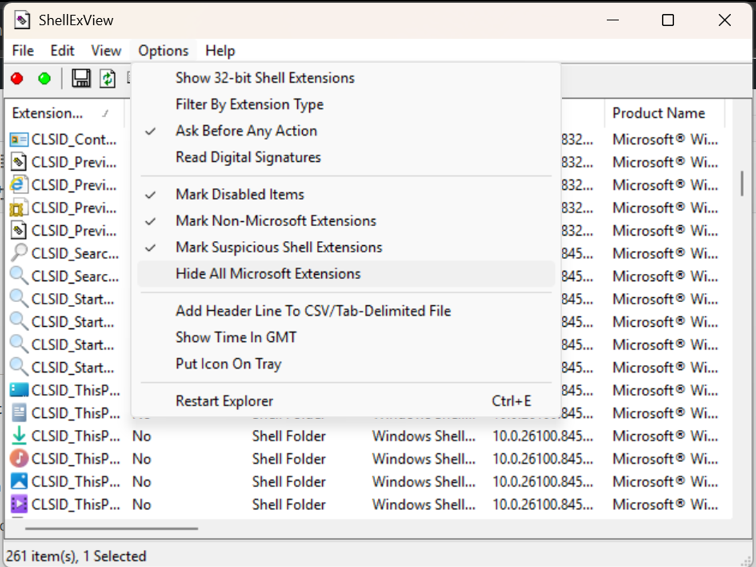
5. Find entries with Context Menu in the Type column.
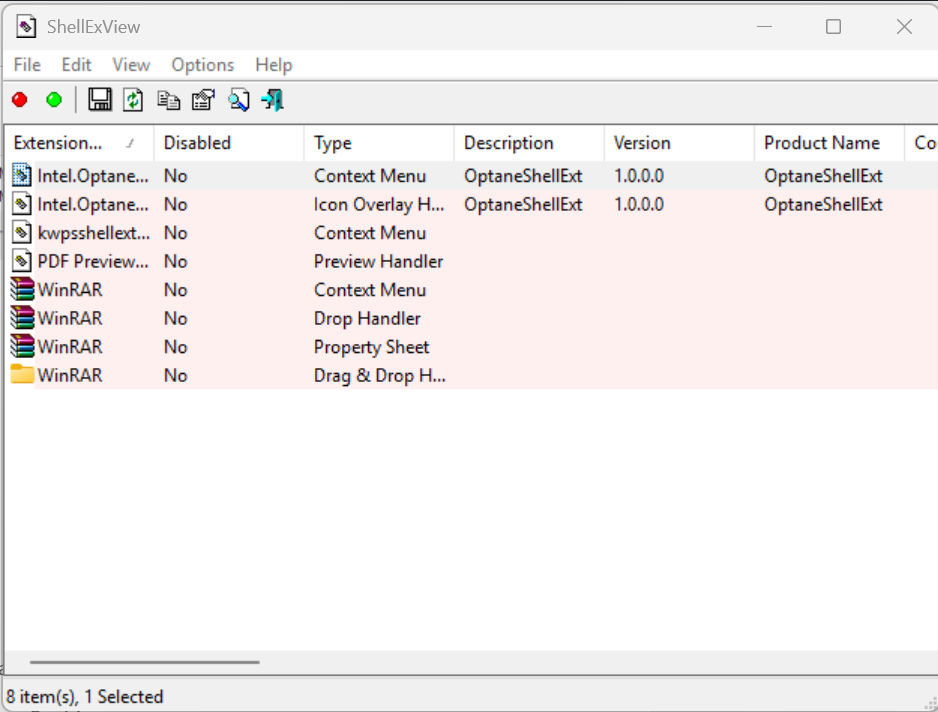
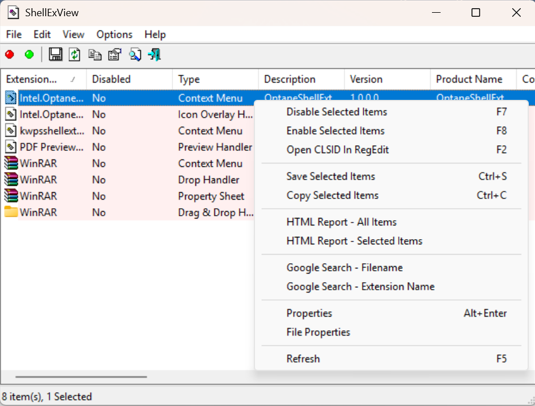
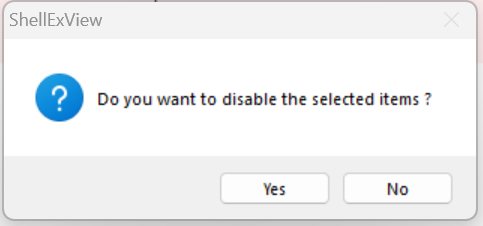
6. Select a suspicious extension and disable it:
- Press F7
- Or right-click and select Disable Selected Items
7. Restart Windows Explorer:
- Press Ctrl + Shift + Esc to open Task Manager
- Right-click Windows Explorer
- Select Restart
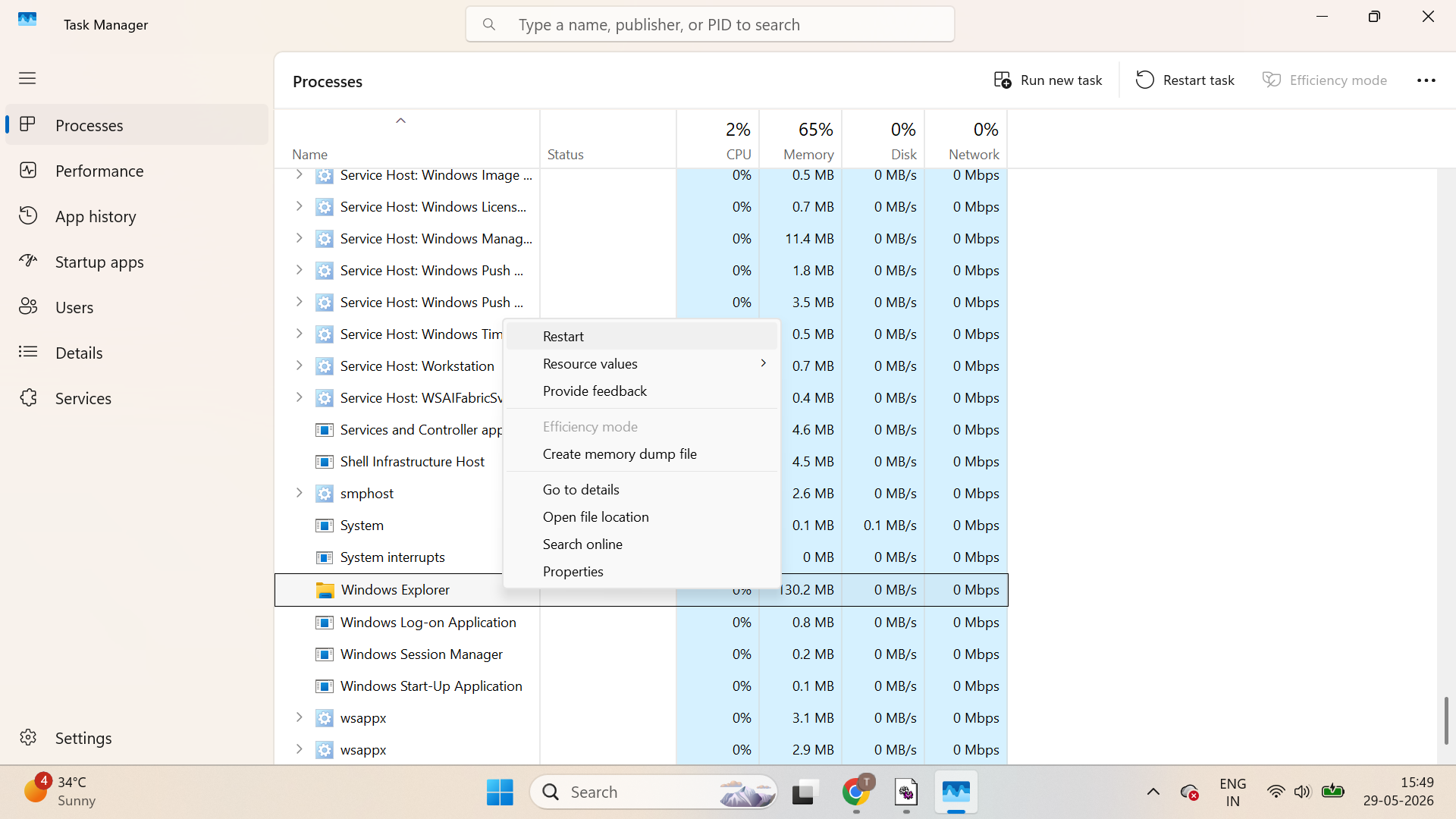
8. Test the right-click menu.
9. If the issue remains, disable another third-party extension and test again.
10. After finding the faulty extension, re-enable the safe ones using F8 or Enable Selected Items.
Fix 2: Remove Problematic Applications
Some apps are known to cause Explorer crashes. These cause right-click issues in Windows 11. The common problematic apps are:
- Foxit PDF Editor
- iCloud for Windows
- Old versions of WinRAR, 7-Zip, Dropbox, or OneDrive
To uninstall the apps, follow the steps below:
1. Press Windows + I to open Settings.
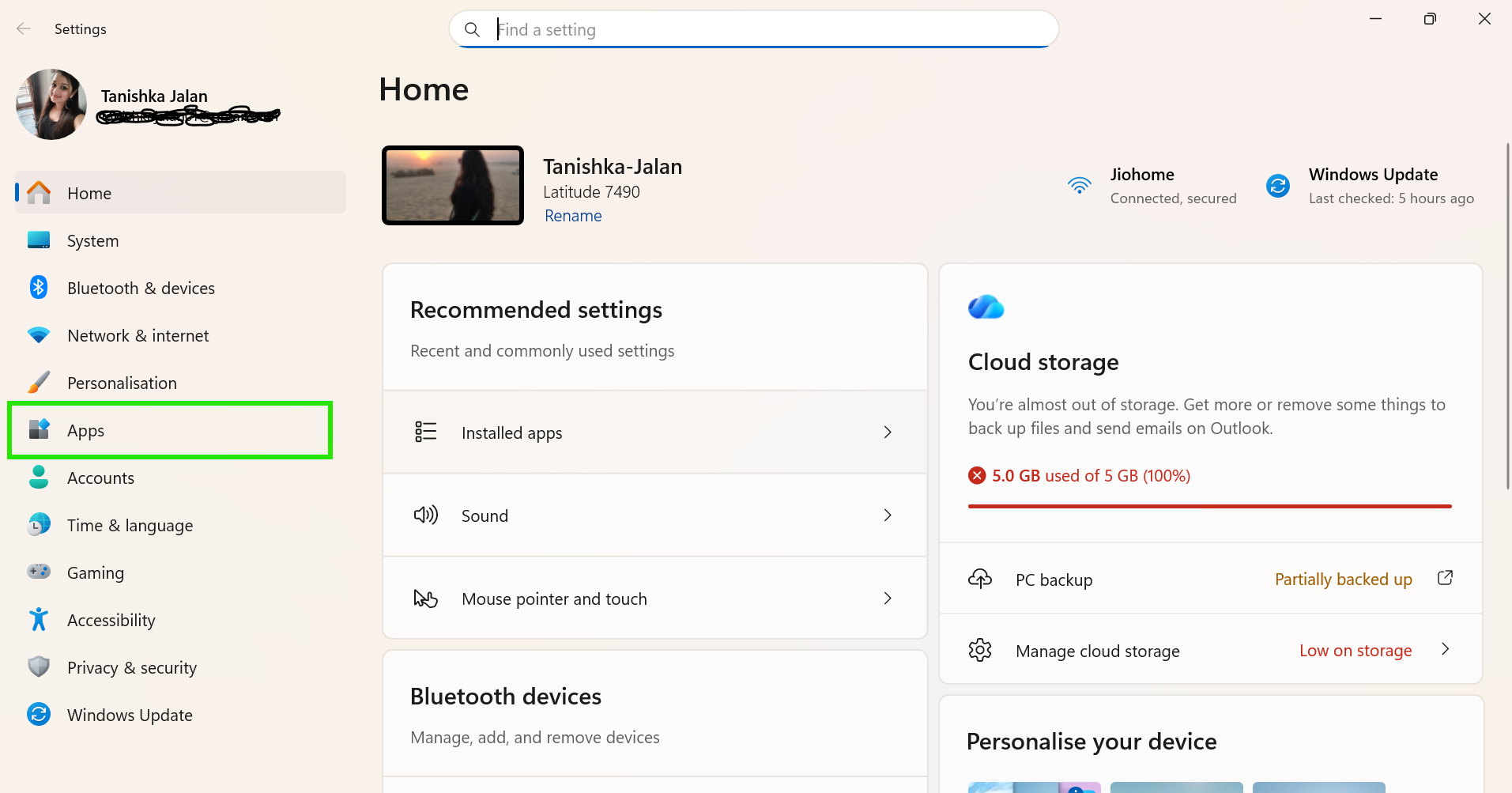
2. Go to Apps > Installed apps.
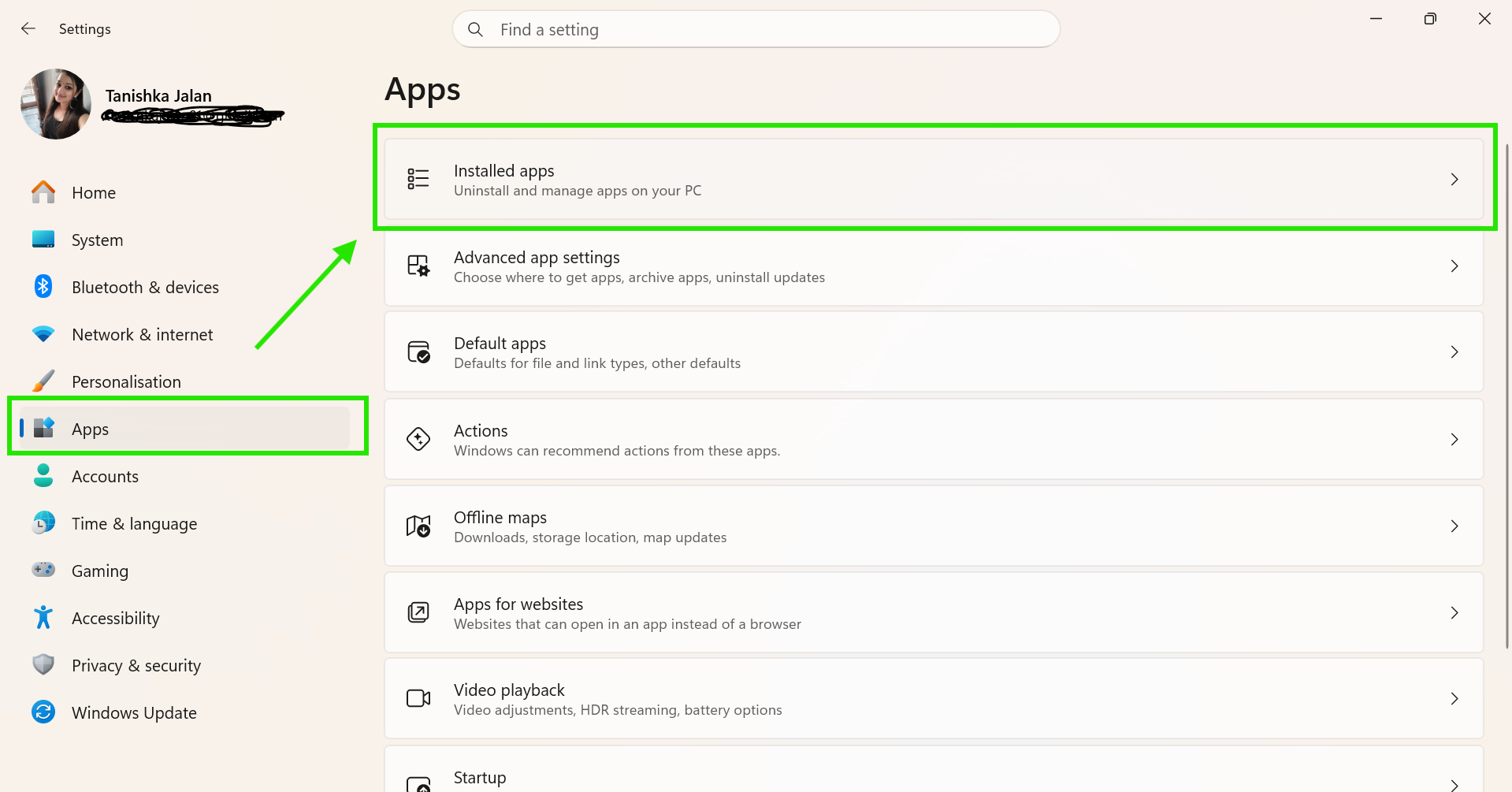
3. Find the suspected app.
4. Click the three-dot menu and select Uninstall.
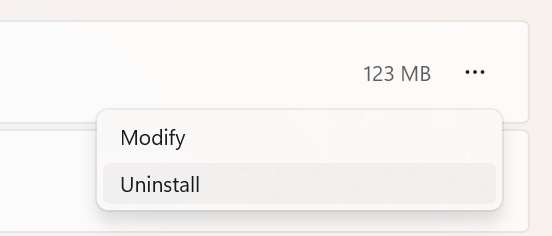
5. Restart your PC and test the context menu.
If you still have the issue or can’t locate the culprit app, perform clean boot as mentioned in Fix 3 next.
Fix 3: Perform A Clean Boot
If you cannot identify the cause, use a clean boot to isolate the faulty service. Here is how you can do it:
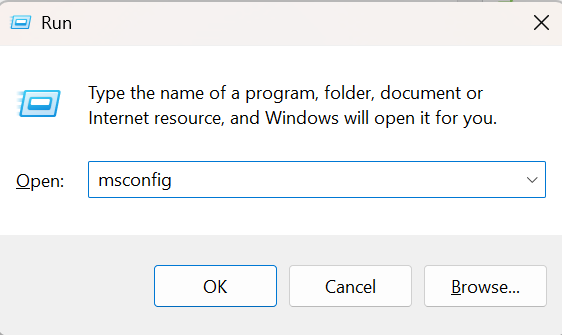
1. Press Windows + R, type msconfig, and press Enter.
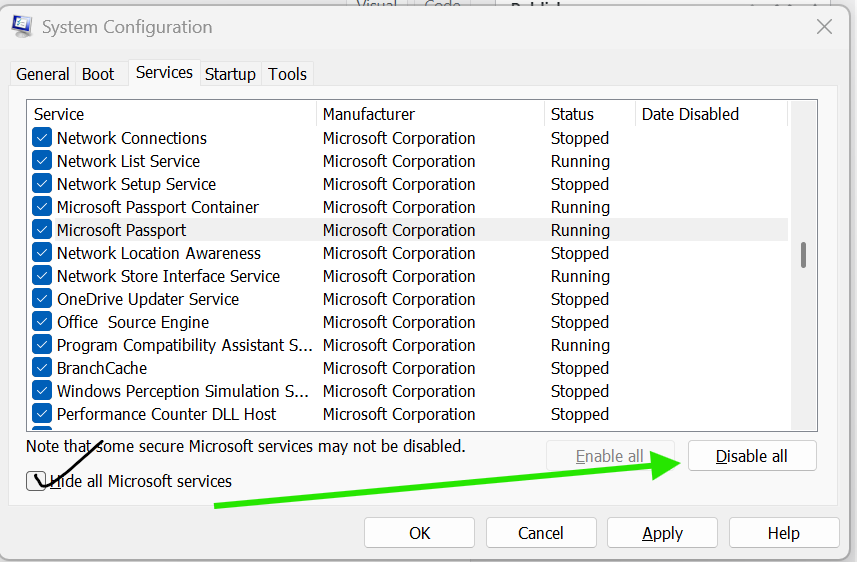
2. Open the Services tab.
3. Enable Hide all Microsoft services.
4. Click Disable all.
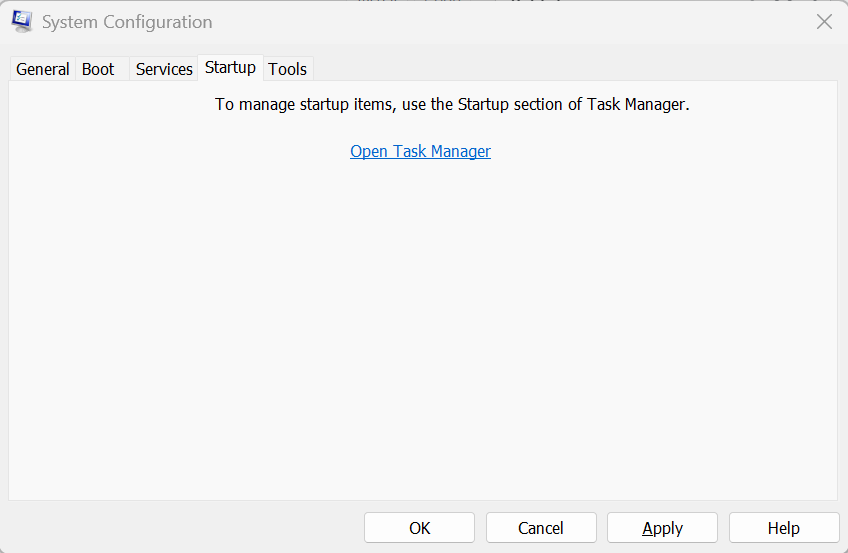
5. Open Task Manager from the Startup tab and disable startup apps.
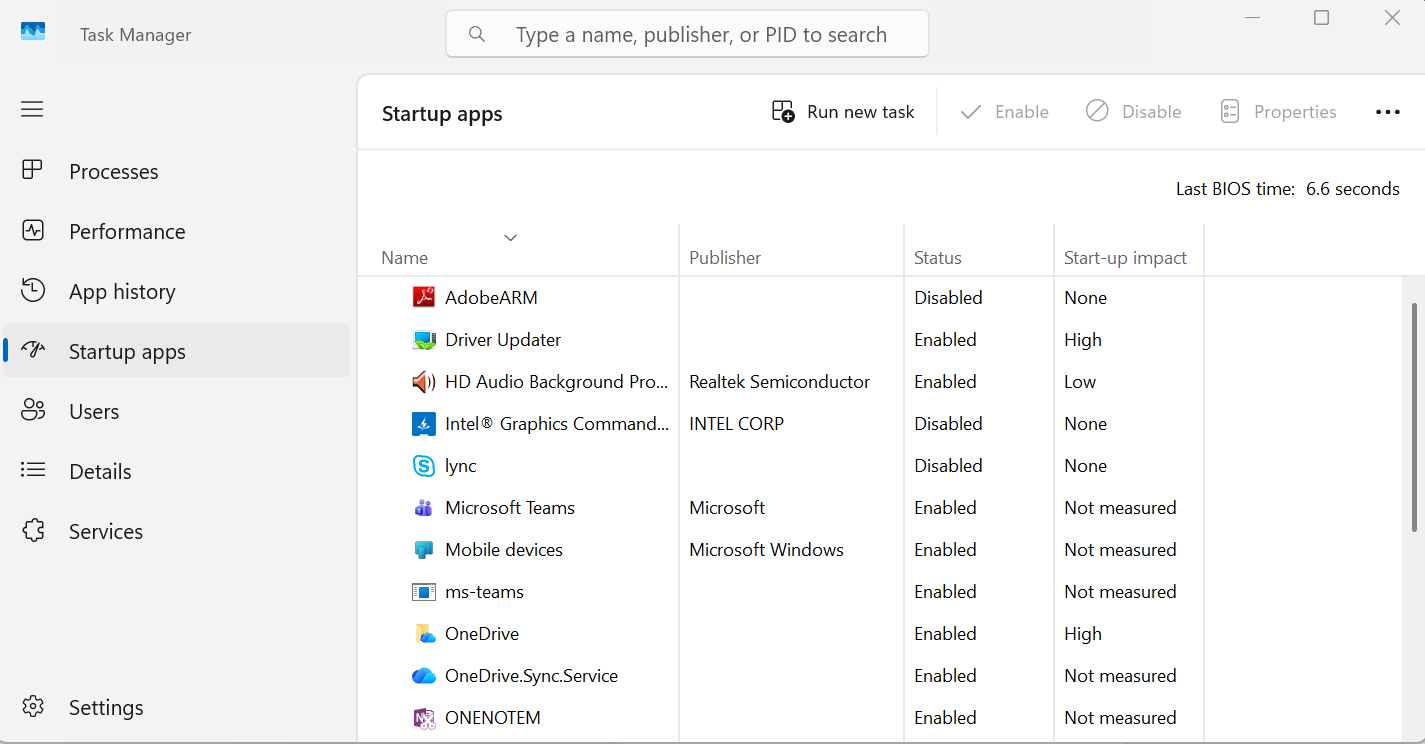
6. Restart the PC and test the right-click menu.
Fix 4: Install Windows Updates
1. Open Settings > Windows Update and install all available updates, including optional driver updates.
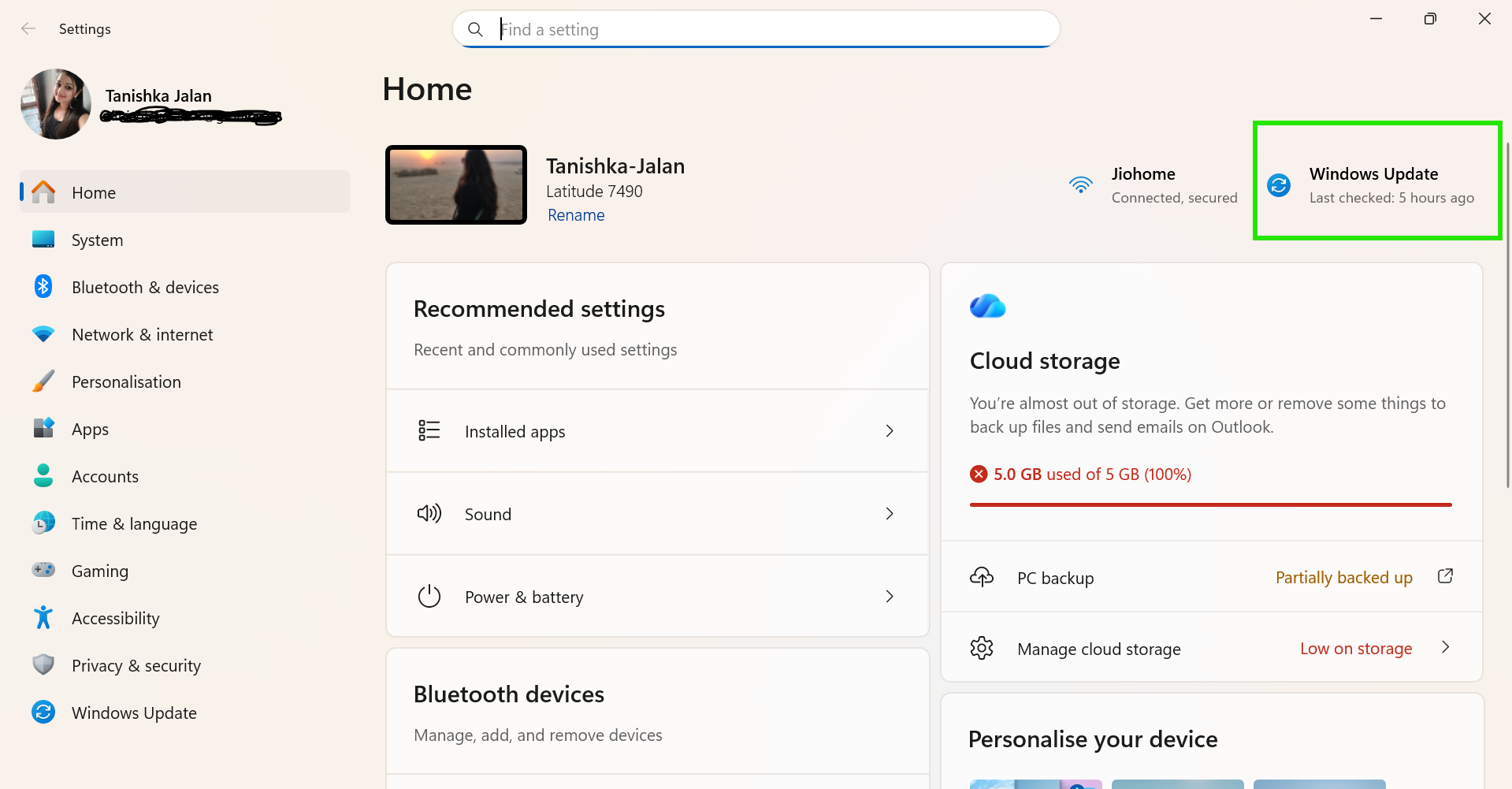
2. Restart the PC afterwards.
So that’s how you fix it. And make sure to keep Windows updated and limit unnecessary right-click integrations. As it can help prevent this issue in the future.